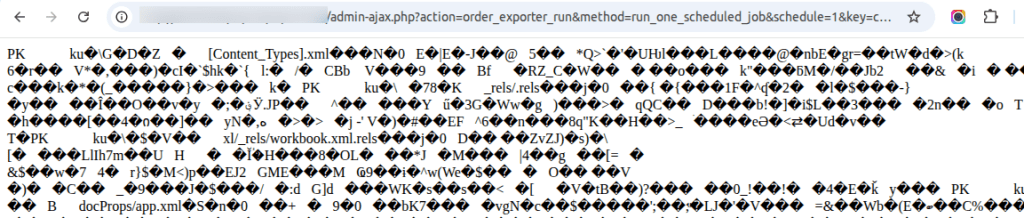
Download exported file via url
To use in N8N/Make/other automation services
You need Pro version for following steps!
Visit >WooCommerce>Export Orders>Scheduled Jobs
- Create new job – fill title, mark “HTTP POST” and press “Save&Exit” (at bottom)
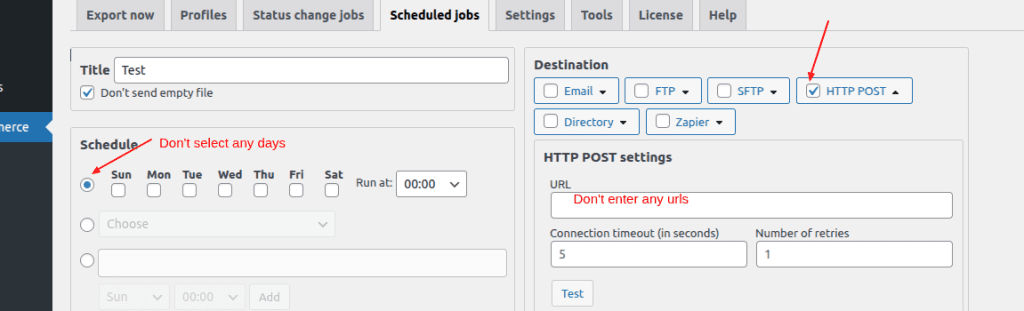
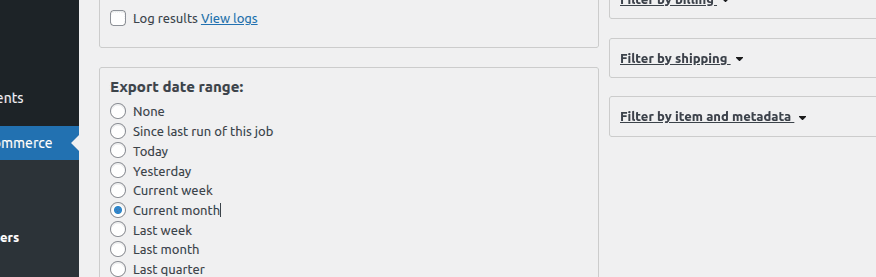
2. Edit this job again, set necessary filters, define format, setup fields . You must setup “Export Range” too!
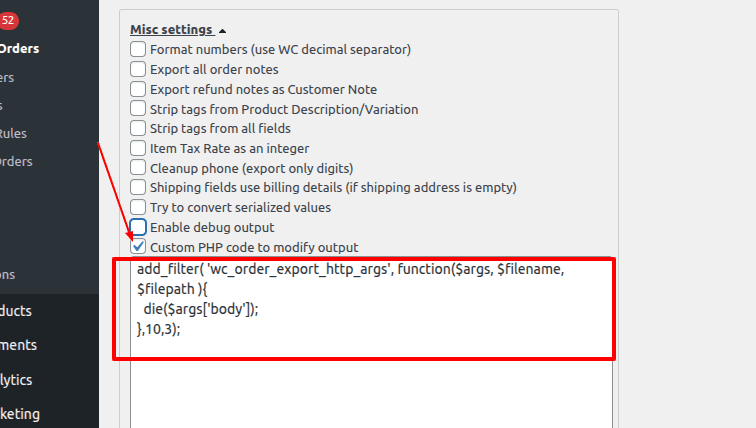
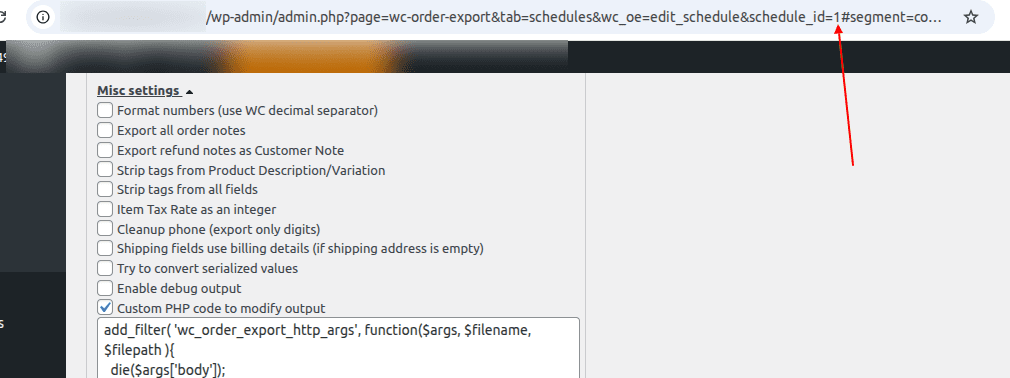
3. Scroll to bottom, open section “Misc Settings” and add following code
add_filter( 'wc_order_export_http_args', function($args, $filename, $filepath ){
  die($args['body']);
},10,3);
You should get
Press “Save Settings” (at bottom of page)
4. Look at browser’s url and remember schedule_id
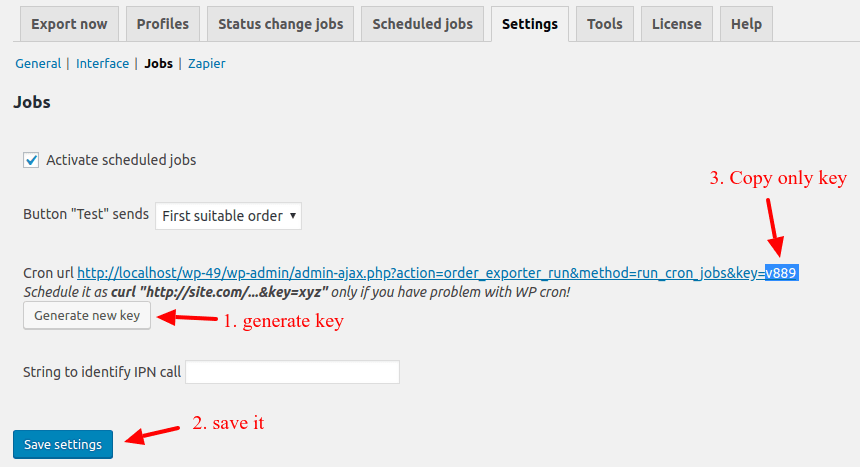
5. You should open tab “Settings” , open “Jobs” , click “Generate new key” , click “Save” and copy key only
6. Construct necessary url using this template
https://{site.com}/wp-admin/admin-ajax.php?action=order_exporter_run&method=run_one_scheduled_job&schedule={job_id}&key={key}
Replace
{site.com} with your website url
{job_id} – you get this ID at step #4
{key} – you get this key at step #5
Final result must looks like
https://test.com/wp-admin/admin-ajax.php?action=order_exporter_run&method=run_one_scheduled_job&schedule=2&key=xyza
8. Open url in browser. In this example – raw Excel file (.xlsx) printed in browser