Failed Exports
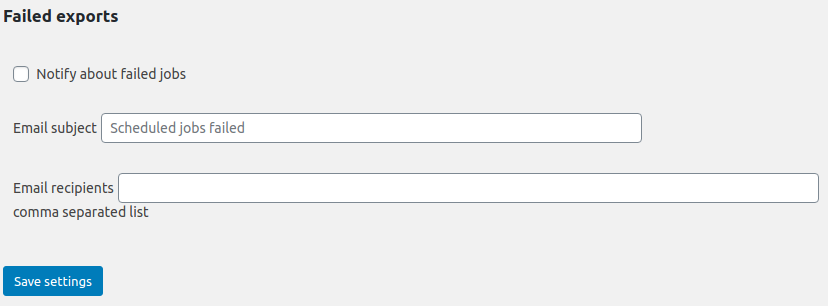
A reliable export process is the backbone of data-driven decision-making. To help you maintain this reliability, the Advanced Order Export for WooCommerce plugin includes a dedicated Failed Exports feature. Think of it as your early warning system—a proactive tool that alerts you the moment an automated export job fails, allowing you to resolve issues before they impact your operations.
What Is the Failed Exports Feature?
The Failed Exports feature is an email notification system built into the Pro version of the plugin. Its purpose is simple: whenever a scheduled export job fails to complete successfully, the plugin sends an email alert to a specified email address. This allows store owners, developers, or operations managers to be notified in real-time, enabling a swift response to any underlying technical issues.
Key Capabilities:
- Instant Alerts: Immediate notification when a scheduled job (or a status-change job) fails.
- Centralized Logging: All export-related issues are recorded and can be reviewed in the standard WooCommerce logs.
- Targeted Troubleshooting: Alerts allow the team to focus on the exact export jobs that are encountering problems.
Accessing the Failed Exports Settings
The configuration for these alerts is located within the plugin’s global Settings area, not within individual export profiles.
Step-by-Step Guide:
- From your WordPress admin dashboard, navigate to WooCommerce → Export Orders.
- Click on the Settings tab.
- Within the Settings page, locate and click on the Failed Exports sub-tab.
Configuring Email Alerts for Failed Jobs
The setup process is straightforward and requires only a few details.
Step-by-Step Configuration:
- Set the Recipient Email Address: In the designated field, enter the email address where the failure notifications should be sent.
- (Optional) Set a Subject Line: Customize the subject line for the alert emails to help filter and organize them (e.g.,
[Store Name Alert] – Export Job Failed). - Save Your Settings: Click the Save settings button to activate the feature.
Pro Tip: It’s a best practice to send alerts to a dedicated email address or a distribution list (e.g.,
[email protected]) to ensure that the right people are notified.
Viewing and Using Export Logs
When an export fails, the email alert is your first line of defense. For an in-depth investigation, the plugin also maintains detailed logs of every export job (successful and failed).
Step-by-Step Guide to Accessing Logs:
- Navigate to WooCommerce → Status.
- Click on the Logs tab.
- In the dropdown menu on the right, look for logs prefixed with
woocommerce-order-export-. - Select the relevant log file and click View.
These logs contain the raw output and any error messages from the export process. For scheduled jobs, there is an even more direct way to enable logging.
Enabling Logs for a Scheduled Job
To trace the exact sequence of a scheduled job, you can enable detailed logging directly on the job itself.
- Go to the Scheduled Jobs tab.
- Click on the job you want to monitor.
- Inside the Schedule block, find and mark the
Log resultscheckbox. - Save the job.
Once the job runs again, you can view its specific log by returning to the job’s edit screen and clicking View Logs next to the checkbox.
Advanced Order Export Troubleshooting: When a Job Fails
Receiving a failure alert is the starting point for a structured troubleshooting process. Below is a checklist of the most common causes and solutions for failed exports.
1. Server Resource Limits (Memory or Timeout)
Symptom: Exports mysteriously stop or produce an error 500 without a clear PHP error.
Solution:
- Increase PHP Memory: Add
define('WP_MEMORY_LIMIT', '512M');to yourwp-config.phpfile. - Increase Execution Time: Set a higher value or
0(unlimited) for the Max execution time setting on the Settings → General tab. - Reduce Batch Count: Lower the Export batch count on the Settings → General tab to reduce the memory load per request.
2. Cron Job Issues (Scheduled Jobs)
Symptom: Scheduled jobs run late, sporadically, or not at all.
Solution:
- Replace WP-Cron with a Real Cron Job: WordPress cron is triggered by site traffic. For a reliable schedule, you should replace it with a server-level cron job. Follow the guide on replacing WordPress cron with a real cron job.
- Check the Schedule Logic: If you use the “Since Last Run” option and orders are being missed, switch the Filter orders by setting to Modification Date to ensure timestamps are recorded accurately.
3. Data or Filter Conflicts
Symptom: An export runs but contains no data, or specific products/orders are unexpectedly missing.
Solution:
- Review Filters: Open the export profile and verify the Date range, Order status, and Product filters include the expected data.
- Check “Skip Fully Refunded Items”: If this option is enabled in the Filter by Products section and your orders are fully refunded, they will be excluded.
- Run a Test: Narrow your date range to a known period with orders and run a test export manually from the Export Now tab.
4. Destination Errors
Symptom: The plugin generates the file, but delivery to Email, FTP, or HTTP POST fails.
Solution:
- For Email: Ensure you have an SMTP plugin configured for reliable email delivery. Avoid using the default WordPress mail function.
- For FTP: Verify the connection settings (Server, Username, Password, Port) and be sure to enable Passive Mode in the FTP settings block, as this resolves the majority of connection issues.
- For HTTP POST: Use a service like RequestBin.com to verify the payload is being sent correctly. Check any authentication requirements (API keys, headers)