Make a CSV export with Advanced Order Export for WooCommerce. Before we dive into the technical details, let me explain why CSV is often the right choice. Unlike XLS or XLSX, CSV is a plain‑text format. This means it’s lightweight, machine‑readable, and version‑control friendly. CSV files can be opened in anything from Notepad to Python’s pandas library. For sending order data to an ERP, a dropshipping supplier, or a custom script that processes thousands of orders overnight, CSV is hard to beat.
Of course, this simplicity comes with nuances, particularly around character encoding and formatting quirks. The settings in this guide are designed to help you overcome those nuances, ensuring that your data arrives intact no matter what system opens it.
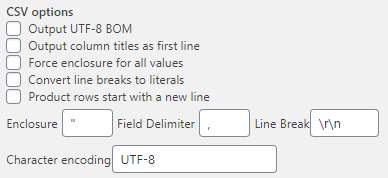
Let’s consider all the CSV options more detailed.
Output UTF-8 BOM (Byte Order Mark)
What it does: This adds a special marker (EF BB BF) at the very beginning of your CSV file to indicate that the file is encoded in UTF-8.
Your export contains international characters (accents, non‑Latin scripts).
Recipients will open the file using Microsoft Excel on Windows.
You are sending data to a system that explicitly requires UTF‑8 with BOM.
When to disable it:
Your data consists purely of ASCII characters (basic Latin letters, numbers, punctuation).
The receiving system rejects files containing a BOM (some older UNIX tools).
You are importing the CSV into a database or script that assumes raw UTF‑8.
Recommendation: For most international stores, we recommend enabling this option. The benefits of flawless character display in Excel far outweigh the rare compatibility issues.
Output Column Titles as First Line
What it does: When enabled, the first row of your CSV file will contain the column headers (e.g., Order ID, Product SKU, Total). When disabled, the export will contain raw data only, with no header row.
Why it matters: Human‑readable headers are essential for anyone opening the file in a spreadsheet. They also serve as a reference for automated systems that import CSV data. Without headers, the receiving system must rely on a fixed column order, which is fragile and error‑prone.
When to enable it:
Humans will review the export in Excel, Google Sheets, or similar tools.
The receiving system uses the first row to map columns (e.g., a custom import script).
You want to share the file with team members who need context.
When to disable it:
You are feeding the CSV into a system that expects data to start immediately.
You are appending new data to an existing CSV that already has headers.
Note: If you plan to schedule exports and automatically upload them to an FTP server for further processing, keeping the headers enabled is almost always the right choice. It ensures that each file is self‑describing.
Force Enclosure for All Values
What it does: By default, PHP’s CSV generator adds enclosing characters (like double quotes) only when a field contains a delimiter, space, or special character. For example, a field containing Apple Pie would be exported as "Apple Pie", while Apple would appear as Apple without quotes. Enabling this option forces every field to be enclosed.
Why it matters: Some legacy systems or strict data processing pipelines expect every field to be consistently enclosed, regardless of content. The original documentation explains that this option turns a string like 2020, "Order ID", "Full Name" into "2020", "Order ID", "Full Name", "alias5".
When to enable it:
The receiving system dies on unquoted fields.
You want to ensure that leading/trailing spaces are preserved exactly.
You are generating data for a system that validates every field.
When to disable it:
You are reading the CSV into a modern spreadsheet or database, which handles mixed enclosure gracefully.
You want to minimise file size (enclosure adds two extra characters per field).
Best practice: Start with this option disabled. Only enable it if you encounter a specific downstream requirement.
Convert Line Breaks to Literals
What it does: Line breaks inside order notes, customer addresses, or product descriptions are converted to literal representations (e.g., \n or \r\n) rather than being retained as actual newlines within the CSV cell. Without this, a multi‑line address field can break the row structure of your CSV file.
Why it matters: CSV as a format does not natively support multi‑line fields. While many modern tools can handle them if fields are enclosed, line breaks still confuse some parsers. By converting them to literals, you ensure that each order remains on a single row.
When to enable it:
You are exporting fields that commonly contain line breaks (e.g., Customer Note, Billing Address, Shipping Address).
You are feeding the CSV into a system that expects exactly one row per order/item.
You want to avoid structural corruption during import.
When to disable it:
You need to preserve the original formatting of multi‑line text.
Recommendation: Unless you have a specific need to preserve line breaks, enable this option. It’s a safety net that prevents a single stray newline from breaking your entire export.
Product Rows Start with a New Line
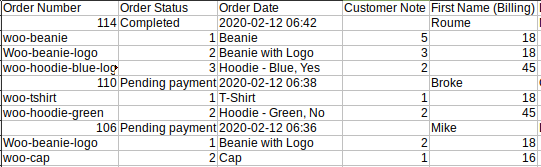
What it does: When enabled, the plugin inserts an extra blank line before each product row within an order. This visually groups products belonging to the same order.
Why it matters: This is purely a human‑readability feature. It has no effect on data integrity. For example, if an order contains three products, the CSV will be structured as:
A person will be reading the raw CSV in a text editor or less sophisticated spreadsheet.
You want a quick visual separation between orders in a multi‑item export.
When to disable it:
The file is being processed by an automated system (blank lines will likely cause errors).
You are importing the CSV into a database or reporting tool.
Note: This setting only has an effect when you are exporting at the line‑item level (multiple rows per order). For order‑level exports (one row per order), it does nothing.
Enclosure Character
What it does: Defines the character used to enclose fields (typically double quotes "). You can change it to a different character, such as a single quote '.
Why it matters: Some systems (particularly in Europe) prefer single quotes as the enclosure character. The plugin defaults to double quotes because it’s the most widely supported.
When to change it:
Your receiving system explicitly requires single quotes.
Double quotes conflict with your data.
You are integrating with a legacy application that expects a specific enclosure.
Default value:" (double quote)
Field Delimiter
What it does: Sets the character that separates individual fields (columns) within a row. The default is a comma ,.
Why it matters: This setting is crucial for international compatibility. Excel in some regions (e.g., Germany, France, Hungary) uses a semicolon ; as the default list separator because the comma is used as a decimal point.
When to change it:
Your users are in a locale where semicolon is the expected delimiter.
You need to use a pipe |, tab \t, or another character to avoid conflicts with data containing commas.
The receiving system requires a non‑standard delimiter.
Common values:
, – Comma (default)
; – Semicolon (Excel in many European locales)
\t – Tab (for “TSV” format)
| – Pipe (useful when data contains commas and semicolons)
Example: If you export product "Blue, Red, Green" with a comma delimiter, the field will be split across multiple columns. Switching to a semicolon or pipe keeps the field intact.
Line Break Character
What it does: Specifies the character(s) used to mark the end of a row. The default is the system standard (LF on UNIX/Linux, CRLF on Windows). You can override it if needed.
Why it matters: While modern applications handle both line endings gracefully, some strict parsers expect a specific sequence.
When to change it:
You are generating CSV for a UNIX server that expects LF (\n).
You are generating CSV for a legacy Windows application that expects CRLF (\r\n).
The receiving system rejects files with the default line endings.
What you can enter: You can type literal characters like \r\n or \n directly into the field. The plugin will interpret the escape sequences correctly.
Character Encoding
What it does: Allows you to override the default character encoding of the exported file. The plugin uses UTF-8 by default.
Why it matters: While UTF-8 is the modern standard, some older systems still expect ISO-8859-1 (Latin‑1) or Windows‑1252 encoding.
When to change it:
The receiving system explicitly requires a non‑UTF-8 encoding.
You are integrating with a legacy application that cannot handle UTF-8.
Recommendation:Stick with UTF-8. It’s the default for a reason. Combined with the Output UTF-8 BOM option, it offers the broadest compatibility for modern systems.
CSV and Large Exports: Performance Considerations
When you export tens of thousands of orders, the performance of CSV generation matters. I’ve optimised the plugin’s CSV writer to be efficient, but here are a few tips to keep your exports running smoothly:
Use the progress bar export. The standard Export button with the progress bar is optimised for large datasets. It paginates order processing to prevent memory exhaustion.
Avoid “Force Enclosure for All Values” on huge files. Enclosing every field adds about two extra bytes per field. Across a million fields, that’s a noticeable file size increase.
Schedule large exports during off‑peak hours. Use the Scheduling feature to run heavy CSV exports at night, spreading the server load.
Have questions?
Please submit a support request. We're always happy to help!