Issues about the service “Zapier”
This guide is part of our Advanced Order Export Troubleshooting series. Here, we focus on solving the most common issues related to the Zapier integration in the Advanced Order Export for WooCommerce plugin.
The Zapier connection is a powerful feature, acting as a bridge between your store and thousands of external apps like Google Sheets, CRMs, and email marketing platforms. However, a few common pitfalls can prevent your data from reaching its destination. This guide will walk you through each one.
Prerequisites: A Quick “Housekeeping” Check
Before diving into complex debugging, run through this checklist. Many apparent “Zapier issues” are actually caused by server or configuration problems:
- Confirm the Export Profile Works: Run a test export manually from the Export Now tab. Does it generate a file? If the manual export fails, the issue is in your profile settings, not Zapier.
- Check Your Server Logs: Navigate to WooCommerce → Status → Logs. Look for any recent fatal errors (
woocommerce-order-export-...) which can point to timeout or PHP memory issues. - Avoid Huge Datasets: The Zapier endpoint relies on your server’s HTTP response time. If you are trying to push thousands of orders at once, your server may time out. Split large exports into smaller date ranges or send them via a scheduled job (which processes batches) instead of a manual Zapier action.
Advanced Order Export Troubleshooting: The Zapier Connection
This section addresses the specific errors and roadblocks that pop up when connecting the plugin to Zapier or when a Zap fails to trigger.
Note: You can see how to set up integration with the Zapier service here.
1. How to Get Your Zapier API Key
Your first step is to generate an API key inside the plugin so Zapier can authenticate with your site. The process is straightforward:
- In your WordPress admin, go to Woocommerce → Export Orders.
- Switch to the Settings tab, then click on the Zapier sub-tab.
- Click the Generate new key button. A random string of characters will appear in the field.
- Click Save Settings to store the key.
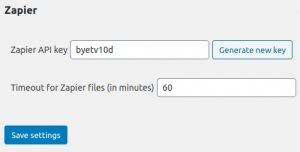
You will need this string to connect your website to Zapier during the Zap setup. Treat this key like a password; keep it secure and do not share it publicly.
2. API Key Works, But Test Pulls No Data
A successful test pull in Zapier returns a green success message but shows the wrong data (or none at all). This usually indicates a mismatch in the export job.
- Check the Export Profile: In the Zapier trigger step, ensure you have selected the correct export job from the dropdown list. If you created a new profile, you must re-select it in Zapier.
- Verify the “Multiple Entries” Setting: In your export job’s Output block (Zapier tab), ensure the parameter “As multiple entries (repeated for each item)” is checked. This forces the feed to send order data as separate line items, which Zapier can handle easily.
- Empty Profile: Confirm that the export profile you selected in the Zapier app actually has data. If the date range or filters return zero orders, the test will output nothing. Run a “Test” on the profile first.
3. Authentication Error: Pop-up Fails to Connect (401/403)
If the Zapier pop-up window refuses to accept your API key or hangs during authentication, the issue is often on your WordPress server side:
- Re-Generate the Key: Go back to your Settings → Zapier tab. Generate a new key, save it, and try the connection process again with this fresh key.
- Check for 2FA Conflicts: Just like an external script, Zapier cannot complete a two-factor authentication (2FA) prompt. If the admin user you are using for the connection has 2FA required, you must either use a “Application Password” (if your security plugin supports it) or temporarily create a secondary administrator account without 2FA to handle the Zapier integration.
- Permalinks and REST API: The Zapier integration relies on the WordPress REST API (
/wp-json/). Go to Settings → Permalinks and re-save your structure (even if you don’t change it) to flush the rewrite rules. This often resolves 404 or 401 errors.
4. Data Shows Up, But Formatting Is Broken (JSON/Webhook Pain)
Sometimes the data arrives in Zapier, but it is a single unreadable string or contains the entire HTML of your page. This is a sign that the response payload is breaking.
- Switch to JSON: In your export profile’s Output block, try changing the Format to JSON. JSON is the native language of webhooks and is much easier for Zapier to parse.
- Enable Debug Output: In the export profile’s Misc Settings, check “Enable debug output”. This will print the raw export data to your browser. If you see PHP warnings or stray characters before the
{bracket, you have a conflict with another plugin or theme that is corrupting the response.
General Debugging Checklist
If the previous steps haven’t solved the problem, run through this comprehensive checklist:
- Check Zapier’s Task History: In your Zapier account, navigate to Task History. It will show you exactly why a Zap failed (e.g., “Invalid Input”, “Timeout”, “Error 500”). This is your single most valuable debugging resource.
- Inspect the Webhook URL: If you are using a custom webhook action in Zapier, ensure the URL is exactly correct. Watch out for hidden spaces or line breaks at the end of the URL.
- Review the Website URL Format: When linking your account in Zapier, ensure you are using the correct site address format (including
https://). A trailing slash can sometimes cause issues. Use the exact format shown in your WordPress Settings → General. - Check for Security Plugins: Aggressive security plugins (like Wordfence, Sucuri, Cloudflare) can block the Zapier IP ranges or ask for CAPTCHA verification on API routes. Try temporarily disabling these plugins briefly to see if the connection succeeds.
- Test with a Minimal Profile: Create a brand new, very simple export profile containing only one or two fields (e.g., “Order ID” only). If that connects but your complex profile doesn’t, the issue is likely a corrupted field selection or a specific custom field causing a PHP error.
- Confirm the License Status (Pro): If you are using the Advanced Order Export Pro plugin, ensure your license key is active under the License tab. An expired or inactive license can restrict Zapier access.