General
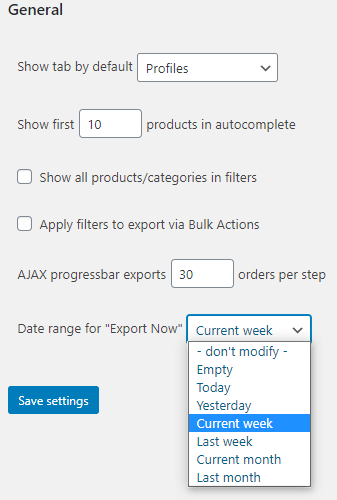
The Advanced Order Export for WooCommerce plugin provides a comprehensive set of global configuration options that determine how the plugin behaves across all export jobs. These Advanced Order Export General Settings control everything from performance parameters to user interface behaviour and bulk action integration. Understanding these settings is essential for optimising the plugin’s performance and tailoring it to specific workflow requirements.
This guide covers every available option in the General Settings tab, explains when and why to adjust each one, and provides practical recommendations for different store configurations.
Accessing the Advanced Order Export General Settings
The General Settings are located in the plugin’s main configuration area, separate from individual export profile settings.
Step-by-step access:
- Navigate to WooCommerce → Export Orders in the WordPress admin sidebar.
- Click on the Settings tab.
- The General sub-tab is displayed by default, showing all available global options.
All changes made in this section affect the plugin globally and persist across different export profiles.
Complete General Settings Reference
The following settings provide global control over the plugin’s behaviour, from performance tuning to interface customisation.
Show First Products in Autocomplete

What it does: Controls how many product suggestions appear in the autocomplete dropdown when filtering by products in the Filter by Product section. This setting determines the maximum number of product values displayed in the “Products” field of the product filter. [0†L3-L5]
Why it matters: Stores with large product catalogues (thousands of products) may experience slow interface performance if the autocomplete attempts to load every product at once. Limiting the number of displayed products keeps the filter interface responsive while still providing sufficient selection options.
When to adjust it:
- Lower the value (e.g., 20-50) if the store has thousands of products and the filter dropdown loads slowly.
- Increase the value (e.g., 200-500) if the store has a small catalogue and needs to see more products without typing additional search terms.
- Keep the default (typically 100) for most store configurations.
Performance impact: Lower values reduce database queries and improve page load time for the Export Orders interface.
AJAX Progressbar – Orders per Export Request (Batch Count)

What it does: Adjusts the number of orders processed in each batch when using the standard Export button with the progress bar. The plugin splits large exports into smaller chunks to prevent server timeouts and memory exhaustion. [0†L5-L7]
Why it matters: This is one of the most important performance settings for stores with high order volumes. Exporting too many orders in a single batch can cause PHP memory limit errors or execution timeouts. Exporting too few orders increases the number of AJAX requests, which may slow down the overall export process.
When to adjust it:
- Decrease the batch size (e.g., 20-50) if exports frequently time out or produce blank pages.
- Increase the batch size (e.g., 200-500) if the server has ample resources (high memory limit, fast database) and the goal is to complete exports faster.
- Start with the default (typically around 50-100) and monitor export performance.
How to find the optimal batch size:
- For shared hosting environments: start with 20-30 orders per batch.
- For VPS or dedicated servers: start with 50-100 orders per batch.
- For high-end dedicated servers with PHP memory limit above 512M: 200-500 orders per batch may be safe.
Advanced Order Export General Settings recommendation: When encountering “500 Internal Server Error” or blank page responses during export, reduce this value by half and test again.
Default Date Range for Export Now Tab

What it does: Sets the default date range that appears in the Date range block when the Export Now tab is opened. Available options include common presets such as “Last month”, “Last 7 days”, “Last 24 hours”, and other standard periods. [0†L7-L11]
Why it matters: This setting reduces repetitive configuration work when performing frequent manual exports. Instead of selecting the same date range repeatedly, the plugin remembers the preferred default period. The date range value can still be overridden manually for any individual export.
How to configure it:
- Select the desired value from the dropdown list.
- Click Save settings.
- Navigate to the Export Now tab and open the Date range block to verify the new default.
Practical examples:
- Daily reporting stores: Set the default to “Last 24 hours” for quick daily exports.
- Monthly reporting stores: Set the default to “Last month” for consistent monthly summaries.
- Ad-hoc export stores: Keep the default as a custom date range or “Last 7 days”.
Note: This setting only affects the initial display of the Export Now tab. It does not affect scheduled jobs, which have their own independent date range settings.
Show All Products and Categories in Filters
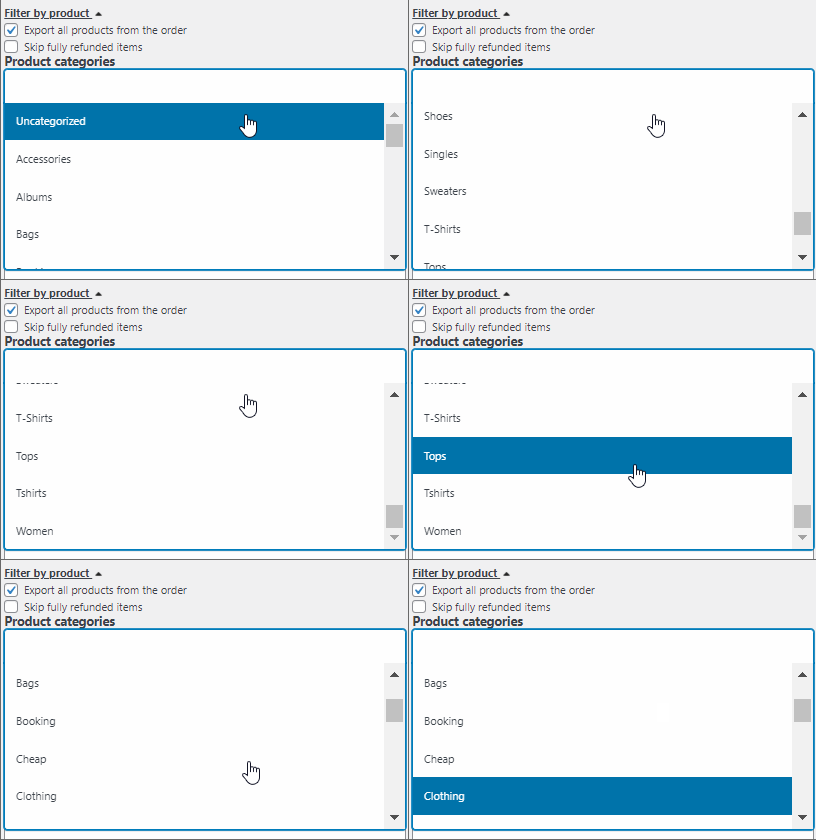
What it does: When this checkbox is marked, the plugin displays the complete list of all products and product categories in the Filter by Product section. When unchecked, the filter fields may rely on autocomplete or search functionality. [0†L11-L12]
Why it matters: Displaying all products and categories simultaneously can significantly impact page load time for stores with large product catalogues. This setting trades interface convenience for performance.
When to enable it:
- The store has fewer than 500 products.
- The marketing team needs to see all categories at a glance without typing search terms.
- The server has high available memory.
When to disable it (recommended for large stores):
- The store has thousands of products.
- Page load time for the Export Orders interface is noticeably slow.
- Users are comfortable using the autocomplete search instead of scrolling through long lists.
Apply Filters to Export via Bulk Action
What it does: When this checkbox is marked, the plugin applies all existing export profile filters (date range, order status, product filters, etc.) to orders exported using the Bulk Actions dropdown on the WooCommerce → Orders page. When unmarked, bulk action exports ignore the profile filters and export the selected orders as-is. [0†L12-L14]
Why it matters: This setting determines whether bulk action exports respect the filtering rules defined in the current export profile. It provides flexibility for different export scenarios.
When to enable it:
- Consistent filter application across all export methods is required.
- The export profile contains important filters (e.g., exclude refunded orders, only completed orders) that should never be bypassed.
- The team uses bulk actions as the primary export method.
When to disable it:
- Bulk action exports should export exactly the selected orders without any additional filtering.
- Different team members use bulk actions for ad-hoc exports that should not be restricted by profile filters.
Behaviour examples:
| Setting | Bulk Action Export Behaviour |
|---|---|
| Enabled | The plugin applies profile filters to selected orders. If an order does not match the filters (e.g., wrong status), it is excluded from the export. |
| Disabled | The plugin exports exactly the selected orders regardless of profile filters. Every checked order appears in the export file. |
Advanced Order Export Troubleshooting: General Settings
The General Settings often hold the key to resolving common export issues. Below is a structured troubleshooting guide.
Export Timeout or Blank Page
Symptom: Clicking Export results in a blank white page, “500 Internal Server Error”, or the browser shows “Connection Reset”.
Troubleshooting steps:
- Reduce the batch count – Lower the AJAX progressbar – orders per export request value incrementally (e.g., from 100 to 50, then to 25).
- Increase PHP memory limit – Add
define('WP_MEMORY_LIMIT', '512M');to thewp-config.phpfile. - Increase PHP execution time – Set a higher value for Max execution time on the Settings → General tab (e.g., 300 seconds or 0 for unlimited).
- Test with a narrow date range – Temporarily reduce the export scope to isolate the issue.
Filter Dropdown Loads Very Slowly
Symptom: The Filter by Product section takes several seconds to load or causes the browser to become unresponsive.
Troubleshooting steps:
- Disable “Show all products and categories in filters” – This forces the filter fields to use autocomplete instead of loading the entire catalogue.
- Reduce “Show first products in autocomplete” – Lower this value to 20 or 30 to minimise database queries.
- Consider server upgrade – Very large catalogues (5000+ products) may require better hosting resources.
Bulk Action Exports Are Missing Expected Orders
Symptom: Orders selected via bulk actions are missing from the export file, even though they appear in the export preview.
Troubleshooting step:
Check the “Apply filters to export via bulk action” setting. If enabled, the plugin excludes any selected order that does not match the profile filters. Disable this setting to export all selected orders regardless of filters.
Best Practices for Advanced Order Export General Settings
- Start with defaults and adjust incrementally. The plugin’s default settings are optimised for most store configurations. Change one setting at a time and test the impact before making additional adjustments.
- Match the date range default to the most frequent export pattern. If weekly reports are the primary use case, set the default to “Last 7 days”. If monthly summaries are more common, “Last month” is more appropriate.
- Disable “Show all products and categories” for large catalogues. This single setting can dramatically improve page load time for stores with hundreds or thousands of products.
- Use bulk action filter application intentionally. Understand whether the filters should protect the export (enabled) or allow unrestricted ad-hoc exports (disabled). The wrong setting can lead to incomplete exports or compliance issues.
- Monitor performance after changing the batch count. Increase the batch count gradually and test with the largest expected export volume. If timeouts occur, reduce the value and consider upgrading hosting resources.
Summary
| Setting | Purpose | Recommendation |
|---|---|---|
| Show first products in autocomplete | Limits product suggestions in filter dropdown | Lower for large catalogues (20-50), keep default for small stores |
| AJAX progressbar orders per request | Controls batch size for progress bar exports | Start at 50-100; reduce if timeouts occur |
| Default date range for Export Now | Sets the initial date range on the Export Now tab | Match the most frequent export pattern (Last 24 hours, Last 7 days, Last month) |
| Show all products and categories in filters | Displays full product lists in filter sections | Disable for catalogues with 500+ products |
| Apply filters to export via bulk action | Controls whether bulk actions respect profile filters | Enable for consistent filtering; disable for unrestricted ad-hoc exports |