HTML
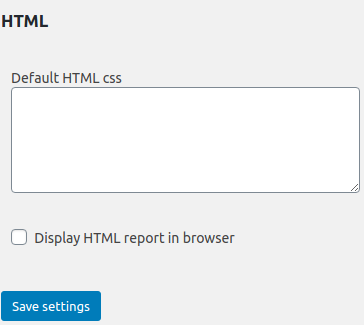
The Advanced Order Export for WooCommerce plugin includes a dedicated HTML Settings panel that controls how HTML‑formatted reports look, behave, and are delivered. While individual export profiles contain their own Custom CSS field for report‑specific styling, the global Advanced Order Export HTML Settings serve two essential purposes: establishing a consistent default CSS template for all new HTML exports, and controlling whether reports are displayed directly in the browser or downloaded as files.
This guide covers every option in the HTML Settings tab, explains when and why to adjust each one, and provides practical CSS examples for achieving professional, brand‑consistent reports.
Accessing the Advanced Order Export HTML Settings
The HTML Settings are located in the plugin’s global configuration area, separate from individual export profile settings.
Step‑by‑step access:
- In the WordPress admin sidebar, navigate to WooCommerce → Export Orders.
- Click on the Settings tab.
- Within the Settings page, locate and click on the HTML sub‑tab.
All changes made in this section affect the plugin globally and are applied to every HTML export, unless overridden in a specific export profile.
Complete HTML Settings Reference
The HTML Settings tab offers two configuration options. Both are simple to understand but have significant impact on how HTML reports are generated and delivered.
Default HTML CSS
What it does:
The Default HTML CSS field accepts any valid Cascading Style Sheets (CSS) code. After saving the settings, this CSS becomes the default style template for every HTML report generated by the plugin.
Specifically, when a user opens the Export Now tab, selects HTML as the output format, and navigates to the Output block, the Custom CSS field will be automatically populated with the content of this Default HTML CSS field. The user can then modify, add to, or completely replace this default CSS for that particular export profile.
Why it matters:
Without a global default CSS template, every user or team member would need to recreate the same styling rules from scratch each time they create a new HTML export profile. By establishing a global default, the plugin provides a consistent starting point for all HTML reports, which is especially valuable for:
| Use Case | Benefit |
|---|---|
| Brand consistency | Company colours, logos, and font families are applied uniformly to every HTML report without manual reconfiguration. |
| Team workflows | Multiple team members can create HTML exports, and all reports will automatically share the same professional appearance. |
| Time saving | New export profiles start with a ready‑to‑use style template, eliminating repetitive CSS coding. |
| Centralised updates | Changing the global default CSS updates the template for all future HTML exports, ensuring styling evolves consistently over time. |
How to configure it:
- Navigate to WooCommerce → Export Orders → Settings → HTML.
- In the Default HTML css text area, enter the desired CSS code. The CSS can be as simple or as complex as needed.
- Click Save settings.
From this point forward, every new export profile that uses the HTML format will have its Custom CSS field pre‑filled with the saved default CSS.
Default HTML CSS example (basic branding):
|
1 2 3 4 5 6 7 8 9 10 11 12 13 14 15 16 17 18 19 20 21 22 23 24 25 26 27 28 29 30 31 |
body { font-family: Arial, Helvetica, sans-serif; margin: 20px; background-color: #f9f9f9; } .woe-table { border-collapse: collapse; width: 100%; } .woe-th { background-color: #007cba; /* WooCommerce brand blue */ color: white; padding: 12px; text-align: left; } .woe-td { border: 1px solid #ddd; padding: 8px; } .woe-tr:nth-child(even) { background-color: #f2f2f2; } h1 { color: #333; } .footer { font-size: 12px; text-align: center; margin-top: 30px; color: #666; } |
Default HTML CSS example (minimal, print‑friendly):
Important note: The CSS stored in the Default HTML css field is only a template. When a user modifies the Custom CSS field in an individual export profile, the global default is not changed. This allows for profile‑specific overrides while preserving the global template for other exports.
Display HTML Report in Browser
What it does:
When the Display HTML report in browser checkbox is marked, the generated HTML report is opened directly in the web browser as a live web page, rather than being offered as a downloadable .html file.
Why it matters:
This setting changes the delivery method of the export, trading file permanence for instant access. The choice depends entirely on the use case.
| When to enable it | When to keep it disabled |
|---|---|
| The report is intended for quick visual review by team members. | The report needs to be saved, archived, or emailed as an attachment. |
| The report will be shared via a direct link or viewed in a dashboard. | The report contains sensitive data that should not remain accessible via browser history. |
| The report is being generated for a manager who wants to see the data immediately. | The report will be processed by an external system that expects a file download. |
| The export is part of a real‑time monitoring or alerting workflow. | The export is very large and may cause the browser to become sluggish. |
How it works under the hood:
- Enabled: After clicking Export, the plugin sends the generated HTML content to the browser with headers that instruct the browser to display the content (
Content-Disposition: inline). The user sees the formatted report as a web page, exactly as it would appear if saved and opened. - Disabled (default): The plugin sends the HTML content with headers that force a download (
Content-Disposition: attachment). The user is prompted to save the.htmlfile to their computer.
Relationship Between Global HTML CSS and Per‑Profile Custom CSS
Understanding how the global Default HTML CSS and the per‑profile Custom CSS interact is essential for effective workflow design.
The inheritance model:
- The plugin stores the content of the Default HTML css field as a global template.
- When a user creates a new export profile and selects HTML as the output format, the Custom CSS field in the Output block is automatically populated with the content of the global template.
- The user can then:
- Changes made to the per‑profile Custom CSS field do not affect the global Default HTML cssfield, and vice versa.
Practical example:
| Action | Result |
|---|---|
Set global Default HTML CSS to include body { font-family: Arial; }. | Every new HTML export profile starts with this rule. |
In one profile, change the font-family to Courier. | Only that specific profile uses the Courier font. All other profiles still use Arial. |
Later, change the global Default HTML CSS to Times New Roman. | Existing profiles are not affected. Only new profiles receive the updated template. |
| An existing profile that never had its Custom CSS modified will still use the old Arial. | To update old profiles, manually copy the new CSS into their Custom CSS fields. |
Best practice: For maximum consistency across all HTML exports, establish the global default CSS first, then create export profiles. To update all profiles simultaneously, a script or manual copy‑and‑paste is required.
Practical Use Case: Creating a Branded HTML Report Template
Goal: A store wants every HTML report to display company colours, a logo, and a standard footer. The report should open directly in the browser for quick review by the operations team.
Step‑by‑step configuration:
- Navigate to WooCommerce → Export Orders → Settings → HTML.
- In the Default HTML css field, enter the brand CSS:
|
1 2 3 4 5 6 7 8 9 10 11 12 13 14 15 16 17 18 19 20 21 22 23 24 25 26 27 28 29 30 31 32 |
body { font-family: 'Segoe UI', Tahoma, Geneva, Verdana, sans-serif; background-color: #ffffff; color: #333333; } .woe-table { border-collapse: collapse; width: 100%; } .woe-th { background-color: #2c3e50; color: #ecf0f1; padding: 10px; } .woe-td { border-bottom: 1px solid #ecf0f1; padding: 8px; } .brand-header { background-image: url('https://yourstore.com/logo.png'); background-repeat: no-repeat; height: 60px; margin-bottom: 20px; } .brand-footer { font-size: 10px; text-align: center; color: #7f8c8d; border-top: 1px solid #bdc3c7; padding-top: 10px; margin-top: 30px; } |
- Mark the Display HTML report in browser checkbox.
- Click Save settings.
From this point, every HTML export generated by any user will start with the company’s brand styling and will open directly in the browser for immediate review.
Best Practices for Advanced Order Export HTML Settings
- Establish a global default CSS before creating multiple profiles. Set the brand styling once in Settings → HTML, then create all export profiles. This ensures consistency and saves significant time.
- Use CSS classes from the generated HTML. Run a test export, open the resulting HTML report in a browser, and use the browser’s developer tools (F12) to inspect the exact class names used by the plugin. Use these classes in the custom CSS for precise targeting.
- Keep the global default CSS lean. A minimal stylesheet (fonts, basic colours, padding) is easier to maintain and less likely to cause conflicts with profile‑specific additions.
- Test the HTML report in the delivery environment. If the report will be viewed in an email client, test that environment. If it will be viewed in a browser, test there. Email clients have far less CSS support than web browsers.
- Use the Display HTML report in browser setting for internal workflows only. For client‑facing reports, the download‑only mode is often more appropriate, as it does not rely on the client’s browser settings and preserves a static copy of the data.
- Document the global CSS. If multiple team members manage the plugin, maintain a comment block inside the Default HTML CSS field explaining what each section does and when it was last updated.
- Regularly review and prune the global CSS. Outdated or unused CSS rules add unnecessary file size to every HTML export. Remove them periodically.
- Back up the global CSS before making major changes. Copy the content of the Default HTML css field to a local text file before overwriting it. This provides a quick rollback option.
Summary
| Setting | Purpose | Recommendation |
|---|---|---|
| Default HTML CSS | Stores a global CSS template that populates the Custom CSS field of each new HTML export profile. | ✅ Use to enforce brand consistency across all HTML reports. Keep the CSS lean and well‑documented. |
| Display HTML report in browser | Controls whether the generated HTML is displayed in the browser (inline) or downloaded as a file (attachment). | Enable for internal quick‑review workflows. Disable for permanent archiving, client delivery, or large exports. |