TSV
The TSV (Tab‑Separated Values) export format is a specialised but powerful member of the Advanced Order Export for WooCommerce format family. While CSV (Comma‑Separated Values) is the universal standard, TSV solves a specific and frustrating problem: what happens when your order data contains commas? Product names like “Red, White & Blue T‑Shirt”, addresses like “New York, NY”, or multi‑item descriptions can break a CSV file, causing fields to split incorrectly or shift to the wrong columns. TSV sidesteps this entirely by using the tab character (\t) as its delimiter instead of a comma.
This guide covers every TSV setting available in the plugin, explains when TSV is the superior choice over CSV, and provides practical examples for real‑world use cases. While the TSV settings are deliberately similar to CSV (making the format easy to learn), the underlying structure offers unique advantages for data integrity.
- Export orders, products, coupons, and custom fields in TSV format directly from WooCommerce.
- Avoid delimiter collisions when your data naturally contains commas, quotes, or other punctuation.
- Integrate with legacy systems and databases that prefer or require tab‑separated input.
Why TSV is the Robust Choice for Commas‑in‑Data
CSV is a powerful format, but it has a well‑known weakness. When a field contains the delimiter character (a comma by default), that field must be wrapped in double quotes — which many systems fail to handle correctly. TSV eliminates this problem entirely: the tab character is rarely used within natural order data, so no escaping or quoting is ever required.
| Use Case | Why TSV is the Right Choice |
|---|---|
| Product names with commas | “Blue, Red & Green Beanie” remains intact — no quoting, no parsing errors. |
| Multi‑line addresses | “New York, NY 10001” is preserved without splitting across columns. |
| Legacy database imports | Many older databases and mainframe systems treat TSV as a more robust format. |
| Spreadsheet compatibility | Google Sheets and Excel recognise TSV files and import them correctly (often automatically). |
| External partner integrations | Some fulfilment centres and dropshippers explicitly request TSV to avoid CSV parsing bugs. |
| Human readability in raw form | A TSV file opened in a plain text editor aligns neatly in columns because of the consistent tab spacing. |
TSV is not a replacement for CSV in all cases — CSV remains more universally supported by basic tools — but for stores with data rich in commas, TSV is often the more reliable choice.
The Advanced Order Export for WooCommerce plugin includes TSV in its comprehensive set of supported formats alongside CSV, XLS, XML, JSON, HTML, and PDF, giving complete flexibility for any integration.
TSV vs. CSV: A Quick Comparison
| Feature | CSV (Comma‑Separated) | TSV (Tab‑Separated) |
|---|---|---|
| Delimiter | Comma (,) or custom character | Tab (\t) |
| Handling fields with commas | Requires double‑quote enclosure | No enclosure needed (commas are safe) |
| Handling fields with tabs | No enclosure needed (tabs are rare) | Requires handling (rare in real data) |
| File extension | .csv | .tsv or .txt |
| Spreadsheet default | Excel opens directly | Excel opens with “Text Import Wizard” or direct |
| Human readability | Columns may not align | Columns align neatly in any plain text editor |
| Best for | Universal compatibility | Data containing commas |
TSV trades universal simplicity for robustness when the delimiter is likely to appear in the data. For stores with product names, addresses, or long descriptions that naturally contain commas, TSV is the smarter choice.
Accessing the TSV Format Settings
All TSV‑related options are located in the Output block of an export profile inside the Advanced Order Export for WooCommerce plugin:
- Navigate to WooCommerce → Advanced Order Export.
- Create a new export profile or edit an existing one.
- In the Output block, set Format to TSV.
- The TSV‑specific settings appear below the format selector.
The settings deliberately mirror those of the CSV format, which keeps the learning curve shallow for users already familiar with CSV exports. As noted in the official documentation, “The settings for the TSV are very similar to the CVS settings”.
The Complete TSV Options Reference
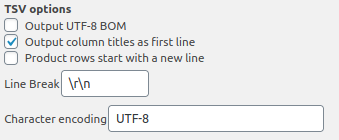
The following settings provide precise control over how the TSV file is generated. Each setting has a direct counterpart in CSV, with behaviour adapted for the tab delimiter.
Output UTF-8 BOM (Byte Order Mark)
What it does: Adds a special marker (EF BB BF) at the very beginning of the TSV file to indicate that the file is encoded in UTF-8.
Why it matters: Many applications — most notably Microsoft Excel on Windows — rely on the BOM to correctly interpret non‑ASCII characters. Without the BOM, accented characters, Cyrillic text, Chinese characters, or emojis may appear as garbled “mojibake” (e.g., José becomes José). This is not a TSV‑specific issue; it applies to all plain‑text formats.
When to enable it:
- The export contains international characters (accents, non‑Latin scripts, emojis).
- The TSV file will be opened in Microsoft Excel on Windows.
- The receiving system explicitly requires UTF‑8 with BOM.
When to disable it:
- The data consists purely of ASCII characters.
- The receiving system rejects files containing a BOM (some older UNIX tools).
- The TSV file is being imported into a database or script that expects raw UTF‑8.
Recommendation: For most international stores, enable the BOM. The benefits of flawless character display in Excel far outweigh the rare compatibility issues.
Output Column Titles as First Line
What it does: When this checkbox is turned on, the first row of the TSV file contains the column headers (e.g., Order ID, Product SKU, Total).
Why it matters: Headers are essential for anyone reviewing the TSV file in a spreadsheet or text editor. They provide immediate context and make the file self‑documenting. Without headers, the receiving system must rely on fixed column ordering, which is fragile and error‑prone.
When to enable it:
- Humans will review the export in Excel, Google Sheets, or a text editor.
- The receiving system uses the first row to map columns.
- The TSV file is being shared with team members who need context.
When to disable it:
- The TSV file is being appended to an existing file that already has headers.
- The receiving system expects raw data to start on the first line.
Best practice: Keep headers enabled unless a specific integration requires otherwise.
Product Rows Start with a New Line
What it does: When this checkbox is turned on, the TSV file inserts an extra blank line before each product row within an order, visually grouping products belonging to the same order.
Why it matters: This is purely a human‑readability feature. It has no effect on data integrity. In a line‑item export (where each order occupies multiple rows), the blank line helps a human reader quickly see where one order ends and the next begins.
When to enable it:
- A person will read the raw TSV in a text editor or less sophisticated spreadsheet.
- The export is for internal review and visual scanning.
When to disable it:
- The TSV file is being processed by an automated system (blank lines often cause parsing errors).
- The TSV file is being imported into a database or reporting tool.
Note: This setting only affects line‑item exports (multiple rows per order). For order‑level exports (one row per order), it has no effect.
Line Break Character
What it does: Specifies the character(s) used to mark the end of each row in the TSV file.
Why it matters: Different operating systems use different line ending conventions. UNIX/Linux systems use Line Feed (LF, \n), while Windows uses Carriage Return and Line Feed (CRLF, \r\n). While most modern applications handle both gracefully, some strict parsers expect a specific sequence.
What can be entered: Type literal characters like \r\n (Windows) or \n (UNIX/Linux) directly into the field. The plugin interprets the escape sequences correctly.
When to customise it:
- The TSV file is being processed on a UNIX/Linux server and the script expects
\n. - The TSV file is being processed by a legacy Windows application that expects
\r\n. - The receiving system rejects files with the default line endings.
Recommendation: Leave this as the system default unless a specific integration fails.
Character Encoding
What it does: Overrides the default character encoding of the TSV file.
Why it matters: While UTF-8 is the modern standard, some older systems — particularly legacy databases and mainframes — still expect ISO-8859-1 (Latin‑1) or Windows‑1252 encoding. The documentation links to a W3C article about choosing encodings for additional context.
When to change it:
- The receiving system explicitly requires a non‑UTF-8 encoding.
- The TSV file is being integrated with a legacy application that cannot handle UTF-8.
Recommendation: Stick with UTF-8. Combined with the Output UTF-8 BOM option, it offers the broadest compatibility for modern systems.
Also read common articles about encoding types