Filters
Let’s consider the Filters section of the Advanced Order Export for WooCommerce plugin.
The Golden Rule of Filtering
Before we dive into each block, you must understand the master switch: the “Export all products from the order” checkbox. This setting fundamentally changes how the plugin interprets your product-related filters.
Think of it this way:
As one user noted on the WordPress support forum, “Unchecking the EXPORT ALL PRODUCTS FROM THE ORDER did fixed that” when the goal was to export only specific product types. You’ll see how this rule applies in every example below.
Part 1: Filter by Product (Line-Item Control)
The Filter by Product block determines which products are included in the export for orders that pass the overall filters.
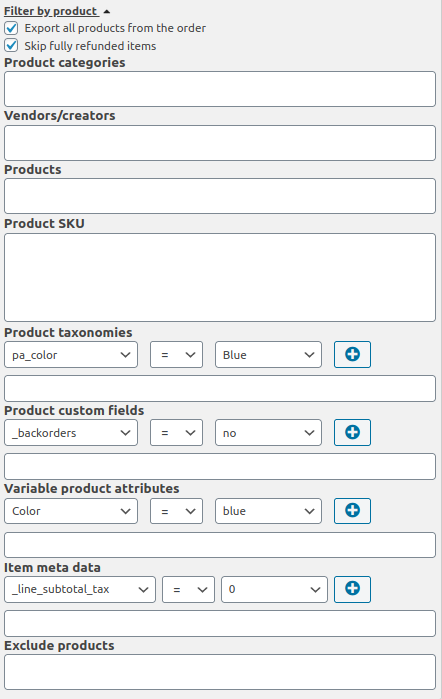
Export All Products from the Order
As described, when this box is checked, the report downloads every product from an order that meets the filter criteria. If you select “Product categories” = “Accessories”, the report will show all order products from any order that contains an “Accessories” product.
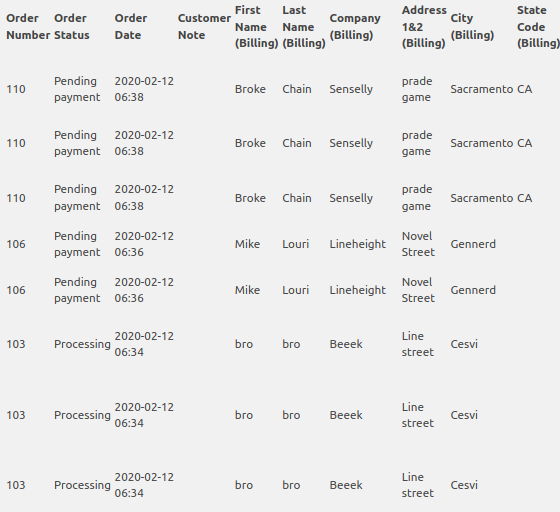
Restricting to Specific Products
If you uncheck “Export all products from the order” and select “Product categories” = “Accessories”, the report will show only the “Accessories” products from those orders. It will not show any other items in the same order.
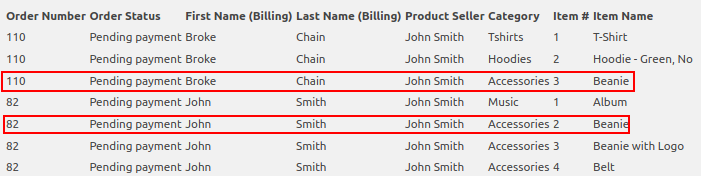
The same logic applies when filtering by specific products. If you select the filter value “Products”, for example, the value “Beanie”, then with the box checked, the report will show all products from orders containing the “Beanie”. With it unchecked, the report will show only the “Beanie” products from those orders.

Filtering by Vendors/Creators
For multivendor stores, you can filter by the vendor profile (Dokan, WCFM, WC Vendors, etc.). If you select the filter value “Vendors/Creators”, for example, the value “John Smith”, then the report will show all completed orders from John Smith.
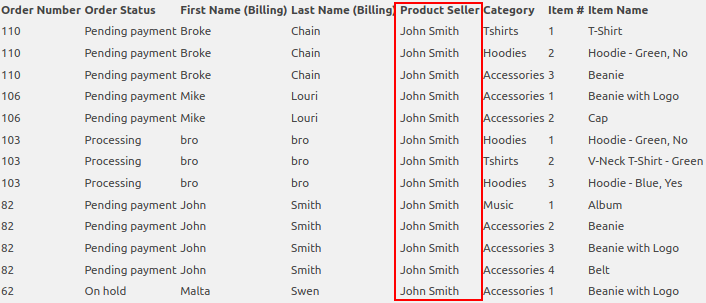
The “Exclude Products” Option
The “Exclude products” filter works specifically when the “Export all products from the order”checkbox is unchecked. This lets you exclude certain products entirely from an order that otherwise matches your filter.
Skip Fully Refunded Items
When this option is checked, the report will not display fully returned order products. If parts of an order were returned, they will still be fully displayed in the report. The plugin changelog notes a resolved bug ” ‘Skip fully refunded items’ conflicted with mode ‘Export refunds’ “, so you can now use both safely.
Part 2: Filter by Order (Order-Level Control)
While product filters control what’s in an order, the Filter by Order block determines which orders are eligible for export at all.
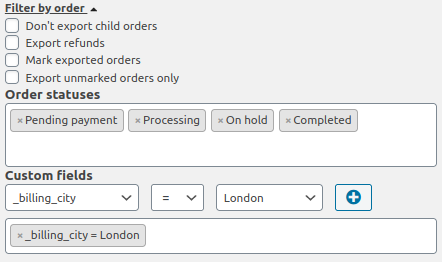
Don’t Export Child Orders
If you do not want returned order products or orders created by other sellers to be displayed in the report, check “Don’t export child orders”. This is a critical control for stores using order splits (like multivendor marketplaces).
Important: This parameter is not paired with the “Export refunds” parameter. If both parameters are enabled, the report will be empty.
Mark Exported Orders
This feature adds a visual marker to your order list. When you check “Mark exported orders”, the plugin sets a mark in the “Export status” column visible in WooCommerce → Orders.
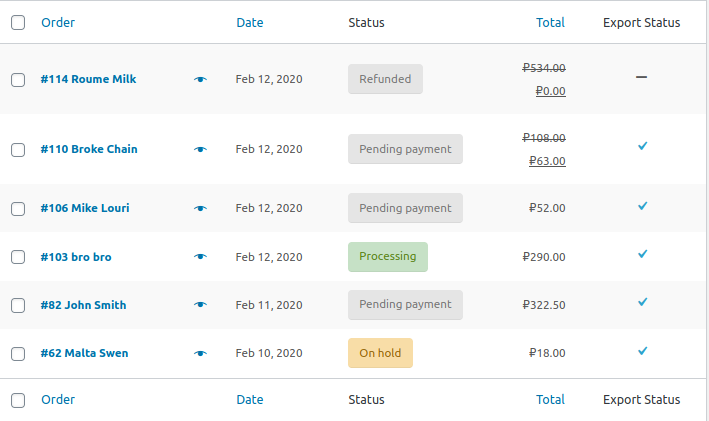

Export Unmarked Orders Only
When “Export unmarked orders only” is checked, the plugin exports only those orders that do not have a mark in the “Export status” column. This is perfect for incremental export workflows.
Bulk Actions Integration
In the WooCommerce → Orders section, you can select necessary orders, click “Bulk actions”, and manually set or uncheck the “Export status” value for multiple orders at once.
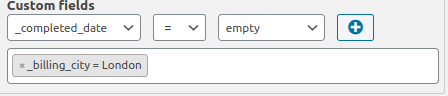
Condition filtering
To add a condition to the filter, you need to select the filter parameter from the first field, the comparison sign from the second field, and the value from the third field. After filling in all the fields of the condition, click on the 
Part 3: Other Filters (Precision Tools)
The remaining filter groups target specific order attributes beyond simple product or status selection.
Filter by Customer
Filter orders by customer name, user role, or custom field by entering the relevant data in the “Filter by customer” block. All fields are multiple. You can target specific countries or states by using a custom field like billing_city or billing_state. The _order_count custom field is a powerful way to isolate new customers: a support thread details steps to open the “Filter by customers” section, select _order_count in the “Custom Fields” dropdown, select =, enter 1, and press (+) to filter by first-time buyers.

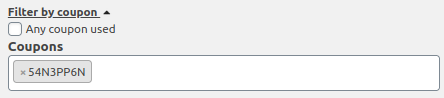
Filter by Coupon
Filter orders that used any coupon or certain coupons in the “Filter by coupon” section. All fields are multiple. This is essential for tracking promotion performance.
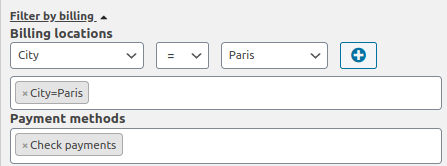
Filter by Billing
Filter orders by billing locations or payment methods in the “Filter by billing” section. All fields are multiple.
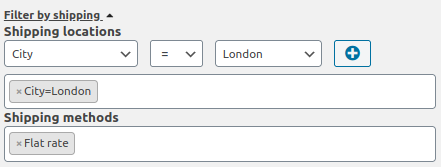
Filter by Shipping
Filter orders by shipping locations and shipping methods in the “Filter by shipping” section. All fields are multiple.
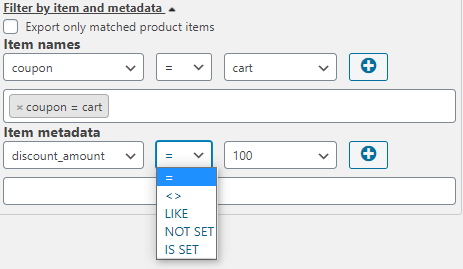
Export Only Matched Product Items
If you want to export only those specific line items that match your filter criteria (and not the entire order), click on “Export only matched product items” in the “Filter by item and metadata” section. This works in conjunction with the golden rule.
Practical Filtering Scenarios
1) Yesterday’s “High-Value” Orders
- Date Range: Last 24 hours
- Filter by Order: Order Total >= €100
- Filter by Order: Order Status = “completed”
2) Fulfill Orders with In-Stock Items Only
- Filter by Product: Uncheck “Export all products”
- Filter by Product: In stock = true
- Filter by Order: Order Status = “processing”
3) Identify First-Time Purchasers
- Filter by Customer: Custom Fields =
_order_count, Compare ==, Value =1 - Filter by Order: Order Total >= €20 (to filter out test orders)
4) Sales Report for a Specific Accessory
- Filter by Product: Product Category = “Accessories”
- Filter by Product: Check “Export all products from the order”