Export Filename

The Export Filename section gives you precise control over how your exported reports are named, using dynamic placeholders that automatically insert dates, order IDs, and more.
Why Custom Filenames Matter
When you export orders regularly — especially on a schedule — having a consistent, informative naming convention is essential. Consider the difference between these two filenames:
export.xlsxorders-2026-05-01_to_2026-05-31.xlsx
The second filename tells you immediately what data it contains and for what period. No need to open the file or check metadata. Proper naming helps with:
Where to Find the Export Filename Setting
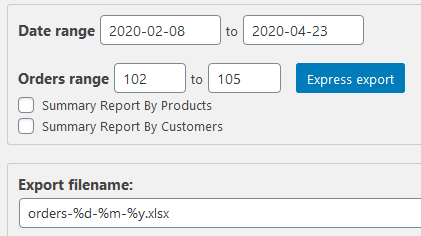
The Export filename field is located in the Export Now tab of the plugin:
- Navigate to WooCommerce → Advanced Order Export in your WordPress dashboard.
- In the Export Now tab, look for the Export filename text field.
- Enter your desired filename pattern using the placeholders described below.
- The filename will automatically be applied when you run the export.
Default Filename
If you do not specify a custom filename, the plugin uses a default pattern:
orders-%d-%m-%y.xlsx
This creates files named like orders-2026-05-01.xlsx.
The default ensures every export has a unique timestamp, preventing accidental overwrites.

Placeholders Reference Table
The plugin supports two types of placeholders: date/time tags and order identifiers.
Date and Time Tags
These placeholders are replaced with the current date and time at the moment of export.
| Placeholder | Description | Example Output |
|---|---|---|
%d | Current day of the month (two‑digit) | 01, 15, 31 |
%m | Current month (two‑digit) | 01, 06, 12 |
%y | Current year | 2024, 2025, |
%h | Current hour (24‑hour format, two‑digit) | 08, 14, 23 |
%i | Current minute (two‑digit) | 05, 30, 59 |
%s | Current second (two‑digit) | 00, 15, 45 |
{from_date} | Start date from the Date Range filter | 2026-05-01 |
{to_date} | End date from the Date Range filter | 2026-05-31 |
Note on date format: By default,
{from_date}and{to_date}use the formatY-m-d(e.g.,2026-05-01). This can be customised via the plugin’s settings if needed.
Order ID Placeholders
These placeholders are replaced with the last order ID included in the export.
| Placeholder | Description |
|---|---|
%order_id | Last order ID in the report |
%orderid | Same as %order_id |
%id | Same as %order_id |


Order Number Placeholder
| Placeholder | Description |
|---|---|
{order_number} | The order number of the last order in the report (respects any custom order number formats set by other plugins) |
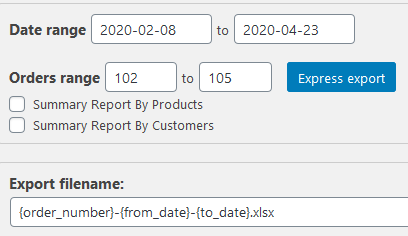

How to Use Placeholders
Using placeholders is straightforward. Simply enter them as part of your filename in the Export filename field.
Example 1: Simple Date‑Stamped Export
orders-%y-%m-%d
Produces: orders-26-05-01.xlsx
Example 2: Export with Date Range in Filename
orders-{from_date}_to_{to_date}
Produces: orders-2026-05-01_to_2026-05-31.xlsx
This is particularly useful when you are exporting a specific time period and want the filename to reflect that period clearly.
Example 3: Including the Last Order ID
orders-{from_date}_to_{to_date}_last_ID_%order_id
Produces: orders-2026-05-01_to_2026-05-31_last_ID_12345.xlsx
Example 4: Combining Date and Order Number
report-%y-%m-%d_order_{order_number}
Produces: report-26-05-01_order_ORD-12345.xlsx
Example 5: High‑Precision Timestamp for Unique Files
orders-%y%m%d_%h%i%s
Produces: orders-260501_143015.xlsx
This pattern ensures each export has a completely unique name, even if you run multiple exports within the same second.
Important: Using Order ID and Order Number Tags
The order‑related tags (%order_id, %orderid, %id, and {order_number}) are replaced with the last order ID or order number in the exported data set.
This means that if your export contains multiple orders, the filename will reflect only the largest order ID in that set — not a list of all IDs.
Why This Matters
- For single‑order exports: The filename will accurately reflect that order.
- For multi‑order exports: The filename gives a useful reference point (the highest ID), but does not list every order.
If you need to include all order IDs in the filename, you would need a custom PHP solution using the plugin’s developer hooks (outside the scope of this guide).
Critical Note: Which Export Button to Use
There is a technical limitation you must be aware of. The documentation explicitly states:
Note: To download a report with these tags, click “Export [w/o progressbar]”
The reason for this is technical. The standard Export button uses a paginated, AJAX‑based progress bar. In that mode, the plugin does not know the final order ID until the export is complete, making it impossible to substitute %order_id in advance.
The Export [w/o progressbar] button processes the entire export in a single request, so the plugin knows the last order ID from the start.
Best Practices
1. Always Include a Date
Without a date in the filename, you risk overwriting previous exports. At a minimum, include %y-%m-%d to distinguish exports from different days.
2. Use {from_date} and {to_date} for Scheduled Exports
When you schedule a recurring export (e.g., a daily report), using {from_date} and {to_date}ensures the filename accurately reflects the report period. This is especially valuable for monthly or weekly reports.
3. Keep Filenames Filesystem‑Friendly
Avoid spaces and special characters that may cause issues across different operating systems. Use hyphens (-) or underscores (_) as separators.
Good: orders-2026-05-01.xlsx
Problematic: orders 2026/05/01.xlsx