Common Examples of the exported orders
The Advanced Order Export for WooCommerce plugin comes with sensible defaults. Orders filter by creation date. Filename uses timestamps. Sorting by ID descending. All fields included.
But you’ll want to customize. Here’s how.
Regular File with Multiple Orders
This is your standard export. One row per order or product. Perfect for daily sales reports.
Step 1 – Set date range
Click the Date range field. Select day, month, and year from the pop-up calendar.

Step 2 – Change export filename
Then change “Export filename“. To make it clear, orders for which period will be exported, let’s write the following code:
"orders-{from_date}-to-{to_date}"

Supported tags for filenames:
{from_date}– Start date of export{to_date}– End date of export{y}– Year{m}– Month{d}– Day
Step 3 – Select format
Select format of export file: XLS, CSV, XML, JSON, TSV, PDF, HTML. In our example, it will be a PDF.
Step 4 – Configure PDF settings
Set up settings for it. Click again on PDF and choose:
- Page number – right align
- Page header text – First example
- Fit table to page width – Yes
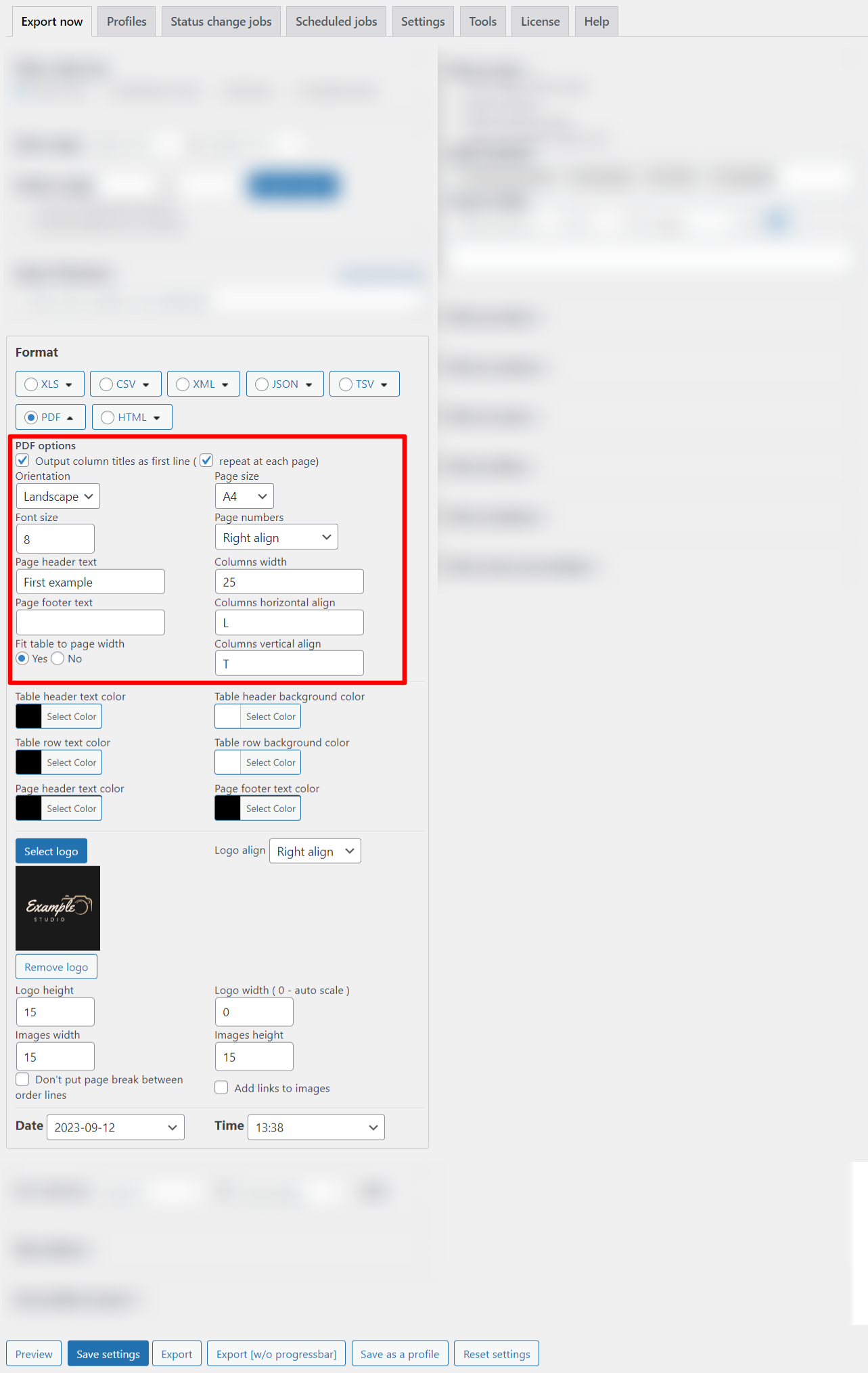
You can also change the colors in your file and add your logo.

Step 5 – Set up fields to export
Now set up fields to export.
Click Remove all fields to start fresh. Then drag and drop fields from right column to left column.
Available field categories:
- Common (Order ID, Order Date, Order Status)
- Customer (First Name, Last Name, Email)
- Billing Address
- Shipping Address
- Products
- Coupons
- Cart
- Shipping
- Totals
- Others

Step 6 – Save and export
Click Save settings. Then click Export. Your PDF report generates.
Summary report by products
This report groups sales by product. Shows total quantity sold per product. Total revenue per product.
Perfect for inventory planning and top-seller analysis.
For this type of export, you need to choose “Summary report by products”.
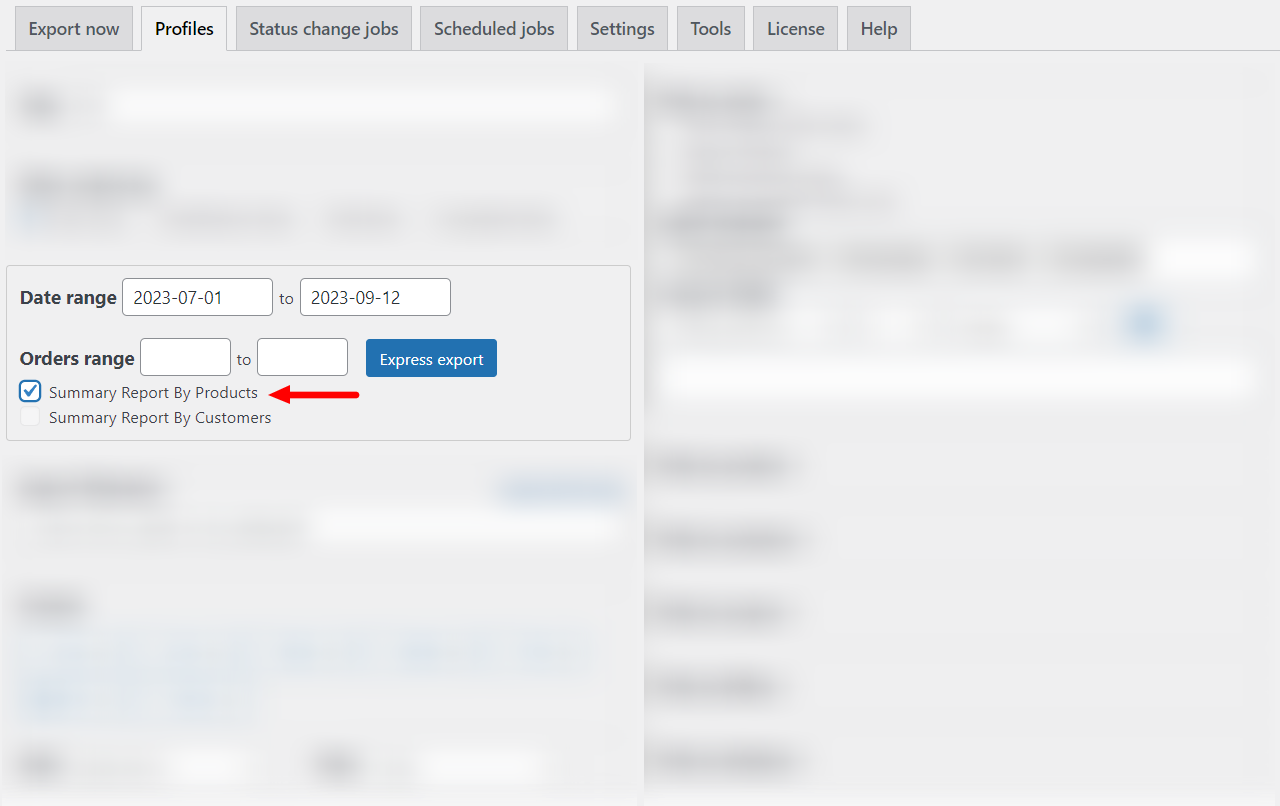
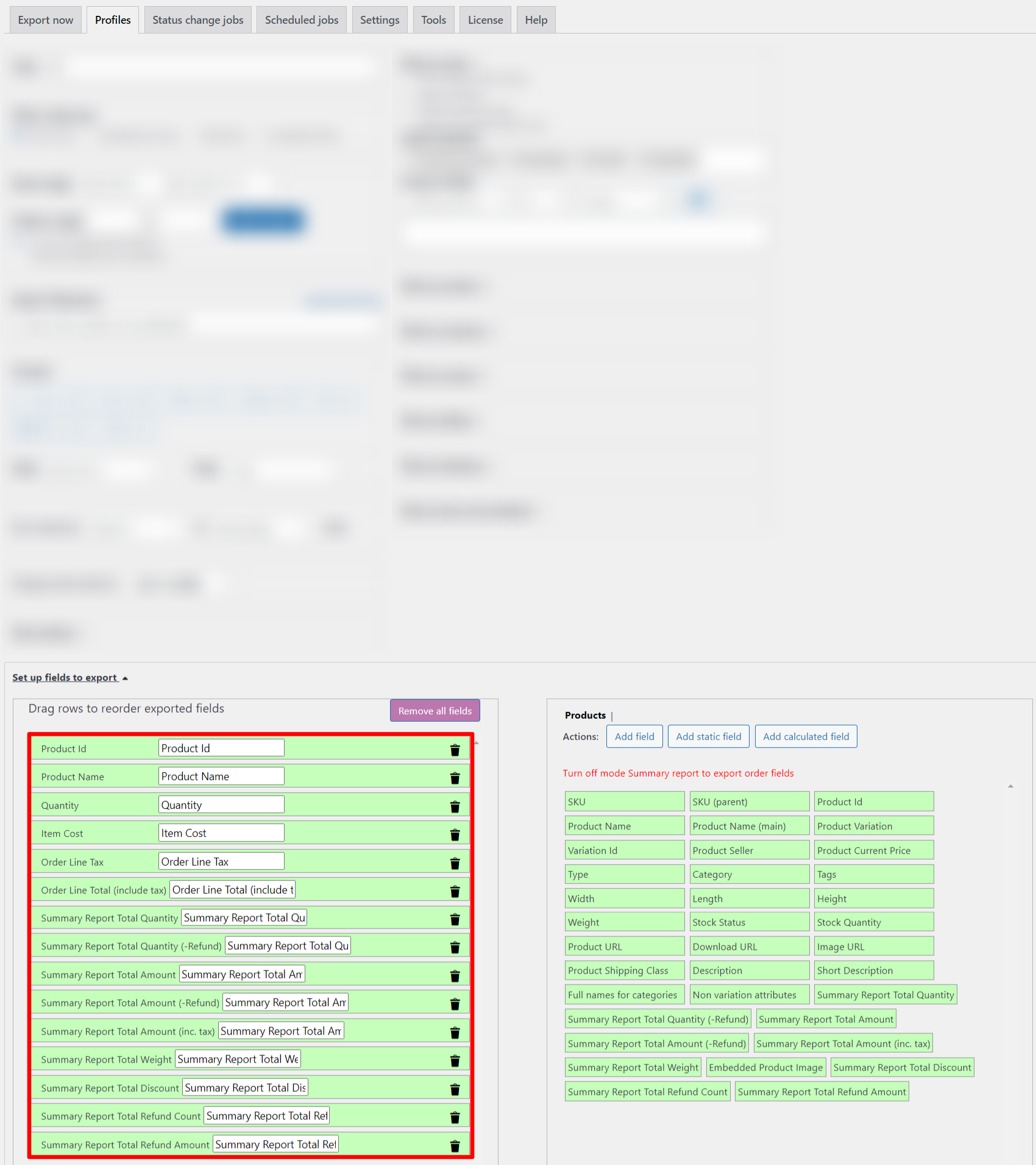
Note: All other settings will be saved, except for the fields for export. They will be changed to those appropriate for this type of report.
Summary report by customers
This report groups sales by customer. Shows total spent per customer. Number of orders per customer.
Perfect for loyalty programs and customer segmentation.
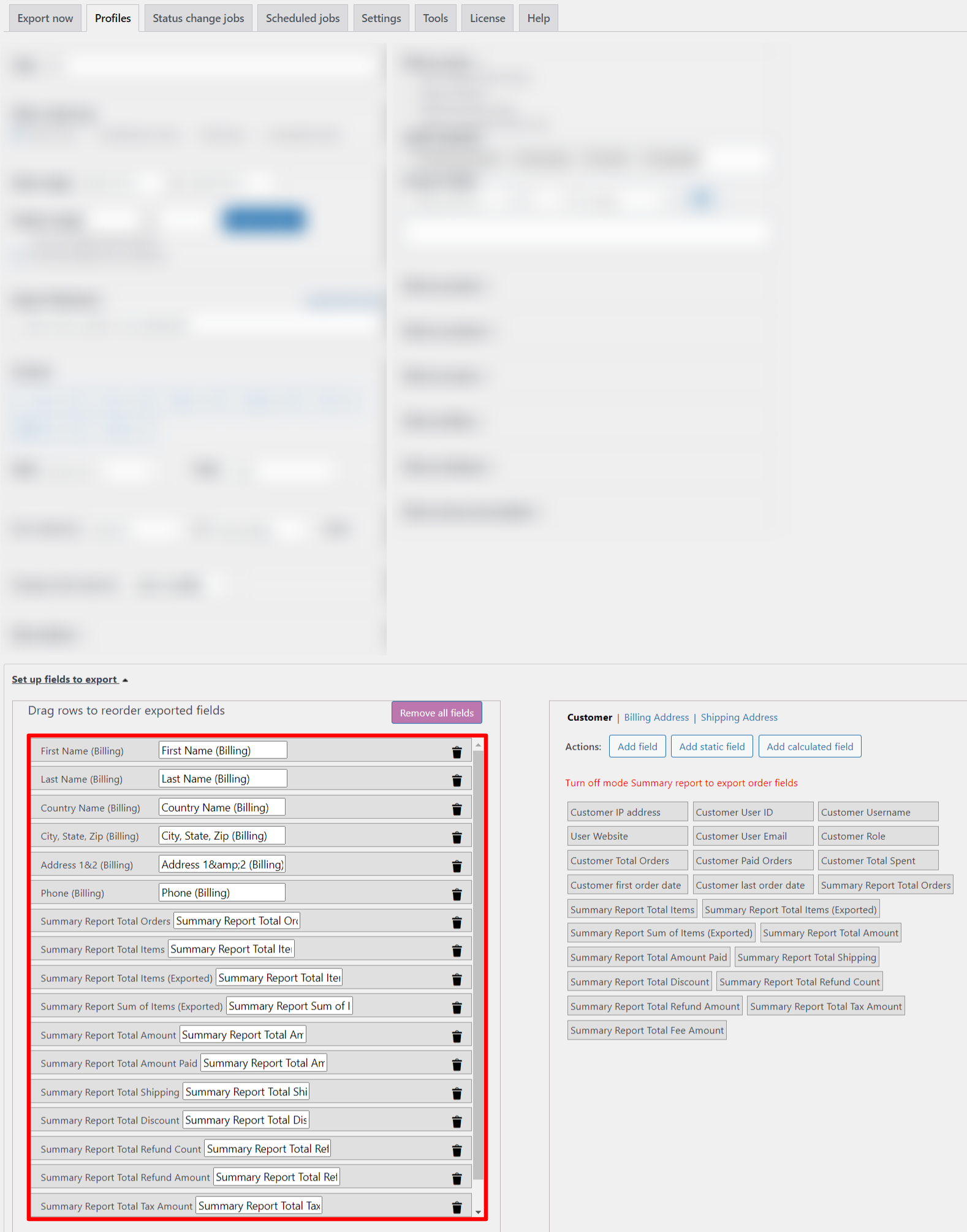
As in the previous case, you need to tick the “Summary report by customers”.
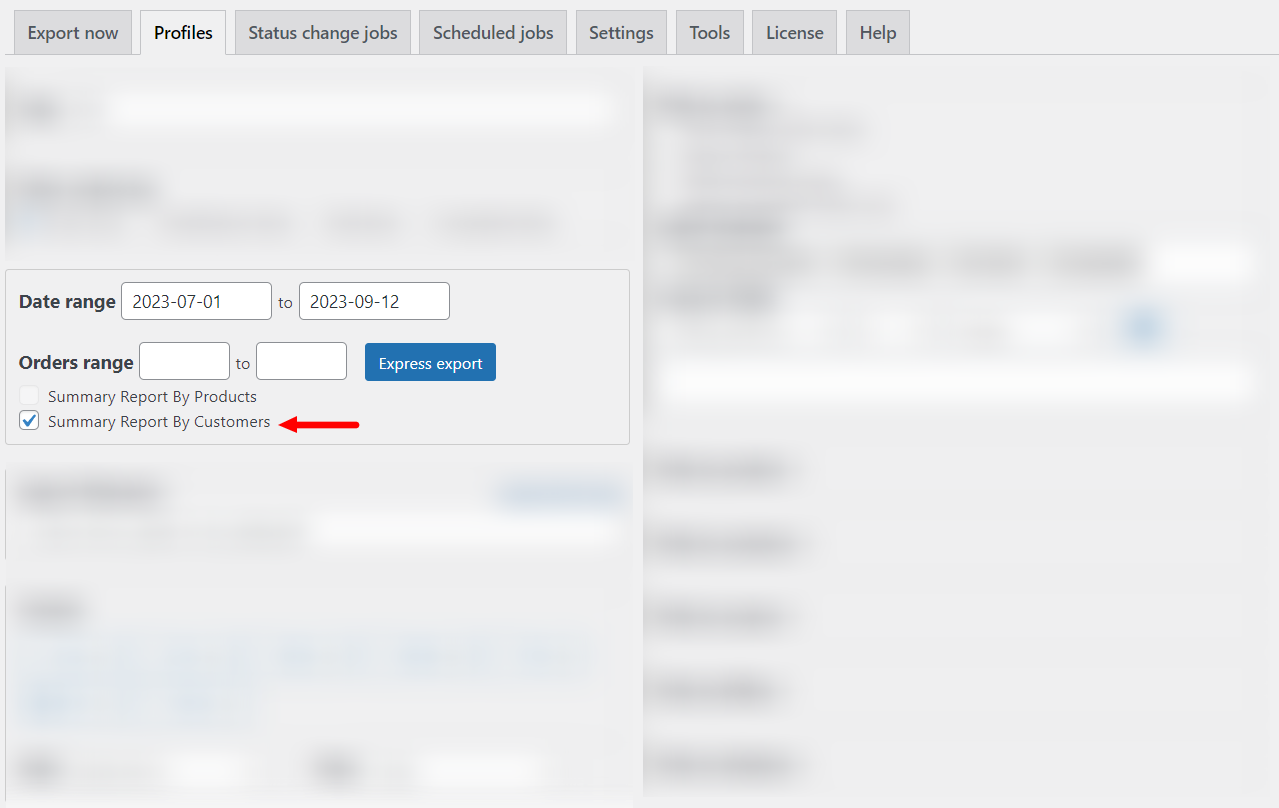
Also fields for export will be different.
Pro Tip – Save as Profile
Once you configure a report type, save it as a profile. Click Save as a profile button. Name it “Monthly Sales PDF” or “Customer Summary.”
Next time, load the profile. No reconfiguration needed.
Reset If Needed
Click Reset settings to start over. All fields return to default.
Real Talk
Advanced Order Export for WooCommerce gives you three powerful report types. Regular exports for daily operations. Product summaries for inventory. Customer summaries for marketing.
Pick the right one for your task. Configure once. Save as profile. Export in seconds.