Product Page
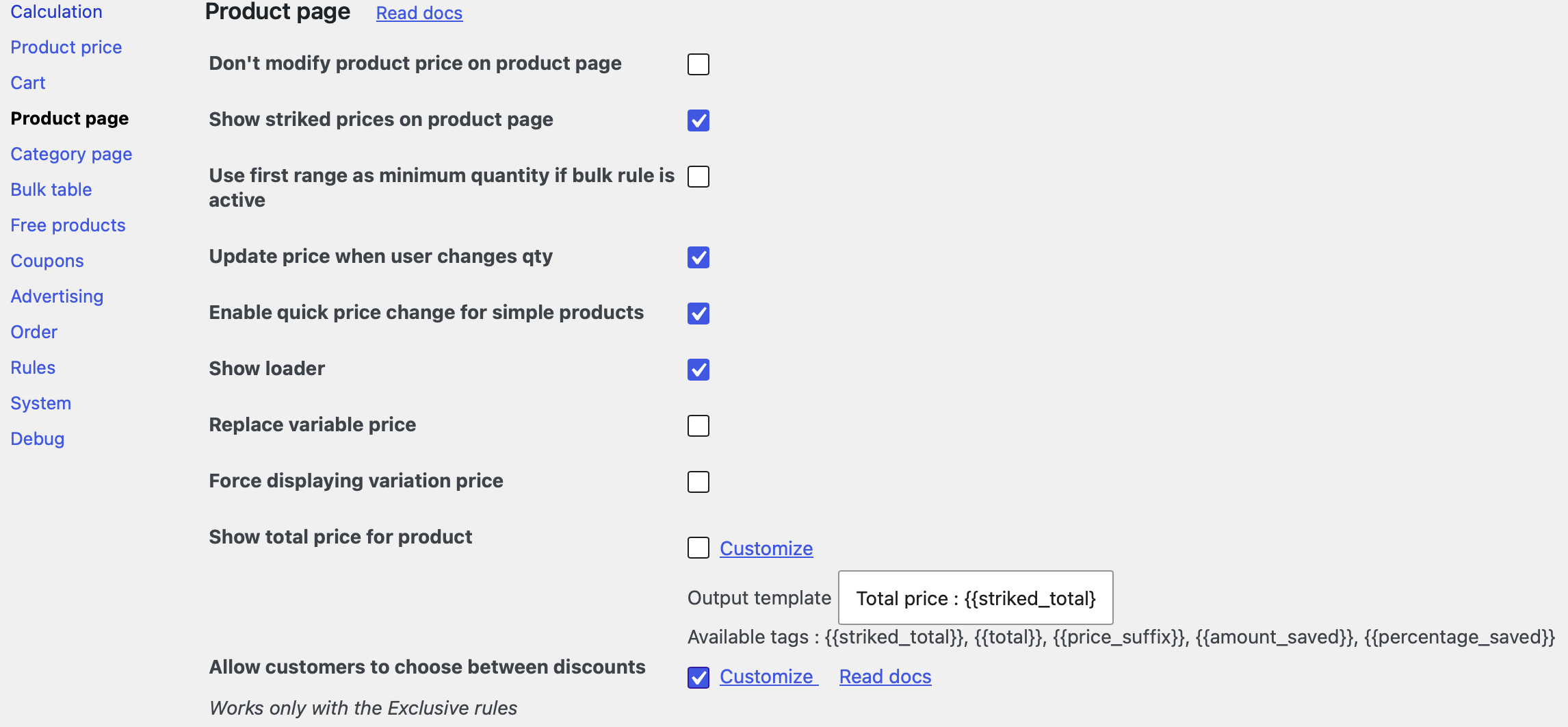
The Product Page tab contains settings that control price modification, visual display, and interactive behavior specifically on single product pages. Whether you want to hide discounts until after checkout, create real‑time quantity‑based pricing, or completely customize how variable product prices appear, you’ll find the tools here. There are a lot of additional settings for the rules in the PRO version, we mark it as (PRO).
Don’t modify product price on product page
Checkbox, default value: disabled.
This is the most fundamental setting in the Product Page tab. When enabled, the plugin completely disables price modification on product pages. The regular price is displayed as if no rules existed. However, the discount will still be applied when the product is added to the cart.
The plugin bypasses its price modification logic specifically for the single product page template. All other parts of the store (cart, checkout, category pages, etc.) remain unaffected unless otherwise configured.
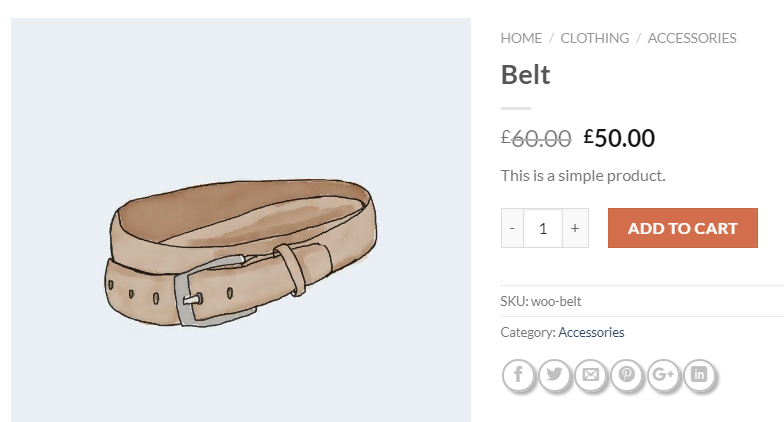
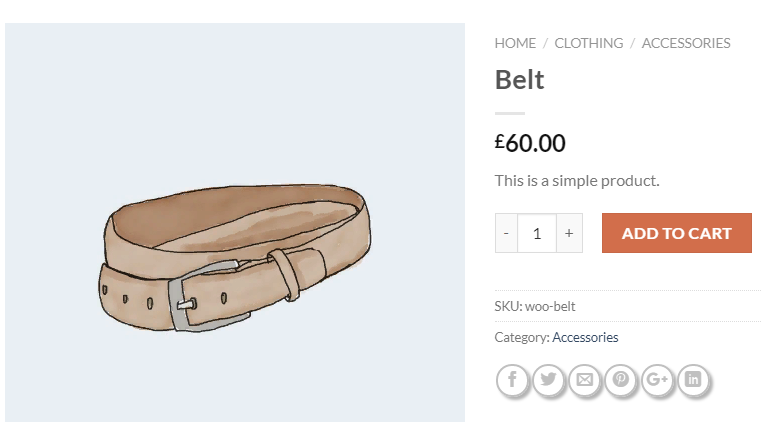
Show striked price on product page (PRO)
Checkbox, default value: enabled.
When enabled, this setting displays the original price crossed out alongside the discounted price on the product page. This is a standard e‑commerce practice that visually communicates the savings to the customer.
For each product, the plugin compares the original WooCommerce price to the discounted price. If they differ, the original price is displayed with a strikethrough, and the discounted price is shown next to it.
Use first range as minimum quantity if bulk rule is active
Checkbox, default value: disabled.
For products with quantity‑based bulk discounts, this setting changes how the price is displayed on the product page. Instead of showing the price for a single unit, the plugin displays the price corresponding to the first range’s minimum quantity.
When you have a bulk rule with tiers (e.g., 2–4 items: 10% off, 5–9 items: 15% off, 10+ items: 20% off), enabling this setting causes the product page to display the discounted price for the first tier’s minimum quantity (2 items) instead of the single‑unit price. A message like “Price shown for 2 items” may appear, depending on your theme.
If you have problems with these parameters, see a possible solution here.
Update price when user changes qty (PRO)
Checkbox, default value: enabled.
This setting enables real‑time price updates on the product page as the customer changes the desired quantity. When a customer increases or decreases the quantity in the quantity input field, the displayed price updates immediately, without requiring a page reload.
The plugin monitors changes to the quantity input field. When a change occurs, an AJAX request is sent to the server, which recalculates the discounted price based on the new quantity and any active rules. The server returns the new price, which is displayed on the page instantly.
Best for stores with quantity‑based bulk discounts. Customers can experiment with different quantities and see the resulting discounts in real time, which encourages larger purchases.
Enable quick price change for simple products (PRO)
Checkbox, default value: enabled.
This setting optimizes the price update process specifically for simple products (non‑variable products). When enabled, the plugin uses a more efficient JavaScript‑based method to update prices on the product page.
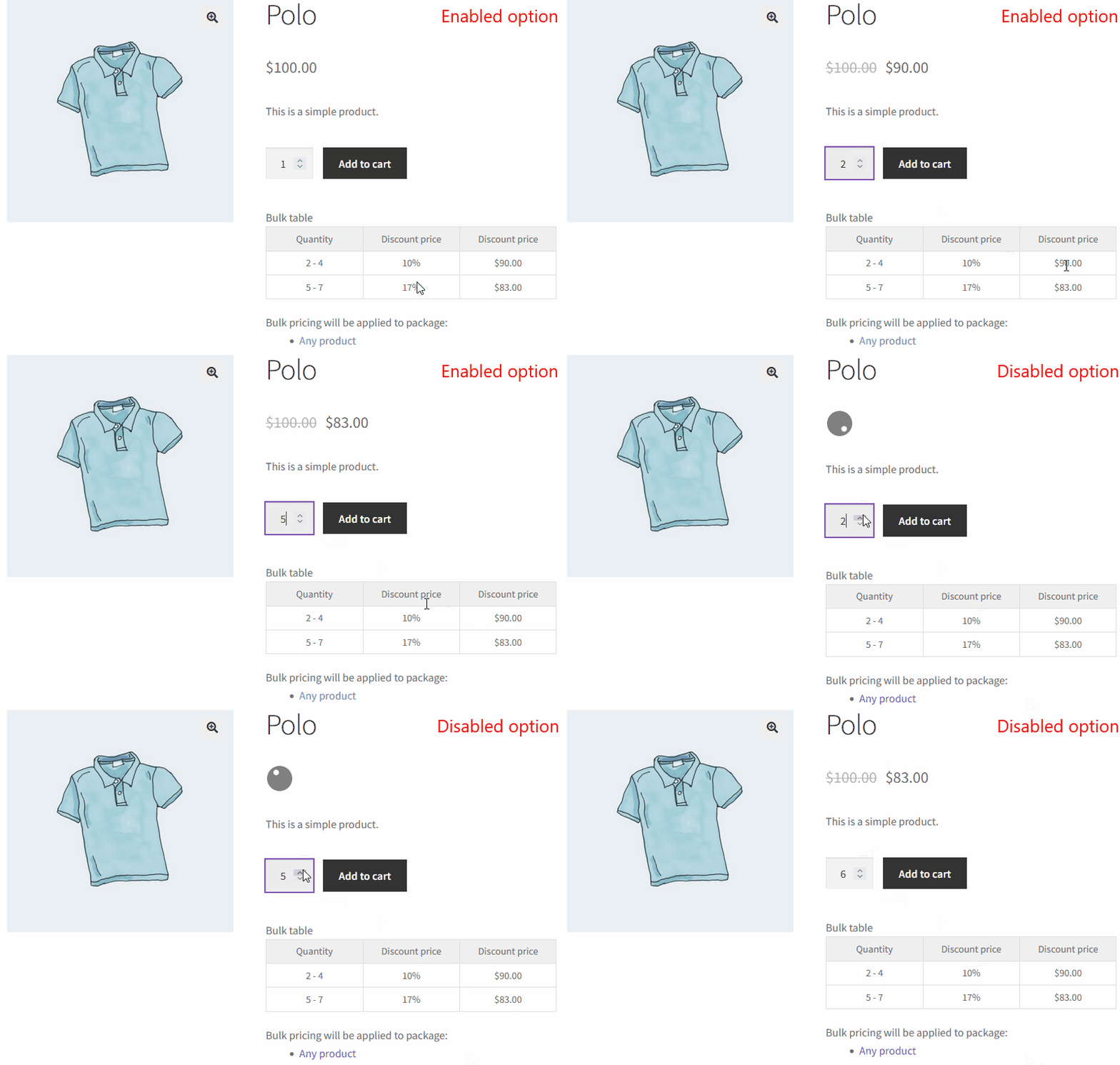
Show loader (PRO)
Checkbox, default value: enabled.
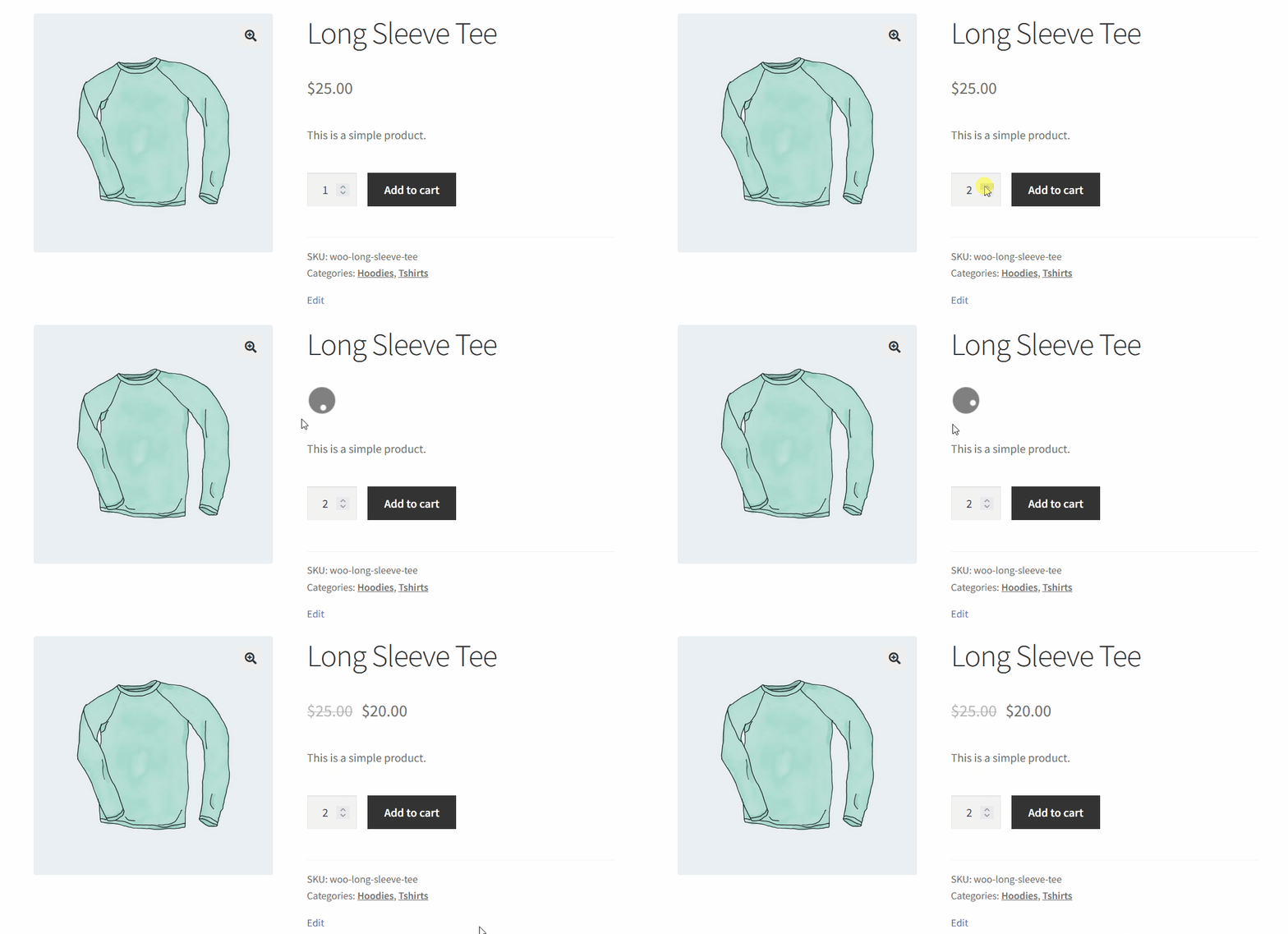
When a customer increases or decreases the quantity on a product page and the price is updating via AJAX, there can be a brief delay (typically a fraction of a second). This setting displays a visual loading indicator (spinner) during that delay, letting the customer know that the price is being recalculated.
Replace variable price (PRO)
Checkbox, default value: disabled.
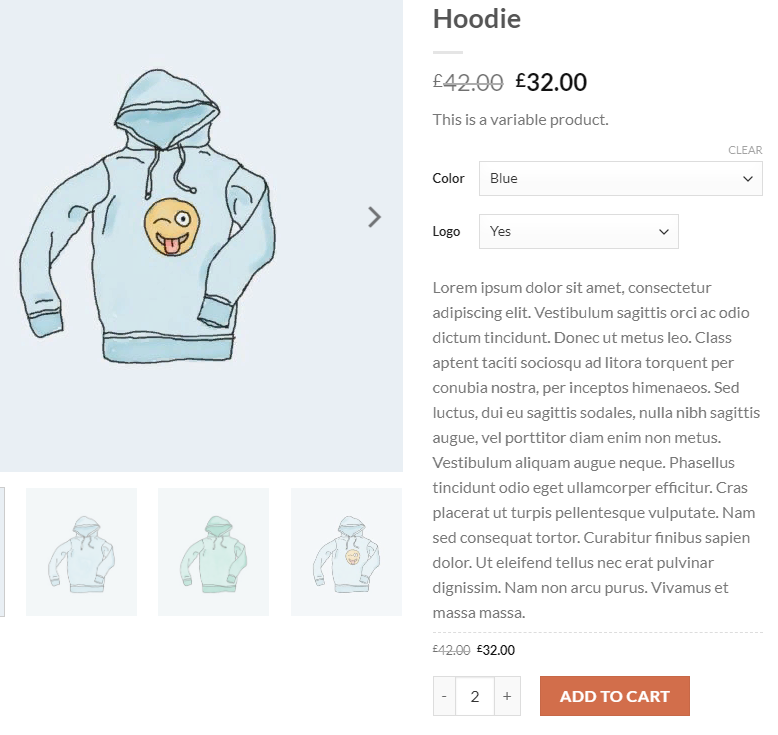
This setting completely changes how the price of a variable product is displayed on the product page. By default, WooCommerce shows a price range for variable products. This setting allows you to replace that range with a single price – the price of the cheapest variation (or another variation based on your settings) after discounts have been applied.
The example of the rule and working of the option is in the gallery below:

Force displaying variation price
Checkbox, default value: disabled.
This options allows to display the price of the variation correctly for the case, when the rule applies only for the one variation.
For example, create a simple 10% discount on the green Long sleeve tee. When the option disabled, the variation price is not displaying, but when you enable it, the variation price will be shown. Look at the gallery below.
Show Total Price for Product (PRO)
Group of the options, default value: disabled.
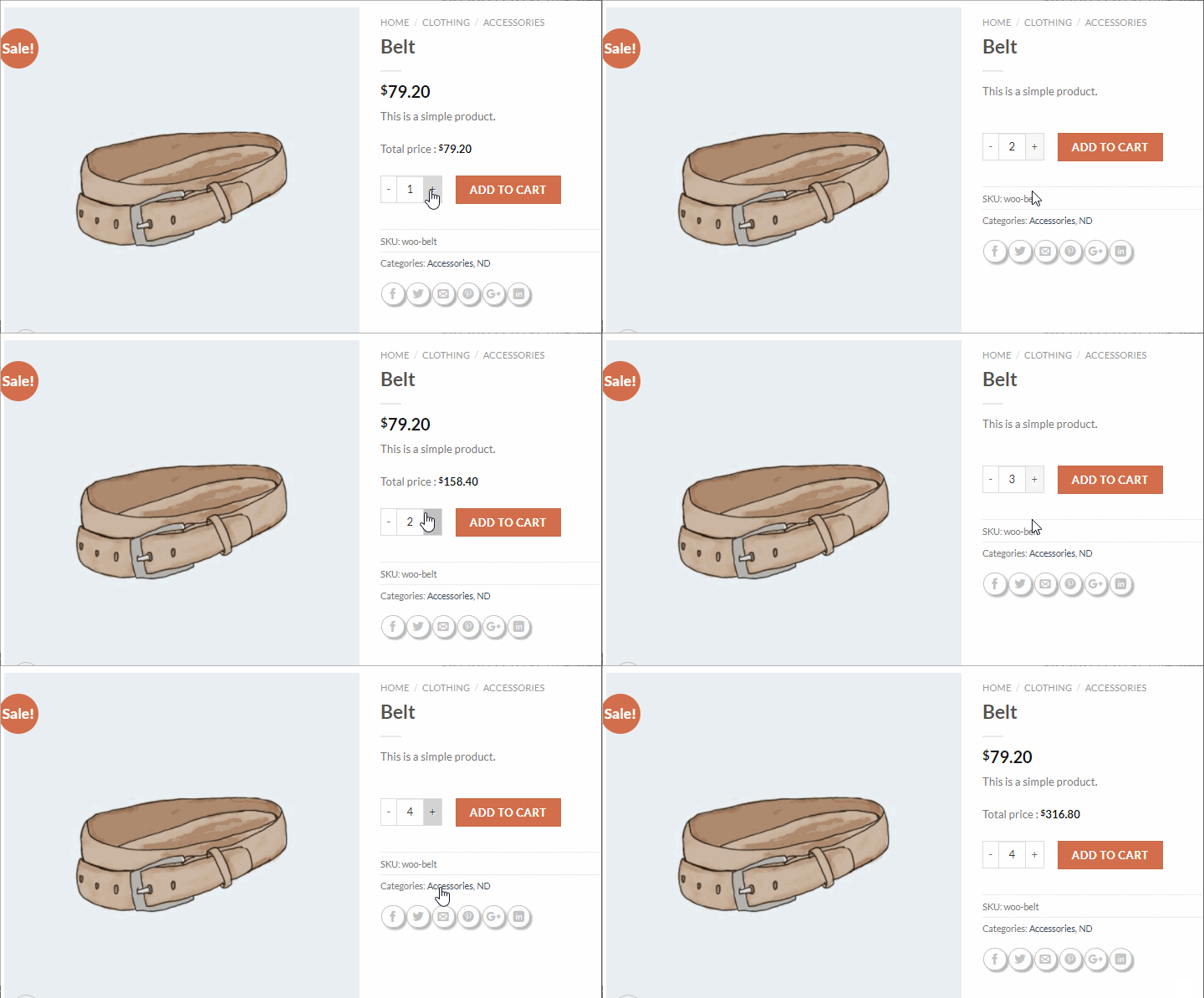
This setting allows you to display the total price of a product (price × quantity) on the product page, rather than just the unit price. You can customize the display using an HTML template.
When enabled, the plugin calculates the total price (unit price × selected quantity) in real time and displays it using a template you provide. The total price updates automatically when the customer changes the quantity.
Best for stores where customers want to see the total cost for a given quantity, especially for high‑ticket items or products where the total price is a major decision factor (e.g., furniture, electronics, bulk goods).
Template tags available:
Allow customers to choose between discounts (PRO)
The Allow Customers to Choose Between Discounts feature enables shoppers to actively select the discount they want to apply from a set of competing Exclusive pricing rules directly on the product page. Instead of the plugin silently applying the single “best” rule behind the scenes, customers see all available offers presented as selectable options and can pick the one that suits them most. Read this article for better explanation of this feature.
Complete list of the Product Page Settings tab
|
Option name |
PRO? |
Short description |
|---|---|---|
|
Don’t modify product price on product page |
Completely disables price modification on single product pages |
|
|
Show striked prices on product page |
Displays original price crossed out next to discounted price |
|
|
Use first range as minimum quantity if bulk rule is active |
Displays the first bulk’s price instead of the single‑unit price |
|
|
Update price when user changes qty |
Updates price in real time as quantity changes |
|
|
Enable quick price change for simple products |
Uses faster JavaScript‑based updates for simple products |
|
|
Show loader |
Displays a loading spinner while prices are updating |
|
|
Replace variable price |
Replaces variable product price range with a single price |
|
|
Force displaying variation price |
Adds the variation price for the variation only rule |
|
|
Show total price for product |
Displays total price (unit × quantity) using a customizable template |
|
|
Allow customers to choose between discounts (PRO) |
Enables shoppers to actively select the discount they want to apply |