Convert Rules
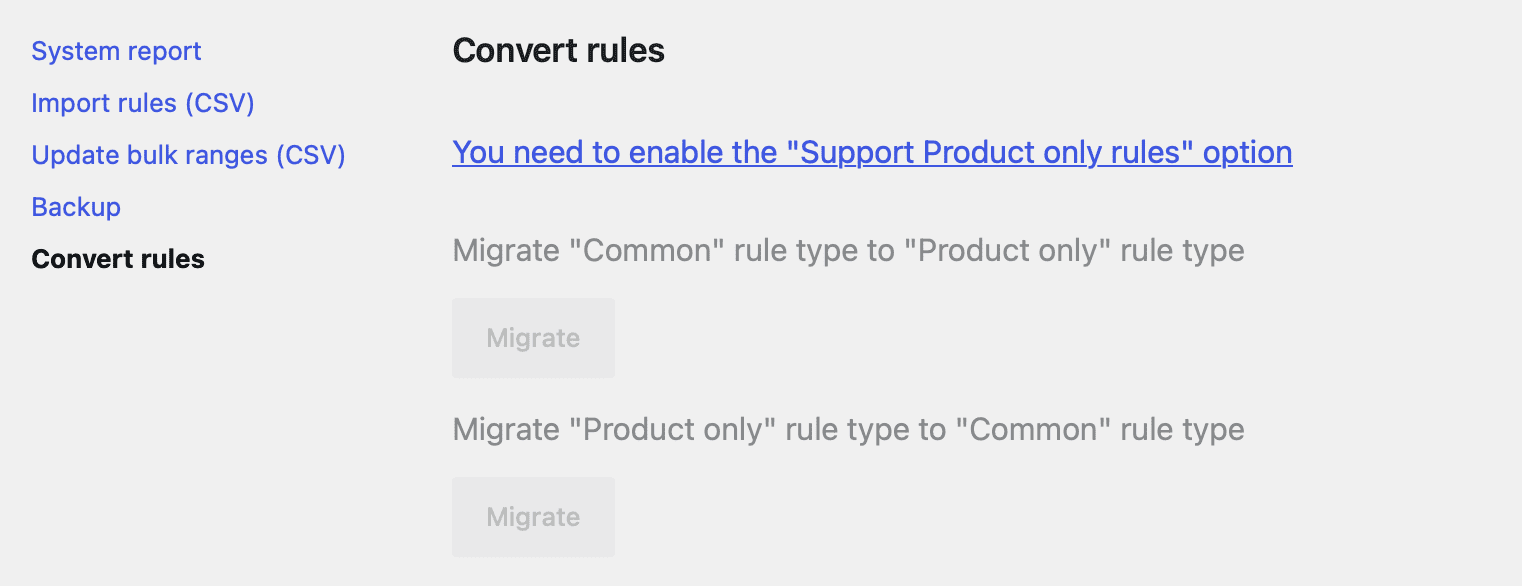
The Convert Rules tool in the Advanced Dynamic Pricing for WooCommerce plugin allows you to quickly change your existing discount rules between Common and Product Only types with a single click. This tool saves you time when you want to migrate a large number of rules without recreating them manually.
Why Use the Convert Rules Tool?
The plugin supports three distinct rule types:
- Common rules – The most flexible type. You can create any complexity using all available conditions and filters. They are suitable for almost any discount scenario.
- Product only rules – A specialised, cache‑driven rule type that offers higher priority and better performance. They work best for simple, product‑specific discounts.
- Exclusive rules (Pro version) – Share the same functionality as common rules but have higher priority than common rules.
The Convert Rules tool helps you switch between the flexible common rules and the high‑performance product only rules. It is particularly useful when:
- You have many rules and want to optimise performance by converting common rules to product only rules.
- You need to simplify your rule set by converting product only rules back to common rules for more flexibility.
Prerequisites
Before using the Convert Rules tool, ensure the following conditions are met:
- The Advanced Dynamic Pricing for WooCommerce plugin must be installed and activated.
- You have administrator access to your WordPress site.
- You understand the differences between common and product only rules. Product only rules have limited functionality and cannot include certain sections
How to Access the Convert Rules Tool
The Convert Rules tool is located within the plugin’s Tools tab. Access it as follows:
- Navigate to Pricing Rules → Tools in your WordPress admin dashboard.
- Locate the Convert rules section.
- You will see two buttons:
- Convert to Product only – Converts all common rules to product only rules.
- Convert to Common – Converts all product only rules back to common rules.
Using the Convert Rules Tool
The tool is straightforward to use. Follow these steps:
- Go to Pricing Rules → Tools.
- In the Convert rules section, decide which conversion you need.
- Click the corresponding button:
- Click Convert to Product only to change all common rules to product only rules.
- Click Convert to Common to change all product only rules back to common rules.
- The tool processes your rules instantly. A confirmation message appears when the conversion completes.
Important: The conversion affects all rules of the selected type. You cannot convert individual rules one by one with this tool. If you need selective conversion, you must manually recreate the rules.
Important Notes and Limitations
Before you click the conversion button, consider the following limitations.
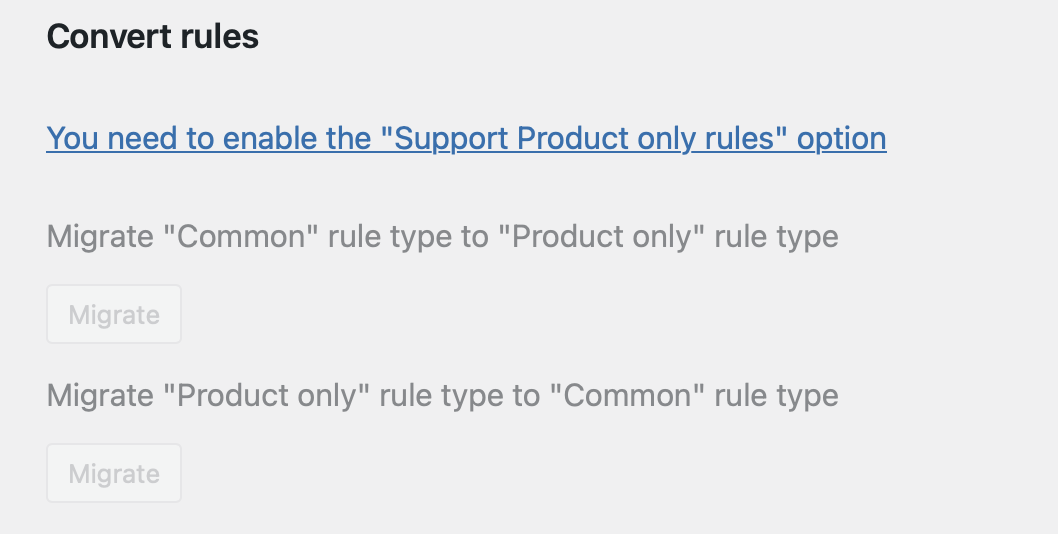
Prerequisite Setting: “Support Product only Rules”
The plugin requires the “Support Product only rules” option to be enabled before you can create or convert to product only rules.
How to enable this setting:
- Go to Pricing Rules → Settings → Rules.
- Mark the checkbox “Support Product only rules”.
- Click Save.
If you attempt to convert common rules to product only rules without enabling this setting, the plugin will display an announcement indicating that the conversion cannot proceed.
What Cannot Be Converted
Product only rules have limited functionality. The following sections and features cannot be included in a product only rule. If a common rule contains any of these, the conversion will skip that rule or remove the incompatible sections.
- Cart adjustments – Discounts that apply to the entire cart (e.g., percentage off based on subtotal).
- Role discounts – Discounts that apply only to specific user roles (e.g., “Wholesale customer”).
- Exclusive rules – These remain as exclusive rules and are not converted.
- Rules without product filters – Product only rules must target at least one product. Common rules that apply to the entire store without any product filter will not migrate.
- Complex bundles – Product only rules cannot create a product bundle with two or more products.
The plugin automatically skips rules that cannot be converted. It does not delete or alter them; it simply leaves them unchanged.
After Conversion: Recalculating the Cache
Product only rules work from a cache to improve performance. After you convert common rules to product only rules, or after you make any changes to product only rules, you must recalculate the cache for the changes to take effect.
How to recalculate the product only rules cache:
- Go to Pricing Rules.
- Locate the Recalculate Product Only Rules Cache dropdown above the search bar.
- Select the desired value (e.g., “All rules”).
- Click the Run button.
Until you recalculate the cache, your converted rules will not apply correctly.
Bulk Variable Products
Product only bulk rules that include variable products work only for the same variation despite the quantity being based on all matched products. This differs from common rules, which aggregate quantities across all variations.
Rule Priority
Product only rules have the highest priority among all rule types. When you convert a common rule to a product only rule, it will now execute before any common or exclusive rules that target the same products. This can change which discount the customer receives.
When to Use Each Rule Type
| Rule Type | Best Use Case | Limitations |
|---|---|---|
| Common | Complex discounts involving cart conditions, role discounts, product bundles, or multiple products. | Lower priority; not cached. |
| Product only | Simple, product‑specific discounts (e.g., 10% off a specific product). Highest performance. | Cannot include cart adjustments, role discounts, or bundles. |
| Exclusive (Pro) | Discounts that must override all other rules. Same functionality as common rules. | Requires Pro version. |
Summary
| Aspect | Description |
|---|---|
| What it does | Converts all common rules to product only rules, or vice versa. |
| Where to find it | Pricing Rules → Tools → Convert rules. |
| Prerequisite | Enable “Support Product only rules” in Settings → Rules. |
| Limitations | Cannot convert rules with cart adjustments, role discounts, or no product filters. |
| Post‑conversion step | Recalculate the product only rules cache. |
| Available in | Both free and Pro versions. |