Backup Tool
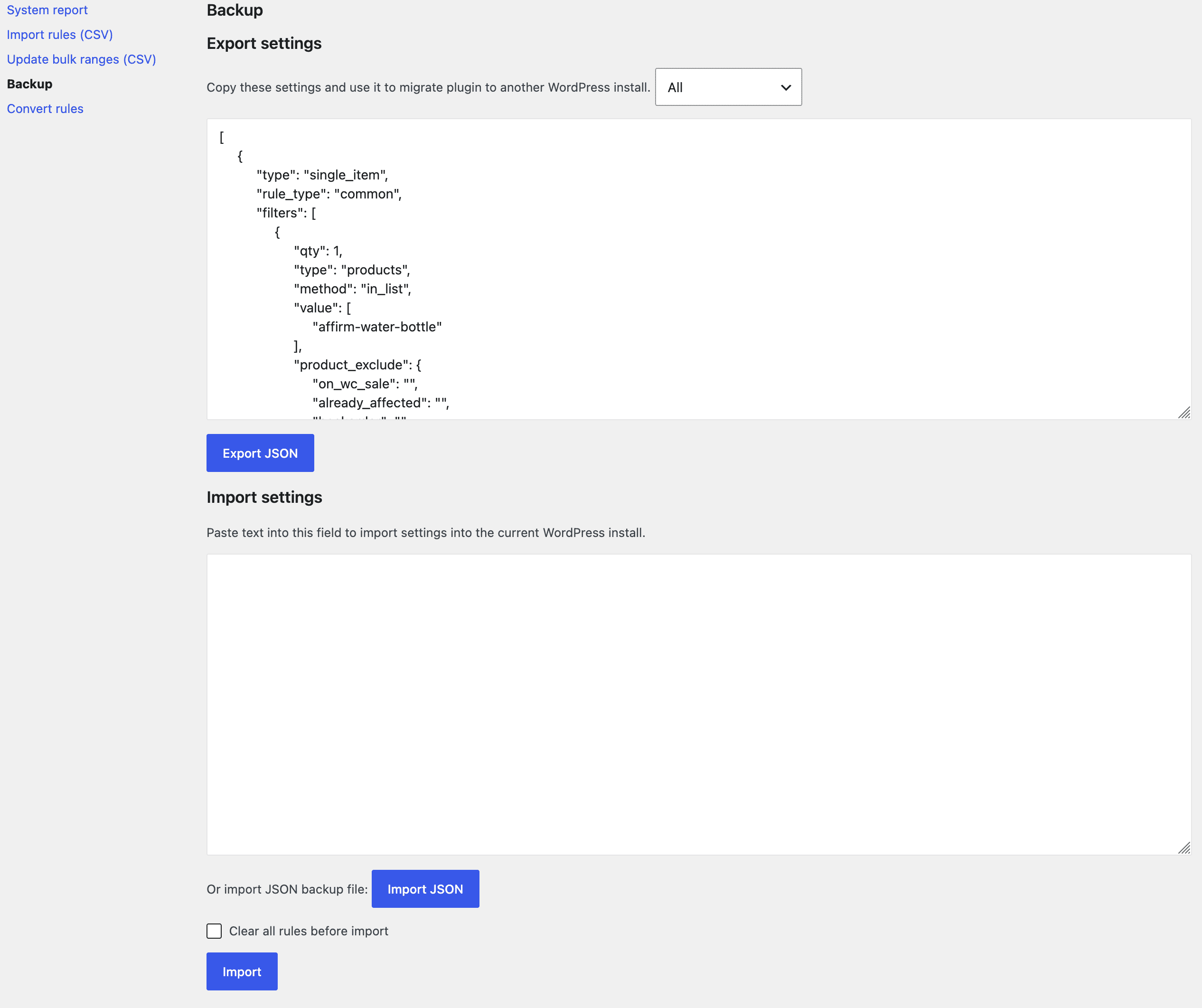
The Backup Tool in the Advanced Dynamic Pricing for WooCommerce plugin allows you to export your pricing rules, plugin options, and product collections (Pro version) as a JSON string. You can then import that JSON data back into the same site or into another WordPress site running the plugin. This is the safest and most reliable way to migrate your dynamic pricing setup, create backups before making major changes, or share a rule configuration with our support team.
The Backup Tool also includes a dedicated “Import JSON backup file” feature. With this feature you can upload a JSON file that you previously exported, or you can paste the JSON data directly into the import text area. In addition, the tool accepts a system report JSON file, which contains all your plugin rules, settings, and debug information. This is especially useful when you work with our support team to troubleshoot a problem. Instead of describing your setup manually, you can simply send us the system report, and we can import it on our end to replicate your environment exactly.
1. Accessing the Backup Tool
Step‑by‑step instructions
- Log into your WordPress admin dashboard.
- Go to Pricing Rules → Tools.
- Click the Backup Tool tab.
The Backup Tool page contains two main sections: Export settings and Import settings.
2. Exporting Your Settings (Backup)
The Export settings section lets you copy your current plugin configuration into a text box. You can then save this text as a file or paste it into the import section of another site.
What you can export
- Rules – All your discount rules (including product discounts, bulk rules, BOGO offers, and cart adjustments).
- Options – The global plugin settings from the Settings tabs (General, Calculation, Product page, Cart, etc.).
- Product collections (Pro version only) – Any product collections you have created.
Step‑by‑step export process
- In the Export settings section, choose what you want to export from the dropdown menu:
- All settings (rules, options, and product collections)
- Rules only
- Options only
- Product collections only
- The text area below the dropdown automatically fills with the JSON representation of your selection.
- Copy the entire content of the text area to your clipboard.
- Paste the content into a file (e.g.,
pricing_rules_backup.json) and save it in a secure location.
Best practice: Always export your settings before making any major changes to your rules or global options. Keep the backup file in a version‑controlled repository or a dedicated backup folder.
3. Importing Your Settings (Restore)
The Import settings section allows you to restore previously exported configurations. You can import either the JSON data you copied from another site or a JSON file that you previously saved.
Step‑by‑step import process
- In the Import settings section, choose the type of data you are importing from the dropdown menu:
- Rules
- Options
- Product collections (Pro version)
- (Optional) Turn on the Clear all rules before import checkbox.
When enabled, the plugin deletes all existing rules (or options, or product collections) before adding the imported ones. Leave this checkbox unticked if you want to merge the imported data with your current setup. - Paste the JSON data into the import text area.
- Click the Import button.
Note: If you choose to import Rules and you also have product collections on your site, the plugin does not automatically delete or modify them. The import affects only the selected type.
4. The “Import JSON Backup File” Feature
The Backup Tool includes a dedicated “Import JSON backup file” feature that gives you two convenient ways to import your configuration:
- Upload a JSON file – If you have previously exported your settings to a
.jsonfile, you can upload that file directly without having to copy and paste the JSON string manually. - Paste JSON data – You can also paste the JSON data directly into the import text area. This is the same method described in Section 3.
Why this feature is useful
- You can quickly restore a backup from a file without opening it in a text editor.
- Our support team may send you a JSON file with a corrected rule configuration. You can import it with a single upload instead of copying long strings of code.
- The import process automatically validates the JSON structure. If the file is corrupted or contains invalid data, the plugin shows an error message instead of breaking your setup.
Step‑by‑step using the JSON file upload
- In the Import settings section, choose the type of data you are importing.
- Click the Choose File button (or a similar button labelled “Import JSON backup file” depending on your plugin version).
- Select the
.jsonfile from your local computer. - (Optional) Mark the Clear all rules before import checkbox if you want to replace the existing data.
- Click the Import button.
The plugin reads the file, validates its content, and applies the imported settings.
Important: The file you upload must be a valid JSON export from the Advanced Dynamic Pricing plugin. Files from other plugins or manually edited JSON files without the correct structure may cause an error.
5. Importing from the System Report
The System Report tool (located under Pricing Rules → Tools → System report) generates a comprehensive JSON file that contains not only your plugin rules and settings but also debug information, active plugins, server environment details, and WooCommerce settings. This report is primarily intended for troubleshooting with our support team.
However, the Backup Tool also accepts a system report JSON file as a valid import source. This means you can send us your system report, and we can import your exact rule configuration on our test environment. This drastically speeds up debugging because we do not need to ask you to manually describe your rules or recreate them from scratch.
How to use the system report as an import file
- Go to Pricing Rules → Tools → System report and generate the report. Save the JSON file to your computer.
- Open the Backup Tool tab.
- Use the “Import JSON backup file” feature (or paste the JSON data) to import the system report.
- The plugin automatically extracts the rules and settings from the report and applies them to your site.
Note: When you import a system report, the plugin imports only the rules and options that belong to the Advanced Dynamic Pricing plugin. Other information in the report (such as the list of active plugins or server environment) is not imported because it is not relevant to your rule configuration.
6. Troubleshooting Import Failures
| Symptom | Likely Cause | Solution |
|---|---|---|
| The import button does nothing, or you see a red note “The operation is failed”. | The JSON data you pasted is incomplete, contains a syntax error, or was copied incorrectly. | Copy the exported information again, making sure you select the entire content of the text area. Paste it into a plain text editor first to verify that the JSON is well‑formed. |
| The imported rules do not appear after a successful import. | You may have imported the wrong type (e.g., you imported Options instead of Rules). | Check the dropdown in the Import settings section. Choose Rules and import again. |
| Existing rules are still present after you imported new ones. | You forgot to mark the Clear all rules before import checkbox. | Delete the existing rules manually (go to Pricing Rules → Rules, select all, and use the Bulk actions dropdown to delete them). Then re‑import the backup. |
| The plugin shows “Invalid file format” when you upload a JSON file. | The file is corrupted, contains extra characters, or was saved with an incorrect encoding. | Re‑export the settings from the source site and save the file again. Use a plain text editor (such as Notepad++ or VS Code) to verify that the file starts with [ or { and ends with the corresponding closing bracket. |
| The import succeeds, but product collections are missing. | Product collections are a Pro version feature. The free version cannot import them. | Upgrade to the Pro version. If you already use the Pro version, ensure that you selected Product collections in the import dropdown. |
| You see a message “Cannot import rules from system report” after trying to import one. | The system report file may be from an older plugin version that used a different JSON structure. | Update the Advanced Dynamic Pricing plugin to the latest version on both the source and target sites. Generate a fresh system report and try again. |
7. Summary
| Feature | Description |
|---|---|
| Export settings | Export your rules, options, and product collections as a JSON string. |
| Import settings | Paste a previously exported JSON string to restore your configuration. |
| Import JSON backup file | Upload a .json file directly instead of pasting the JSON string. |
| System report import | Import a system report JSON file (generated from the System report tool) to replicate a user’s rule configuration for debugging. |
| Clear before import | When enabled, deletes all existing data of the selected type before importing. |
The Backup Tool is your first line of defence against data loss and your fastest route for migrating complex pricing setups between sites. Use it to safeguard your discount rules, share configurations with our support team, and streamline your store management workflow.