Compatibility [pro]
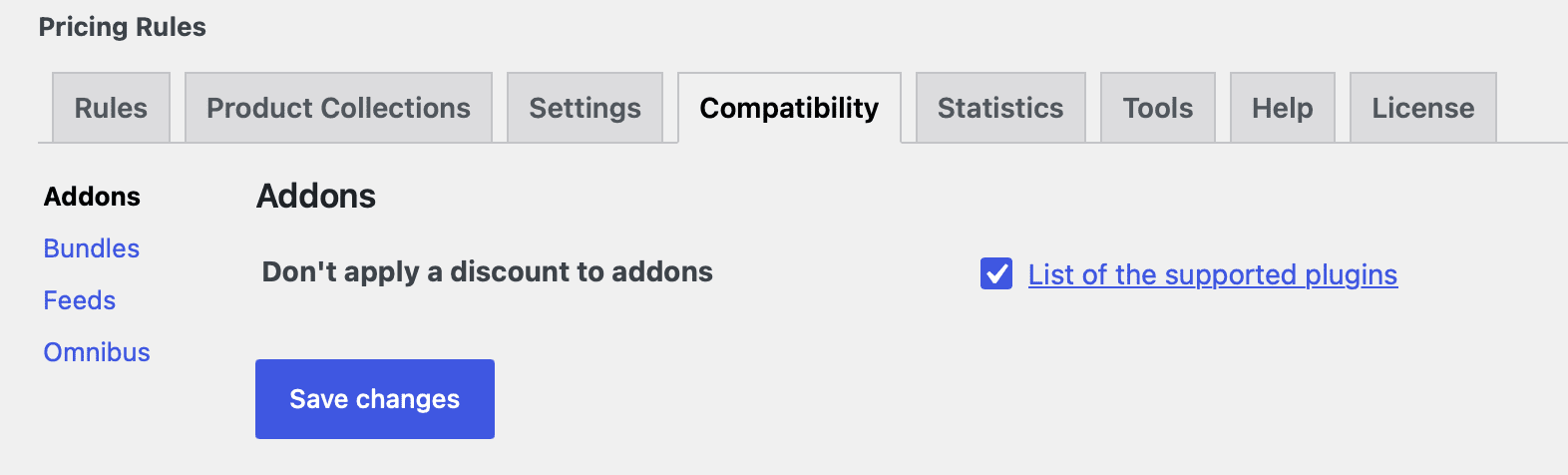
The Compatibility tab in Advanced Dynamic Pricing for WooCommerce PRO gives you fine-grained control over how the plugin interacts with four categories of third-party WooCommerce plugins: product addons, product bundles, product feed generators, and EU Omnibus Directive compliance tools. Rather than requiring custom code to resolve conflicts, the PRO version handles the most common integration scenarios through a simple settings interface.
You’ll find all of these options at Advanced Dynamic Pricing → Settings → Compatibility.
Addons
By default, Advanced Dynamic Pricing PRO spreads any active discount across a product’s add-ons — meaning if a customer adds a product with paid extras (such as engraving, gift wrapping, or a custom configuration option), the plugin applies the discount to the add-on prices too, not just the base product price.
For stores where add-on pricing should stay fixed regardless of any active discount rules, the “Don’t apply a discount to addons” setting lets you exclude all add-on prices from the plugin’s rule calculations. Turn this on and the base product price changes according to your rules, while add-on prices remain exactly as configured.
The following product addon plugins support this setting:
- WooCommerce Extra Product Options by ThemeComplete
- Extra Product Options (Product Addons) for WooCommerce by ThemeHigh
- WooCommerce Custom Product Addons by AcoWebs
- Product Add-Ons by WooCommerce
Bundles
Advanced Dynamic Pricing PRO does not spread discounts to product bundle plugins by default — with one deliberate exception. Since most bundle plugins ship with their own built-in discount system, applying a second layer of discounts from Advanced Dynamic Pricing on top would produce unpredictable and usually unwanted results. The plugin therefore leaves bundle pricing alone unless you explicitly enable integration.
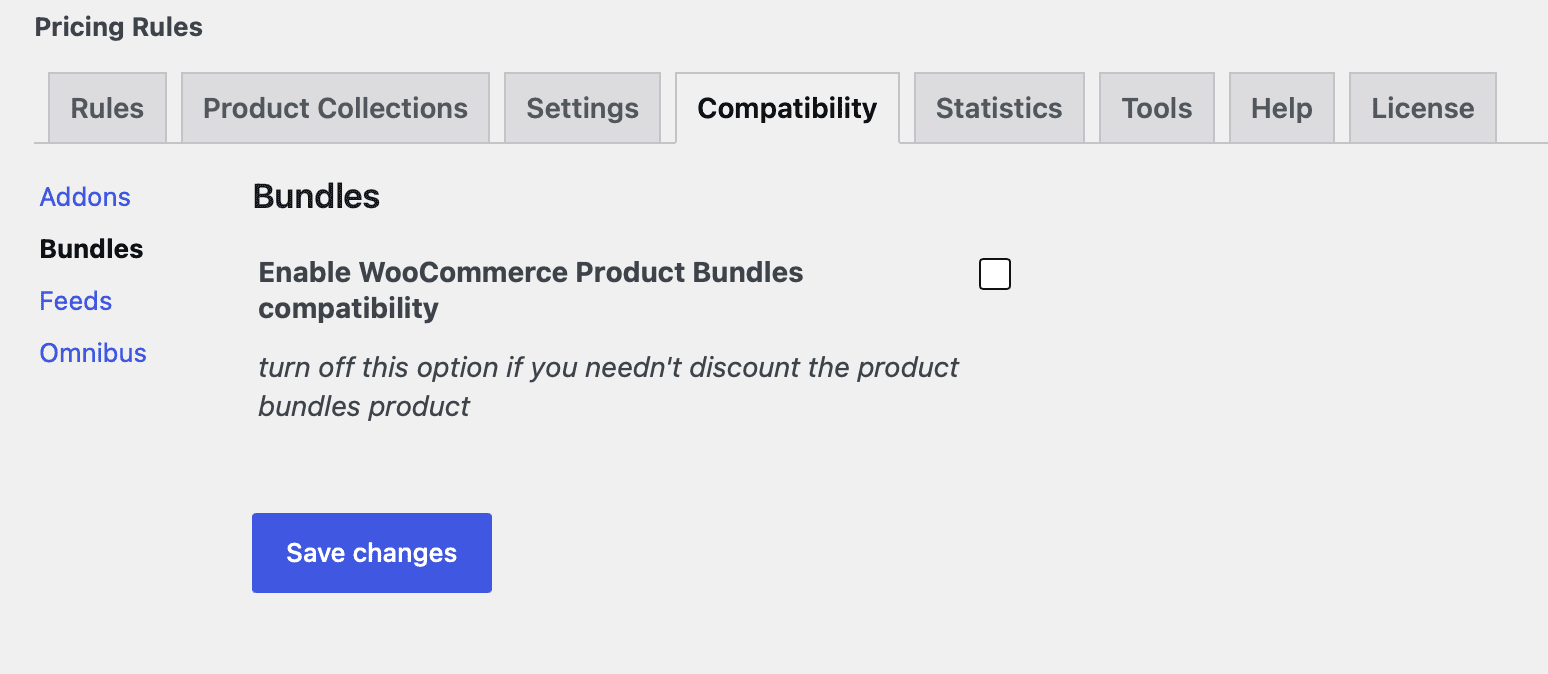
The exception is WooCommerce Product Bundles by SomewhereWarm, which Advanced Dynamic Pricing PRO supports through the “Enable WooCommerce Product Bundles compatibility” toggle. This setting is on by default, so discounts apply to WooCommerce Product Bundles products automatically. If you want to exclude bundled products from your pricing rules entirely — for example because you manage bundle pricing separately — turn this setting off and the plugin skips all WooCommerce Product Bundles products when evaluating rules.
One important note: even with the compatibility toggle on, Advanced Dynamic Pricing PRO does not apply discounts to individual products inside a bundle. The discount targets the bundle as a whole product, not its component items separately.
Feeds
The Feeds tab controls how Advanced Dynamic Pricing PRO interacts with product feed generation plugins. Currently this section supports one specific integration: CTX Feed (also known as WebAppick Product Feed for WooCommerce).
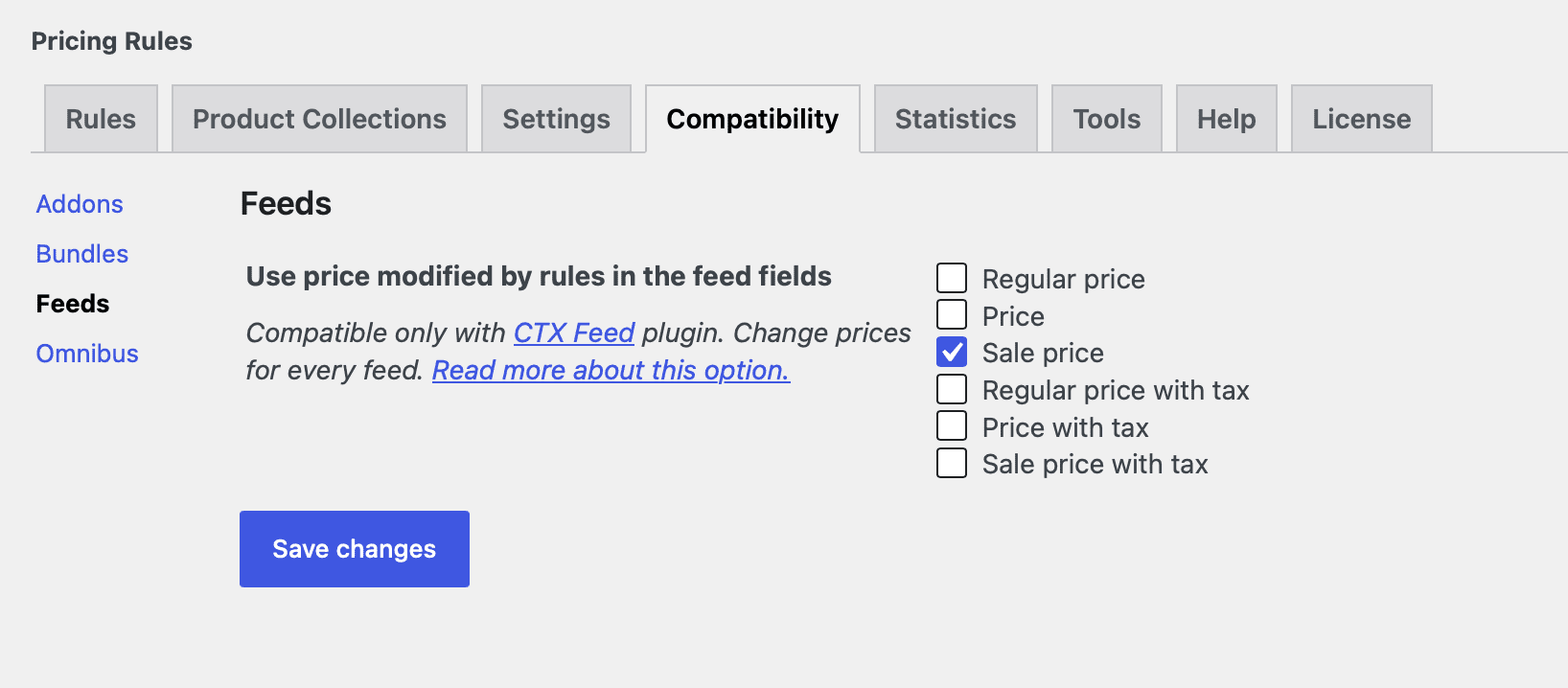
The “Use price modified by rules in the feed fields” option tells the plugin to push its dynamically calculated prices into the CTX Feed price variables when the feed generates. Without this option, CTX Feed reads the raw database prices — which don’t reflect any markups or discounts your rules apply at runtime.
When you enable this setting, a set of checkboxes appears next to each CTX Feed price variable (regular price, sale price, etc.). Tick the checkbox next to each variable you want to replace with the plugin’s calculated price. For example, if you run a markup rule that increases the regular price and you want your Google Shopping feed to reflect the marked-up price, tick the checkbox next to “Regular price” and CTX Feed picks up the modified value automatically on the next feed generation.
Omnibus
The Omnibus Directive (EU Directive 2019/2161) requires online retailers to display the lowest price a product carried in the 30 days preceding any promotional offer. For WooCommerce stores that use the native sale price field, the Omnibus plugin handles this automatically. The challenge for Advanced Dynamic Pricing users is that the plugin applies discounts dynamically at runtime — it never writes a modified sale price back to WooCommerce’s database, so the Omnibus plugin has nothing to log.
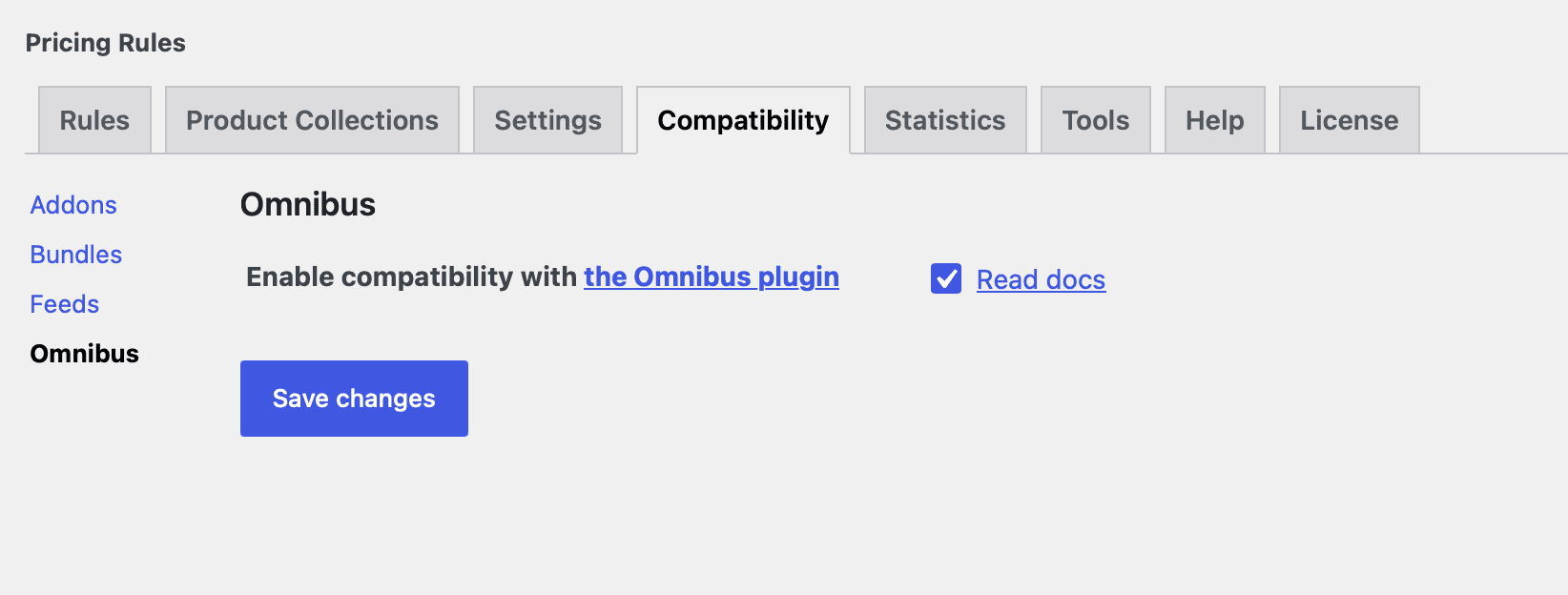
Advanced Dynamic Pricing PRO solves this with a dedicated Omnibus compatibility setting that logs the discounted price to the Omnibus plugin at the moment you save or re-enable a rule.
How to enable Omnibus compatibility:
- Go to Advanced Dynamic Pricing → Settings → Compatibility → Omnibus.
- Turn on “Enable omnibus compatibility”.
- After enabling it for the first time, resave all your existing rules so the plugin logs the current discounted prices to Omnibus. Without this step, Omnibus has no price history to display for previously created rules.
Compatibility conditions and limitations:
The Omnibus integration does not cover every rule type — logging prices from rules that target all products in the store would put excessive load on the server, so the compatibility applies only under specific conditions.
Only rules that include a Product Discount section qualify — Bulk, Gift, Conditional, and Cart Adjustment rules fall outside the compatibility scope since they don’t directly change a product’s displayed price in a way Omnibus can track.
Within qualifying rules, only the following Product Filter types trigger price logging:
- Filter by Products (by name)
- Filter by SKUs
- Filter by Categories
Rules set to apply to “Any product” or using other filter types do not trigger Omnibus price logging.
The price gets logged to Omnibus each time you click Save rule, or when you disable and then re-enable a rule. This gives you manual control over when Omnibus records a new lowest price — useful when testing rules before going live.
Example: You sell a Beanie at $20. You create a 10% discount rule targeting the Beanie by product name and save it. Omnibus records $18 as a new price point. When the promotion goes live and the product page shows the $18 discounted price, Omnibus displays the previous lowest price ($20) alongside it — keeping your store compliant with the directive’s transparency requirement.
⚠️ Important: After enabling the Omnibus compatibility option for the first time, resave every rule you want Omnibus to track. The plugin only logs a price at the moment a rule saves — it does not retroactively scan existing rules.
Read this article for the more observant information about this compatibility.
Settings Summary
| Tab | Setting | Default | Effect when enabled |
|---|---|---|---|
| Addons | Don’t apply a discount to addons | OFF | Excludes add-on prices from all discount rule calculations |
| Bundles | Enable WooCommerce Product Bundles compatibility | ON | Applies discount rules to WooCommerce Product Bundles products |
| Feeds | Use price modified by rules in the feed fields | OFF | Replaces selected CTX Feed price variables with plugin-calculated prices |
| Omnibus | Enable Omnibus compatibility | OFF | Logs dynamically discounted prices to the Omnibus plugin for EU compliance |
When Should You Use These Settings?
Addons — turn on “Don’t apply a discount to addons” when your add-on prices represent fixed costs (materials, third-party services, licensing fees) that should never change regardless of promotional discounts running on the base product.
Bundles — turn off “Enable WooCommerce Product Bundles compatibility” when you manage bundle pricing entirely within the WooCommerce Product Bundles plugin itself and don’t want Advanced Dynamic Pricing rules to interfere with bundle totals.
Feeds — turn on the feed price option when you run markups or dynamic pricing rules and need your Google Shopping, Facebook Catalog, or other marketplace feeds to reflect the actual prices customers see on your storefront rather than the stored database prices.
Omnibus — turn on Omnibus compatibility when your store sells to customers in the EU and you need to display the 30-day lowest price alongside any promoted or discounted price, as required by the Omnibus Directive.