System Report
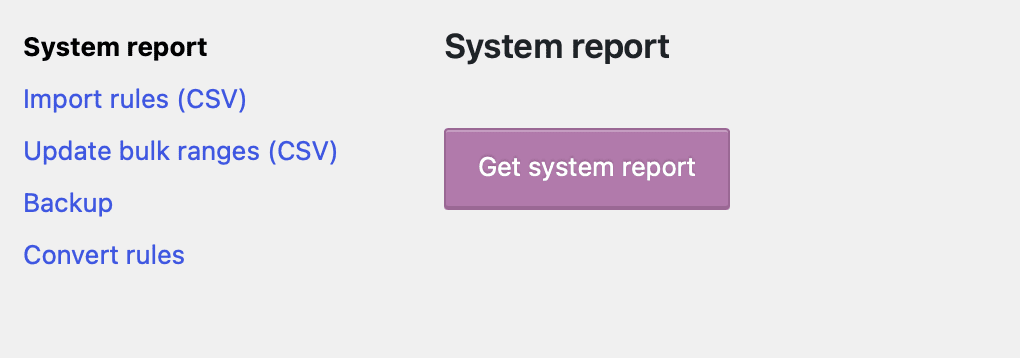
The System Report tool generates a full JSON snapshot of your site’s environment and Advanced Dynamic Pricing configuration. It captures everything the support team needs to understand your setup without back-and-forth questions — your plugin settings, active pricing rules, WooCommerce hook priorities, installed plugins, server environment, and a cart-level debug trace showing exactly what the plugin applied during the last page load.
You’ll find the System Report at Advanced Dynamic Pricing → Tools → System Report. You can also access the same report from the System Report tab inside the Debug panel without enabling the full debug bar.
What the System Report Contains
The JSON export includes the following information categories:
Plugin settings — a complete export of every value across all Advanced Dynamic Pricing settings tabs: Calculation, Product Price, Cart, Product Page, Category Page, Bulk Table, System, and any PRO-only settings you have configured. This lets the support team see your exact configuration without needing admin access to your site.
Pricing rules — a full export of all your current rules, including their conditions, product filters, discount types, and activation status. This allows the support team to reproduce your rule structure in a test environment to diagnose unexpected behaviour.
Installed plugins — a list of every plugin active on your site at the time of the export, including version numbers. Plugin conflicts are one of the most common causes of unexpected pricing behaviour, and this list lets the support team identify potential incompatibilities immediately.
WooCommerce hook priorities — a map of which plugins and functions occupy each WooCommerce pricing hook and at what priority. This is particularly valuable when diagnosing conflicts between Advanced Dynamic Pricing and other plugins that modify prices — it shows exactly the order in which hooks fire and whether any other plugin runs after Advanced Dynamic Pricing and overwrites its output.
Cart debug trace — a snapshot of the products the plugin applied discounts to during the most recent page load, including the rules that fired, the original and calculated prices, and any fees or cart adjustments. This gives the support team a real-world view of what the plugin was doing at the moment you exported the report.
Server environment — PHP version, WordPress version, WooCommerce version, memory limits, and other server-level details that help the support team identify environment-specific issues.
How to Generate and Export the Report
- Go to Advanced Dynamic Pricing → Tools → System Report.
- The report generates automatically when the page loads — no button press required.
- Click Export to download the report as a JSON file.
- Attach the downloaded JSON file to your support ticket.
Alternatively, if you have the Debug panel enabled, click the System Report tab inside the debug bar at the bottom of any page and click Export from there. Both methods produce the same output.
When to Include the System Report in a Support Ticket
Attaching the System Report to every new support ticket significantly speeds up the diagnosis process. The support team uses it to skip the environment-gathering stage and move directly to investigating the specific issue. Always include it when you report any of the following:
- A pricing rule doesn’t apply to the expected products or customers
- A discount amount looks incorrect in the cart, checkout, or order
- A third-party plugin appears to conflict with Advanced Dynamic Pricing
- Prices display differently than expected on the product page, shop page, or cart
- The plugin behaves differently after a WordPress, WooCommerce, or plugin update
- You experience a performance issue you suspect relates to the plugin’s rule evaluation
⚠️ The System Report contains your plugin settings and rule configuration but no customer data, payment information, or sensitive personal details. It’s safe to attach to a support ticket without any redaction.
Tips for Getting the Most Accurate Report
The cart debug trace inside the report reflects the cart state at the moment you load the System Report page. For the most useful report when troubleshooting a specific issue, replicate the problem first — add the affected product to the cart, apply the coupon or trigger the condition that causes the unexpected behaviour — and then immediately generate and export the report. This way the cart trace captures the exact scenario the support team needs to see.
If the issue involves a specific customer role or membership level, log in as a test user with that role before generating the report so the cart trace reflects the correct customer context.