Product Collection Examples
Product Collections in Advanced Dynamic Pricing for WooCommerce PRO let you build reusable, dynamic product groups using flexible filter combinations — categories, attributes, product properties, sales data, and more. Once you create a collection, you can target it in any pricing rule instead of manually listing individual products or categories.
This page walks through five of the most common and practical collection setups, showing exactly which filters to use and what result each configuration produces.
→ Not familiar with Product Collections yet? Start with the Product Collections [PRO] reference page before working through these examples.
Example 1 — Products in a Specific Category with a Specific Attribute
One of the most frequent requests from store owners is targeting products that sit in a particular category and carry a particular attribute simultaneously — for example, applying a bulk discount only to green t-shirts, not to all t-shirts and not to all green products.
Standard product filters in the rule builder use an OR logic across filter conditions, so you can’t express “Category = T-Shirts AND Attribute = Green” directly in a rule. Product Collections solve this cleanly.
Create a new collection and add two filters: set Category to T-Shirts, then add a second filter for Attribute and select Color = Green. The collection engine evaluates both conditions with AND logic, returning only products that satisfy both. Attach this collection to a bulk discount rule and the pricing tiers apply exclusively to green t-shirts — other colours in the same category stay at their regular price.
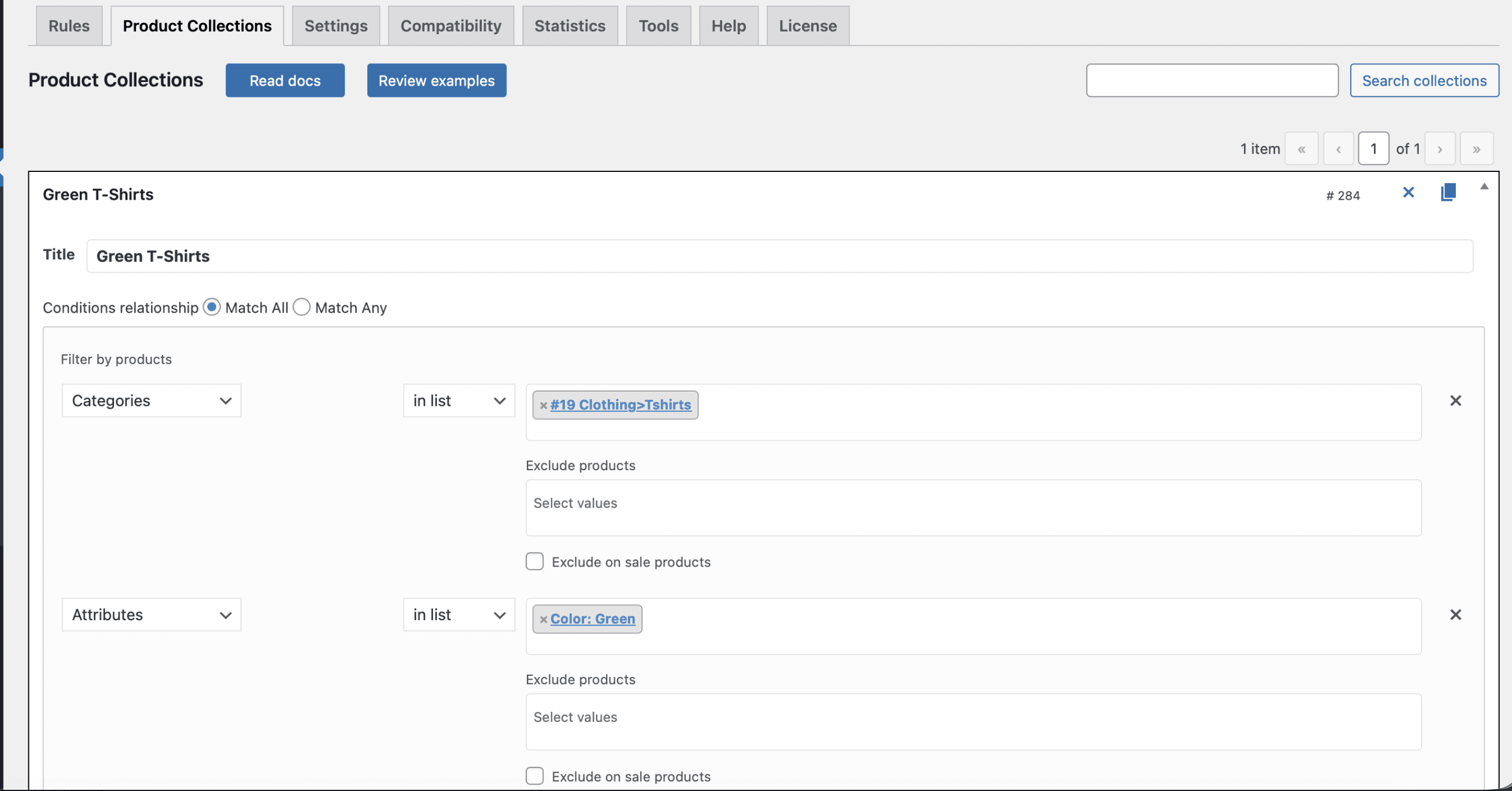
The rule example for the collection:
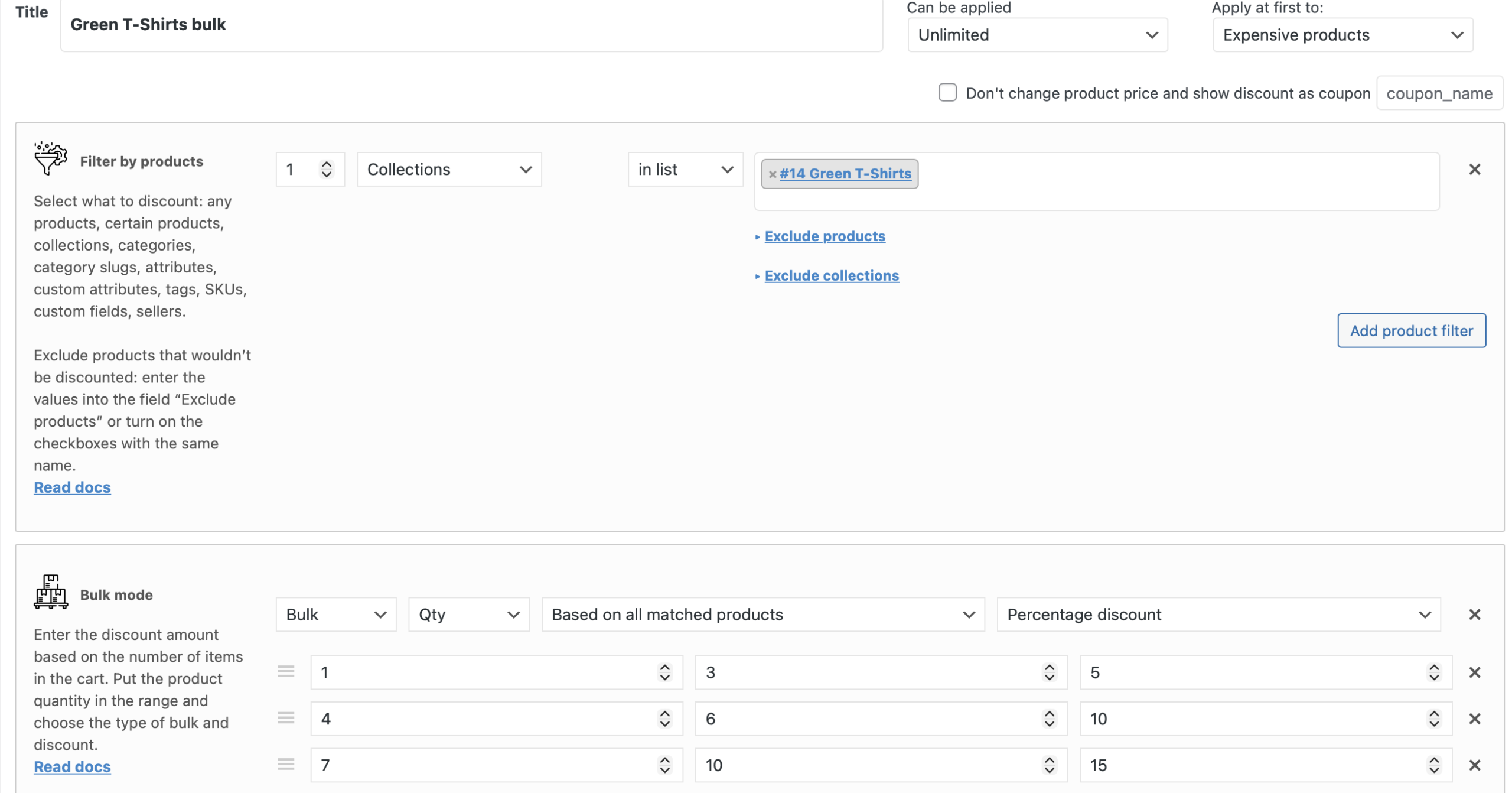
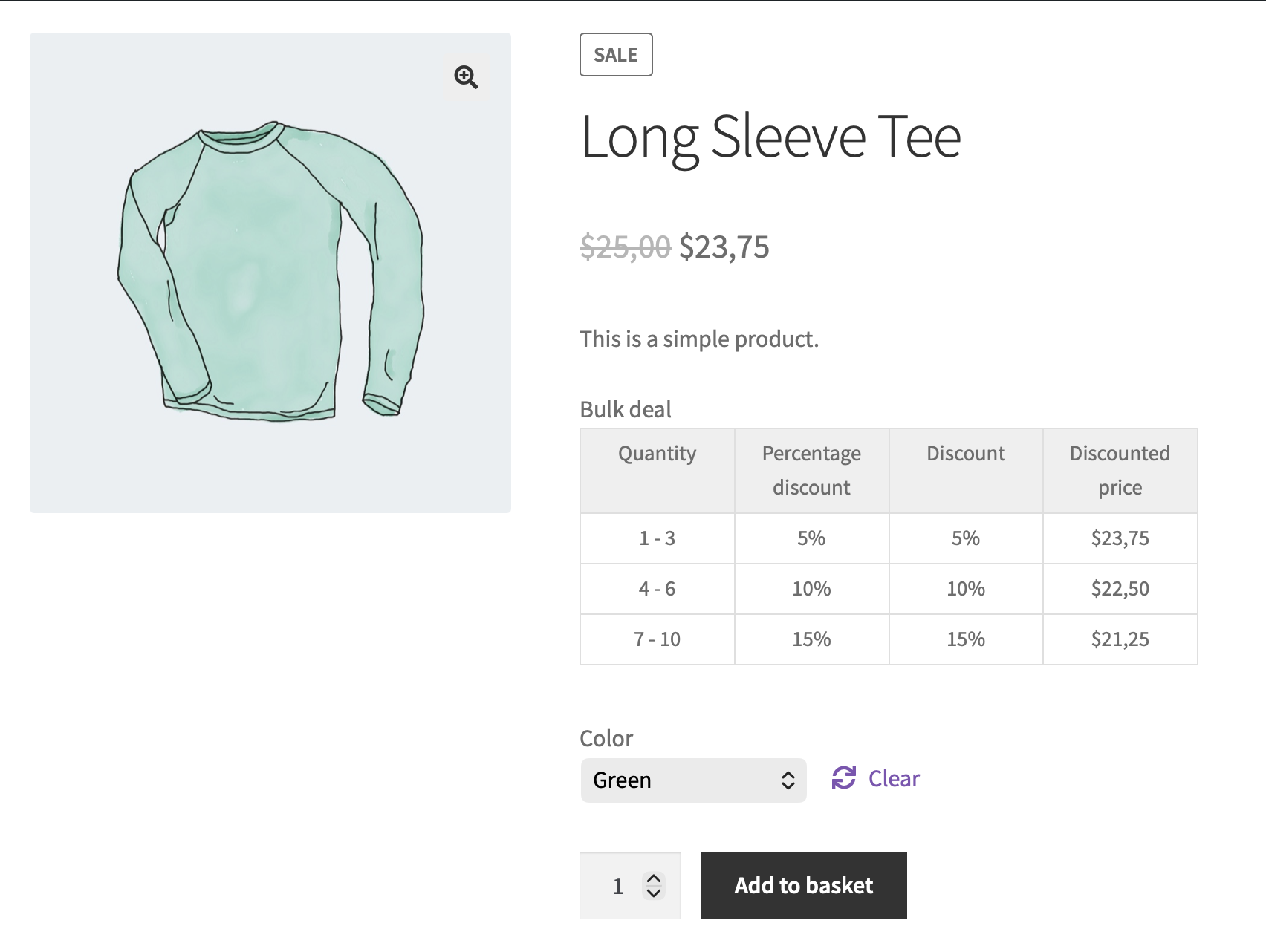
Look at the product page of the T-Shirt. Here’s a bulk table and the discounted price for the green one:
Example 2 — Products Belonging to Two Categories at the Same Time
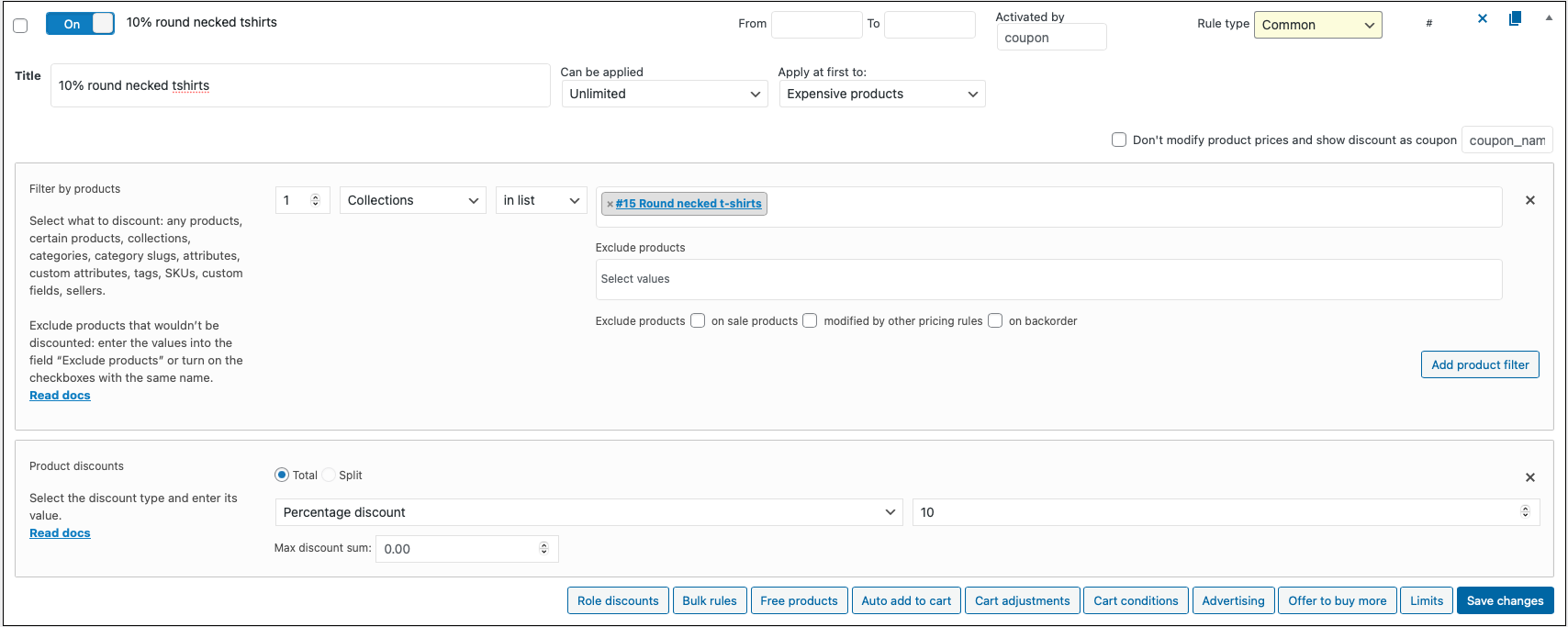
A variation of the first example applies when your store uses multiple overlapping categories and you want to target only the intersection. For example, you want to offer 10% off t-shirts with a round neck, where “T-Shirt” and “Round Neck” exist as two separate categories.
Create a collection, add a Category filter set to T-Shirt, then add a second Category filter set to Round Neck. Using two separate category filter rows creates an AND relationship between them — the collection returns only products that appear in both categories simultaneously. Build a 10% product discount rule targeting this collection and only round-neck t-shirts display the discount on the shop page, while all other t-shirts and all other round-neck products remain unaffected.
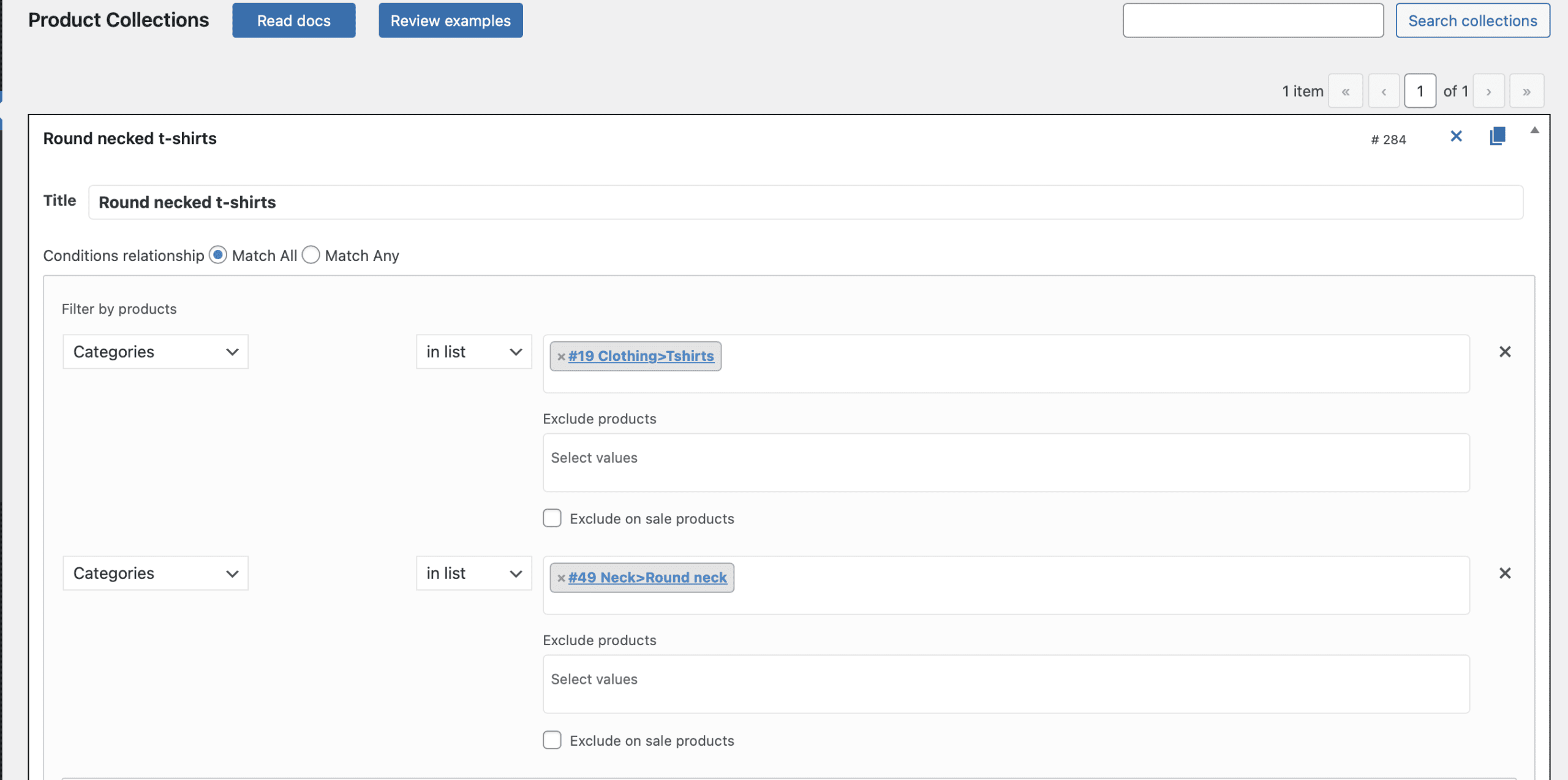
The rule example for the collection:
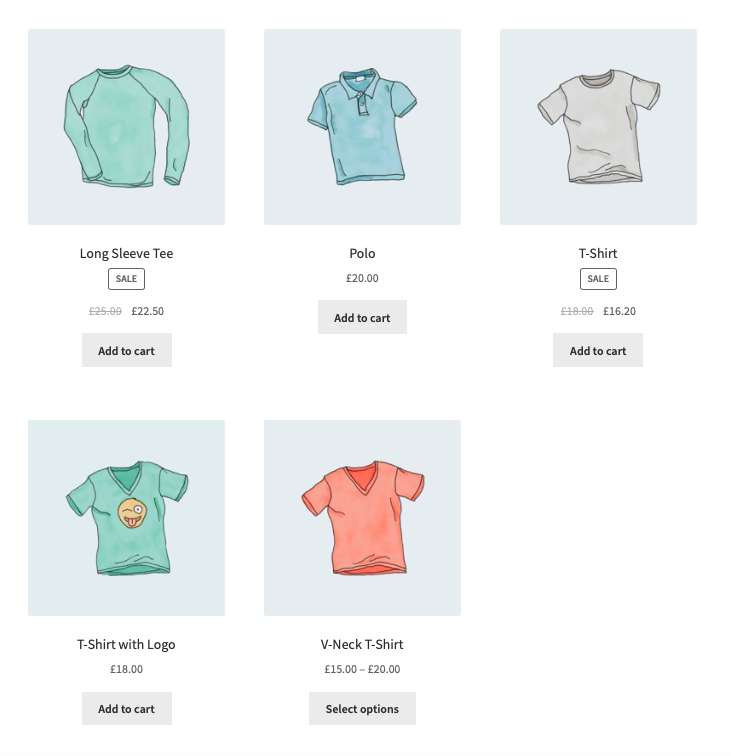
Look at the shop page. Only round necked t-shirts has the 10% discount.
Example 3 — Products with Zero Sales in the Current Month
Product Collections also open up data-driven promotional strategies that standard product filters simply can’t support. If you want to automatically discount slow-moving stock — products that haven’t sold at all this month — you can build this entirely without manually maintaining a product list.
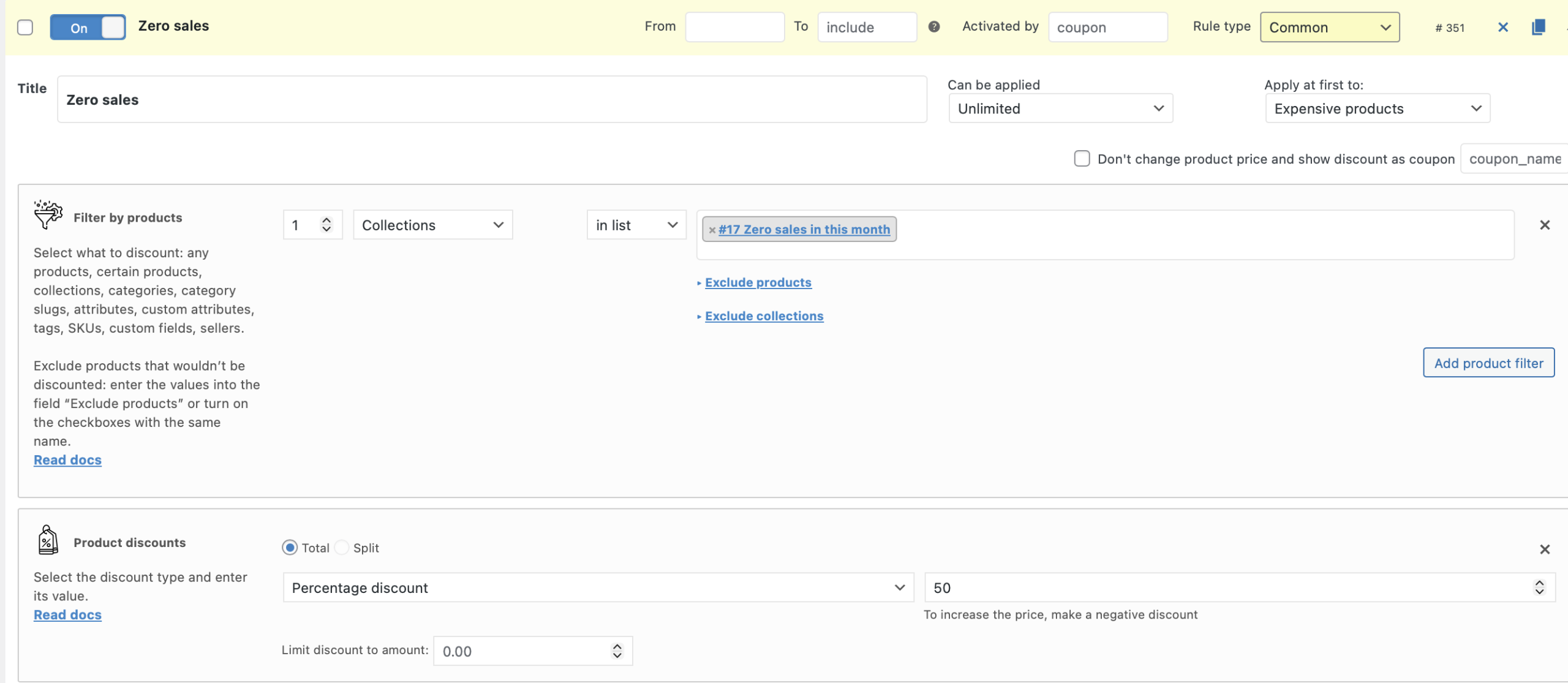
Create a collection and add the Sales Qty filter. Set the comparison to equals 0 and the time period to this month. The collection dynamically recalculates which products qualify each time the rule engine evaluates, so it always reflects your current sales data. Attach a discount rule to this collection and the promotion targets only genuinely unsold products — and stops applying automatically once a product makes its first sale that month.
This is a powerful tool for clearing dead stock or running automatic clearance promotions without any manual intervention.

Create the collection and the rule for it:
And you’ll get the discount only on these products.
Example 4 — Products Whose Name Contains a Specific Word
When your product catalogue uses consistent naming conventions, you can use name-based filtering to target an entire product group without explicitly listing them or assigning them to a category. For example, you want to apply a percentage discount to every product with “hoodie” in its name.
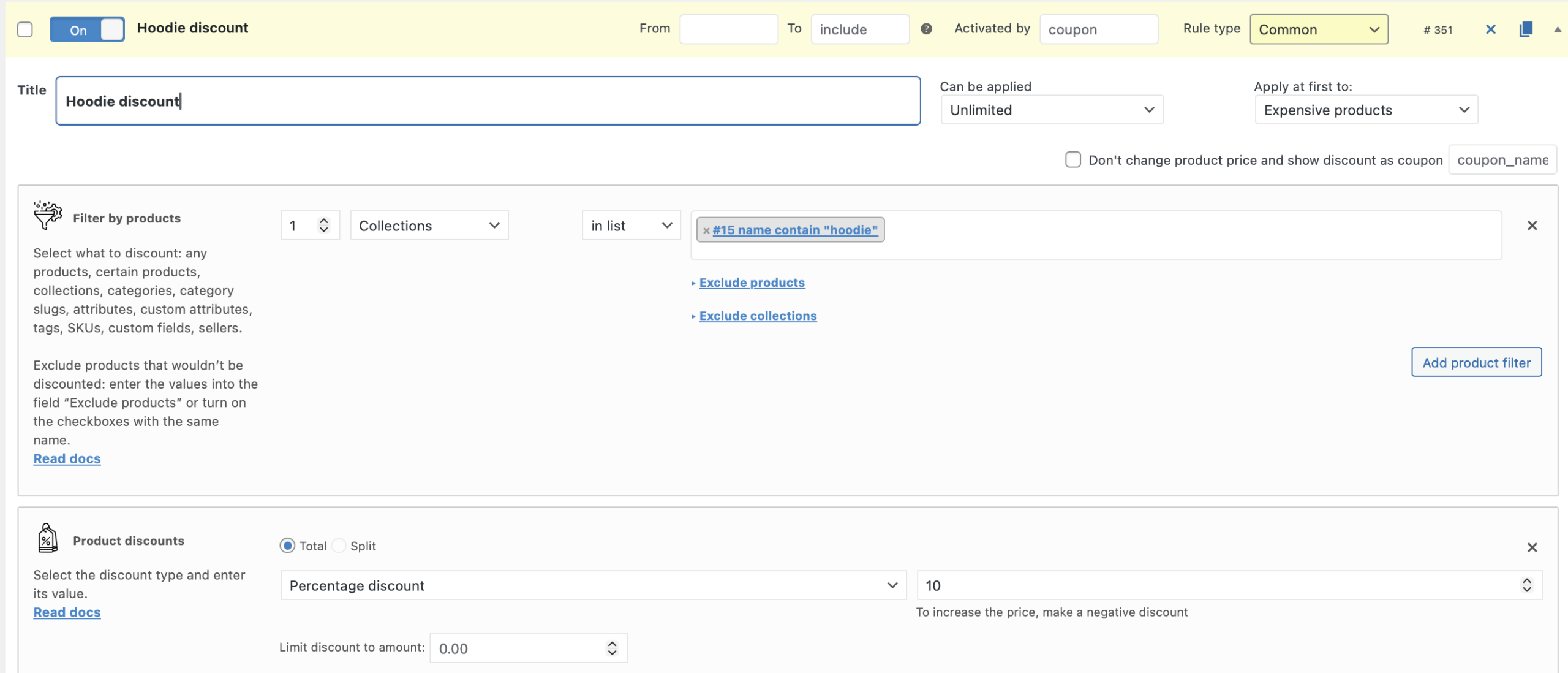
Create a collection and choose the Product Property → Name filter. Set the operator to contains and enter hoodie as the value. Every product whose name includes that word — regardless of colour, size, or category — joins the collection automatically. Create a percentage discount rule targeting this collection and visit the shop page to confirm only hoodie products carry the discounted price. New products you add in the future with “hoodie” in the name automatically qualify for the same rule without any extra configuration.

And then create the rule:
Let’s look at the Sale product’s page:
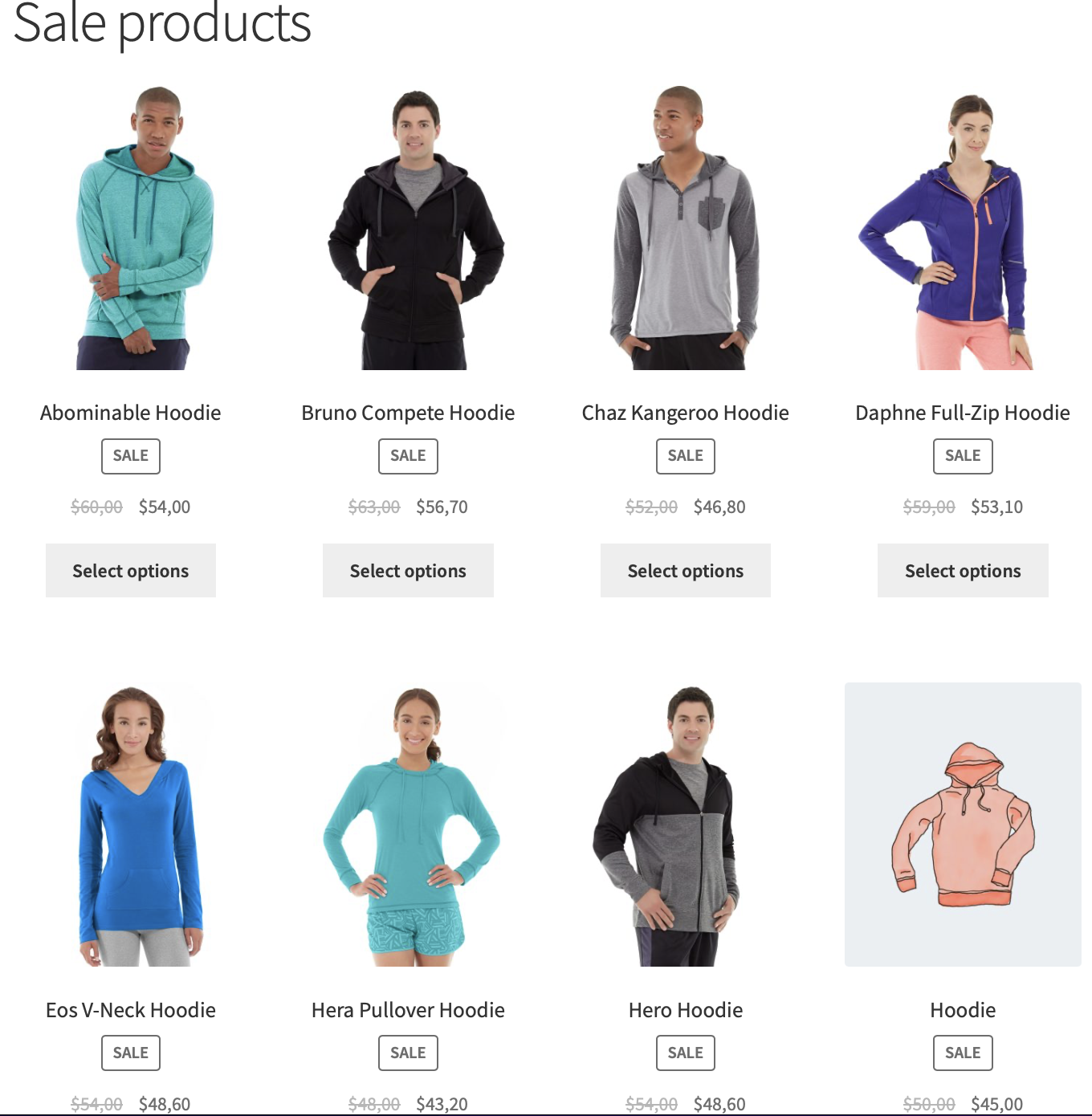
There are only different hoodies with the discount.
Example 5 — Products Filtered by Product Type
If you want a discount to apply only to products of a specific WooCommerce type — for example only Simple products, only Variable products, or only External products — you can express this cleanly through a Product Collection rather than trying to manage it through category or tag assignments.
Create a collection and choose the Product Property → Product Type filter. Select the type you want to target from the dropdown (Simple, Variable, Grouped, External, or any custom type registered by a plugin). Attach any rule to this collection and the discount fires only on products matching that type — all others in your catalogue remain outside the rule’s scope regardless of their category or pricing.
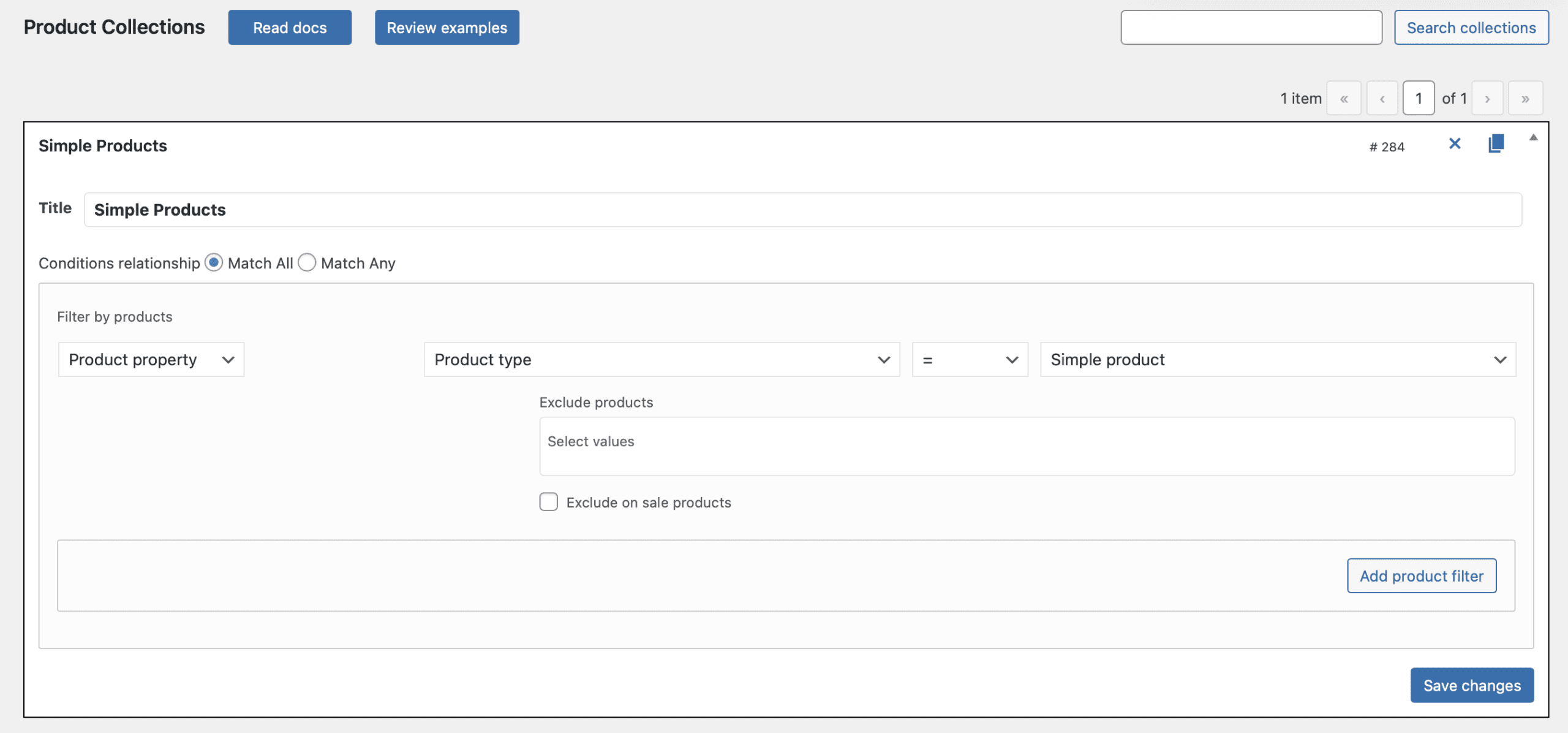
Just choose Product Property > Product type filter and choose the necessary product type. Then create a rule like in the examples above and check the discount appliance
How to Apply a Collection to a Rule
Once you build a collection using any of the examples above, applying it to a rule takes just a few steps.
- Go to Advanced Dynamic Pricing → Rules and create a new rule or open an existing one.
- In the Product Filters section, change the filter type to Product Collection.
- Select your collection from the dropdown.
- Configure the discount type and amount in the rule’s discount section.
- Save the rule and visit the relevant product or shop page to confirm the discount applies only to the products your collection targets.
Why Use Product Collections Instead of Standard Filters?
Standard product filters in the rule builder apply OR logic — selecting multiple categories targets products in any of those categories. Product Collections apply AND logic across their internal filters, letting you express intersections and complex conditions that standard filters can’t handle. They also update dynamically — a collection using sales data or stock levels always reflects the current state of your catalogue without manual maintenance. And since collections are reusable, you can attach the same collection to multiple rules without rebuilding the filter logic each time.