Product Discounts – Rules for Simple Discounts

Common description
The Product Discounts rule’s section allows you to automatically adjust product prices based on rules you define. The plugin processes these rules in real-time as customers add items to their cart, updating prices instantly on product pages and in the cart.
Select the discount type and enter its value for the products that was chosen by product filter.
There are 5 discount types:
- Fixed discount. Subtracts a specific monetary amount from the product’s original price. Enter the discount value in your current currency. This is ideal for “Save $10 on this item” promotions. If there is a product set as a product filter, the discount would be proportionately divided between the products.
- Percentage discount. Applies a percentage reduction to the product’s price. Enter the discount value as a whole number (e.g., “15” for 15% off). This is perfect for storewide sales, seasonal promotions, or clearance events. If there is a product set in the filter, the discount would be proportionately divided between the products.
- Fixed price. Overrides the original price with a specific amount you define. Enter the price value in your current currency. The product will be sold at exactly that price, regardless of its original price. The fixed price is proportionately divided between set of the product.
- Fixed discount per item (PRO). Subtracts a fixed amount from each individual item’s price. This is similar to Fixed Discount, but the key difference lies in how it handles bundles. Enter the discount value in your current currency. Unlike standard Fixed Discount, the discount is NOT divided between products in a product set. Instead, each product receives the full discount amount individually. Available only in Split mode.
- Fixed price per item (PRO). Sets a specific price for each individual item. Enter the price value in your current currency. Similar to Fixed Discount per Item, the price is NOT divided between set of the products. Each product is set to the specified price independently. Available only in Split mode.
Also, if there are 2 or more product filters, the Split mode would be available.
The Split mode applies the discount for each product filter separately.
“Max discount sum” setting
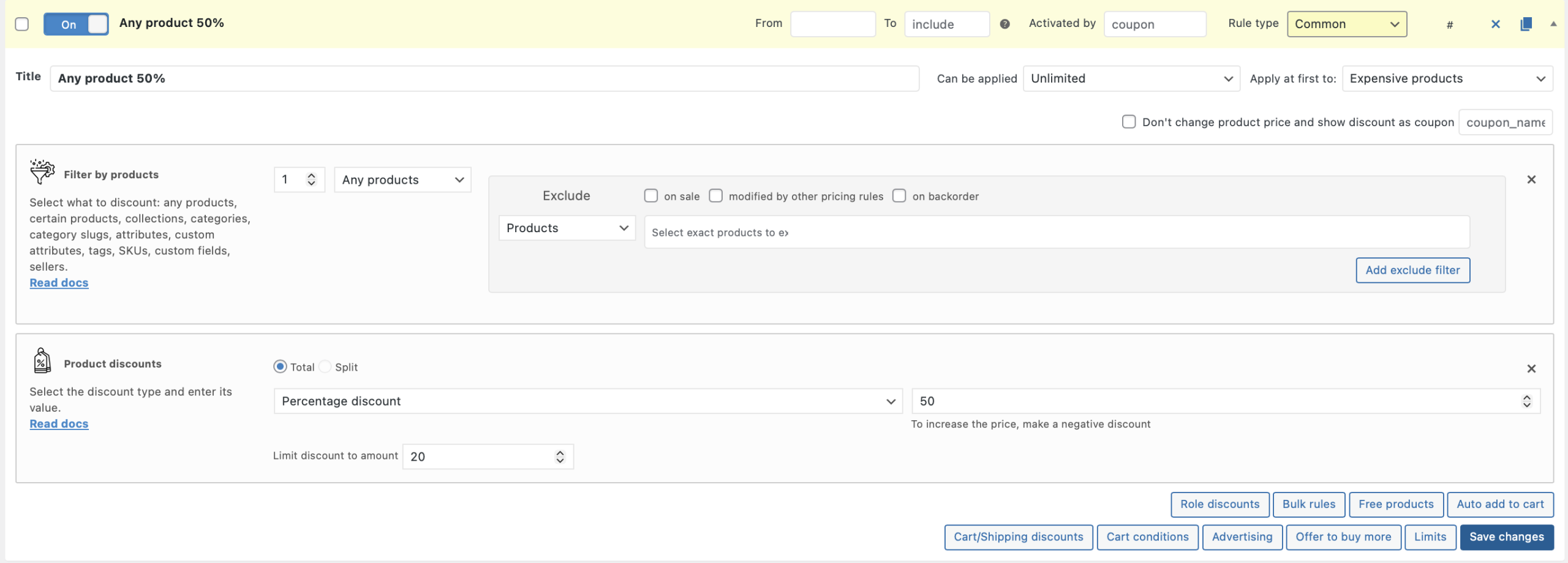
To prevent excessive discounts from eating into your profit margins, use the “Max discount sum” setting. This allows you to cap the total discount amount applied per item, regardless of the discount percentage you’ve set.
The maximum discount sum is the highest amount that can be deducted from a single product’s price. If the calculated discount would exceed this limit, the discount is capped at the maximum value. For example, create a rule with 50% discount to any product, but limit a discount sum to 20 amounts. Look at the screenshot:
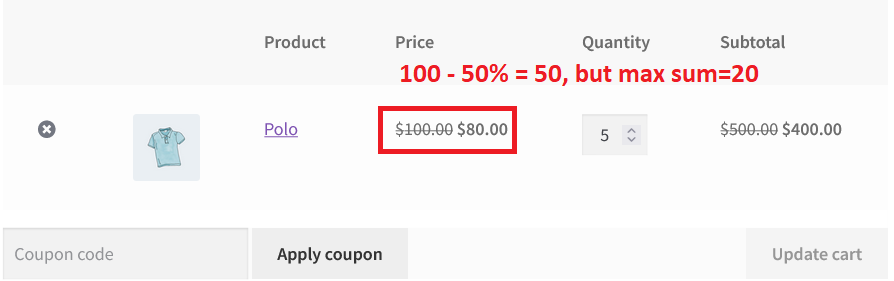
Look at the cart. What do we have:
The polo price is 100$. The discount would be a 50$, but there is a max discount sum of 20$. Then the polo price would be 80$.
Split discount mode
When you have two or more product filters in a single rule, Split mode becomes available. Split mode allows you to apply different discounts for each product filter separately, giving you granular control over complex pricing strategies.
Without Split mode, the discount is applied to the entire set of products collectively. With Split mode enabled, the system processes each product filter independently, applying its specific discount only to the products that match that filter.
It’s better to use the split mode to make the second product for free. Let’s review the example:
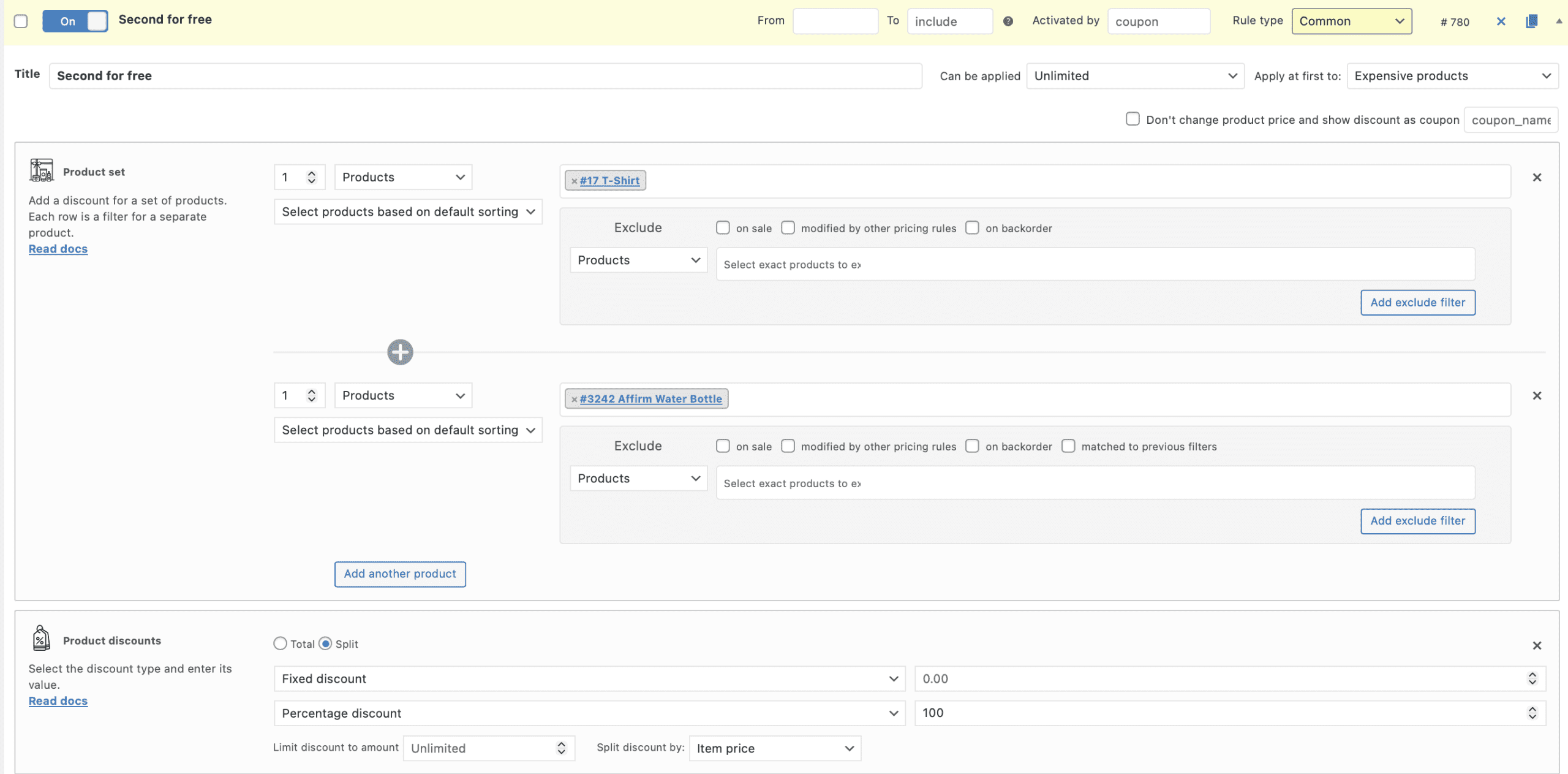
The product’s price from the first product filter in set won’t be edited, but the product’s price from the second filter will have a 100% discount, or just this product will be for free, when your customer put the first product to the cart.
Split discount by item cost/quantity
When applying a discount across multiple products, you can choose how the discount is distributed using the “Split discount by” setting. This gives you control over whether discounts are allocated based on item price or item quantity.
Let’s review an example.
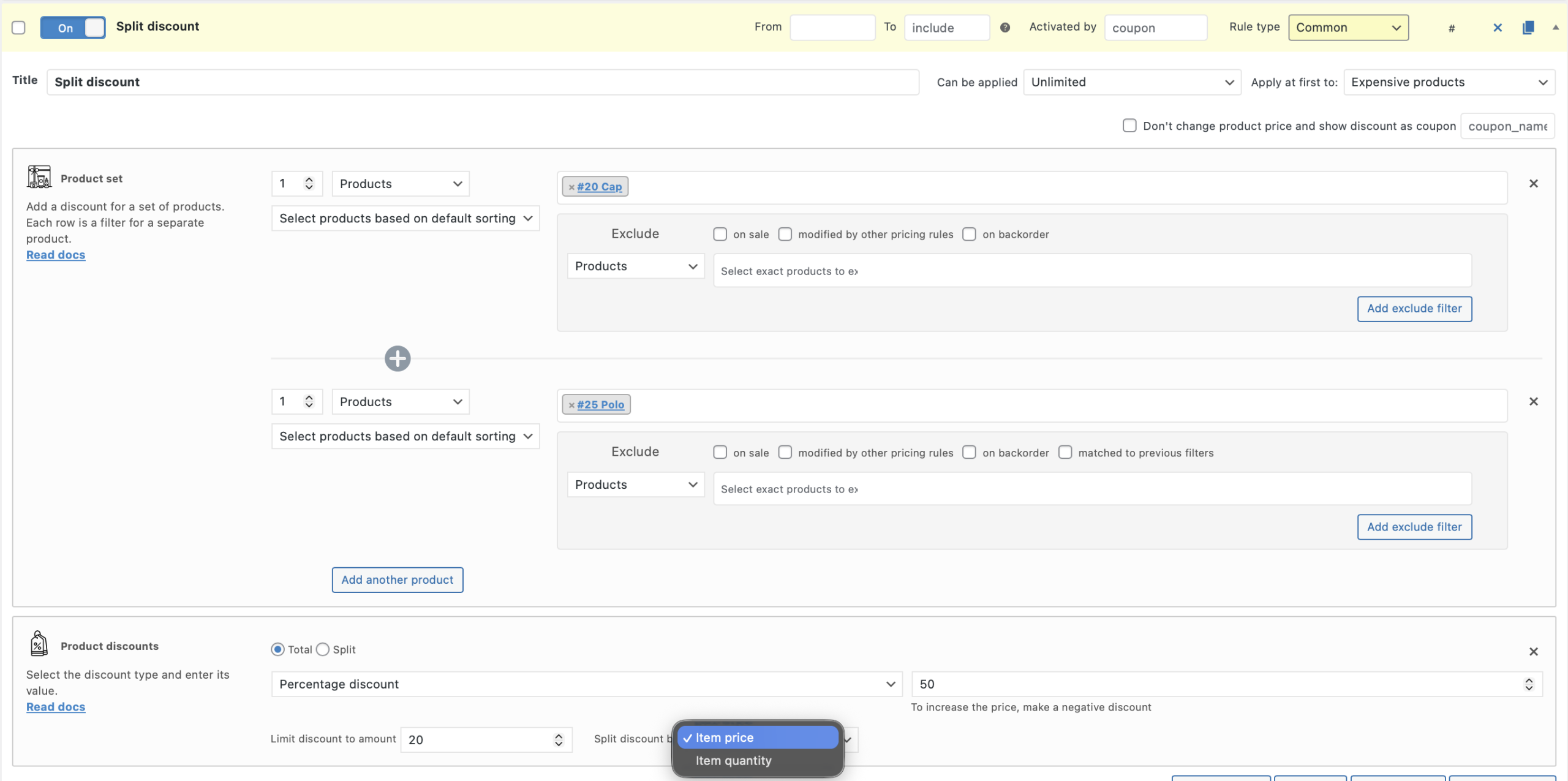
Choose how to split a discount: by item price or quantity. See the difference between these methods:
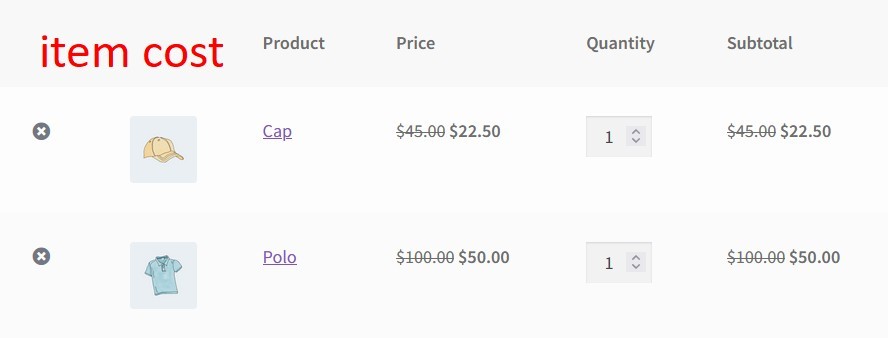
Each product has its own discount.
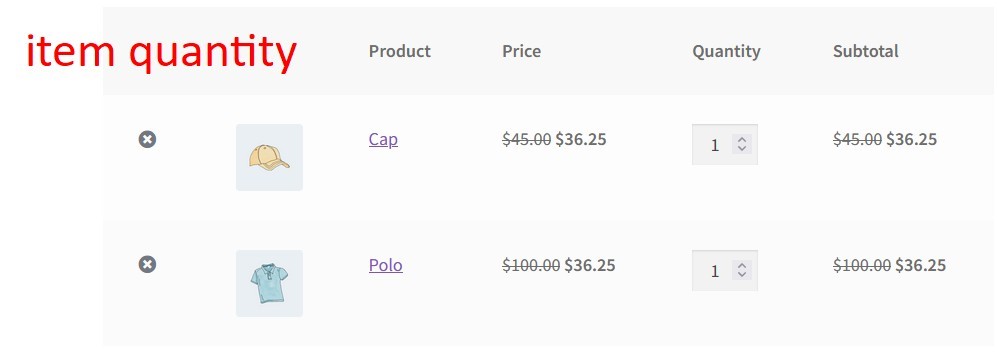
The whole discount sum divided by the products.
Negative discount
Did you know you can also increase prices using this feature? By entering a negative number in the discount field, you can apply a markup instead of a discount. Our plugin has allowed negative discounts for price increases since early versions.
A negative percentage or fixed amount will add to the original price rather than subtract from it.
For example, mark up an accessories’ category to 10%.
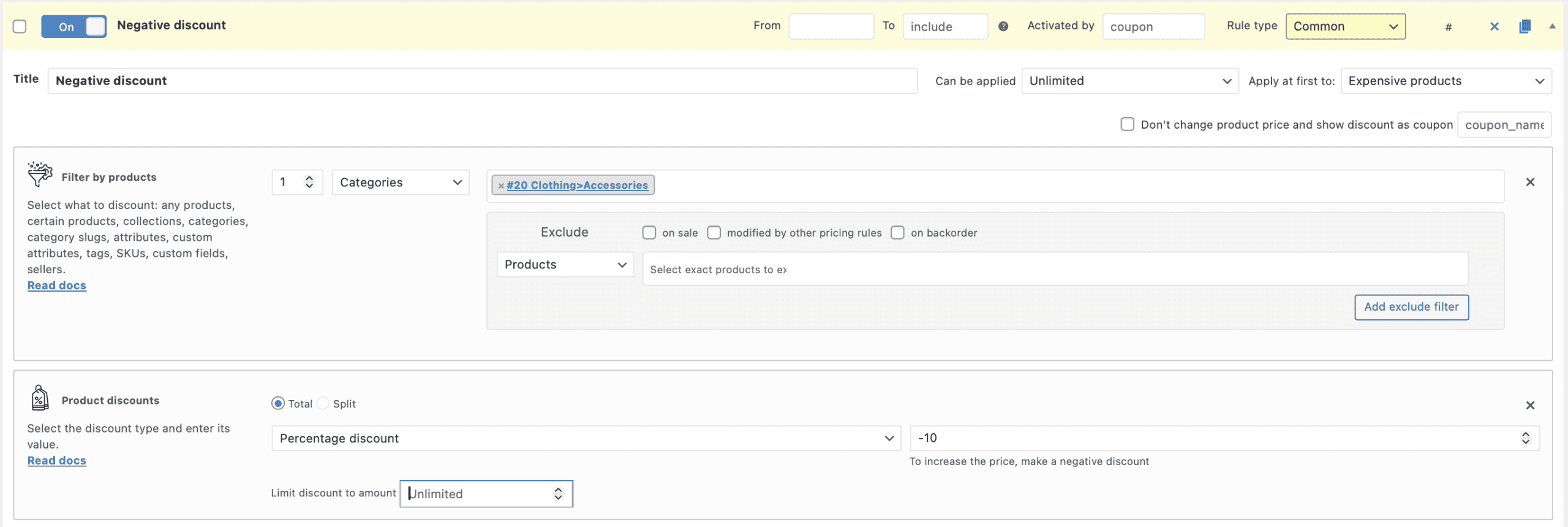
Look at the debug bar. The cap’s normal price is 45, but with 10% markup it has a 49.5 price.
