Gifts – Rules for Gifts
Gifts rule’s section allows you to automatically add products as gifts to the customer’s cart based on rules you define. Whether you need a simple BOGO offer, a cart‑based gift, or a fully interactive gift‑choosing experience, this feature is for you.

How to create a rule with the gift
Choose the necessary rule’s template according to your goal.
Basic BOGO (Buy One, Get One Free)
For every product in the “T‑shirts” category, give the same second T‑shirt for free.
- Select “BOGO(free)” as the rule type.
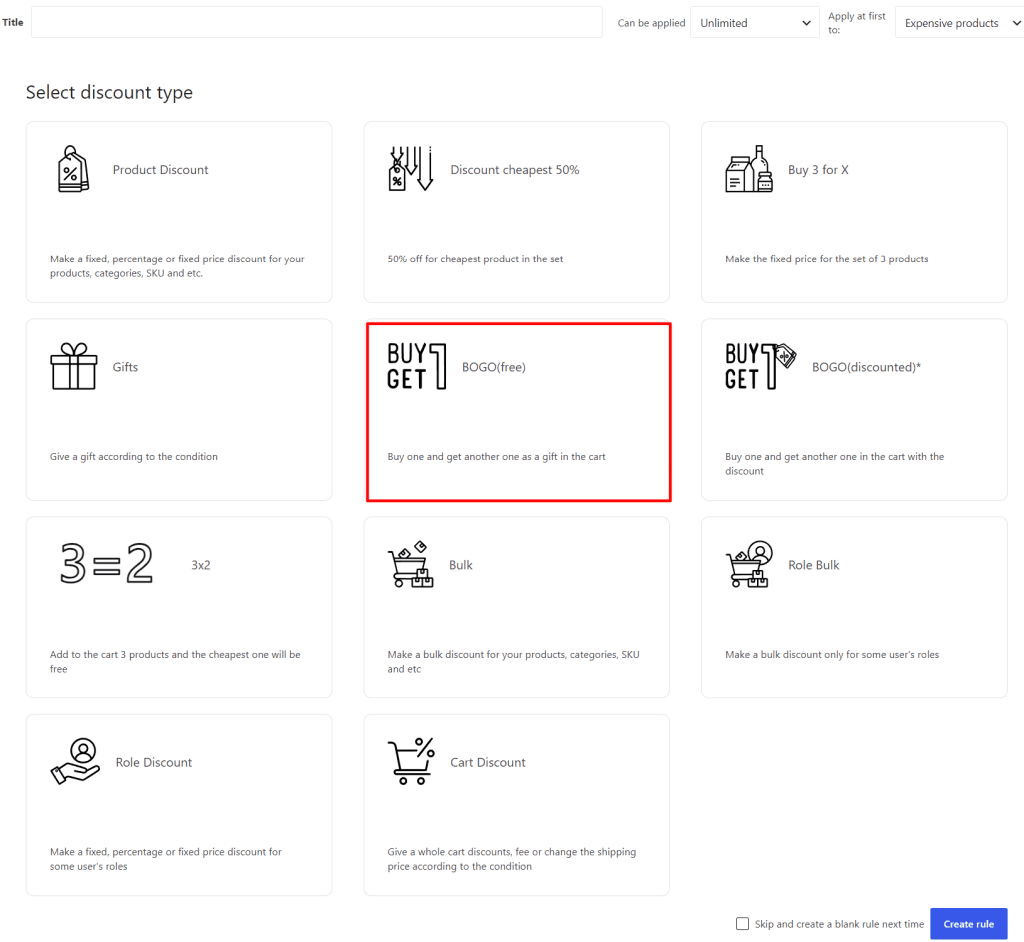
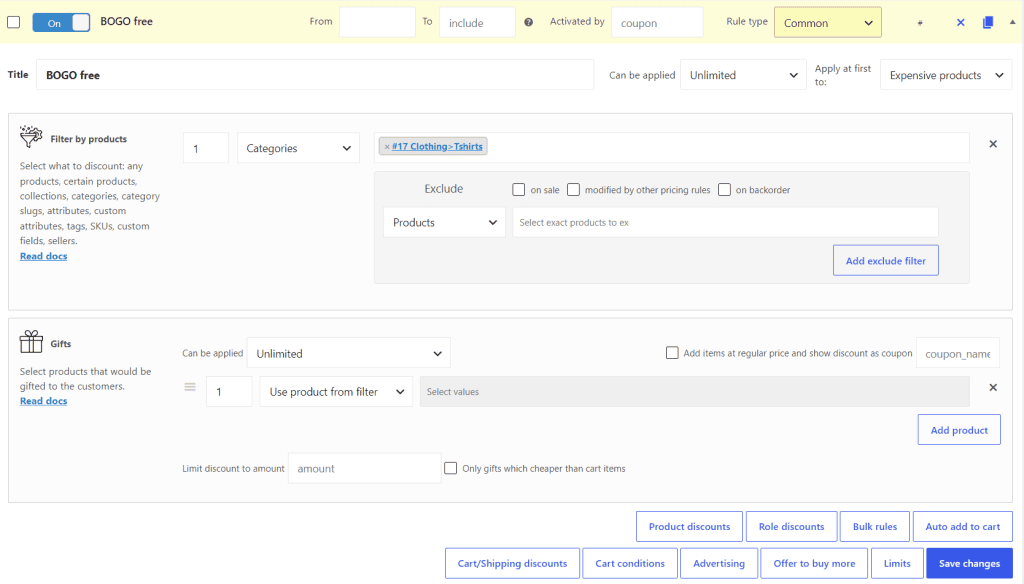
- Set the Product Filter to the T‑shirts category.
- In Gifts, choose “Use product from filter”. Click “Save changes button”.
The screenshot with the rule’s example:
What you’ll see in the cart: when a customer adds T‑shirts to the cart, the same T‑shirt is automatically added for free.
Spend & Get a Choice of Gift
Give customers a free gift of their choice (from a list of 5 products) when they spend over $100.
Setup:
- Select “Gifts” rule’s template
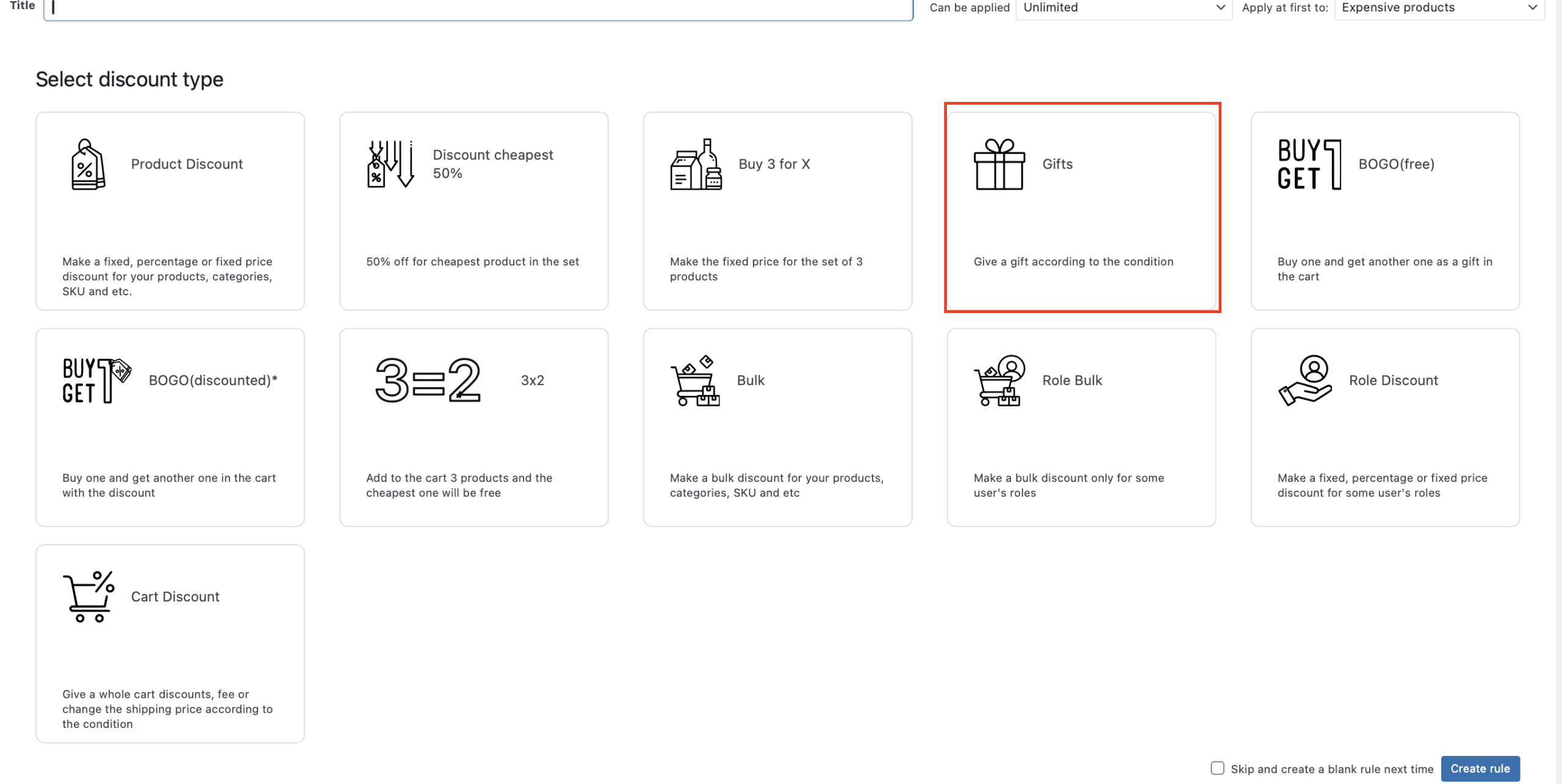
- In Cart Conditions, set “Subtotal (exc. VAT) ≥ 100”.
- In Gifts, choose “Allow to choose from category” (PRO). Choose the necessary category.
- Set “Can be applied” to “Once”. Click “Save changes” button.
The example of the rule:
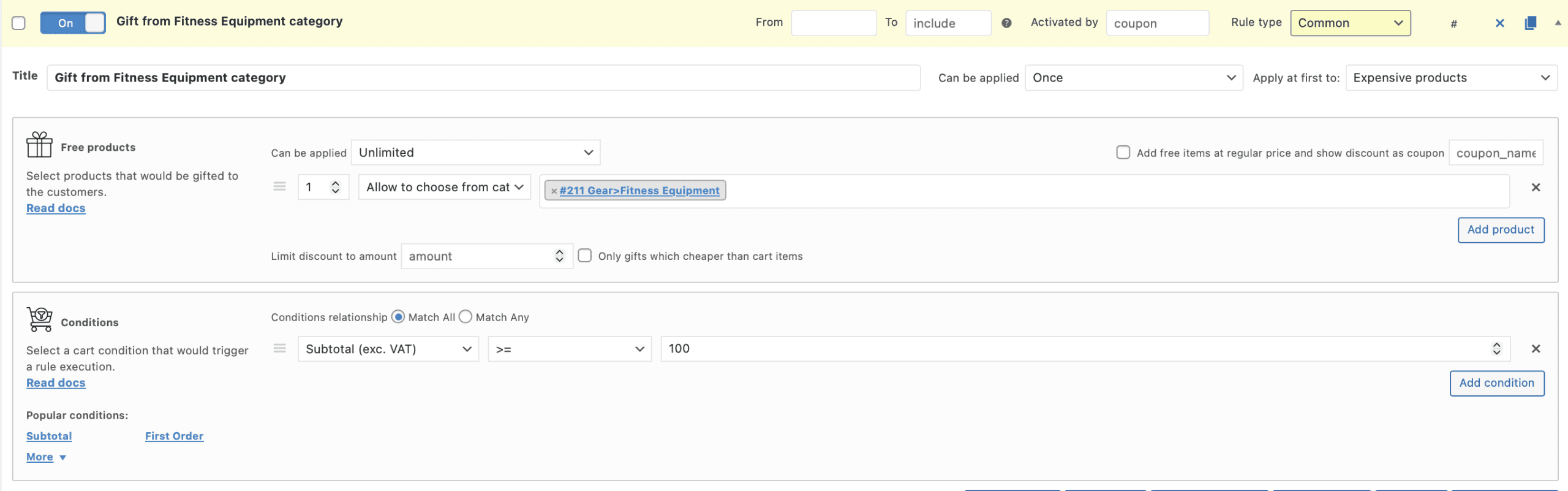
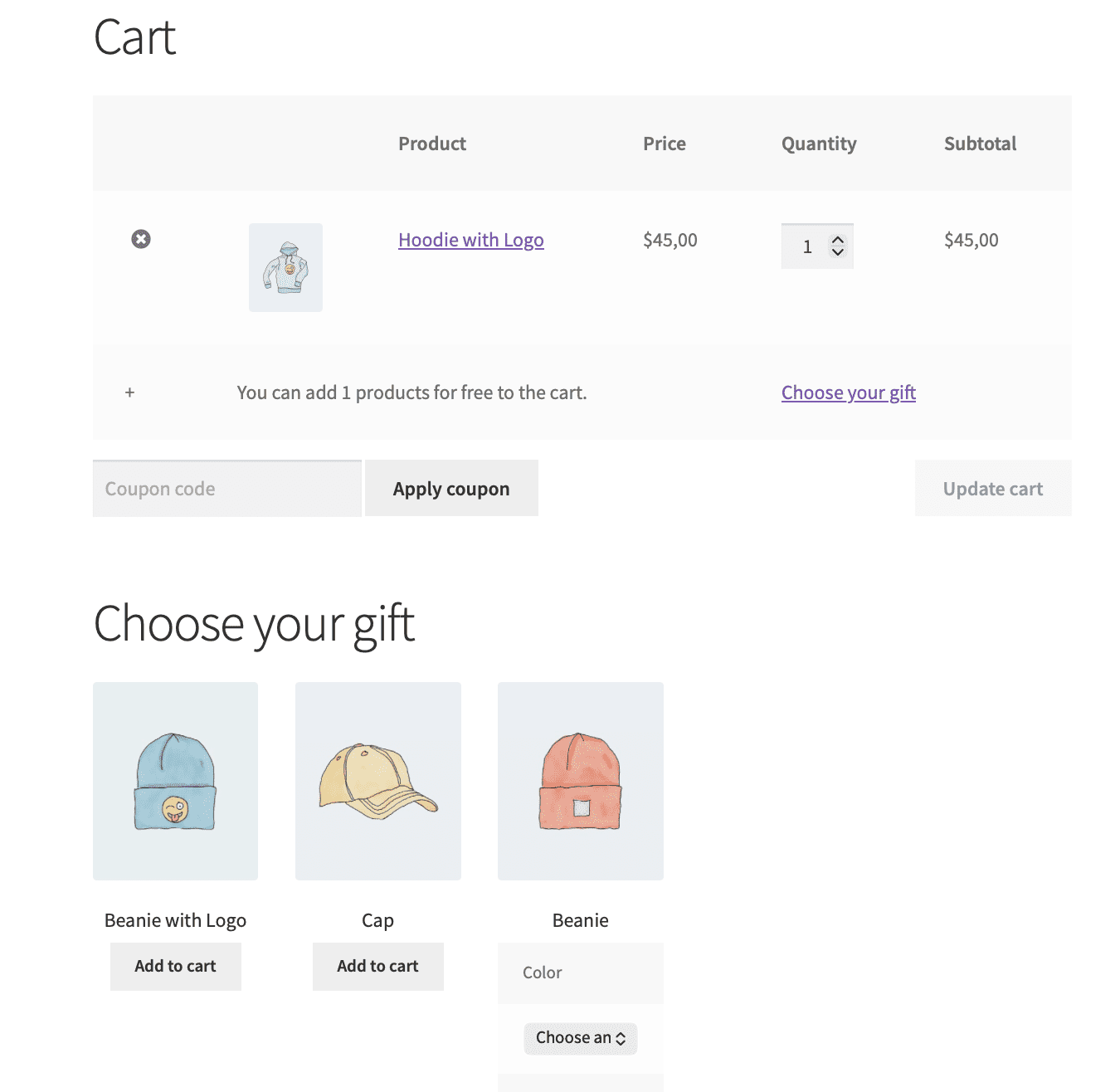
What you will see in the cart: customers with a cart subtotal of $100 or more see a “Choose your gift” link. They can select one gift from the category, which is then added to the cart.
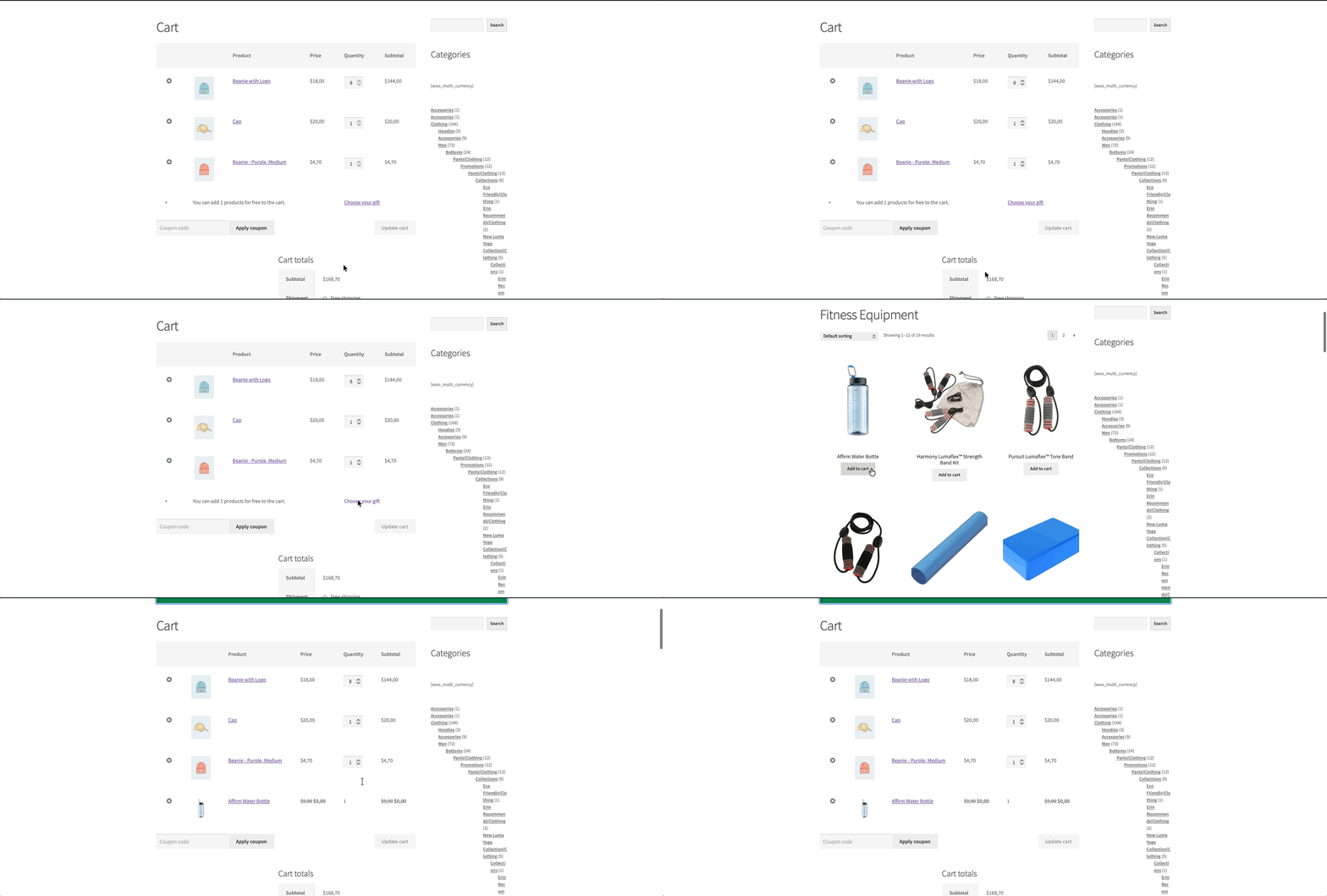
Gift’s modes description
When creating a Gifts rule, you will see a dropdown with seven different ways to choose which product(s) are gifted. Each mode is suited for a different promotional strategy. Let’s review each of them.
Give gift from the list (1st available)
This is the simplest and most predictable mode. You specify a list of gift products. The plugin automatically adds the first product in the list as a gift whenever the rule’s conditions are met.

Best for simple, fixed‑item promotions where the gift is always the same.
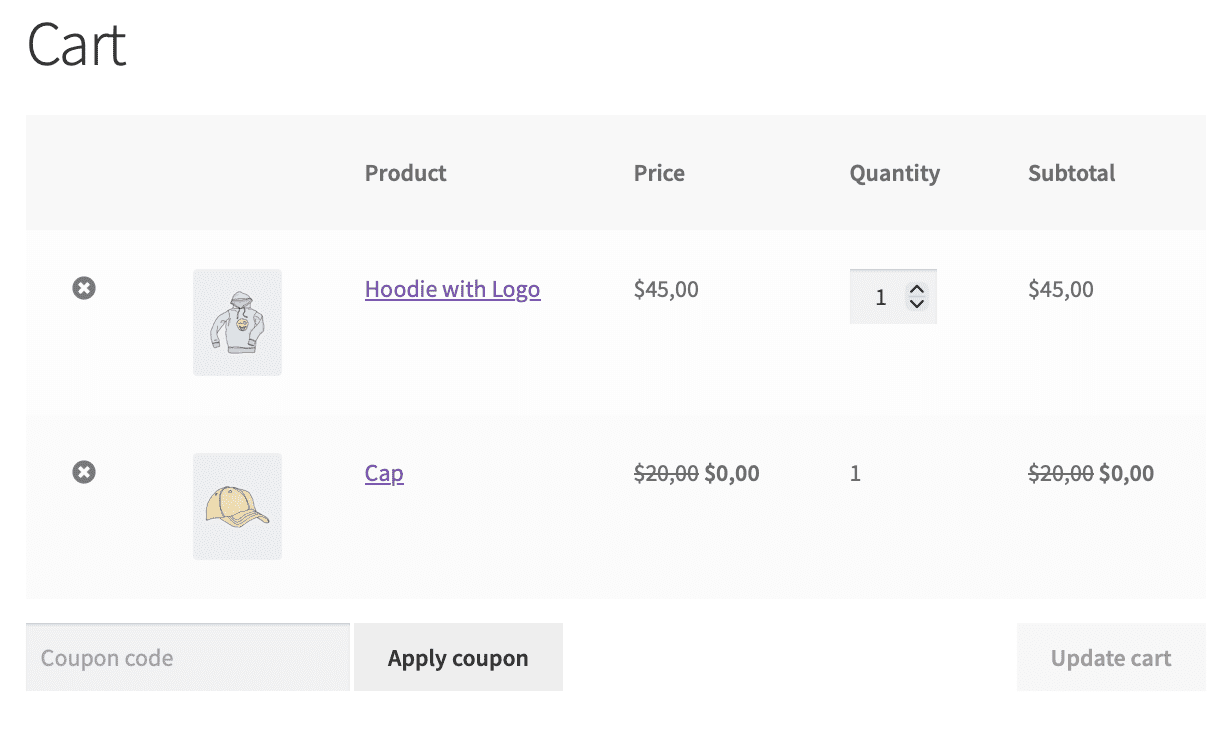
Note: If the first gift in the list is out of stock or otherwise unavailable, the plugin will not automatically add a different gift. Use the rotation mode if you want to cycle through gifts.
Give gift from the list (in rotation) (PRO)
This mode also uses a list of gift products, but instead of always adding the first one, the plugin rotates through the list in a 1‑2‑3, 1‑2‑3‑4, … order. Each time a new customer qualifies for the gift, the next product in the list is used. After reaching the end of the list, it starts over from the beginning.

Best for promotions where you want to distribute a variety of gifts fairly among your customers, or where you want to run a “mystery gift” campaign.
A tip: This mode is also useful for testing which gifts generate the best customer response. You can later analyze sales data to see which gift product was most popular.
Use product from filter
In this mode, the gift is not a fixed product but is dynamically determined by the Product Filters section of the same rule. The plugin automatically adds the same product(s) that match the product filter. In case of the Any product filter, the gift will be the same as the customer has added to the cart.
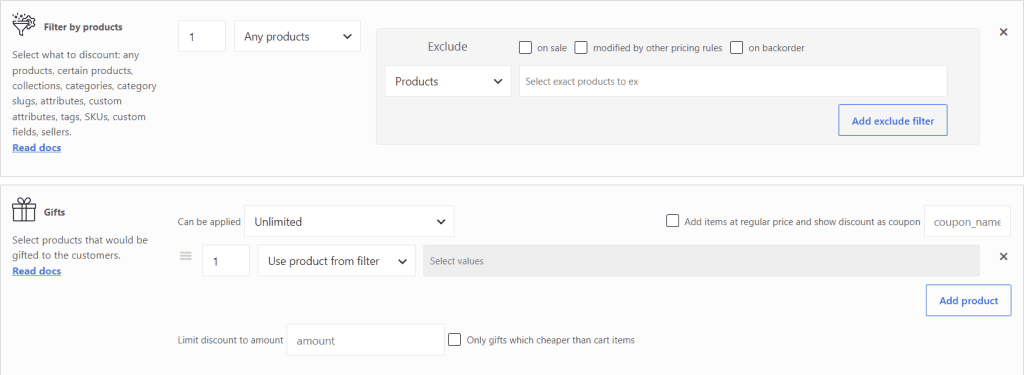
Best for “Buy X, get one free” promotions where the free product is the same type as the purchased products.
Use only 1st product from filter (PRO)
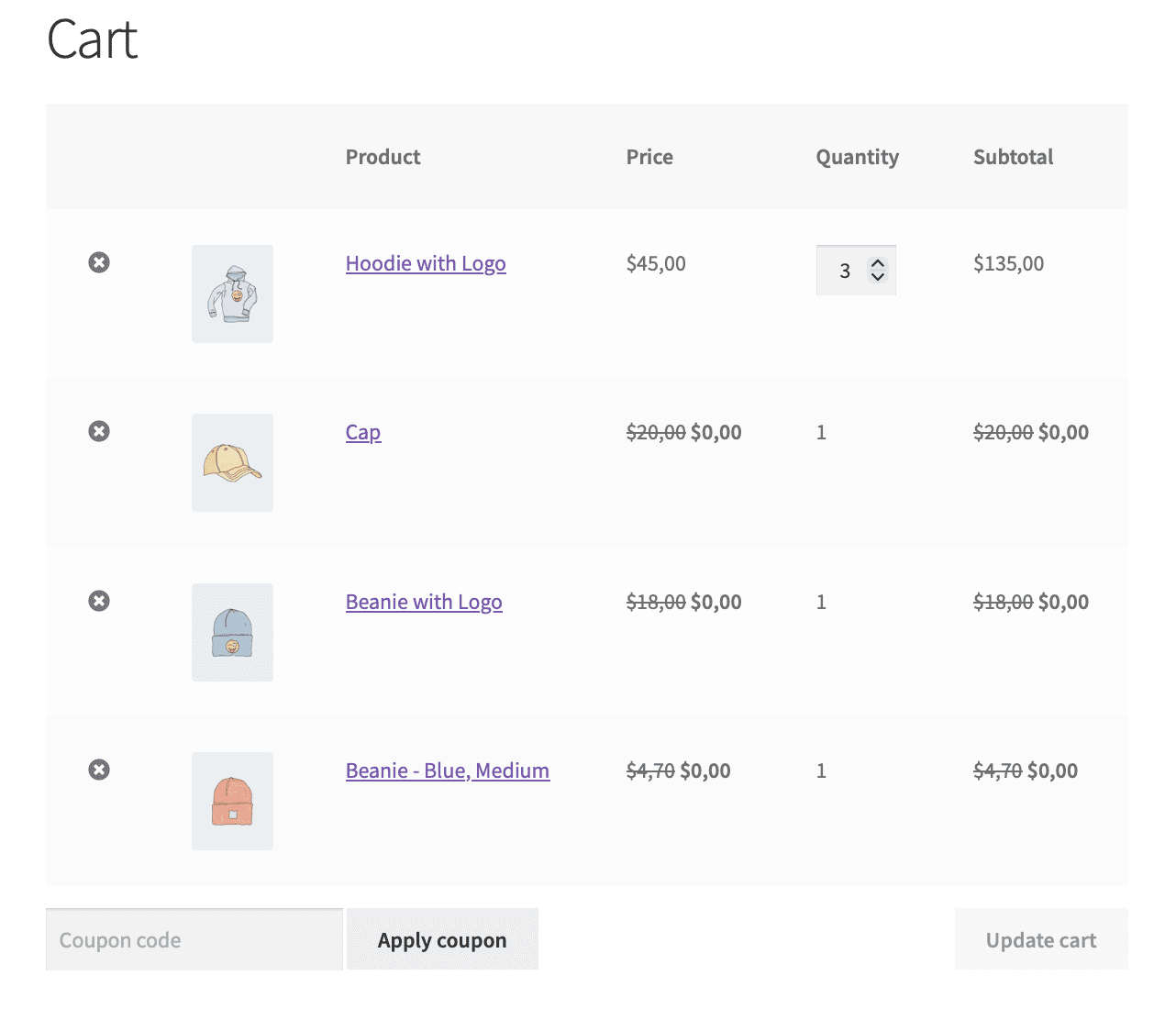
This mode is similar to “Use product from filter”, but it adds only the first product that matches the product filter, even if the filter would normally match several products. This setting is better to use for the discount scenario like a “Buy 3 products and get the cheapest one for free”.
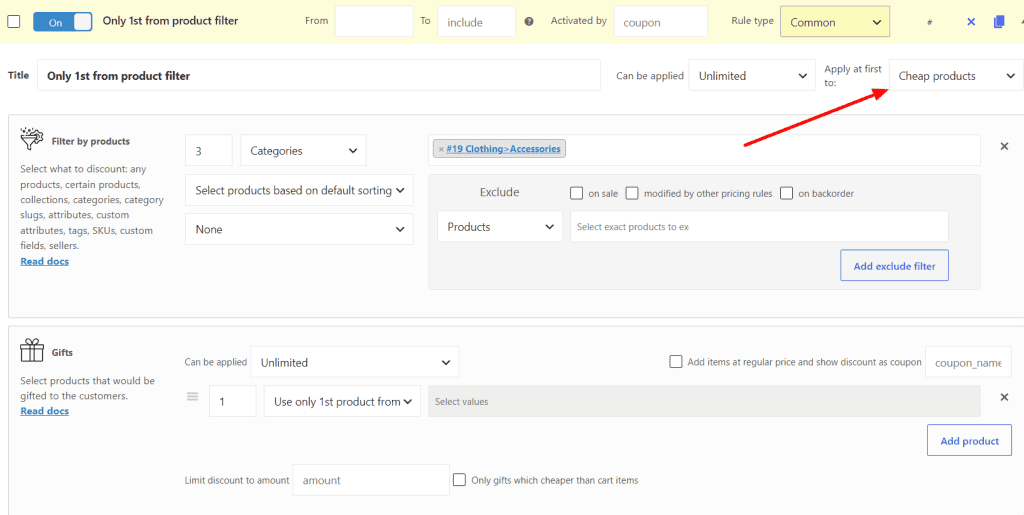
Let’s look to the cart:
Allow to choose from products (PRO)
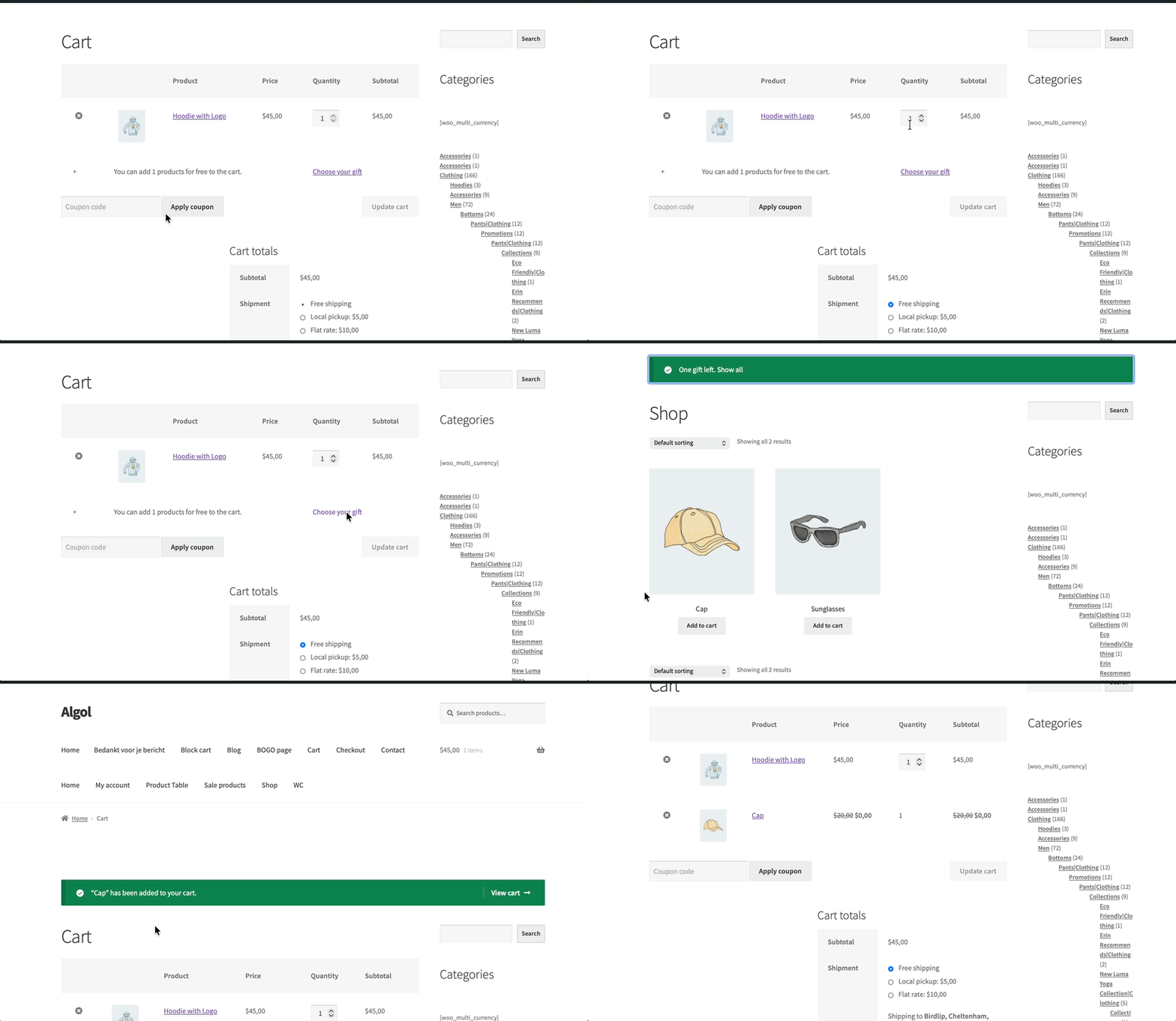
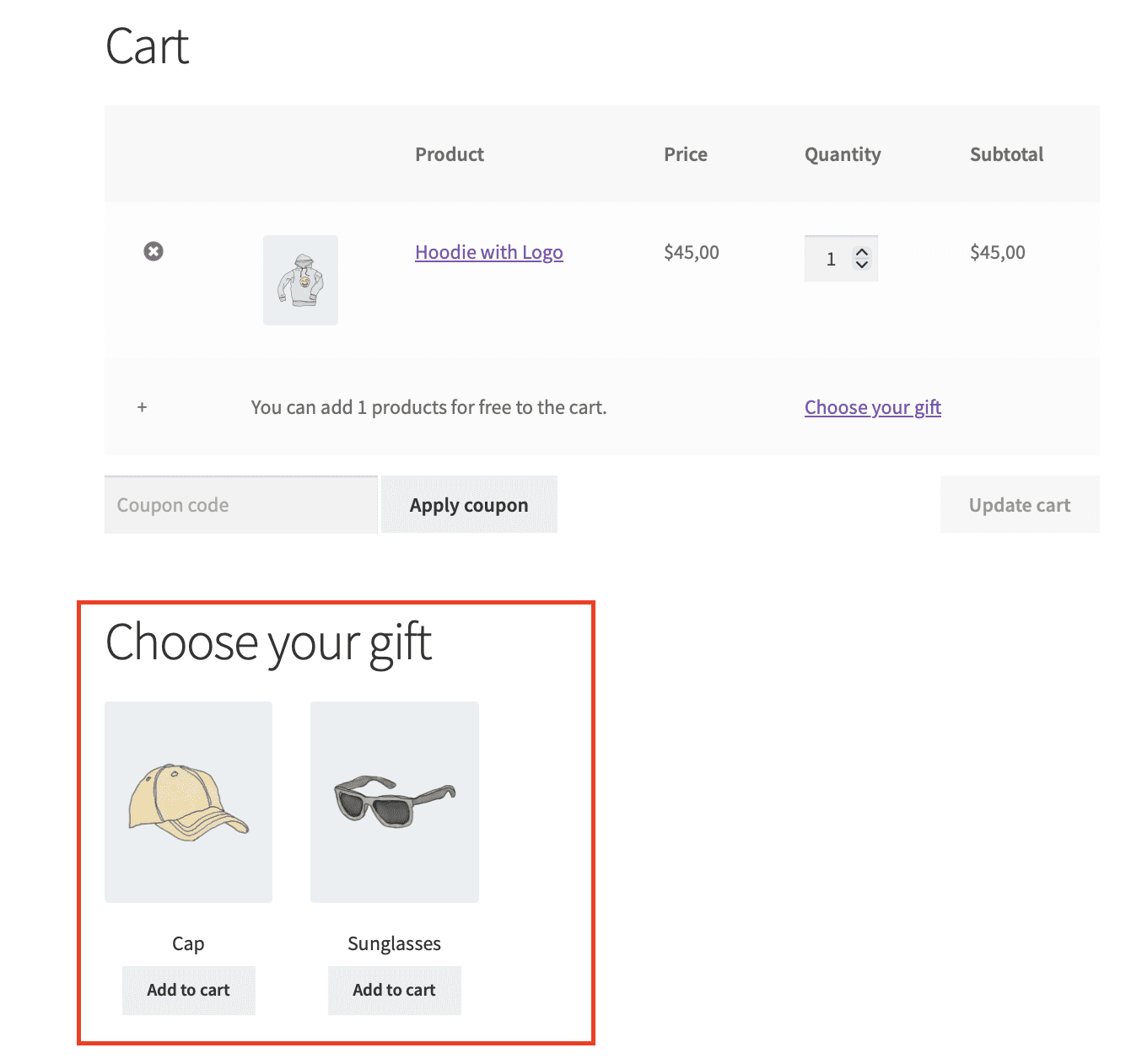
This mode gives the customer an interactive experience. Instead of the gift being added automatically, the customer is presented with a link or button in the cart. When they click it, they are taken to a special “Choose your gift” page where they can select their gift from a predefined list of products.

Best for promotions where you want to give customers a choice, which can increase satisfaction and perceived value.
Allow to choose from categories (PRO)
This mode is similar to “Allow to choose from products”, but instead of choosing from a list of individual products, the customer chooses from all products belonging to certain categories.
The example of this section you can see in this paragraph.
A tip: Use this mode with the Max amount setting to limit the total value of the chosen gift.
Require to choose from products / Require to choose from categories (PRO)
These modes are identical to the “Allow” versions, except that the customer must choose a gift before they can proceed to checkout. The checkout button will be disabled or the customer will be redirected until a gift is selected.

Best for promotions where the gift is an integral part of the offer, or where you want to ensure that every qualifying customer receives a gift.
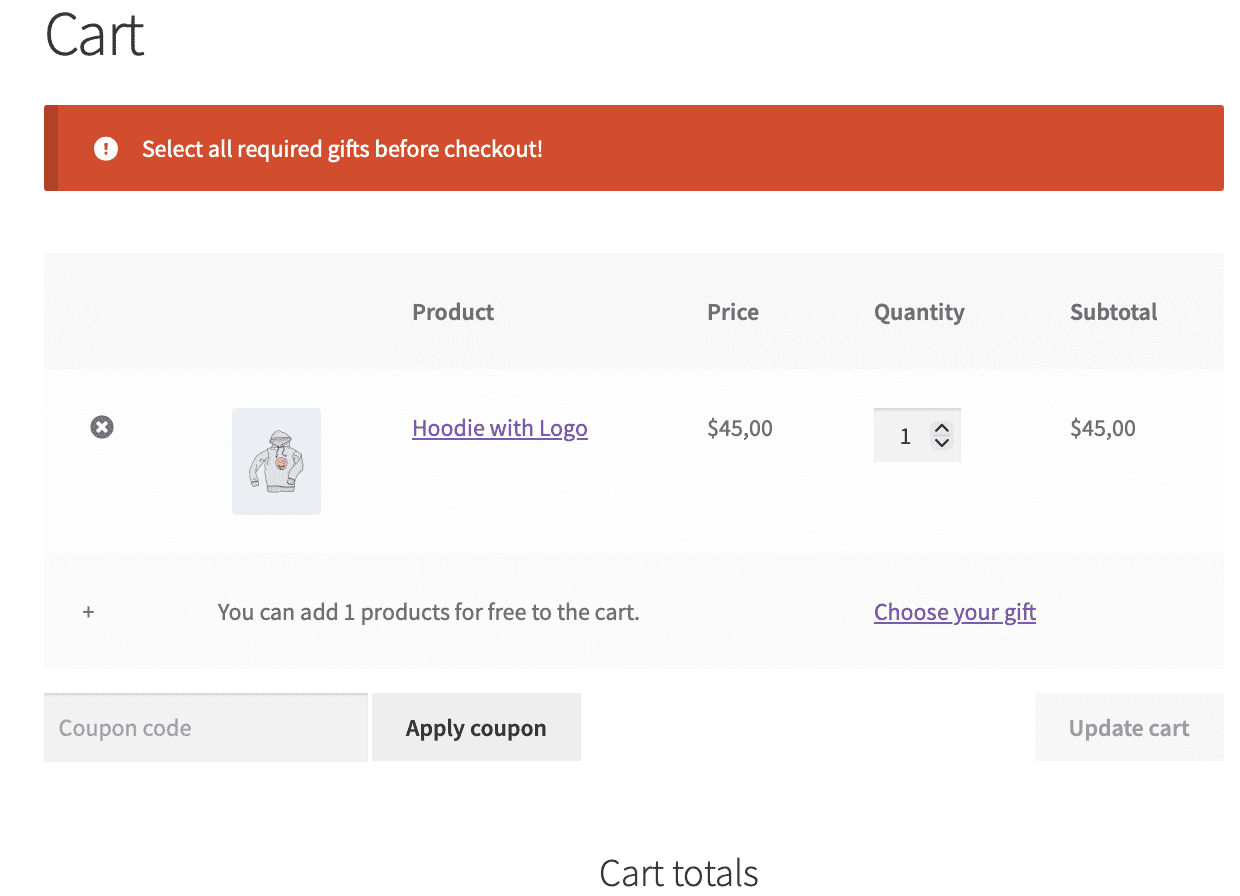
A tip: Use “Allow/Require gift” modes with the enabled option “Pricing rules > Settings > Gifts > Choose gift directly from the cart” to make the process of choosing the gift easier for your customers.
“Can be applied” parameter
The “Can be applied” parameter determines how many times the gift rule is applied to the cart. This is essential for promotions where customers can earn multiple gifts based on quantity or subtotal.
You have four options:
Once
The rule is applied only once, regardless of the cart contents. This is the simplest option and is suitable for most basic promotions.
Example: “Spend $50 and get a free tote bag.” Even if the customer spends $150, they still receive only one tote bag.
Based on quantity
The rule is applied once for every N items in the cart that match the rule’s conditions. You specify the value of N.
Example: “Buy 2 products, get 1 free.” You set “Based on quantity” to 2. If the customer buys 4 items, they get 2 free gifts (one for each pair).
Based on subtotal
The rule is applied once for every N currency units of the cart subtotal. You specify the value of N in your store’s currency.
Get the free product, for example, for each $10 subtotal.
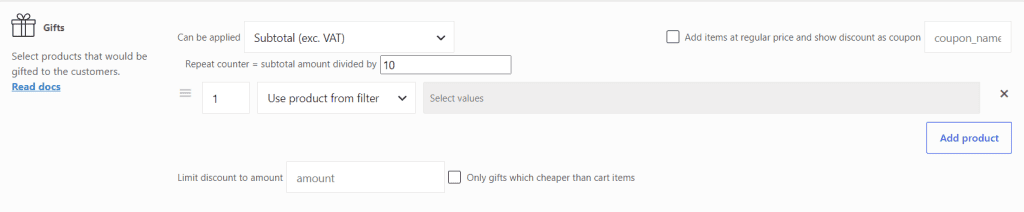
In this case, we get the 18 gifts.
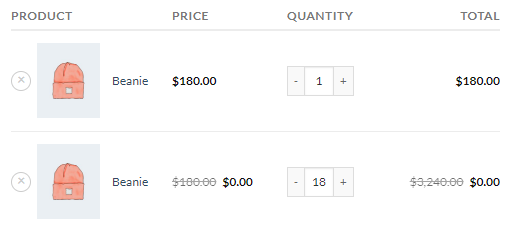
Note: The modes “Subtotal after discount (inc/excl VAT)” are available only in PRO version.
Advanced Gift Settings
Beyond the basic selection mode and “Can be applied” parameter, the Gifts feature includes several advanced settings that give you fine‑grained control.
“Add items at regular price and show discount as coupon” option
This is a special mode that changes how the gift is added to the cart. Instead of the gift being added with a price of zero, it is added at its normal (full) price, and a coupon is automatically applied to reduce its cost to zero. By using a coupon, the gift appears as a regular item with a coupon’s discount.
Limit discount to amount (PRO)
This setting allows you to set a maximum total value for all gifts added by the rule. If the sum of the normal prices of the gifted products would exceed this amount, the plugin will add fewer gifts, or add less expensive gifts, to stay within the limit.
Let’s consider the rule “Give any products from the cart for maximum $150”
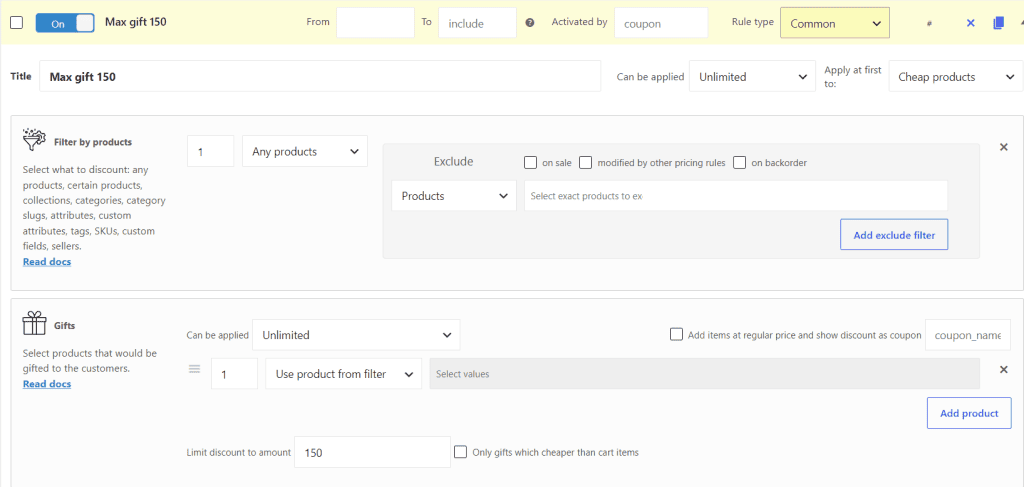
Add to the cart 6 Polo for $100 each.
Look at the cart. User has another 1 Polo for free, because of the max amount of $150 for gifts.
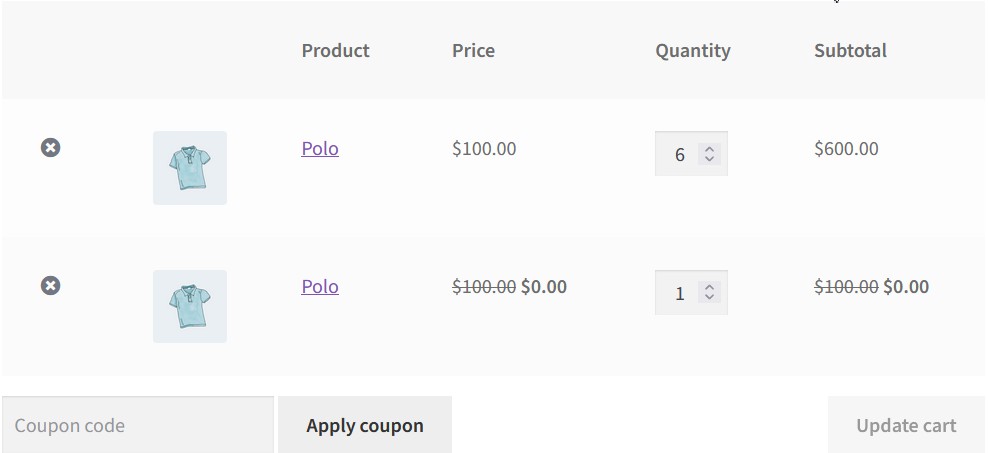
Let’s add some product for less than $50 and look at the cart again.
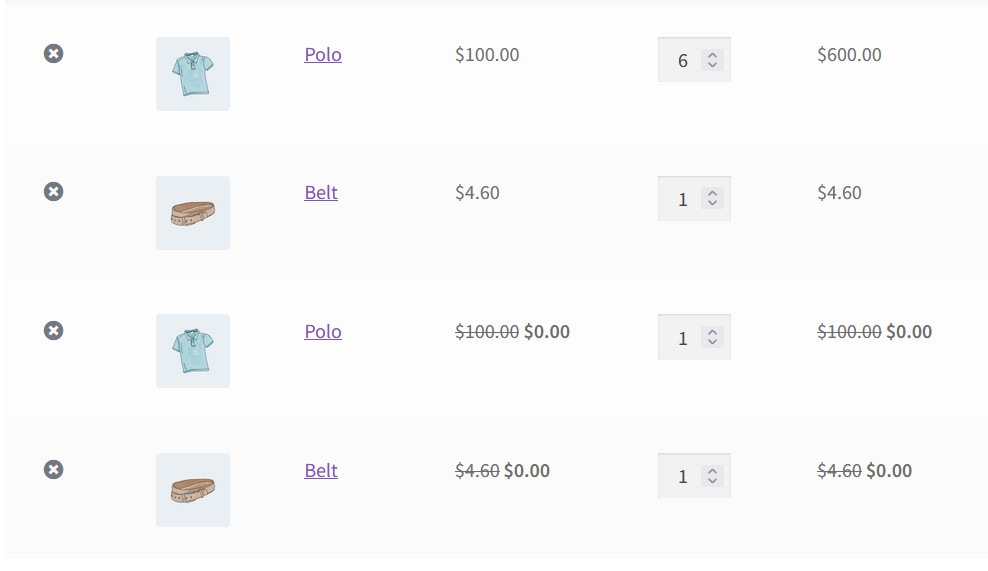
User has another one belt gifted and there’s a $45.4 left for some gifts.
Only gifts which cheaper than cart items
The option “Only gifts which cheaper than cart items” works the same way as “Limit discount to amount”, but give only one gift with the limited amount of the gift to the cheapest product in the cart.
For example, with the rule from the screenshot, check the option “Only gifts which cheaper than cart items”:
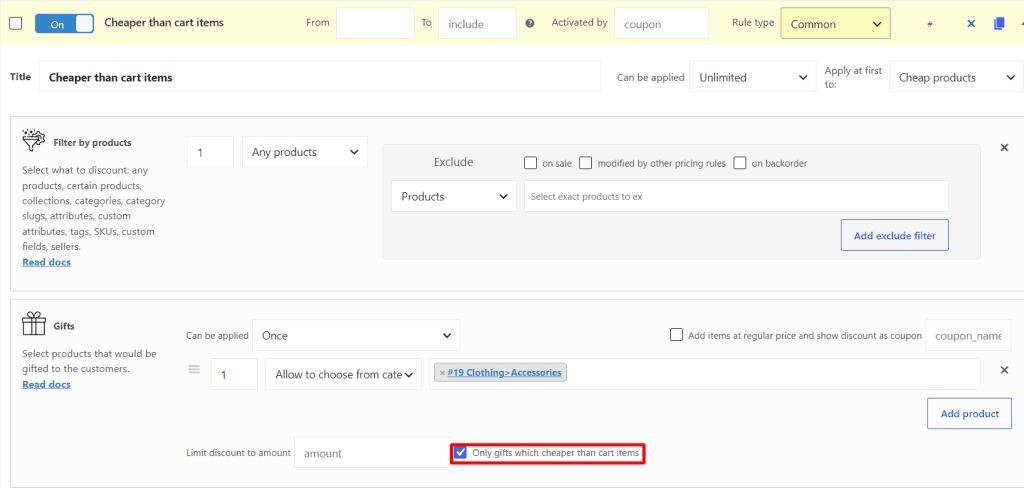
The customer can choose the products from the category “Accessories” that will be cheaper than the product in the cart, not the whole products’ category catalogue: