Advertising [pro]
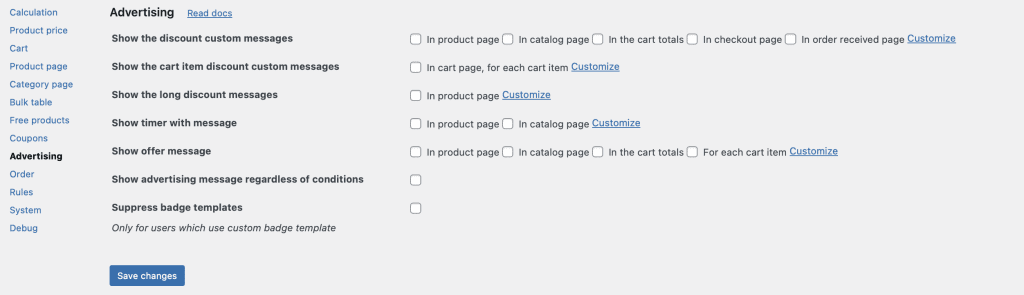
The Advanced Dynamic Pricing for WooCommerce plugin includes powerful advertising tools.
The Advertising settings tab gives you powerful tools to communicate your discounts directly to customers through customisable messages displayed across various pages of your store. Whether you want to show a simple “You save 20%” badge, a detailed promotional message, or even a countdown timer, the Advertising tab puts you in control.
All features described in this manual are PRO version exclusive. The free version of our plugin does not include these settings. They are clearly marked as (PRO) throughout the document.
Discounts are only effective if customers know about them. The Advertising tab solves this problem by allowing you to display custom discount messages in strategic locations throughout your store – on product pages, catalog archives, the cart, checkout, and even order confirmation pages.
The Advertising tab allows you to display discount messages in six distinct locations across your store. These settings control whether messages appear in each location and allow you to customise their position and appearance.
Show the discount custom messages (PRO)
Check all the necessary options:
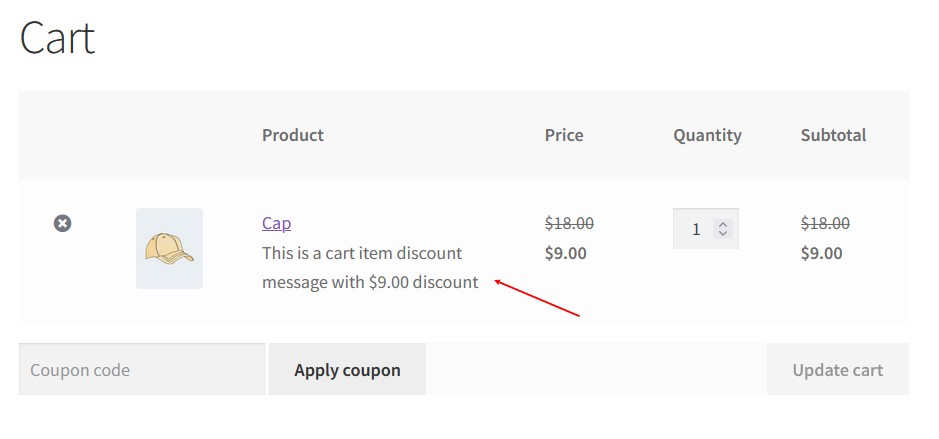
Show the cart item discount custom messages (PRO)
This setting enables a specific type of message: per‑cart‑item discount messages that appear near each product in the cart.
When enabled, the plugin displays a custom message for each cart item that has been discounted. The message can be configured per rule within the rule itself (when editing a pricing rule, you can add a custom discount message).
Best for providing detailed, rule‑specific messaging for different products in the same cart.
Show the long discount message (PRO)
This setting enables a detailed, expanded discount message specifically on the product page, beyond the standard short message.
When enabled, the plugin displays a longer, more descriptive message on the product page. This message can be configured per rule (when editing a pricing rule, you can add a long description of the discount).
Best for complex promotions that require explanation. For example, explaining the ranges of a bulk discount or the conditions of a BOGO offer.
Show timer with message (PRO)
This setting adds a countdown timer to your discount messages, showing customers how many days (or hours) remain until the promotion ends. Creating urgency. Limited‑time offers are proven to increase conversion rates.
The plugin reads the start and end dates from the rule’s header. The timer automatically counts down to the rule’s end date. When the timer reaches zero, the message stops displaying (or can be configured to hide).
Show advertising message regardless of conditions (PRO)
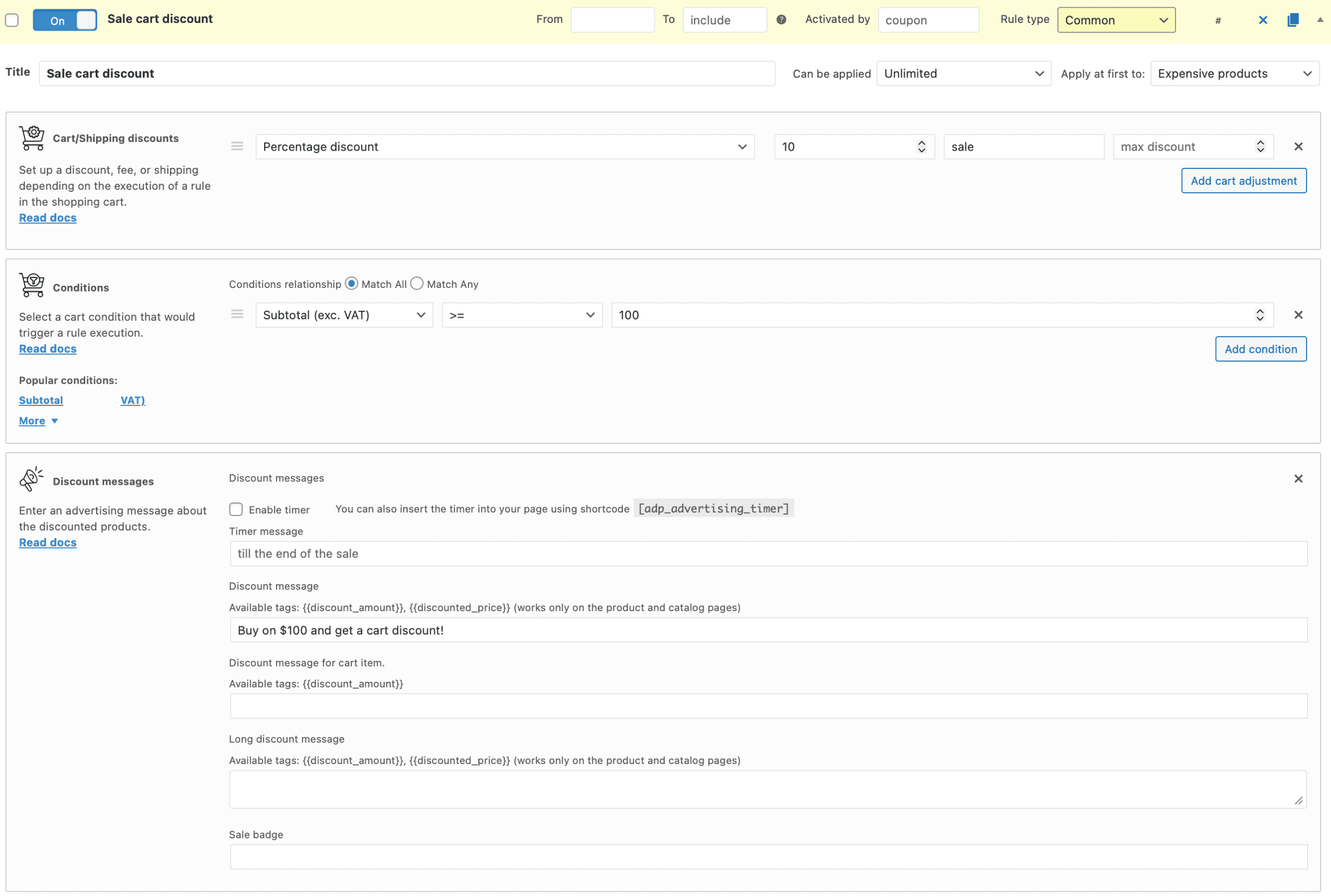
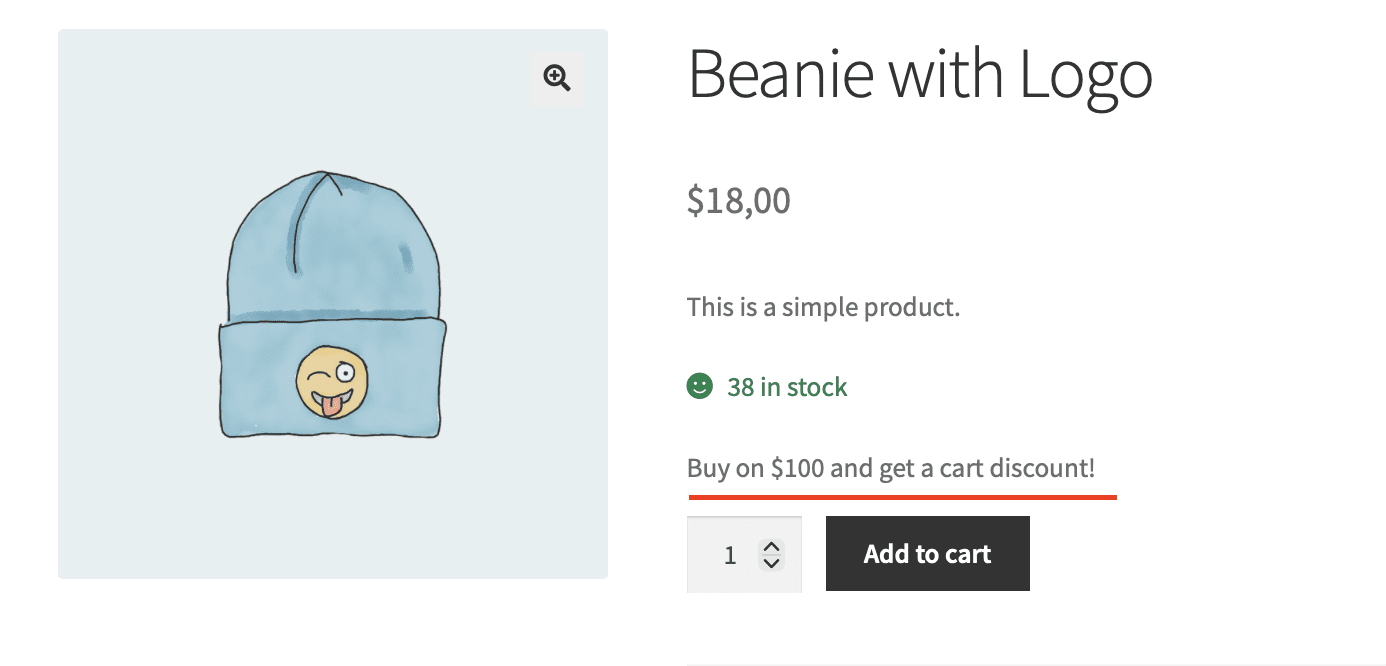
By default, discount messages appear only when the rule’s conditions are met. This setting changes that behaviour: when enabled, the discount message is displayed even if the customer hasn’t yet met the conditions. It motivates customers. Showing the potential discount before conditions are met encourages customers to take action (e.g., add more items to their cart to unlock a discount).
For example, create the rule with the cart condition “Subtotal >= 100”. Enable this option if you want to encourage customers to buy more.
Suppress badge template (PRO)
This setting is a developer‑oriented feature that should be enabled only in specific circumstances. Turn on this checkbox only in case of using custom badge template.
Note: Click “Customize” link near the options for the further customization of the Discount message displaying. Choose the position of the short discount message on the product page, catalog page, cart totals block, checkout page, order received page, the position of the cart item discount message and the long discount message.
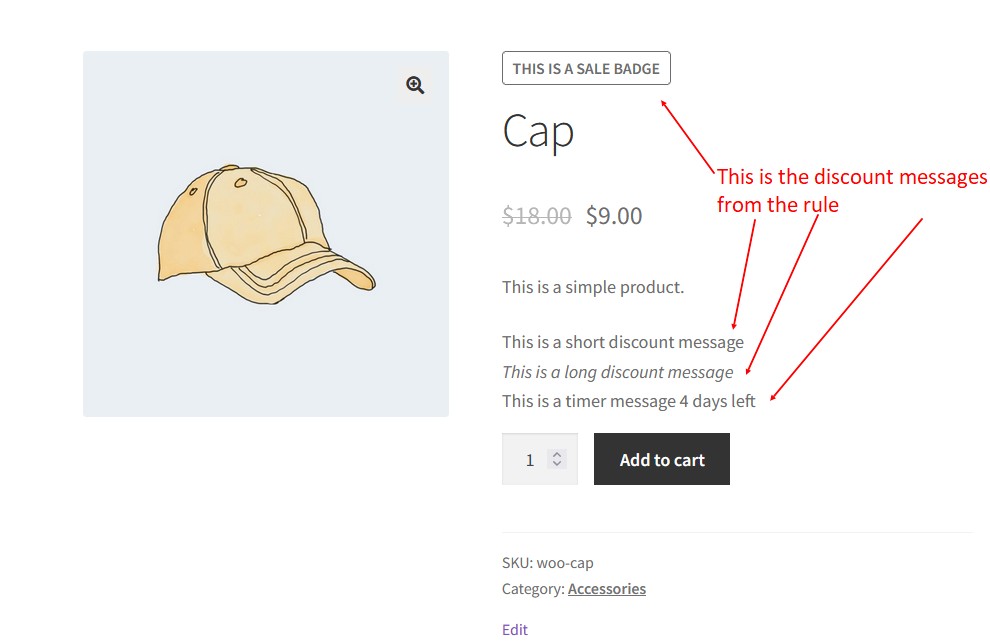
There are all the discounted messages on the product and cart pages:
Common Mistake
Showing messages everywhere. Customers get annoyed. Too many messages look like spam.
Pick 2-3 strategic locations. Keep messages short and clear.
Real Talk
Advanced Dynamic Pricing for WooCommerce creates the discounts. Advertising shows them off.
A hidden discount might as well not exist. These tools make your deals visible. Customers see savings. Customers buy more. Simple as that.