Update bulk ranges (CSV)
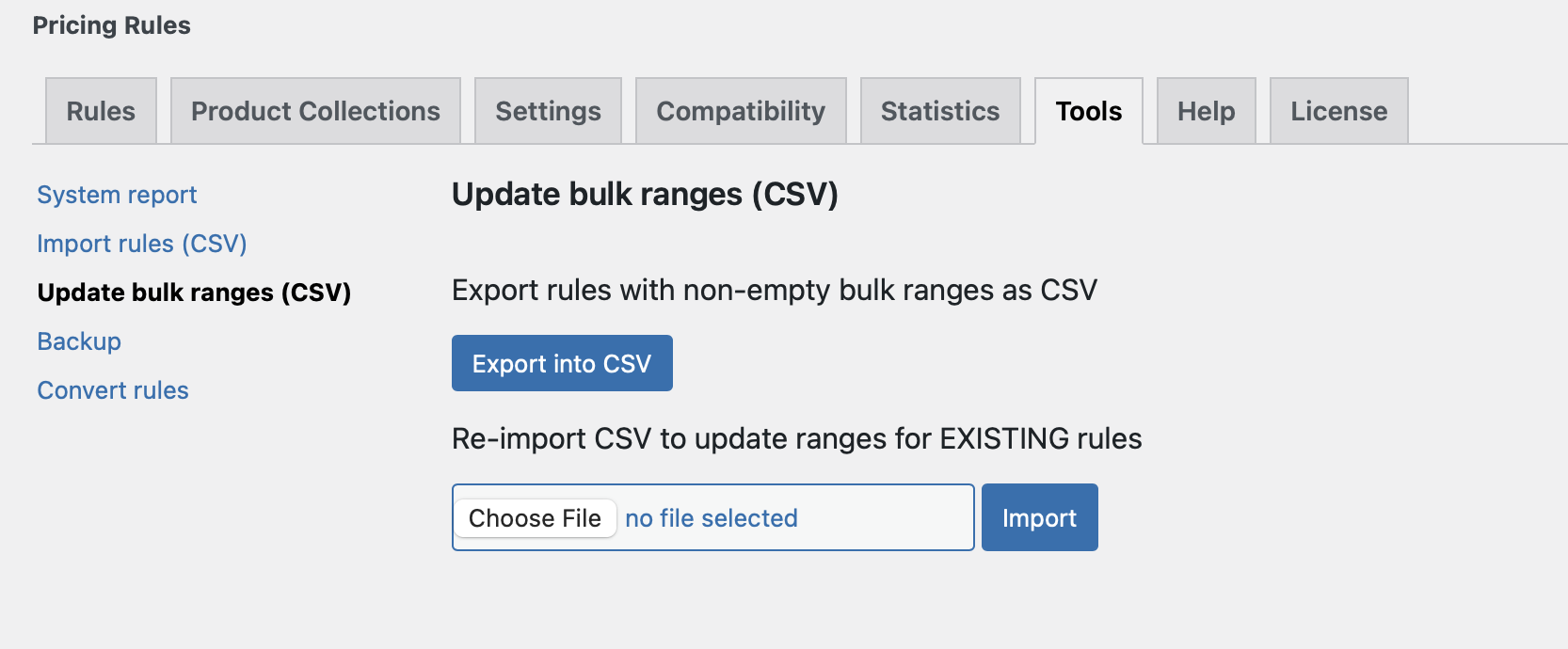
The Update Bulk Ranges (CSV) tool gives you a fast way to edit the quantity ranges and discount values across all your existing bulk pricing rules at once — without opening each rule individually in the admin. It works as a two-way CSV workflow: export your current bulk rules to a spreadsheet, make your changes, then reimport the updated file and the plugin applies all your edits in a single operation.
This tool targets existing bulk rules only. If you want to create new rules from scratch via CSV, use the Import Rules (CSV) tool instead.
You’ll find the Update Bulk Ranges tool at Advanced Dynamic Pricing → Tools → Update Bulk Ranges (CSV).
When Should You Use This Tool?
This tool suits any situation where you need to update quantity thresholds or discount amounts across multiple bulk rules simultaneously. The most common scenarios are seasonal pricing updates where all your bulk discounts change percentage at the start of a new period, price adjustments driven by supplier cost changes that flow through to your tiered pricing, wholesale pricing restructures where you shift quantity break points across your catalogue, and routine maintenance where you manage bulk pricing from a master spreadsheet and want to push changes to the plugin in bulk rather than one rule at a time.
Step 1 — Export Your Existing Bulk Rules
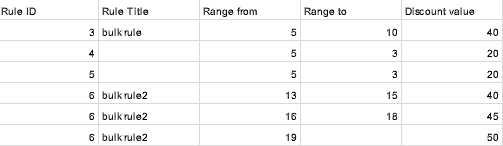
Before making any changes, export your current bulk rules to get a properly structured CSV file that reflects the exact format the plugin expects on reimport.
- Go to Advanced Dynamic Pricing → Tools → Update Bulk Ranges (CSV).
- Click Export into CSV.
- The plugin generates and downloads a CSV file containing one row per quantity range across all your active bulk rules.
Open the exported file in your preferred spreadsheet application — Google Sheets, Microsoft Excel, or LibreOffice Calc all work well. The file uses a comma (,) as the delimiter.
⚠️ Always start from an exported file rather than building the CSV manually. The export captures the internal rule IDs the plugin needs to match each row to the correct existing rule during import. A manually built file won’t contain these IDs and the import won’t update the right rules.
Step 2 — Edit the CSV
The exported CSV contains one row for each quantity range tier within each bulk rule. Each row includes the rule identifier, the quantity range (from and to), and the discount value for that tier.
You can safely edit the following values:
Quantity ranges — change the FromQty and ToQty values to adjust where each pricing tier starts and ends. For example, shift a tier that previously activated at quantity 10 to activate at quantity 5 instead.
Discount amounts — change the discount value column to update what percentage, fixed discount, or fixed price applies within each tier. For example, increase a 10% tier to 15% across all rules in one edit.
You should not change the rule identifier columns — the plugin uses these to match each CSV row back to the correct existing rule. Modifying them causes the import to fail silently or update the wrong rule.
If a bulk rule has three tiers (e.g. 1–4 units, 5–9 units, 10+ units), all three appear as separate rows in the CSV with the same rule identifier. Edit each row independently to set the correct values for each tier.
CSV Column Reference
| Column | Editable | Description |
|---|---|---|
| Rule ID / identifier | ❌ No | Internal plugin reference — must stay unchanged |
| Rule name | ✅ Optional | Human-readable rule name shown in the rules list |
| FromQty | ✅ Yes | Minimum quantity for this pricing tier |
| ToQty | ✅ Yes | Maximum quantity for this tier (leave blank for open-ended top tier) |
| Discount value | ✅ Yes | The discount amount or percentage for this tier |
| Discount type | ✅ Yes | Percentage, FixedDiscount, or FixedCost |
Step 3 — Save the CSV
Save your edited file as a .csv with the same comma delimiter the export used. If your spreadsheet application asks about encoding, choose UTF-8 to avoid character issues with product or rule names that contain special characters.
Step 4 — Import the Updated File
- Return to Advanced Dynamic Pricing → Tools → Update Bulk Ranges (CSV).
- Click the file picker and select your edited CSV file.
- Click Import.
- The plugin processes each row and updates the corresponding bulk rule tiers with your new values.
- Go to Advanced Dynamic Pricing → Rules and open a few bulk rules to verify the ranges and discount values updated correctly.
Practical Example
You run a store with five bulk discount rules — one per product category. Each rule has three tiers. You want to increase the top-tier discount from 20% to 25% across all five rules to run a seasonal promotion.
Without this tool, you’d open each of the five rules, scroll to the bulk discount section, find the third tier, change 20 to 25, and save. Five rules means five manual edits.
With this tool, you export the CSV, open it in a spreadsheet, filter or sort by the discount value column to show all rows with 20, change them all to 25 in one operation, save the file, and reimport it. The entire process takes under two minutes regardless of how many rules you have.
How to Apply Changes
- Go to Advanced Dynamic Pricing → Tools → Update Bulk Ranges (CSV).
- Click Export into CSV and save the downloaded file.
- Open the file in your spreadsheet application and make your edits to the quantity ranges and discount values.
- Save the file as CSV with comma delimiter and UTF-8 encoding.
- Return to the tool page, upload your edited CSV, and click Import.
- Navigate to Advanced Dynamic Pricing → Rules and verify the updated values appear correctly in your bulk rules.
⚠️ Always keep a copy of the original exported CSV before editing. If an import produces unexpected results, you can reimport the original file to restore the previous values. For a full rules backup including all rule types, use the Backup Tool before running any bulk update.