Import Rules (CSV)
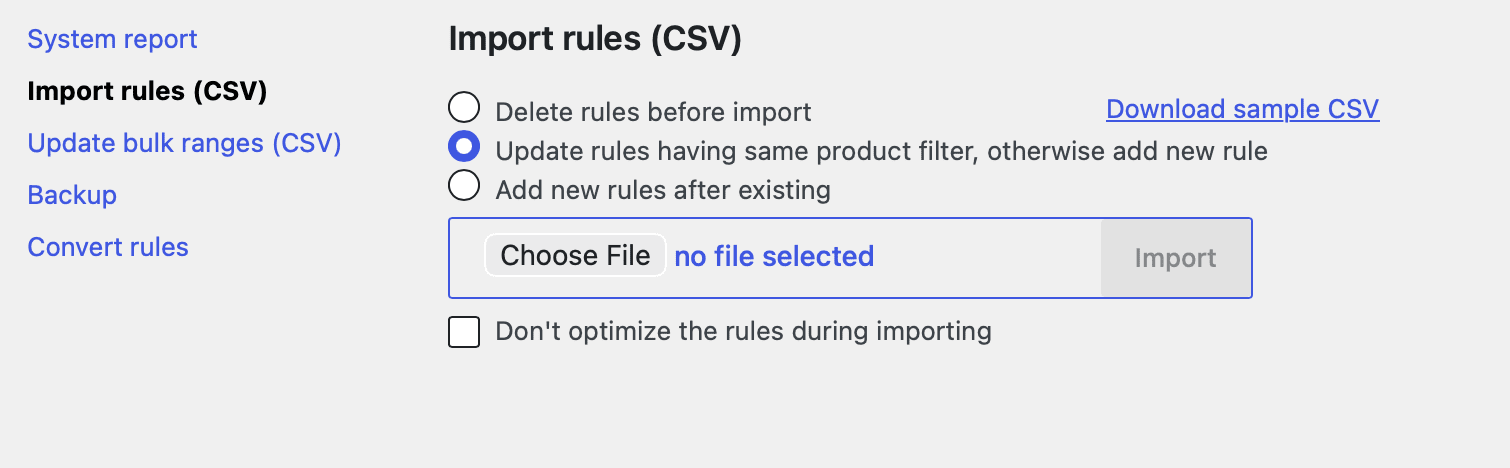
The Import Rules (CSV) tool lets you create multiple Advanced Dynamic Pricing rules in one go by uploading a structured CSV file instead of building each rule manually through the admin interface. This is the fastest way to get a large set of product, category, or SKU-based discounts into the plugin — particularly useful when migrating from another pricing system, setting up a new store, or managing pricing from a spreadsheet.
CSV import supports product discounts, category discounts, SKU-based discounts, bulk pricing tiers, role discounts, and role bulk combinations — all from a single file. The feature is available from plugin version 4.1.0 onwards and lives at Advanced Dynamic Pricing → Tools → Import Rules (CSV).
Step 1 — Download the Sample CSV
Before building your own file, download the official sample CSV to use as a starting point. It contains the correct column headers and a few example rows that show you the expected format for each field.
Open the file in any spreadsheet application (Google Sheets, Microsoft Excel, LibreOffice Calc) or a plain text editor. The sample uses a comma (,) as the column delimiter — keep this delimiter when you save your own file.
Step 2 — Fill In the CSV Columns
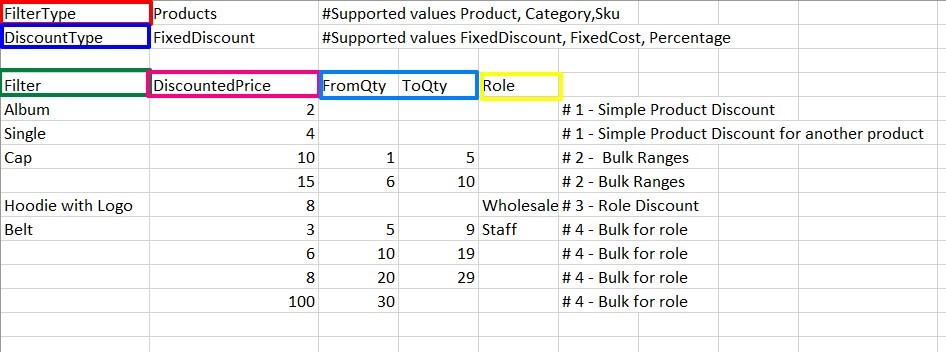
The CSV contains the following columns. Fill each row with data for one discount rule.
Filter — the product name, category name, or SKU of the product(s) you want to discount. The value here must match how the product, category, or SKU appears in your WooCommerce store exactly, including capitalisation.
FilterType — tells the plugin what kind of value sits in the Filter column. Use one of these three exact values:
Product— target a specific product by nameCategory— target all products in a category by category nameSku— target a specific product by SKU
DiscountType — the type of discount to apply. Use one of these three exact values:
Percentage— discount as a percentage of the product price (e.g. 10 for 10% off)FixedDiscount— subtract a fixed amount from the product price (e.g. 5 for £5 off)FixedCost— set the product to a fixed price regardless of its original price (e.g. 9.99 to set price to £9.99)
DiscountedPrice — the numeric value for the discount. For Percentage, enter a number like 10 (for 10%). For FixedDiscount, enter the amount to subtract. For FixedCost, enter the target price.
FromQty and ToQty — the minimum and maximum quantity range for bulk pricing tiers. Leave both empty for a flat discount that applies at any quantity. Fill both to create a bulk rule where the discount only activates when the customer’s quantity falls within the specified range. Add multiple rows with the same product or category but different quantity ranges to create a full bulk pricing tier table.
Role — the WordPress role slug for role-based discounts. Leave empty for a discount that applies to all customers. Enter a role slug (e.g. wholesale_customer, shop_manager) to restrict the rule to customers with that role only. Filling in both the Role column and the FromQty/ToQty columns in the same row creates a role bulk rule — a bulk pricing tier that only activates for customers with the specified role.
CSV Column Reference
| Column | Required | Accepted values | Example |
|---|---|---|---|
| Filter | Yes | Product name, category name, or SKU | Blue Hoodie |
| FilterType | Yes | Product, Category, Sku | Product |
| DiscountType | Yes | Percentage, FixedDiscount, FixedCost | Percentage |
| DiscountedPrice | Yes | Any positive number | 15 |
| FromQty | No | Positive integer | 5 |
| ToQty | No | Positive integer or blank for open-ended | 20 |
| Role | No | WordPress role slug | wholesale_customer |
Step 3 — Save the CSV
Save your completed file as a .csv file using comma (,) as the delimiter. If your spreadsheet application offers encoding options, choose UTF-8 to ensure product names and category names with special characters import correctly.
Step 4 — Import the File
- Go to Advanced Dynamic Pricing → Tools → Import Rules (CSV).
- Click the file picker and select your completed CSV file.
- Choose how the plugin handles your existing rules before the import runs. Three options are available:
- Click Import.
- Go to Advanced Dynamic Pricing → Rules and confirm the imported rules appear correctly.
⚠️ Always back up your existing rules before importing — especially when using the “Delete rules before import” option. Export your current ruleset via the Backup Tool before running any import that might overwrite or delete existing rules.
Common CSV Rule Examples
Flat 10% discount on a specific product:
|
1 2 |
Filter,FilterType,DiscountType,DiscountedPrice,FromQty,ToQty,Role Blue Hoodie,Product,Percentage,10,,, |
Fixed £5 off all products in a category:
|
1 2 |
Filter,FilterType,DiscountType,DiscountedPrice,FromQty,ToQty,Role T-Shirts,Category,FixedDiscount,5,,, |
Bulk pricing tiers for a product by SKU:
|
1 2 3 4 |
Filter,FilterType,DiscountType,DiscountedPrice,FromQty,ToQty,Role HOODIE-BLU,Sku,Percentage,5,1,4, HOODIE-BLU,Sku,Percentage,10,5,9, HOODIE-BLU,Sku,Percentage,15,10,, |
Role-based discount for wholesale customers:
|
1 2 |
Filter,FilterType,DiscountType,DiscountedPrice,FromQty,ToQty,Role T-Shirts,Category,Percentage,20,,, wholesale_customer |
When Should You Use This Tool?
CSV import suits any situation where building rules one at a time through the admin interface would take too long. It’s the right approach when you migrate from another pricing plugin and want to recreate your existing discount structure quickly, when you manage pricing from an external spreadsheet and want to push updates in bulk, when you launch a new store with a large catalogue and need to set up dozens or hundreds of discount rules at once, or when you run seasonal pricing changes that affect many products simultaneously and want to prepare the new ruleset in a spreadsheet in advance.