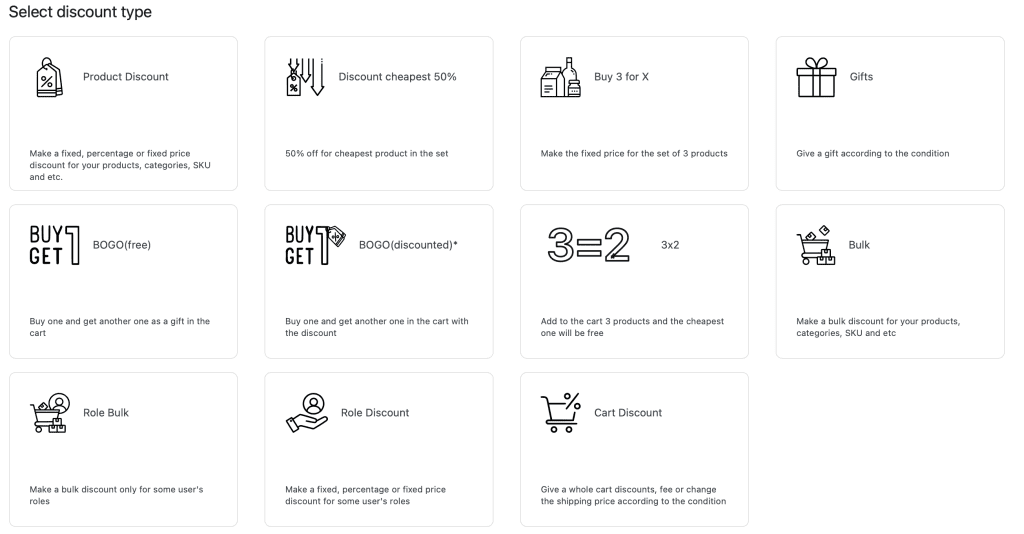
The Advanced Dynamic Pricing for WooCommerce plugin includes a Rules Templates feature that significantly speeds up the process of creating discount rules. Instead of manually configuring each section from scratch, you simply choose a pattern from the “Select discount type”dropdown. The plugin then automatically adds the necessary sections to the rule editor, pre‑populates them with the correct structure, and lets you fill in your specific values.
This guide lists every available discount type template, explains the purpose of each one, and describes which rule sections the plugin creates when you select that template.
Note: This feature is available in both the free and Pro versions of the plugin. However, some templates (such as discounted BOGO and certain advanced options) are exclusive to the Pro version.
1. How to Use a Rule Template
Step‑by‑step instructions:
Go to Pricing Rules → Rules in your WordPress admin dashboard.
Click the Add rule button.
In the rule editor, locate the Select discount type dropdown at the top.
Choose the template that matches the discount you want to create.
The plugin automatically adds the required sections (e.g., Product filter, Product discount, Free products, Cart conditions, etc.).
Fill in the values in each section.
Click Save Changes.
The template does not lock you into a specific configuration. You can still add, remove, or modify any section after selecting the template.
2. Complete List of Discount Type Templates
The following table describes each available template. For each template, the column Sections Created lists the rule sections that the plugin automatically adds to the rule editor.
Template
Purpose
Sections Created
Version
Product Discount
Simple discounts on specific products, categories, or SKUs (e.g., 20% off all T‑shirts).
Product filter, Product discount
Free + Pro
Discount cheapest 50%
Automatically reduces the price of the cheapest product in the cart by 50% when a condition is met.
Product filter, Product discount
Pro
Buy 3 for X
Applies a custom price or discount when a customer buys three items from a selected product group (e.g., “Buy 3 T‑shirts for $45”).
Product filter, Product discount
Pro
Gift
Offers a free product when a cart condition is met (e.g., “Free mug for orders over $100”).
Free products, Cart conditions
Free + Pro
BOGO Free
Classic Buy One, Get One Free promotion.
Product filter, Free products
Free + Pro
BOGO Discounted
Buy One, Get One with a discount (e.g., “Buy one, get second for 50% off”).
Quantity‑based tiered discounts restricted to a specific user role (e.g., bulk discounts for wholesale customers).
Bulk rules, Cart Conditions
Free + Pro
Role Discount
Simple percentage or fixed discounts restricted to a specific user role (e.g., 15% off for members).
Role discounts
Free + Pro
Cart Discount
Discounts, fees, or shipping price changes applied to the entire cart based on cart conditions (e.g., “10% off when subtotal > $100”).
Cart adjustments, Cart conditions
Free + Pro
3 = 2
Buy 3, pay for 2 promotion (equivalent to 33.33% discount on three identical items).
Product filter, Product discount
Pro
3. Detailed Explanation of Each Template
3.1. Product Discount
Purpose Create simple discounts on specific products, product categories, SKUs, or product collections.
Examples
30% off all products in the “Accessories” category.
Fixed $10 discount on a specific product (SKU XYZ123).
Change the price of a product to a fixed amount (e.g., “T‑Shirt now $15”).
Sections created
Product filter – Choose which products the discount applies to (by category, collection, individual product, SKU, or attribute).
Product discount – Define the discount type: percentage, fixed amount, or fixed price per item.
3.2. Discount cheapest 50%
Purpose Automatically give a 50% discount on the cheapest product in the customer’s cart when a condition is satisfied. This is a great way to encourage customers to add more items.
How it works The rule evaluates the cart, finds the product with the lowest price that matches the Product filter, and applies a 50% discount only to that product. The discount applies even if multiple products match the filter.
Use cases
“Buy any two accessories and get the cheapest one half off.”
“Purchase any three books, and we will discount the lowest‑priced book by 50%.”
Sections created
Product filter – Select the products eligible for the discount (e.g., all products in the “Accessories” category).
Product discount – Pre‑configured to apply a 50% discount to the cheapest matching product.
3.3. Buy 3 for X
Purpose Apply a custom price or discount when a customer buys exactly three items from a selected product group.
Examples
“Buy 3 T‑shirts for 45”(insteadof50).
“Buy 3 mugs and get $5 off the total.”
How to configure
In the Product filter, select the products that qualify for the promotion.
In the Product discount, choose whether to apply a percentage discount, a fixed discount, or a fixed price to the third unit.
Note: The template name “Buy 3 for X” is a specific case. You can adapt the rule to other quantities (e.g., “Buy 2 for Y”) by changing the conditions in the Product filter section.
Sections created
Product filter – Define the eligible products.
Product discount – Set the discount amount or fixed price.
3.4. Gift (Conditional Gift)
Purpose Offer a free product when a cart condition is satisfied. The gift is added automatically or offered as a choice, depending on the Free products section settings.
Examples
“Free mug for any order over $100.”
“Spend $50 in the ‘Toys’ category and receive a free sticker.”
How it works The rule checks the Cart conditions (e.g., subtotal, quantity, weight, user role). If all conditions are met, the plugin adds the free product(s) from the Free products section to the cart.
Sections created
Free products – Select the product(s) to give as a gift.
Cart conditions – Define when the gift should be offered.
3.5. BOGO Free
Purpose Classic Buy One, Get One Free promotion.
Examples
“Buy one T‑shirt, get a second T‑shirt free.”
“Buy one accessory, get another accessory free (cheapest free).”
How it works The Product filter section selects the products that trigger the promotion. The Free productssection defines the free item. You can also choose whether the free product must be the same as the purchased product or can be a different product from a specific list.
Sections created
Product filter – Define the products that qualify for the promotion.
Free products – Specify the free product(s).
3.6. BOGO Discounted
Purpose Buy One, Get One with a discount – for example, “Buy one, get second for 50% off” or “Buy one, get second for $5.”
How it works The Product filter selects the qualifying products. The Auto add to cart section automatically adds the second (discounted) product and sets its price to the defined discounted amount.
Sections created
Product filter – Define the qualifying products.
Auto add to cart – Specify which product to add and the discount to apply.
3.7. Bulk
Purpose Create quantity‑based tiered discounts (bulk discounts). This is the standard template for volume discounts.
“Buy 1–5 widgets at regular price, 6–10 widgets at 8each,11+widgetsat6 each.”
How it works The Product filter selects which products qualify. The Bulk rules section defines the ranges and the discount or fixed price for each range.
Sections created
Product filter – Select the eligible products.
Bulk rules – Define the quantity ranges and the corresponding discount or fixed price.
Additional features (Pro version)
Bulk rules can be based on quantity, subtotal, or weight.
You can set a fixed price per range or a percentage discount.
The bulk table automatically appears on the product page (customisable in the Customizer).
3.8. Role Bulk
Purpose Create quantity‑based tiered discounts that only apply to customers with a specific user role.
Examples
“Wholesale customers get 15% off when buying 10+ items.”
“VIP members receive 10% off on 5+ items.”
How it works The Bulk rules section defines the tiered discounts. The Cart conditions section adds a condition to restrict the rule to specific user roles.
Sections created
Bulk rules – Define the quantity ranges and discounts.
Cart conditions – Add a User role condition.
3.9. Role Discount
Purpose Apply a simple percentage or fixed discount to all products for a specific user role.
Examples
“Wholesale customers get 15% off store‑wide.”
“Members get a flat $10 discount per product.”
How it works The Role discounts section lets you select the target user role and define the discount type and amount.
Sections created
Role discounts – Select the user role and the discount amount.
3.10. Cart Discount
Purpose Apply discounts to the entire cart, add extra fees, or modify the shipping price based on cart conditions.
Examples
“10% off the cart total when the subtotal exceeds $100.”
“Add a 5handlingfeeforordersunder25.”
“Change the shipping price to $0 when the cart includes a ‘Free Shipping’ coupon.”
How it works The Cart adjustments section defines the action (percentage discount, fixed discount, fee, or shipping change). The Cart conditions section defines when the action should apply.
Sections created
Cart adjustments – Choose the type of adjustment (discount, fee, shipping change) and its value.
Cart conditions – Set the conditions that trigger the adjustment.
3.11. 3 = 2
Purpose Buy 3, pay for 2 promotion (33.33% discount when buying three identical items). This is a special case of a bulk discount optimised for this exact promotion.
How it works The Product filter selects the eligible products. The Product discount section applies a discount equivalent to “pay for 2 when buying 3”. The plugin automatically calculates the correct discount percentage (33.33%).
Sections created
Product filter – Select the eligible products.
Product discount – Pre‑configured for the “3 for 2” discount.
4. Templates Exclusive to the Pro Version
The following templates are only available in the Pro version of Advanced Dynamic Pricing for WooCommerce.
Discount cheapest 50%
Buy 3 for X
BOGO discounted
3 = 2
If you select one of these templates while using the free version, the plugin will either ignore the request or prompt you to upgrade.
5. Summary of Rule Sections
Section
Purpose
Used In Templates
Product filter
Select which products the rule applies to (by product, category, SKU, attribute, collection).
Set conditions based on cart subtotal, quantity, user role, date/time, shipping method, etc.
Gift, Role Bulk, Cart Discount
Bulk rules
Define tiered discounts based on quantity, subtotal, or weight.
Bulk, Role Bulk
Role discounts
Set a simple discount restricted to a specific user role.
Role Discount
Cart adjustments
Define a cart‑level action (discount, fee, or shipping change).
Cart Discount
Auto add to cart
Automatically add a product to the cart (used for discounted BOGO).
Discounted BOGO
6. Frequently Asked Questions
Q: Can I change the sections after selecting a template?
A: Yes. The template only adds the initial sections. You can add, remove, or modify any section later.
Q: Do I have to use the templates?
A: No. You can create a rule manually by clicking Add rule and adding sections one by one. The templates are optional shortcuts.
Q: Are all templates available in the free version?
A: No. The templates Discount cheapest 50%, Buy 3 for X, Discounted BOGO, and 3 = 2 are Pro‑only.
Q: What is the difference between “BOGO Free” and “Discounted BOGO”?
A: “BOGO Free” gives the second product for free (100% discount). “Discounted BOGO” gives a partial discount on the second product (e.g., 50% off).
Q: Can I create a “Buy 2, pay for 1” rule using a template?
A: The “3 = 2” template is specifically for three items. For “2 = 1”, use the Bulk template with two ranges: first range at regular price, second range at a discounted price that makes two items equal to the price of one.
Have questions?
Please submit a support request. We're always happy to help!