The Rules List is the main tab of the Advanced Dynamic Pricing for WooCommerce plugin. This page provides a complete reference for managing, prioritising, and optimising your discount rules. You will learn how to add rules, use bulk actions, filter the list, search for specific rules, adjust rule priority, and recalculate caches.
1. Accessing the Rules List
From your WordPress admin dashboard, go to Pricing Rules. The Rules tab opens by default. This page lists all the discount rules you have created for your store.
2. Adding New Rules
To create a discount rule:
Click the Add rule button.
Enter a descriptive name for the rule.
Choose a discount type from the Select discount type dropdown.
Configure the sections that appear automatically.
Click Save Changes.
For detailed instructions, refer to the Creating a Rule guide in the plugin documentation.
3. Bulk Actions with Existing Rules
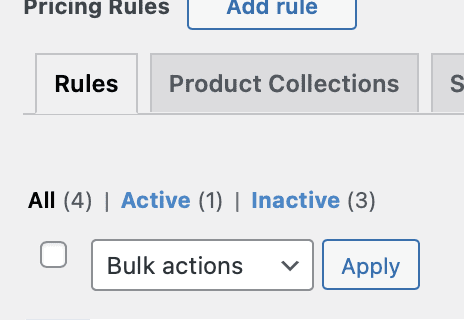
The Rules List supports bulk actions to manage multiple rules at once. This saves time when you need to activate, deactivate, or delete several rules.
To perform a bulk action:
Select the checkboxes next to the rules you want to manage.
Open the Bulk actions dropdown.
Choose the desired action (e.g., Activate, Deactivate, Delete).
Click Apply.
Tip: Use bulk actions to quickly prepare a set of rules for a seasonal promotion or to clean up obsolete discounts.
4. Filtering the Rules List
The Rules List provides three filter tabs to help you view specific subsets of your rules.
Tab
What It Shows
All
Every rule, regardless of status.
Active
Only rules that are currently enabled and applying discounts.
Inactive
Only rules that are disabled and not applying any discounts.
How to check a rule’s status:
Look at the switcher next to the rule name.
If the switcher is turned on, the rule is active and its discounts apply to eligible products.
If the switcher is turned off, the rule is inactive and does not affect any products.
Unsaved changes indicator:
If a rule name has a red highlight, you have unsaved changes. Remember to save the rule before leaving the page.
5. Searching for Rules
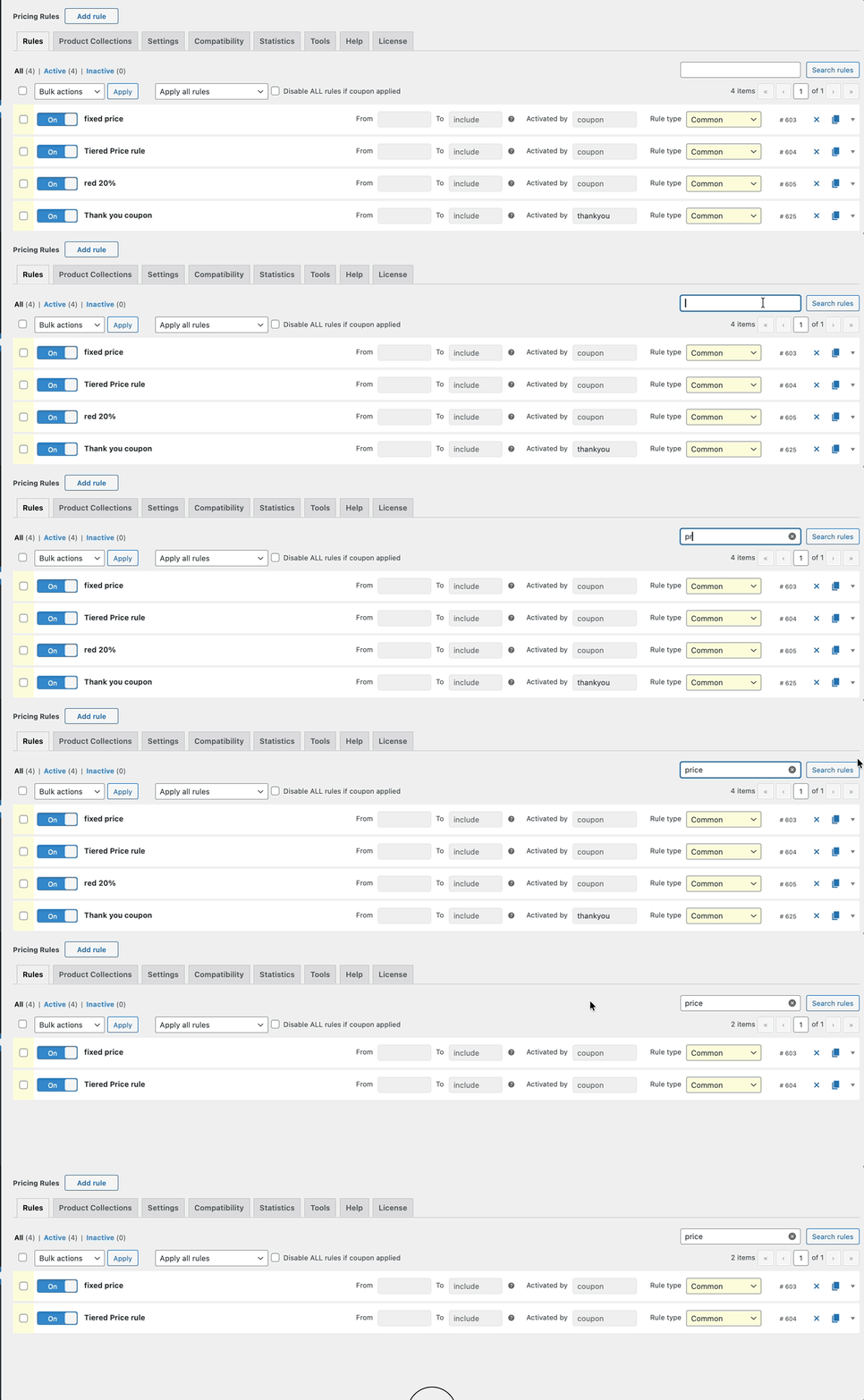
The built‑in search feature helps you locate specific rules or products attached to a rule.
To search:
Enter the rule name or a product name into the search field.
The list automatically filters to show only matching rules.
This search is particularly useful when you manage dozens of discount rules and need to find a specific rule quickly.
6. Understanding Rule Priority
The order of rules in the list directly affects how the plugin applies them.
Basic principle:
The higher a rule’s position in the list, the higher its execution priority.
Rules execute from top to bottom.
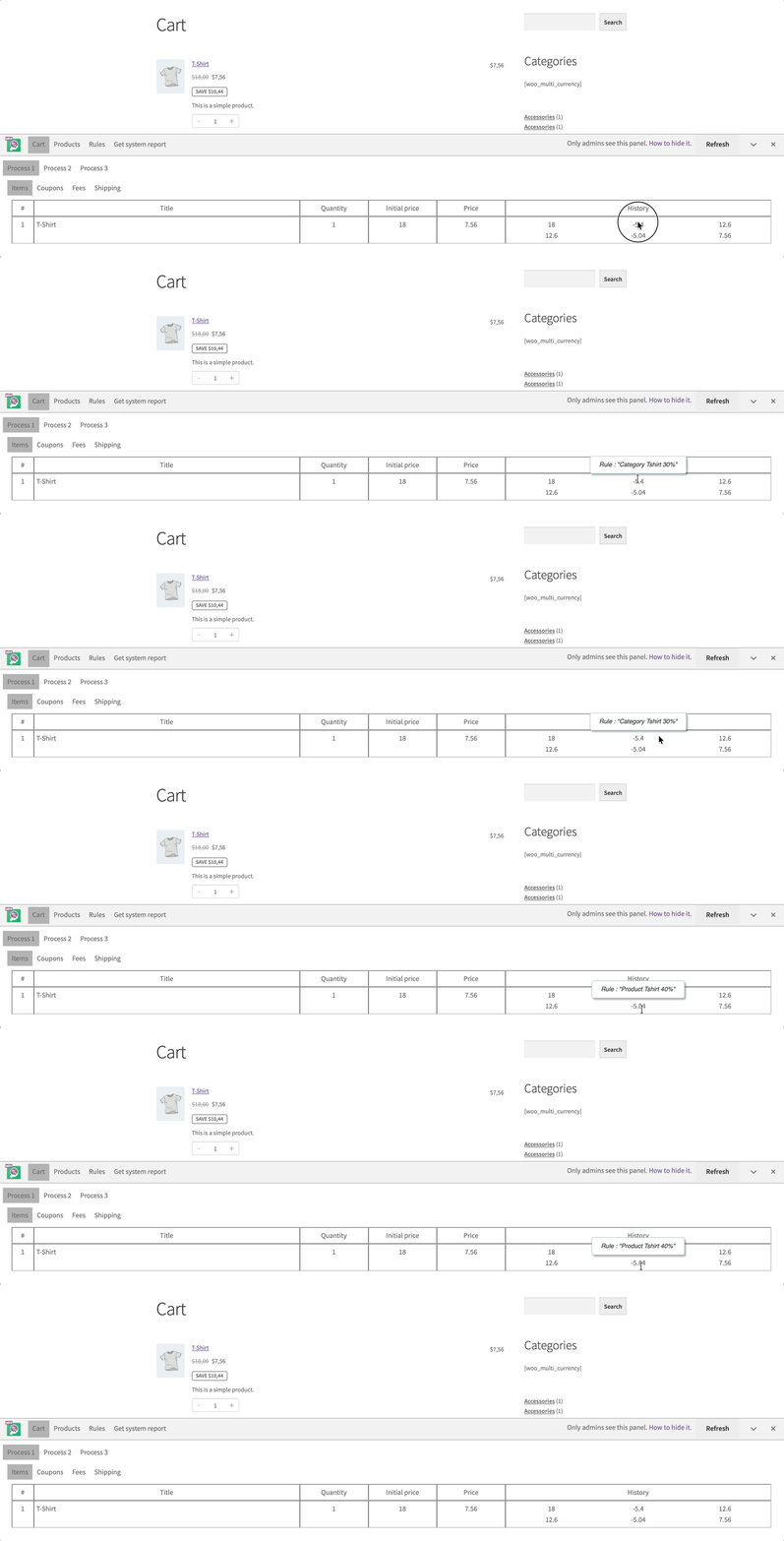
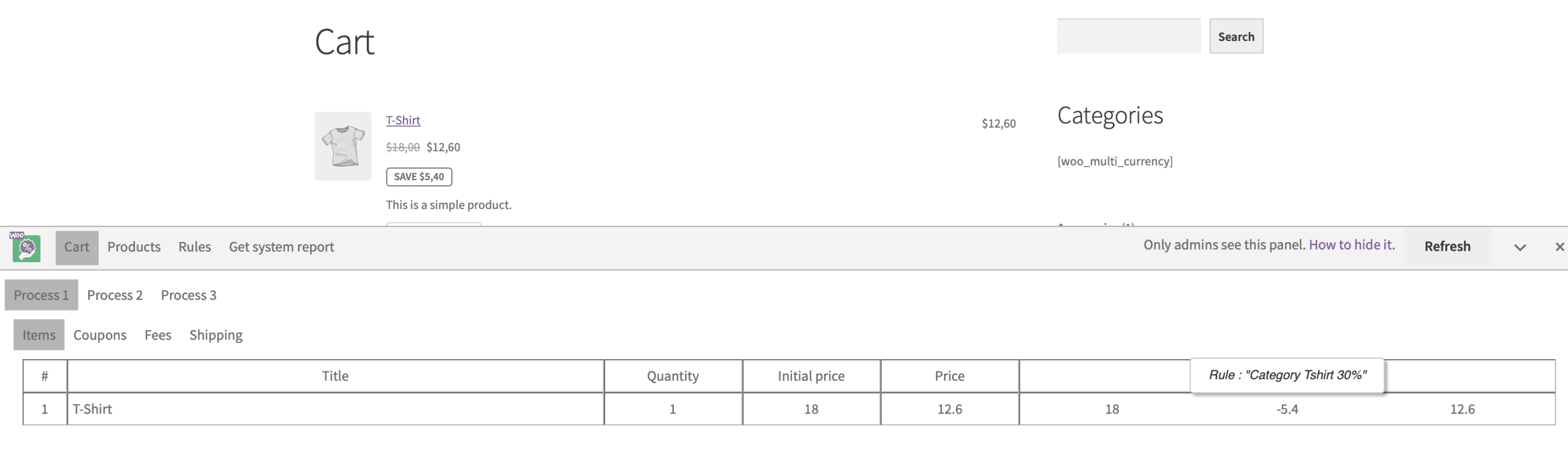
Example: Suppose you have two common rules for the same T‑Shirt product:
Position
Rule
Discount
1 (higher priority)
Rule A
30% off
2 (lower priority)
Rule B
40% off
The plugin applies Rule A first. It reduces the T‑Shirt price by 30%. Then it applies Rule B to the already discounted price, not the original price.
Pro Version: Adjusting Rule Application Logic
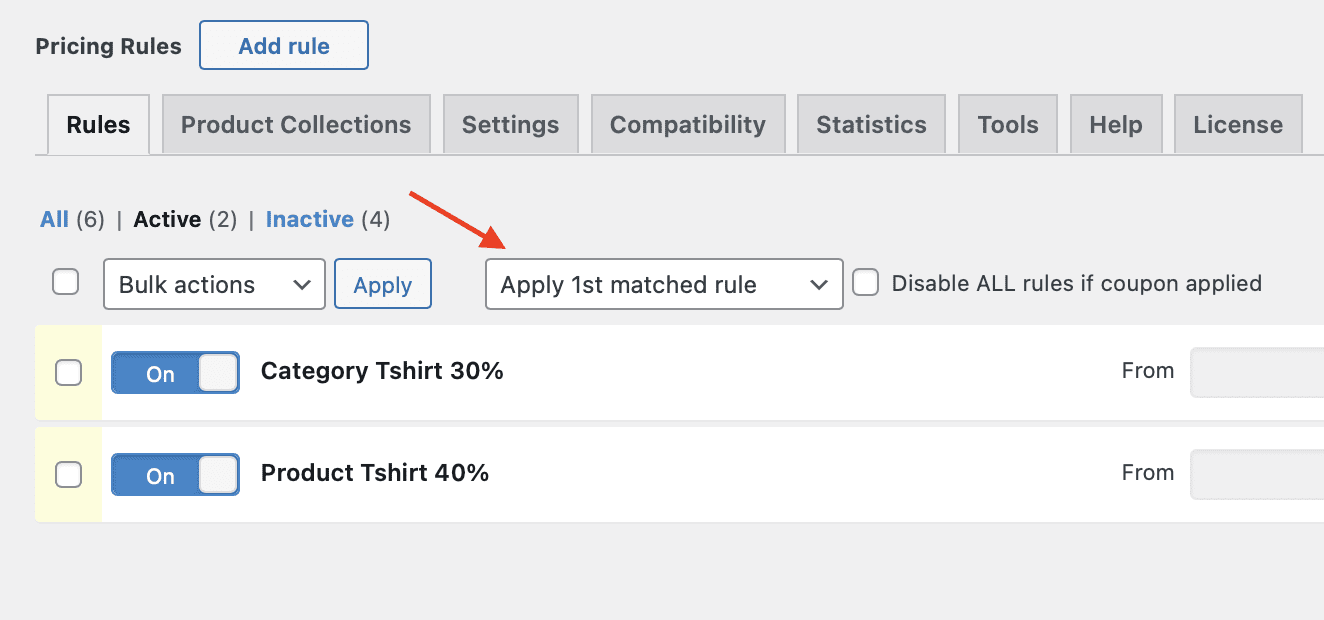
The Pro version adds a Rules adjustment dropdown. You can choose from three options:
Option
Effect
Apply 1st matched rule
Stops after the first rule that matches the product. In the example above, the T‑Shirt receives only the 30% discount from Rule A.
Apply all matching rules
Applies every rule that matches the product (default behaviour).
Apply rule with highest priority only
Applies only the rule with the highest priority among all matching rules.
Note: The Rules adjustment setting is available only in the Pro version.
7. Recalculating Caches
The plugin uses caching to improve performance for certain rule types and product lists. You must recalculate the cache after making changes to ensure the updates apply correctly.
When to Recalculate the Cache
After you add, edit, or delete Product only rules.
After you convert common rules to product only rules.
When the on sale list or BOGO list does not update correctly.
How to Recalculate the Cache
Locate the Recalculate Product Only Rules Cache dropdown above the search bar.
Select the appropriate value (e.g., “All rules”).
Click the Run button.
Important: If you do not recalculate the cache after changing product only rules, the discount will not apply, or the displayed prices will be incorrect.
8. Disabling All Rules That Have a Coupon
The plugin includes a global option to deactivate every rule that uses a coupon code. This is useful when you want to temporarily suspend all coupon‑based promotions.
How to disable coupon rules:
Go to Pricing Rules → Settings → Rules.
Locate the option for disabling rules with coupons.
Enable the setting. All rules that rely on coupons become inactive immediately.
Have questions?
Please submit a support request. We're always happy to help!