Advertising [PRO] – Discount Messages, Timers & Sale Badges
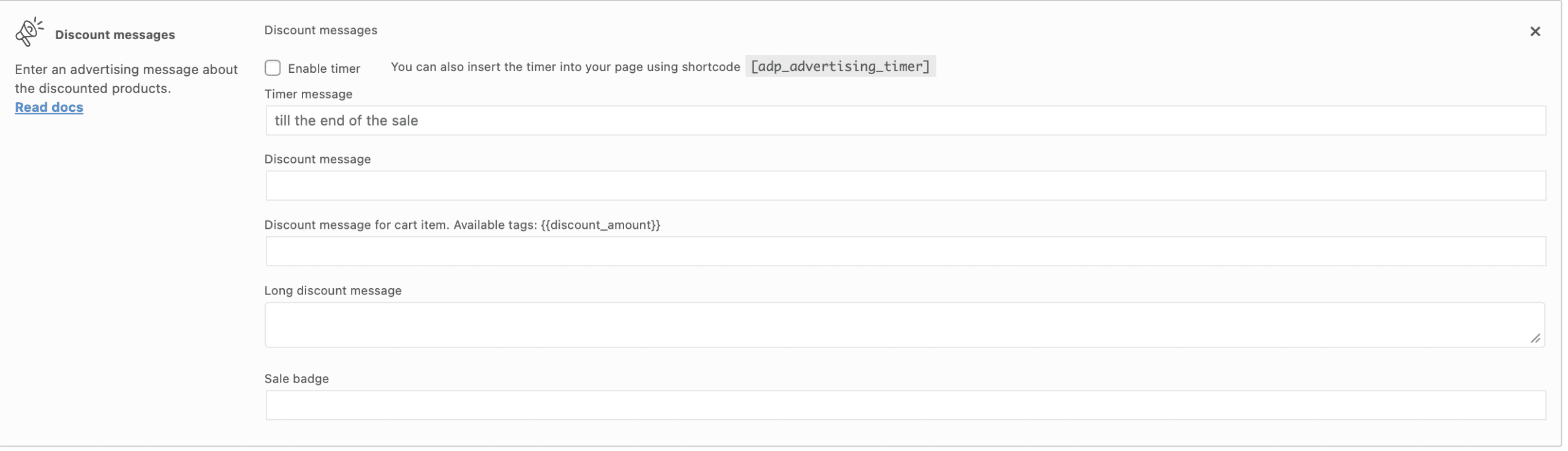
The Advertising section in the Pro version of Advanced Dynamic Pricing for WooCommerce helps you display discount messages, countdown timers, and custom sale badges on your product and cart pages. This guide explains each field in the Advertising section, shows you how to configure the required global settings, and provides practical examples for using messages and timers.
Where to Find the Advertising Section
The Advertising section is part of each individual pricing rule. Follow these steps to locate it:
- Go to Pricing Rules → Rules in your WordPress admin.
- Click Add rule or edit an existing rule.
- Scroll down to the Advertising section.
- You will see five text fields for entering different types of advertising content.
Note: This section is available only in the Pro version. The free version of the plugin does not include these advertising options.
The Five Advertising Message Fields
The Advertising section contains five text fields. Each serves a different purpose.
Timer Message
- What it does: Displays a countdown timer that shows how much time remains until a time‑limited discount rule expires.
- When to use it: Use this field for rules that have a start and end date. The timer creates urgency and encourages customers to purchase before the discount ends.
- How to configure:
- Ensure your rule has a defined date range in the Timing section.
- Enter a message in the Timer message field (e.g., “Hurry! This discount ends in:”).
- Tick the Enable timer checkbox inside the section.
- Enable the global timer display option in Settings → Advertising → Show timer with messageand select where the timer should appear (e.g., In product page).
Shortcode for manual placement: You can place the timer anywhere on your site using [adp_advertising_timer]. This shortcode works independently of the global display settings.
Timer behaviour:
- While more than one day remains, the timer shows the number of days left.
- When less than one day remains, the timer automatically switches to counting hours.
Discount Message
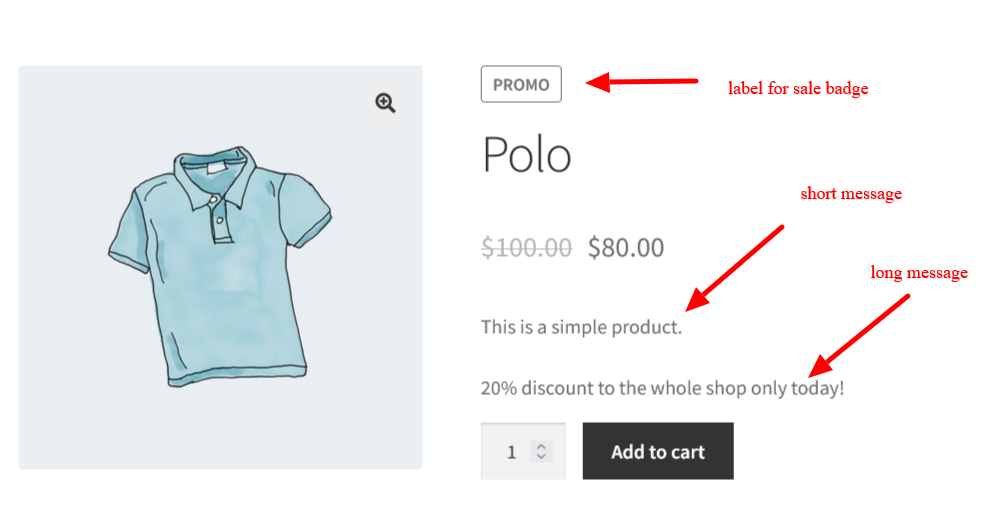
- What it does: Displays a short text message about the discount on the product page.
- When to use it: Use this field to highlight the discount value in a clear, visible way near the product price.
- Example: “Special offer: 20% off for a limited time!”
Discount Message for Cart Item
- What it does: Displays a discount message near each discounted product inside the WooCommerce cart.
- Available tag: You can use
{{discount_amount}}inside this field. The plugin automatically replaces this tag with the actual discount amount (e.g., “$5.00” or “10%”). - When to use it: Use this field to remind customers of the discount they are receiving as they review their cart.
Example with tag: "You saved {{discount_amount}} on this item!"
Long Discount Message
- What it does: Allows you to add a detailed description of the discount. This field supports HTML tags, so you can format the text with line breaks, bold text, or links.
- When to use it: Use this field to explain complex offers (e.g., “Buy 2 or more items and get free shipping on your entire order”).
Sale Badge
- What it does: Replaces your theme’s default “Sale!” badge with a custom text for products affected by this rule.
- When to use it: Use this field to create rule‑specific badges (e.g., “Limited Time!”, “BOGO Deal!”, “Member Only”).
Important: To display any of these messages, you must enable the corresponding global settings. See Section 5.
Prerequisite: Global Advertising Settings
The Advertising section will not display anything on the frontend unless you enable the appropriate options in the plugin’s global settings.
How to configure the global Advertising settings:
- Go to Pricing Rules → Settings → Advertising.
- Locate the following options:
- Show the discount custom messages – Enables the Discount message field.
- Show the cart item discount custom messages – Enables the Discount message for cart itemfield.
- Show the long discount messages – Enables the Long discount message field.
- Show timer with message – Enables the Timer message and allows you to choose where it appears (e.g., product page, cart page, or both).
- Mark the checkboxes for the options you want to use.
- Click Save settings.
Note: The Sale badge field works independently and does not require an additional global setting.
Practical Examples
Timer Message Example
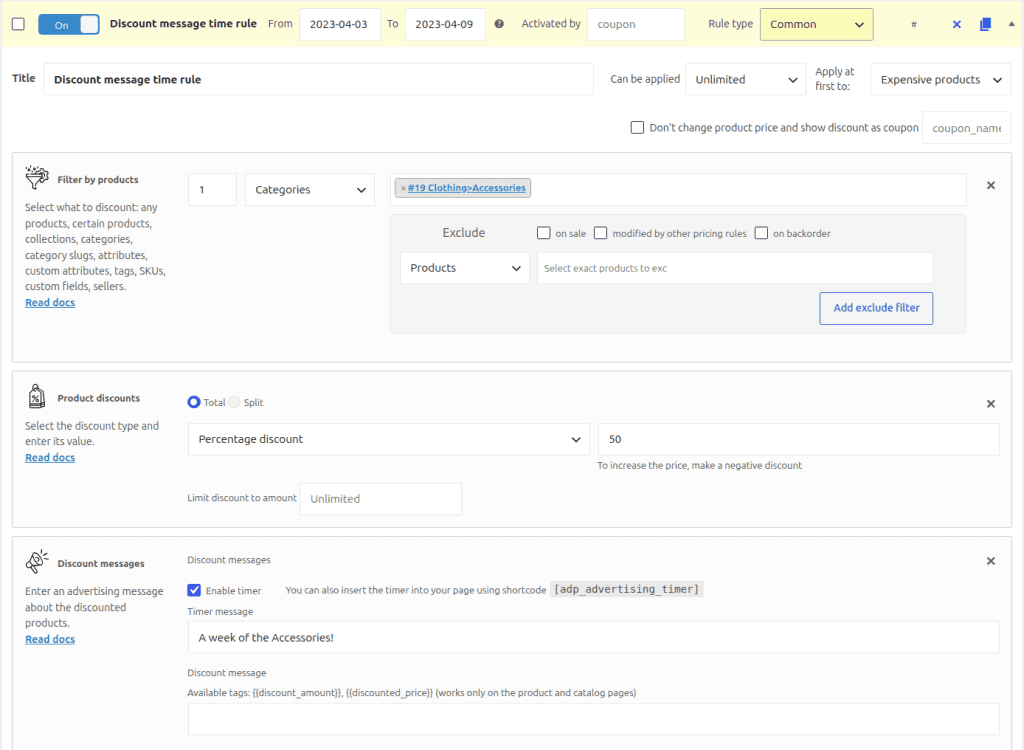
Goal: Create a 50% discount on all accessories that runs from April 3rd to April 9th, and display a countdown timer on the product page.
Step‑by‑step configuration:
- Create a new rule with a Product Discount of 50%.
- In the Products section, set the condition to Category → Accessories.
- In the Timing section, set the start date to 3rd April and the end date to 9th April.
- In the Advertising section:
- Enter a message in the Timer message field, for example
"A week of the Accessories!". - Tick the Enable timer checkbox.
- Enter a message in the Timer message field, for example
- Go to Settings → Advertising and enable Show timer with message with the option In product page.
- Save the rule.
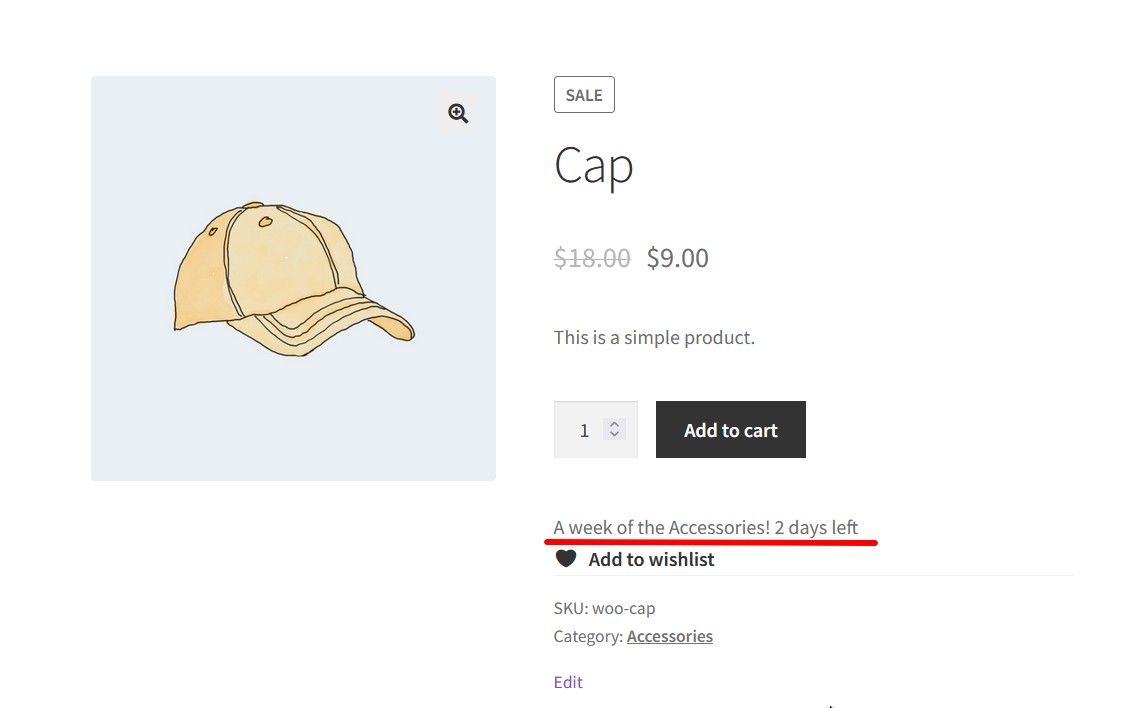
Now when a customer views any accessory product, they will see the timer message and a countdown showing how many days (and later hours) remain until the discount expires.
Discount Message Example
Goal: Display a short discount message on the product page and a separate message in the cart.
Step‑by‑step configuration:
- In the Advertising section of your rule, fill the Discount message field with
"🔥 Limited time: 20% off!". - Fill the Discount message for cart item field with
"You saved {{discount_amount}} on this item". - Go to Settings → Advertising and enable Show the discount custom messages and Show the cart item discount custom messages.
- Save the rule.
The product page now shows the discount message near the price, and the cart shows the saved amount for each discounted product.
Custom Sale Badge Example
Goal: Replace the standard “Sale!” badge with “Member Exclusive” for a rule that applies only to logged‑in customers.
Step‑by‑step configuration:
- In the Advertising section of your rule, enter
"Member Exclusive"in the Sale badge field. - Save the rule.
Now products that qualify for this rule display “Member Exclusive” instead of the usual “Sale!” badge.

Troubleshooting Common Issues
| Symptom | Likely Cause | Solution |
|---|---|---|
| The timer does not appear on the product page. | The global timer display option is not enabled. | Go to Settings → Advertisingand enable Show timer with message. |
| Discount messages do not appear. | The corresponding global settings are turned off. | Enable Show the discount custom messages, Show the cart item discount custom messages, or Show the long discount messages as needed. |
The {{discount_amount}} tag displays as plain text. | You placed the tag in the wrong field. The tag only works in Discount message for cart item. | Move the tag to the correct field. |
| The timer shows the same value for all products. | The timer uses the rule’s date range. Each rule has its own timer. | Check that each rule has its own Timing section configured correctly. |
| The sale badge does not replace the default badge. | Your theme may use a custom sale badge function that overrides the plugin’s output. | Contact your theme’s support or submit a ticket to our helpdesk. |
The shortcode [adp_advertising_timer]shows nothing. | No active rule has a timer enabled, or the shortcode is placed on the wrong page. | Ensure at least one rule has a timer enabled and an active date range. Place the shortcode on a product page or any page where the rule applies. |
Summary
| Field | Purpose | Requires Global Setting |
|---|---|---|
| Timer message | Shows a countdown timer for date‑limited rules. | Show timer with message |
| Discount message | Short discount text on the product page. | Show the discount custom messages |
| Discount message for cart item | Discount text near discounted items in the cart. Supports {{discount_amount}} tag. | Show the cart item discount custom messages |
| Long discount message | Detailed discount description. Supports HTML. | Show the long discount messages |
| Sale badge | Custom sale badge text replacing the default badge. | None |
The Advertising section turns your pricing rules into visible, engaging promotions. Use it to build urgency with timers, highlight savings with discount messages, and reinforce your brand with custom sale badges.