This guide addresses common questions related to how the Advanced Dynamic Pricing for WooCommerce plugin handles product pricing, discount displays, bulk tables, and compatibility with specific product types. Whether you need to troubleshoot a missing discount badge, understand how the plugin interacts with product bundles, or manually place a bulk pricing table, you will find practical solutions here.
Note: This FAQ applies to both the free and Pro versions of the Advanced Dynamic Pricing for WooCommerce plugin, unless a specific feature is indicated.
1. Bulk Table FAQ
1.1. Why does the bulk table show the same price for all quantity ranges?
The bulk table calculates discounts based on the product’s regular price. If you have set a sale price on the product, and your calculation mode is “Best between discounted regular price and sale price”, the sale price may be more profitable than the price from your pricing rule. In this case, the plugin shows the sale price for all ranges instead of applying the bulk discount.
Solution
Go to Pricing Rules → Settings → Calculation.
Locate the option “How to apply rules to a product that already has a sale price”.
Change the calculation mode to “Discount regular price” or “Discount sale price”.
Alternatively, remove the sale price from the product entirely.
After this change, the bulk table should display the correct discounted prices for each tier.
1.2. The bulk table does not appear on the product page.
The plugin normally displays the bulk table automatically when you have an active bulk rule and the “Show Bulk Table” option is enabled in Settings → Product page. However, some themes may not support the WooCommerce hooks that trigger the automatic display.
Solution 1: Enable the correct hook position
Go to Pricing Rules → Settings → Customizer.
Open the Product Bulk Table section.
Under Options, set Position to “Above product meta”.
Click Save.
Solution 2: Use the shortcode If the table still does not appear, you can place it manually using the shortcode [adp_product_bulk_rules_table]. Add this shortcode directly into the product description field or into a custom template file.
Tip: The shortcode supports the same parameters as the standard WooCommerce [products]shortcode. For example, you can limit the table to a specific product by adding the idsparameter.
1.3. The bulk table shows the same price for all tiers, but I have no sale price on the product.
Check that the product actually qualifies for the bulk rule. The rule may have additional conditions (e.g., minimum subtotal, customer role) that the product does not meet. Use the debug bar to see which rules apply to the product (see Section 5).
1.4. The bulk table displays only the lowest price for variable products.
The plugin processes all variations of a variable product and identifies the cheapest discounted price. If you want the table to display tiered pricing for each variation individually, you may need to use the Output template feature in the Pro version. This allows you to customise how the bulk table appears for variable products.
2. Discount Badge Not Displaying
2.1. The discount badge does not appear on variable products.
By default, WooCommerce does not mark variable products as “on sale” when only some variations have discounted prices. The plugin provides a Pro‑version setting to force the sale badge on variable products.
Solution
Go to Pricing Rules → Settings → Calculation.
Mark the checkbox “Calculate ‘On Sale’ badge for variable products”.
Click Save.
After enabling this option, the discount badge will appear on the variable product whenever any variation qualifies for a discount.
2.2. The discount badge appears on the product page but not on the shop archive.
Some themes use different templates for the shop archive and the product page. The archive template may not include the necessary hooks.
Solution
Ensure the product actually qualifies for a discount (check using the debug bar).
If the discount applies but the badge is missing, manually place the shortcode [adp_products_on_sale] in the archive template or category description.
Note: The [adp_products_on_sale] shortcode must be enabled first in Settings → Rules before it works.
3. Free Products and Zero‑Priced Items
3.1. When I try to add a free product, I see the message: “Sorry, this product cannot be purchased.”
WooCommerce performs a basic validation on every product before adding it to the cart. It checks three things: the product must be published, in stock, and have a price defined. For a truly free product, you must explicitly set the price to 0.
Solution
Edit the product in the WordPress admin.
Set the Regular price field to 0.
Ensure the product status is Published.
Ensure the stock status is In stock.
Save the product.
The product will now add to the cart without errors. This message does not relate to discount rules but to WooCommerce’s core product validation.
4. Product Bundles
4.1. My product bundle does not show the discounted price.
The Advanced Dynamic Pricing plugin does not spread a discount on product bundles created by third‑party bundle plugins, except for the official WooCommerce Product Bundles plugin. The reason is that most bundle plugins have their own discount options, which may conflict with dynamic pricing.
What this means:
If you use WooCommerce Product Bundles, the plugin does support discounts on bundles.
If you use any other bundle plugin, the discount will not apply automatically.
Solution
Use the official WooCommerce Product Bundles plugin if you need dynamic discounts on bundles.
Alternatively, create a specific discount rule that applies to each product inside the bundle rather than to the bundle itself.
4.2. The plugin also doesn’t support discounts inside the WooCommerce Product Bundles.
This is a known limitation. Discounts apply to the bundled items at the product level, not to the bundle as a single unit. For advanced bundle‑level discounts, consider using the bundle plugin’s own discount features.
5. Hiding Original Prices (Pro Version)
How can I hide the original (striked) prices?
This is a Pro version feature. You can disable the display of strikethrough prices for discounted products.
Solution
Go to Pricing Rules → Settings → Price Output.
Turn off the option “Show striked prices”.
Separate settings exist for category pages and product pages. Configure both as needed.
After saving, the plugin will display only the discounted price.
6. Price Increases (Negative Discounts)
How can I increase prices in my store?
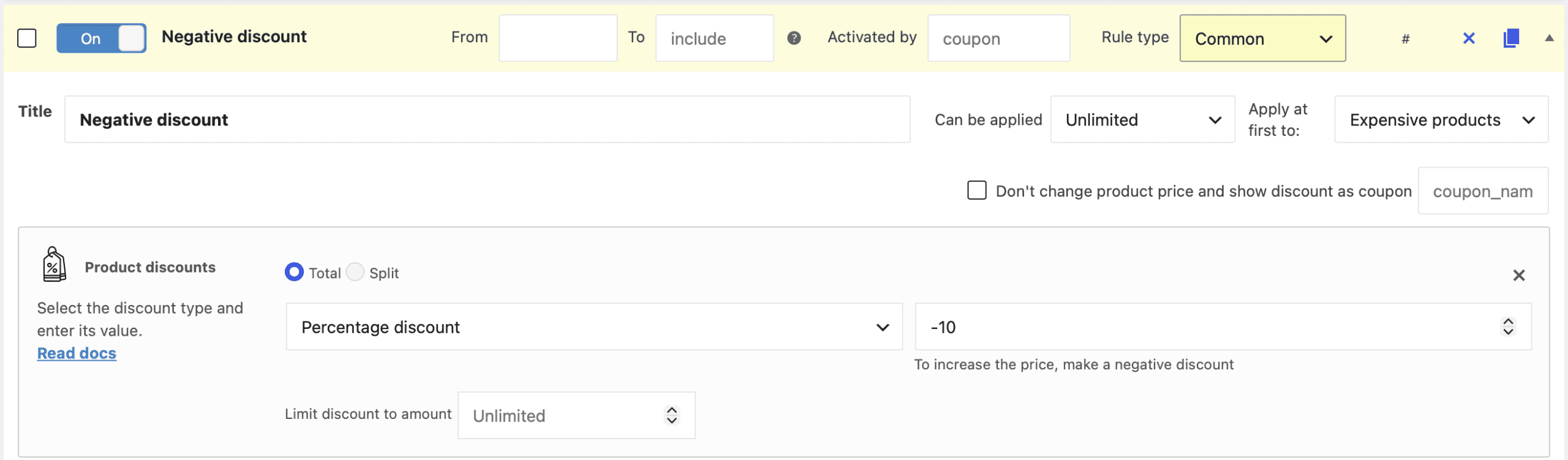
Advanced Dynamic Pricing supports negative discounts – a discount with a negative value increases the product price.
Example: To add a 10% surcharge, create a rule with a Product Discount of -10%. The plugin will increase the product price by 10%.
7. Discounts Not Applied When Using “Show More” (AJAX Pagination)
When loading products on the page using the “Show more” button, the discount on products is not displayed.
The “Show more” button sends an AJAX request. By default, the plugin does not apply pricing rules to API requests.
Solution
Go to Pricing Rules → Settings → System.
Mark the checkbox “Apply pricing rules while doing API request”.
Click Save.
After enabling this option, the discount will apply correctly to products loaded via AJAX.
8. Discounts Not Applied in the Admin (Phone Orders)
If you use the Phone Orders for WooCommerce plugin and pricing rules do not apply to orders created in the admin area:
Solution
Go to Pricing Rules → Settings → System.
Mark the checkbox “Apply pricing rules to backend orders”.
Click Save.
This ensures that dynamic pricing rules apply when creating manual orders via the Phone Orders interface.
9. Using Shortcodes for Product Lists
The plugin provides the shortcode [adp_products_on_sale] to display a list of products that currently qualify for a discount.
How to enable it
Go to Pricing Rules → Settings → Rules.
Mark the checkbox “Enable shortcode [adp_products_on_sale]”.
Click Save.
How to use it
Place [adp_products_on_sale] in any post, page, or widget area.
The shortcode will output a list of products with active discounts.
The shortcode supports the same parameters as the standard WooCommerce [products]shortcode for customisation.
10. Troubleshooting: The Debug Bar
The debug bar is the most valuable tool for understanding why a discount does not apply or why a product displays an unexpected price.
Activation
Go to Pricing Rules → Settings → Debug.
Check “Show debug panel at bottom of the page”.
Click Save.
Usage Once activated, a panel appears on your product pages and cart. It displays:
Which rules affect the product.
The original and calculated prices.
Any errors or warnings.
Use this information to adjust your rule conditions or settings.
11. Compatibility with Product Add‑Ons (Pro Version)
The Pro version supports the following product add‑ons plugins. Discount rules apply correctly to the additional options and their prices.
WooCommerce Extra Product Options – by ThemeComplete.
Extra Product Options (Product Addons) for WooCommerce – by ThemeHigh.
Woocommerce Custom Product Addons – by AcoWebs.
Product Add-Ons – by WooCommerce.
Note: This feature is available only in the Pro version.
12. Summary
Problem
Solution
Bulk table shows same price for all ranges
Change the calculation mode in Settings → Calculation or remove the sale price.
Bulk table does not appear
Enable “Show Bulk Table” or use the [adp_product_bulk_rules_table] shortcode.
Discount badge missing on variable products
Enable “Calculate ‘On Sale’ badge for variable products” (Pro).
Free product cannot be added to cart
Set the product price to 0 and ensure it is published and in stock.
Discount not applied on AJAX‑loaded products
Enable “Apply pricing rules while doing API request” in Settings → System.
Discount not applied to phone orders
Enable “Apply pricing rules to backend orders” in Settings → System.
Need to increase product prices
Use a negative discount.
Product bundle discount not applied
Use the official WooCommerce Product Bundles plugin.
Plugin ignores custom taxonomy
Register the taxonomy with priority 9 instead of 10
Have questions?
Please submit a support request. We're always happy to help!