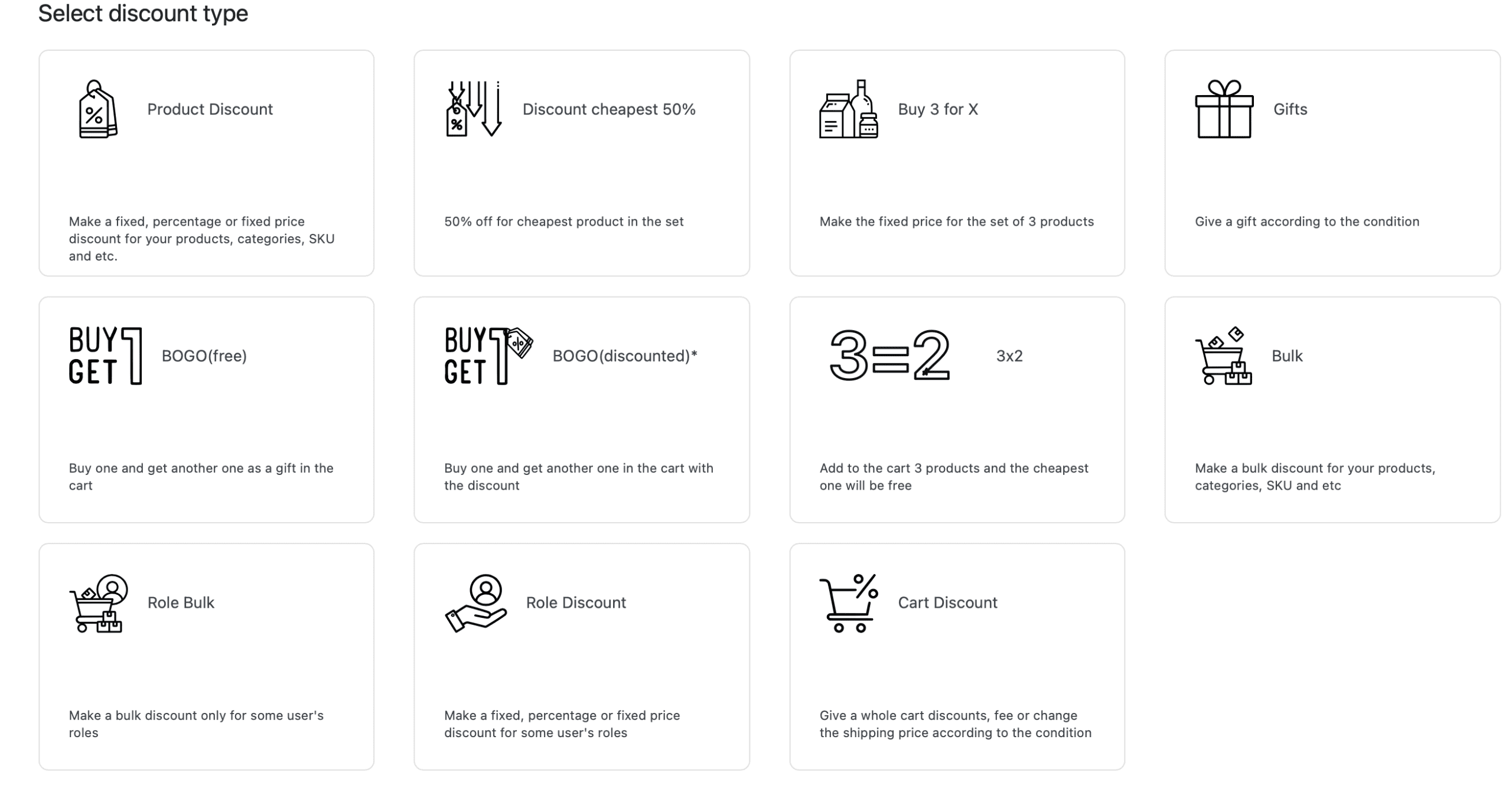
Rules
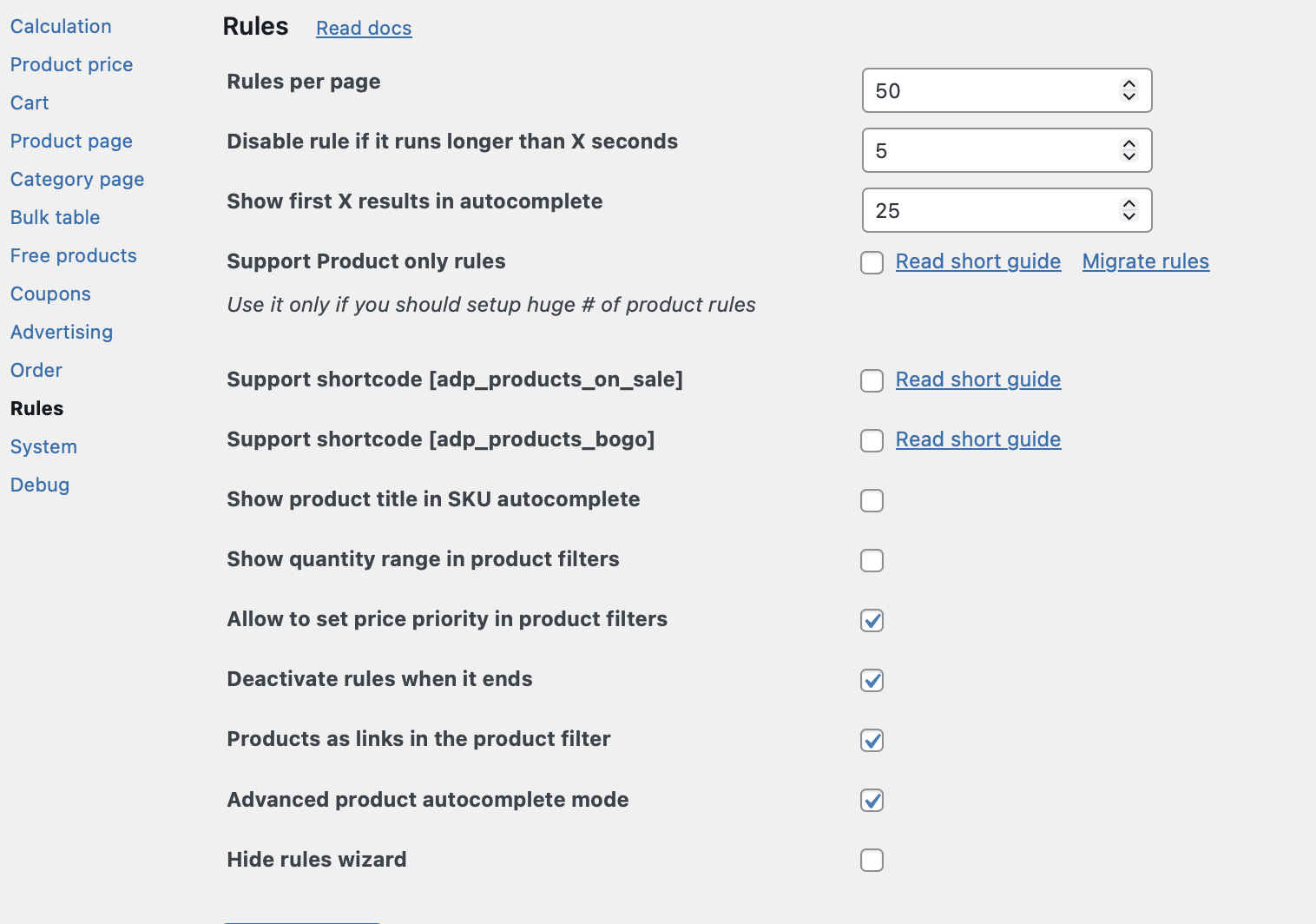
The Rules tab contains settings that control the execution environment for all your dynamic pricing rules. From pagination limits and execution timeouts to powerful PRO‑version features like product‑only rules, BOGO shortcodes, and advanced product selection, this tab is where you fine‑tune the behaviour of your entire pricing system.
There are a lot of additional settings for the rules in the PRO version, we mark it as (PRO).
After every change, don’t forget to click the “Save changes” button.
Let’s consider every setting more detailed:
Rules per Page
Numeric up/down, default value: 50.
This setting controls the number of rules displayed per page in the main Pricing Rules list.
The plugin uses the value you enter here to paginate the rules list in the WordPress admin area. For example, if you have 100 active rules and set this value to 20, you will see 5 pages of rules, with 20 rules per page.
Disable rule if it run longer than X seconds
Numeric up/down, default value: 5
This setting prevents rules that take too long to execute from slowing down your site. If a rule’s execution exceeds the number of seconds you specify, the plugin will automatically disable that rule to protect site performance.
The plugin monitors the execution time of each rule. If a rule exceeds the timeout threshold, it is temporarily disabled, and an entry is logged for debugging purposes.
The default value is typically sufficient for most stores. However, if you notice that rules are unexpectedly being disabled, or if you have particularly complex rules that legitimately require more processing time, you can increase this value.
Note: To disable this option and remove restrictions, input 0 (zero) value.
Show first X results in autocomplete
Numeric up/down, default value: 25
When using filters (such as the product filter), the plugin displays an autocomplete dropdown to help you select products, categories, or other items. This setting controls how many results are shown in that dropdown.
When you start typing in a filter field, the plugin searches your catalog and returns a list of matching items. This setting limits the number of suggestions displayed.
Support Product only rules
When enabled, this setting activates the “Product only” rule type in the rule creation interface. Product only rules are a specialised rule type designed for specific use cases.
With this setting enabled, you can create rules that are limited to a single product. The rule type offers optimised processing for product‑specific discounts.
Learn more: For a detailed explanation of this rule type, see the Product only rule type documentation.
Support shortcode [adp_products_on_sale]
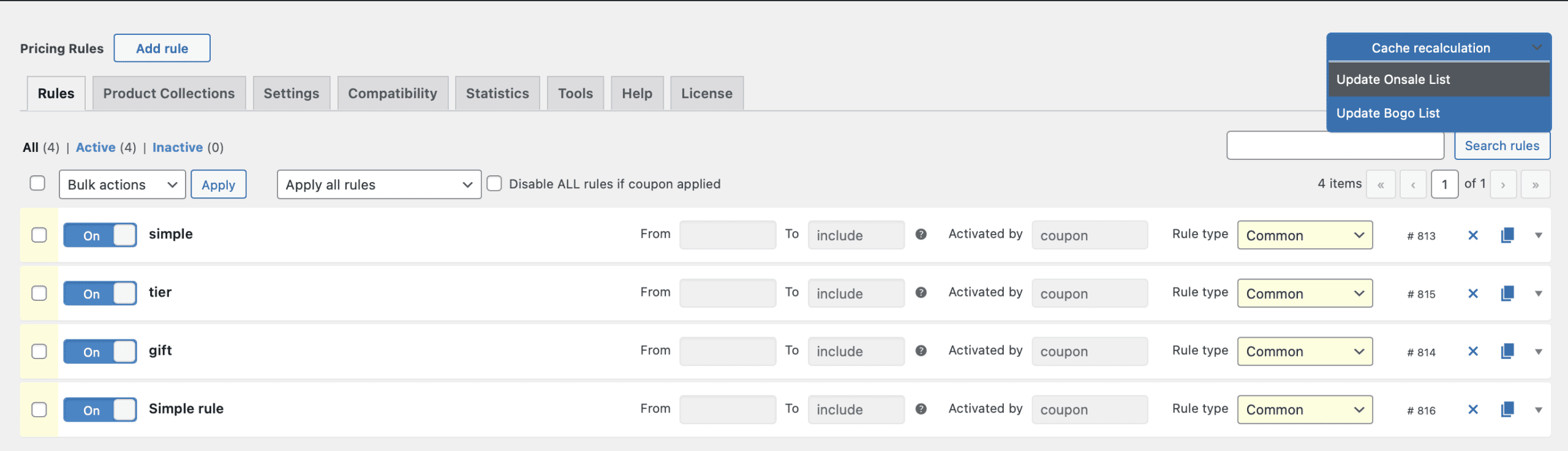
When enabled, this setting activates the [adp_products_on_sale] shortcode, which displays all products affected by simple discount rules on a single page.
The shortcode queries your product catalog, identifies all products that are currently discounted by your active rules, and displays them using the same parameters as the standard WooCommerce [products] shortcode. The shortcode supports all the standard WooCommerce product shortcode parameters.
How to use:

Support shortcode [adp_products_bogo]
When enabled, this setting activates the [adp_products_bogo] shortcode, which displays products affected by the “Buy One Get One” (BOGO) discount template.
The shortcode queries your product catalog and displays all products that are part of an active BOGO promotion (using the “Free Products” rule type with appropriate settings).
Like the [adp_products_on_sale] shortcode, this shortcode supports all the standard WooCommerce product shortcode parameters.
How to use:
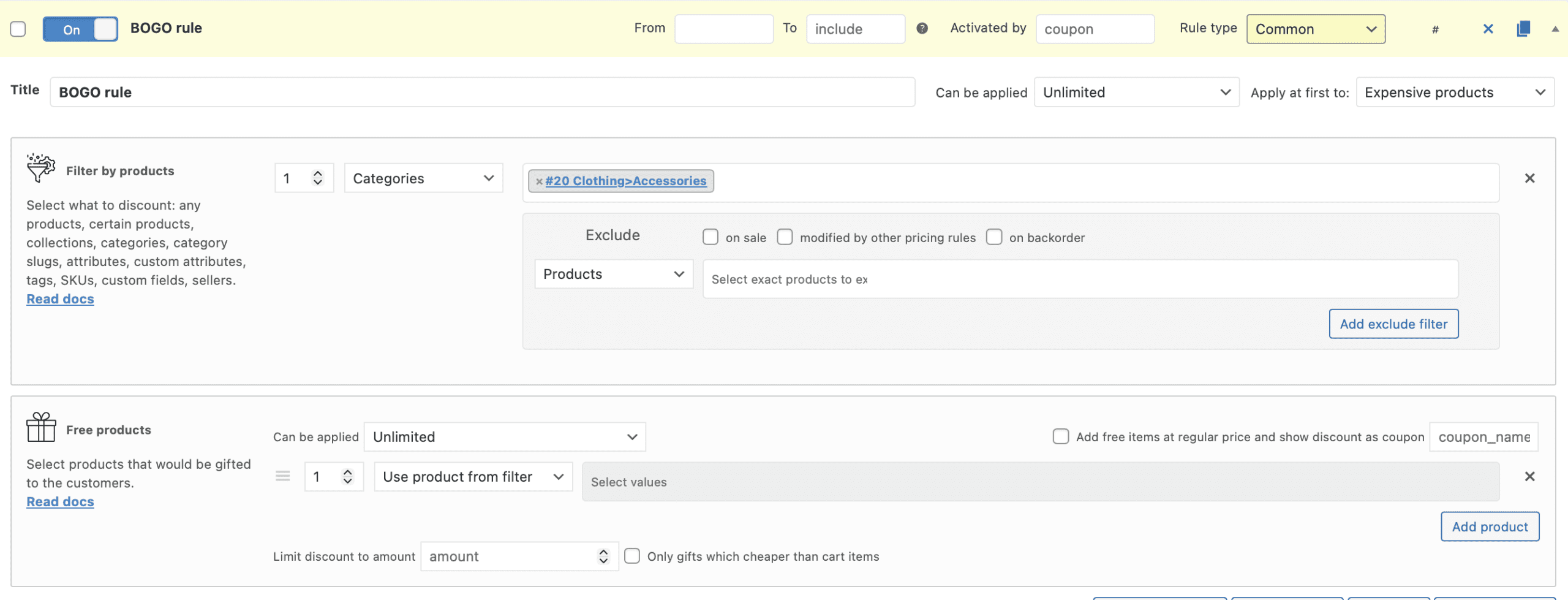
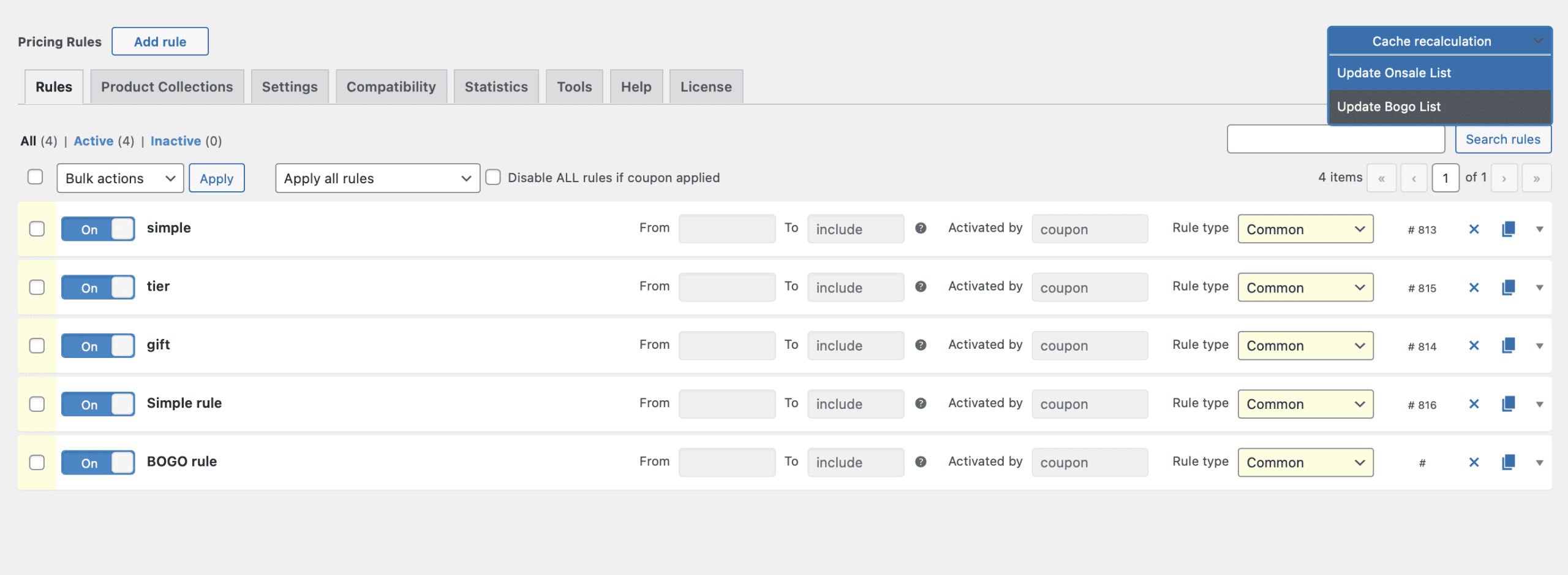

Note: [adp_products_on_sale] and [adp_products_bogo] shortcodes support all the available product attributes. Also, our shortcode [adp_products_on_sale] can show WooCommerce onsale products, please use parameter “show_wc_onsale_products=true”.
Show product title in SKU autocomplete (PRO)
This setting enhances the SKU autocomplete functionality by displaying the product title alongside the SKU in dropdown suggestions.
When typing in a SKU filter field, the autocomplete dropdown normally shows only the SKU value. With this setting enabled, each suggestion is displayed as “SKU – Product Title” (e.g., “ABC123 – Leather Belt Brown”).

Show quantity range in product filters (PRO)
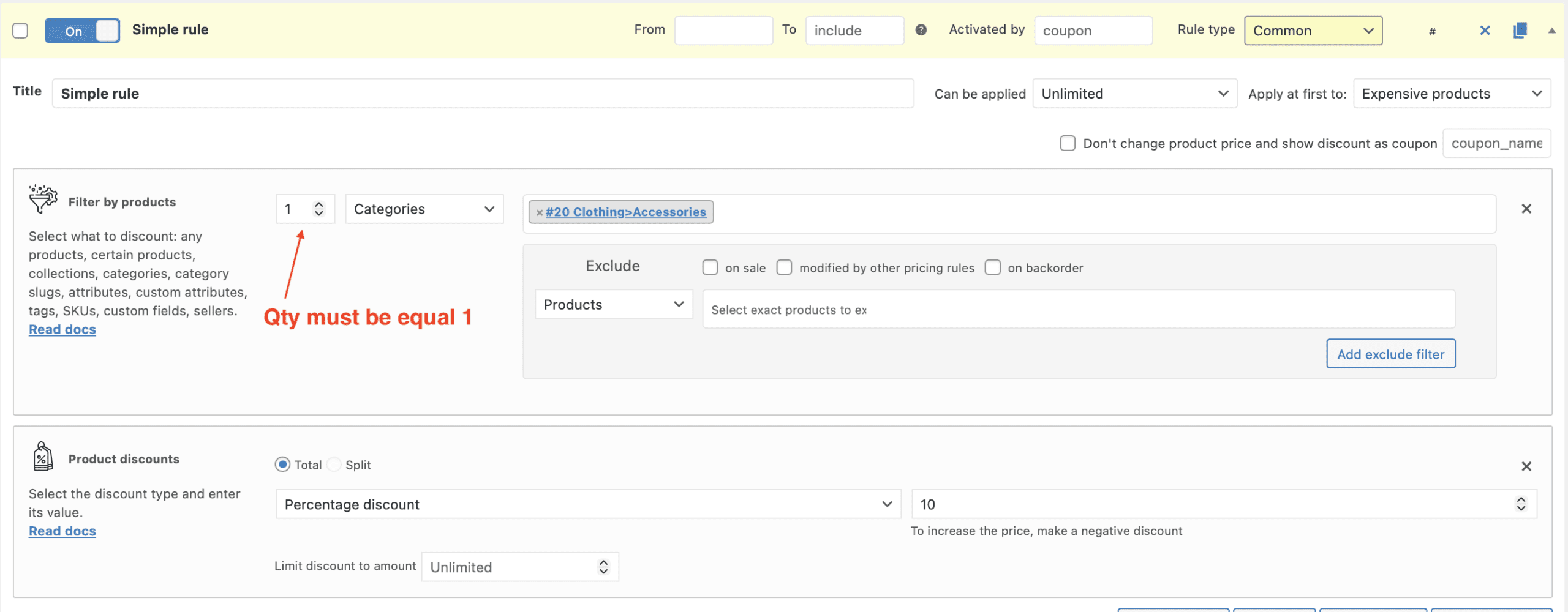
When enabled, this setting allows you to regulate the quantity range of bundles within product filters. This is particularly useful for stores that use product bundles and need to apply discounts based on the quantity of items within the bundle.
When configuring a product filter, you gain the ability to specify a quantity range (e.g., “2‑4 items” or “5+ items”) that determines which bundle configurations are affected by the rule.

Allow to Set Price Priority in Product Filters (PRO)
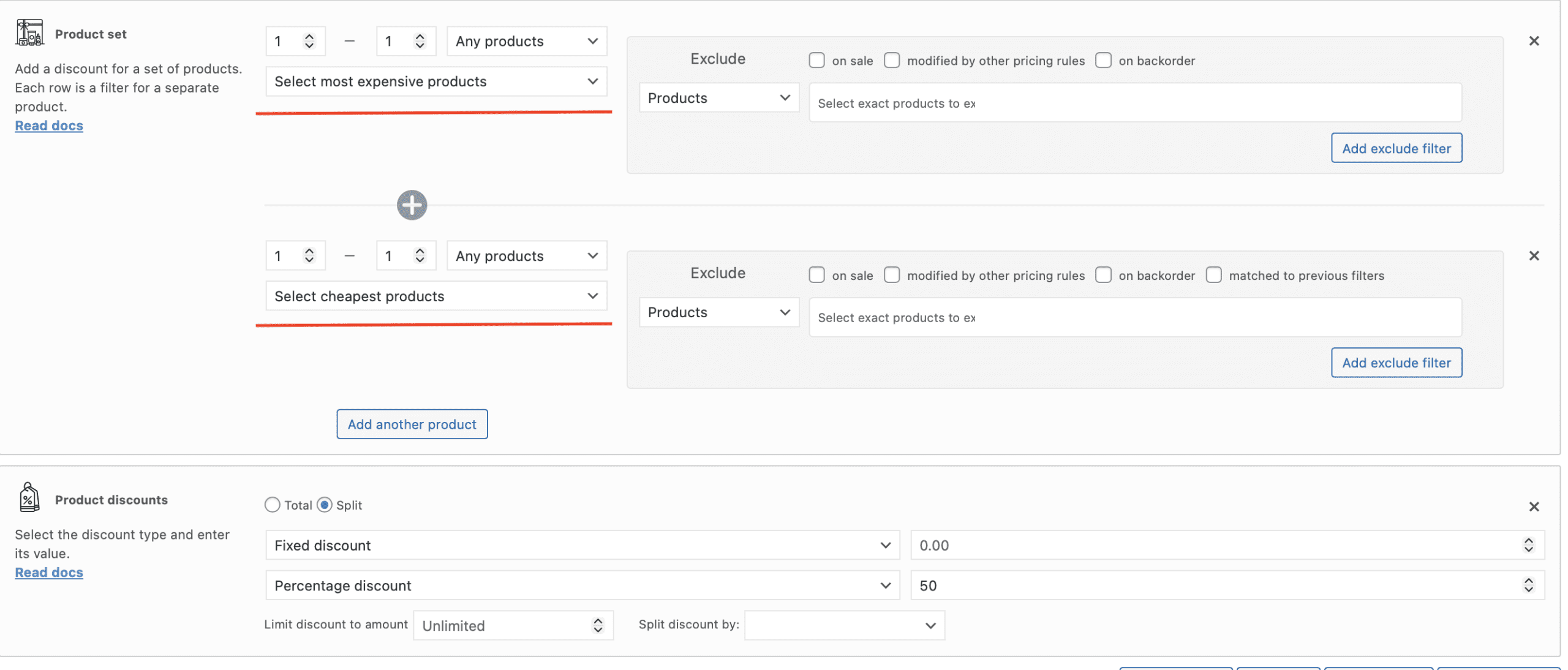
This powerful setting adds advanced sorting options to your product filters, allowing you to select products based on their price relative to others in the filtered set.
Available options:
When enabled, your product filters gain a new “Price priority” dropdown. You can then specify how many products to select (e.g., “cheapest 3 products”) and the rule will only apply to those selected items.
Best for creating advanced BOGO promotions where the cheapest item is free, or premium promotions where only the most expensive items qualify.
Deactivate Rules When It Ends (PRO)
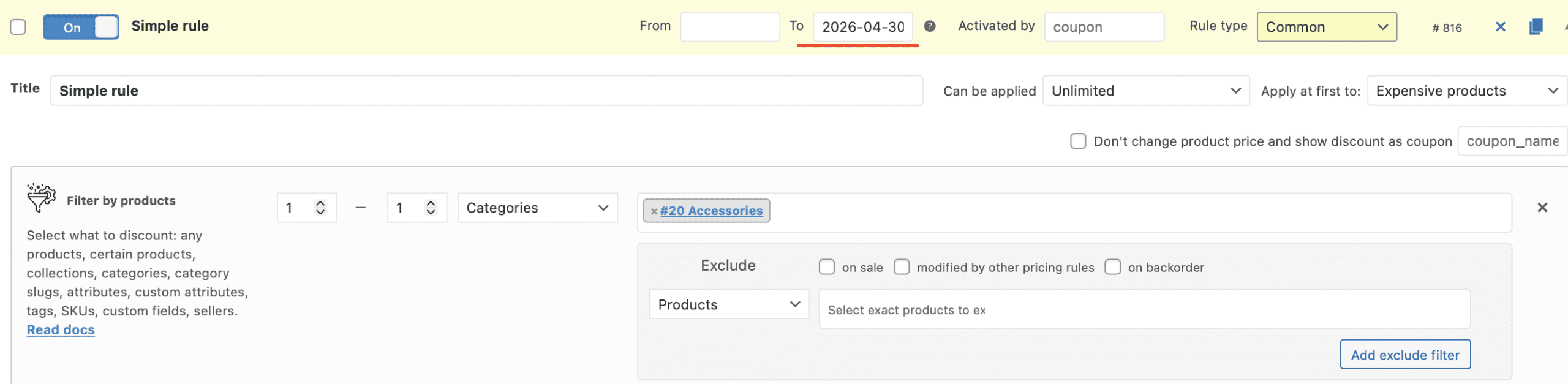
When enabled, this setting causes rules to be automatically deactivated when their scheduled end date is reached. Perfect for holiday sales, flash sales, or seasonal discounts.
If a rule has an end date set (in the rule’s scheduling section), the plugin checks the current date against that end date at regular intervals. When the end date passes, the rule is automatically disabled.
Products as Links in the Product Filter (PRO)
When You Enable “Products as Links”, instead of just showing the products name, the system will output a direct, clickable link for each selected product in that field. Clicking it opens the product’s page in a new tab, allowing to check the product you want to discount.
Advanced Product Autocomplete Mode (PRO)
With the Advanced Product Autocomplete Mode option enabled, you will see in the Product filter autocomplete not only the product’s name, but its image, ID, SKU and price.

It makes the products filtration more easier and visual.
Hide wizard
Enable this option if you don’t want to see the rules template on every new rule’s addition.