Order [pro]
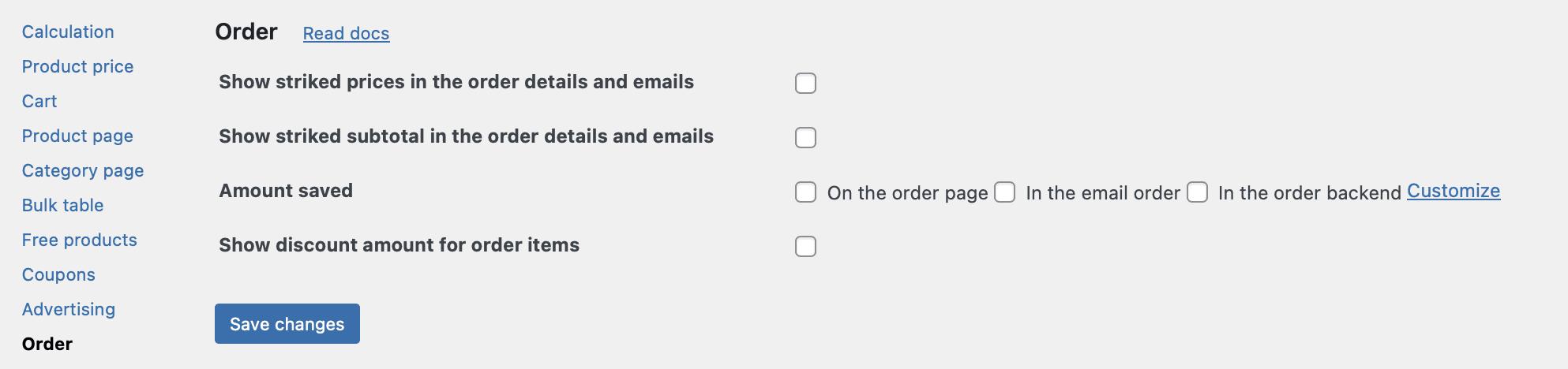
This tab controls how discounted prices are displayed after a purchase has been completed, including the customer’s order details page, the store manager’s admin order view, and all transactional emails. All features described in this manual are PRO version exclusive and are available only when you have an active PRO license.
Show Striked Prices in the Order Details and Emails (PRO)
When this setting is enabled, the plugin displays the original price crossed out alongside the discounted price for each product line item in orders and emails.
For each product in an order, the plugin compares the original WooCommerce price at the time of purchase with the discounted price that was actually paid. If they differ, the original price is displayed with a strikethrough, and the discounted price is shown next to it.

Where It Appears
Customers can clearly see the savings they received on each individual item, increasing trust and satisfaction.
Show striked subtotal in the order details and emails (PRO)
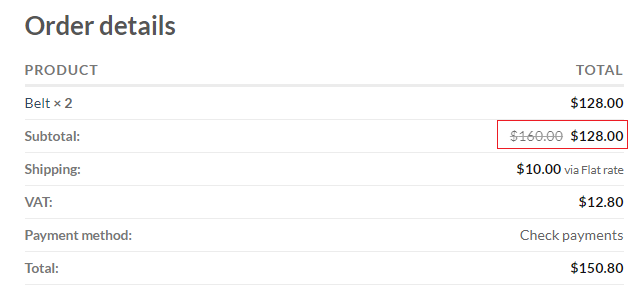
When enabled, this setting displays the original subtotal crossed out alongside the discounted subtotal in the order totals section.
The plugin calculates the sum of all original product prices in the order, sums all discounts applied, and displays the original subtotal with a strikethrough alongside the discounted amount. This appears in the standard order totals table, typically just before the shipping and tax lines.
Where It Appears
Showing the original subtotal crossed out emphasises the total amount the customer saved across the entire order.
Amount Saved (PRO)
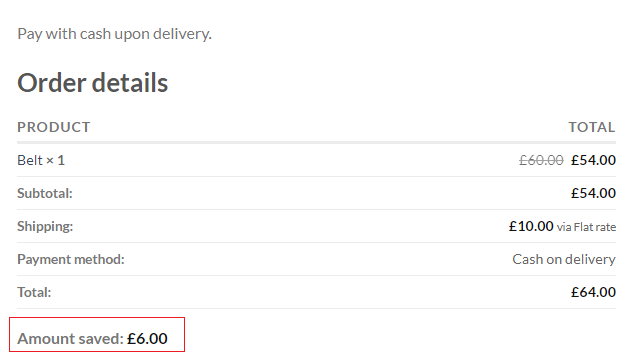
This setting displays the total amount the customer saved across the entire order, typically shown as an additional line in the order totals section or within a dedicated savings summary.
Where It Appears
Showing the exact amount saved reinforces the value of customers’ purchase and encourages repeat business.
Show discount amount for order items (PRO)
When a product’s price is modified by one of your dynamic pricing rules, the plugin needs to decide how to represent that change within the order’s data structure. By default, WooCommerce stores only the final discounted price for each line item. The original price is not preserved in a dedicated field, which can cause issues for certain accounting, reporting, or custom integration scenarios.
The “Show discount amount for order items” setting solves this by explicitly storing both the original amount and the discounted amount for every modified order item.
This approach ensures that the discount is clearly reflected in the order’s internal data structure, improving compatibility with external systems and making discount amounts more transparent for store managers.