Free Products
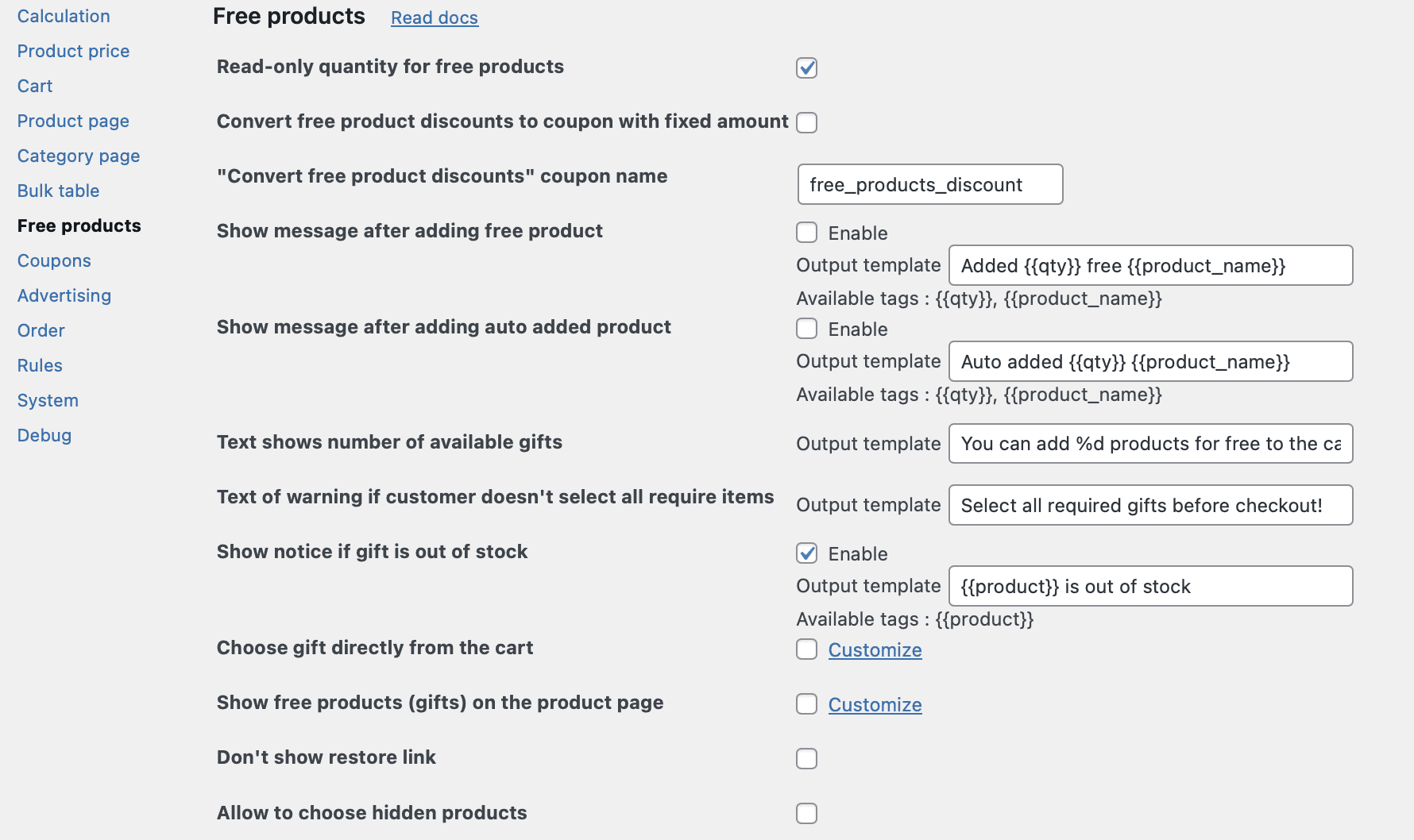
The Free Products tab contains settings that govern the customer-facing experience of gift promotions. From custom notification messages and interactive in‑cart gift selection to read‑only quantity controls and hidden product visibility, these settings give you fine‑grained control over how your gift offers are perceived and used.
Think of the Free Products rules section as the engine that powers your gift promotions, and the Free Products settings tab as the dashboard that controls how that engine communicates with your customers. Together, they create a seamless, professional gift‑giving experience.
Most of the settings in this tab are PRO version exclusive and are available only when you have an active PRO license.
Read‑Only Quantity for Free Products (PRO)
Checkbox, default value: enabled.
When this setting is enabled, customers cannot change the quantity of gifted products in the cart. The quantity field for gift items becomes read‑only or is hidden entirely. Preventing abuse of gift promotions. For example, if a customer receives one free gift, this setting prevents them from manually increasing the quantity of that gift to two or more.
The plugin overrides the default WooCommerce cart behaviour, preventing customers from increasing or decreasing the quantity of any product that has been added as a gift (i.e., a product with a price of $0 due to a gift rule).

Convert Free Product Discounts to Coupon with Fixed Amount (PRO) and “Convert Free Product Discounts” Coupon Name (PRO)
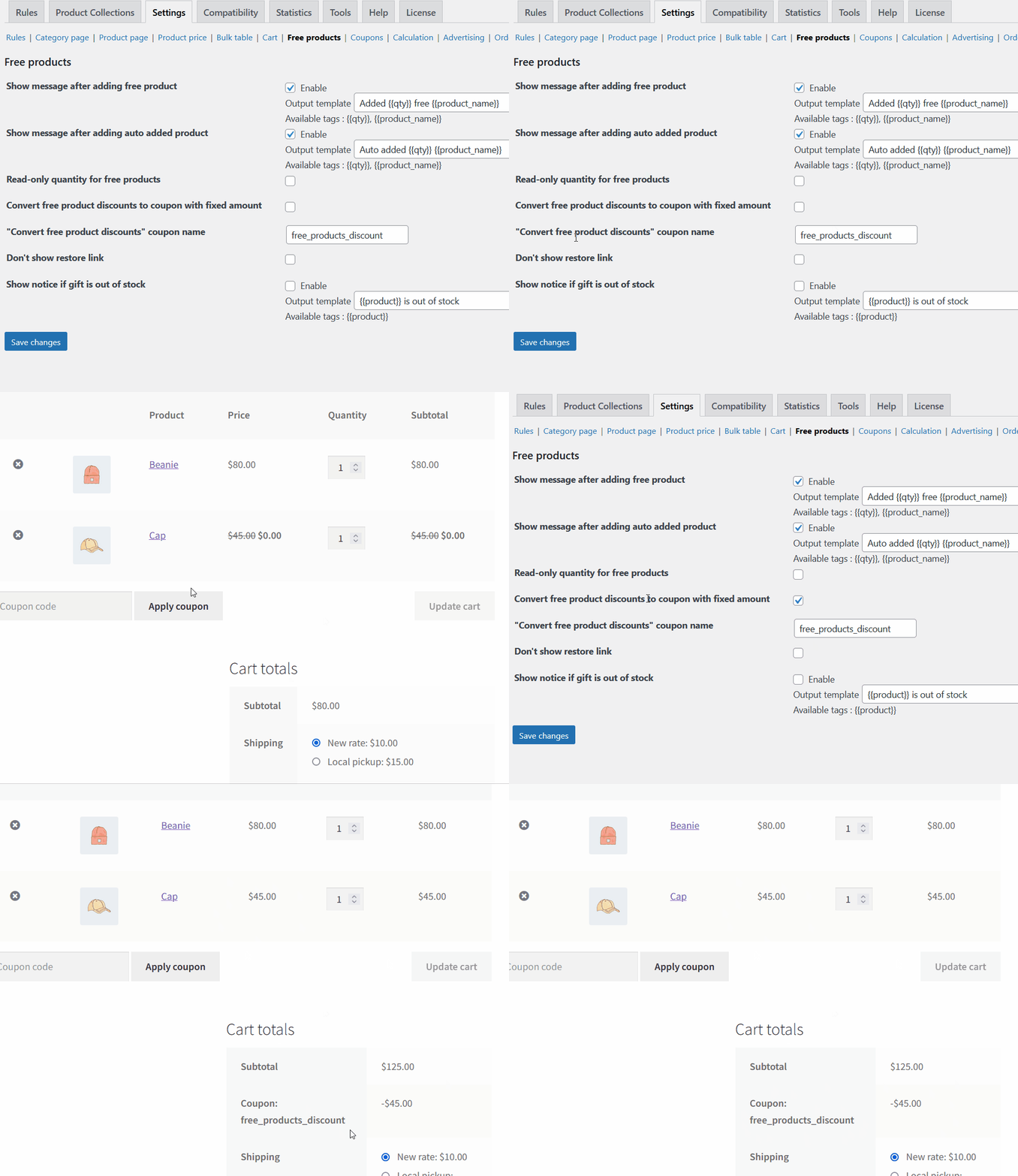
This setting transforms the price reduction of free products into a single, fixed‑amount couponthat appears in the cart. Instead of showing a product with a $0 price, the gift product appears at its full price, and a coupon is automatically applied to reduce the total by the gift’s value.
This is a companion setting to the “Add free products to cart at normal cost, and add a coupon that will reduce the cost” option available when creating individual Free Product rules.
When a customer qualifies for a gift, the plugin adds the gift product to the cart at its normal (full) price. Simultaneously, it creates a virtual coupon of the exact same value and applies it to the cart. The net effect is that the customer pays nothing for the gift, but the cart shows a clear coupon discount rather than a zero‑priced item.
Some third‑party plugins (e.g., for shipping, tax, analytics, or reporting) do not handle zero‑priced items correctly. Converting gifts to coupons improves compatibility with these extensions.
You can specify the name of the coupon that appears in the cart using the “Convert free product discounts” coupon name field. This name is visible to the customer (e.g., “Free Gift Savings”).
Show message after adding free product
Group of the options, default value: disabled. Default template: Added {{qty}} free {{product_name}}.
When a customer adds a product to their cart that qualifies them for a free gift, this setting enables a confirmation message that appears immediately after the gift is added.
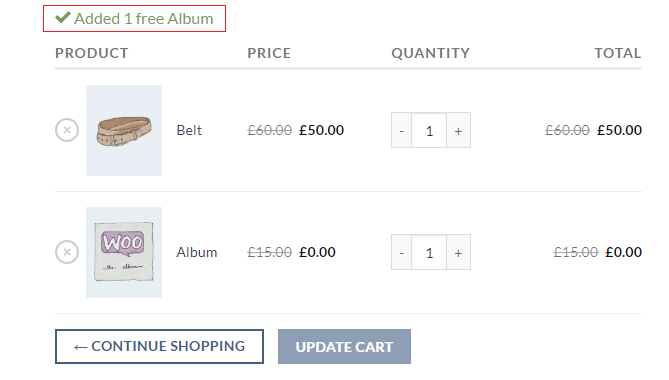
The plugin detects when a gift has been automatically added to the cart. A customisable message (using your own template) is then displayed to the customer, confirming that the gift has been added.
You can create your own template for this message using HTML and plain text. This allows you to match your store’s branding, add emojis, or include dynamic elements. Example template: “Congratulations! A free {{product_name}} has been added to your cart.”
Show message after adding auto added product (PRO)
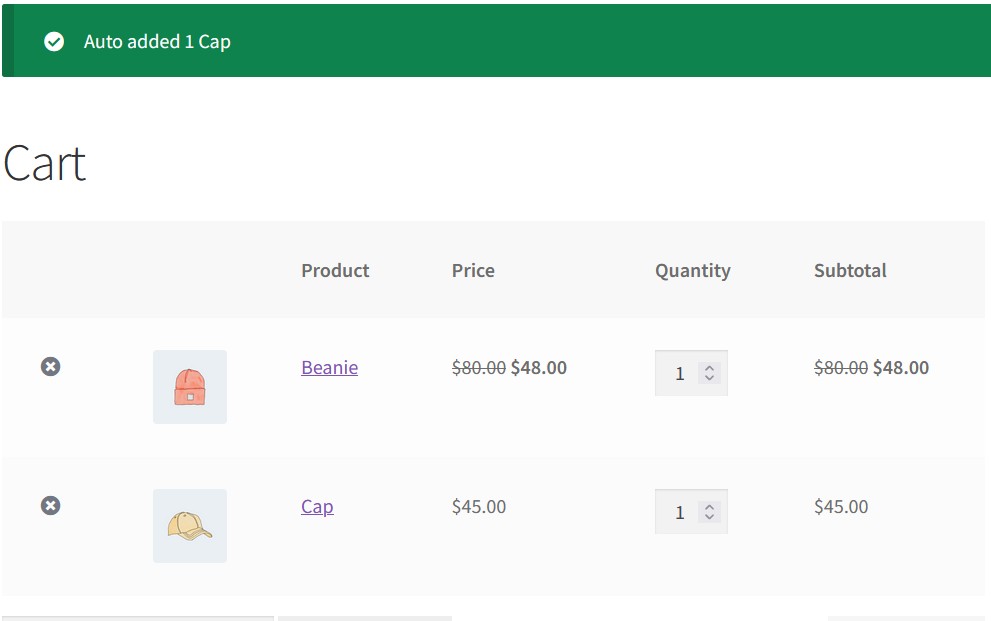
This setting is similar to the one above, but applies specifically to auto‑added products – gifts that are added to the cart automatically based on rules with Auto add to cart rule’s section.
When an auto‑added product is placed in the cart (without any customer interaction beyond meeting the cart condition), this setting enables a custom confirmation message.
It’s helpful for distinguishing between customer‑selected gifts and automatically added gifts. You might want different messaging for each scenario.
You can create your own template for this message using HTML and plain text. This allows you to match your store’s branding, add emojis, or include dynamic elements. For example, “You’ve earned a discount on the {{product_name}} with your purchase! It’s been added to your cart.”
Text shows number of available gifts (PRO)
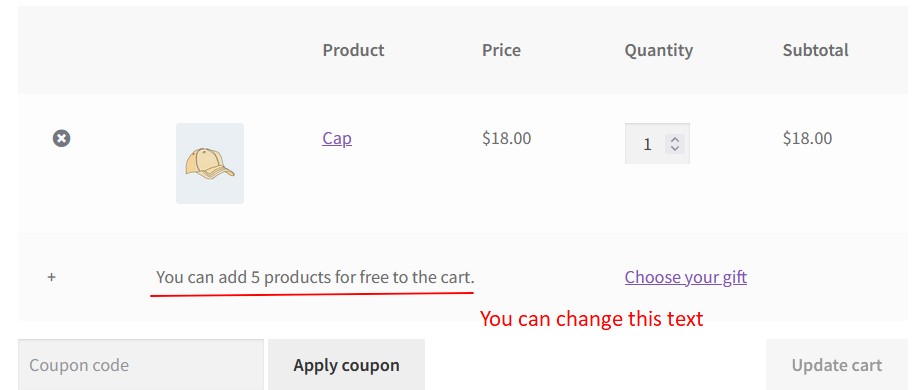
When using the “Allow to choose” or “Require to choose” gift modes (where customers select their own gift from a list or category), this setting allows you to customise the message that displays how many gifts the customer can add.
The plugin automatically calculates how many gifts the customer is entitled to based on your rule’s “Can be applied” setting (e.g., one gift per $50 spent). This setting lets you control the wording of the message that communicates that number.
Text of warning if customer doesn’t select all require items (PRO)
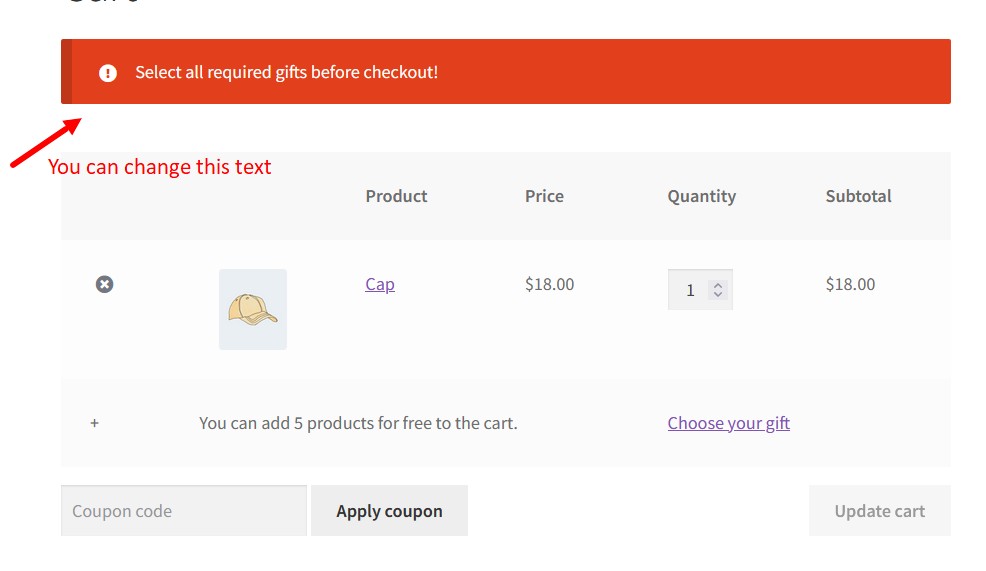
This setting is critical for promotions that require customers to choose a gift before they can proceed to checkout. When using the “Require to choose from products” or “Require to choose from category” modes, customers must select their gift(s) before completing their purchase. If they try to check out without doing so, this customisable warning message appears.
The plugin detects when a customer attempts to proceed to checkout without having selected the required number of gifts. It then interrupts the checkout process and displays your custom warning message.
Best for providing clear, friendly guidance when a customer forgets to select their gift, reducing friction and preventing support tickets.
Example of the custom message: “Don’t miss out! Please choose your free gift(s) below before completing your order.”
Choose Gift Directly from the Cart (PRO)
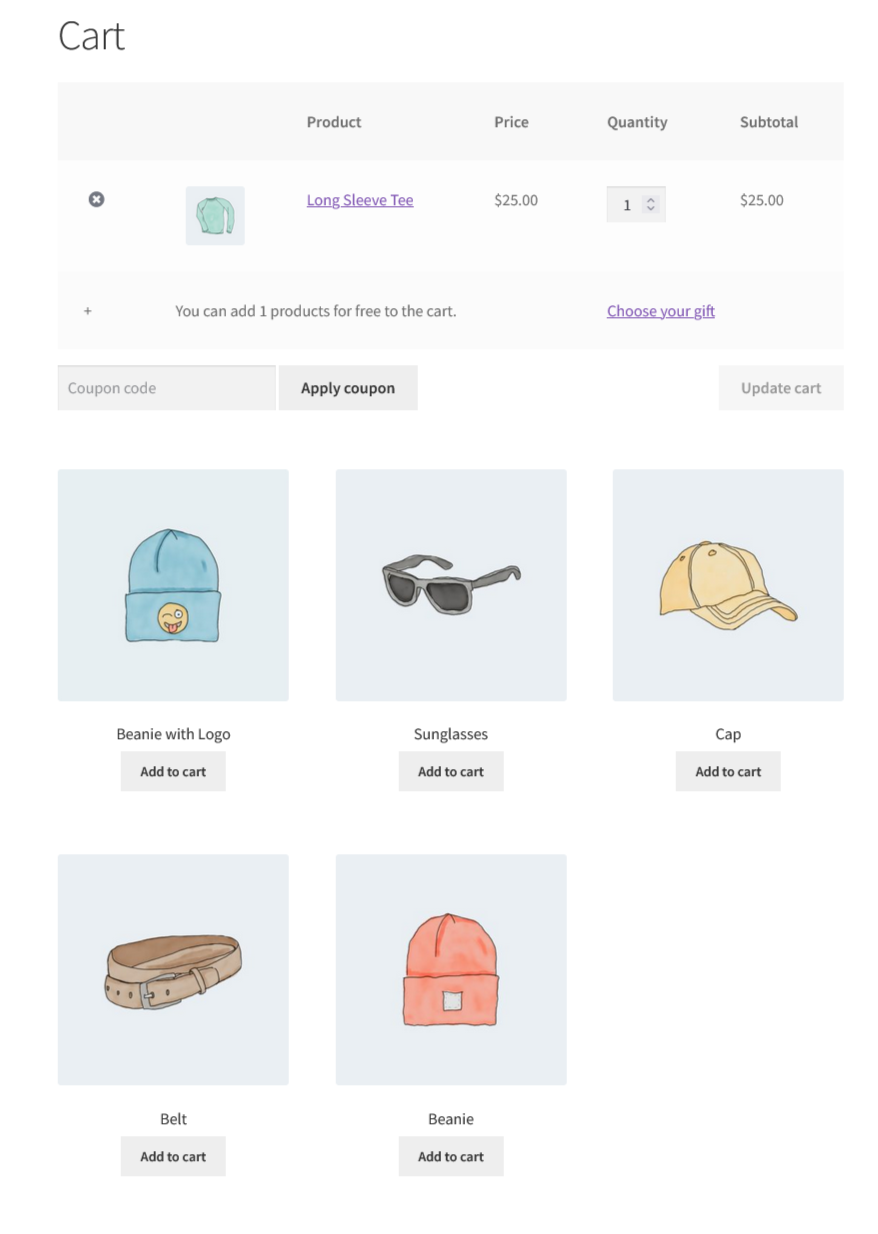
This setting allows customers to select their free gifts directly from the cart page, without being redirected to a separate “Choose your gift” page.
When enabled, the gift selection interface (list of available gift products or categories) is displayed directly on the cart page, typically above or below the cart totals. Customers can browse available gifts, make their selection, and add the gift to their cart – all from the same page. The selection process is often streamlined with “Add to cart” buttons next to each gift option.
You can customise this block by clicking the “Customize” link near the setting option. In the Customizer, you can:

Show Free Products (Gifts) on the Product Page (PRO)
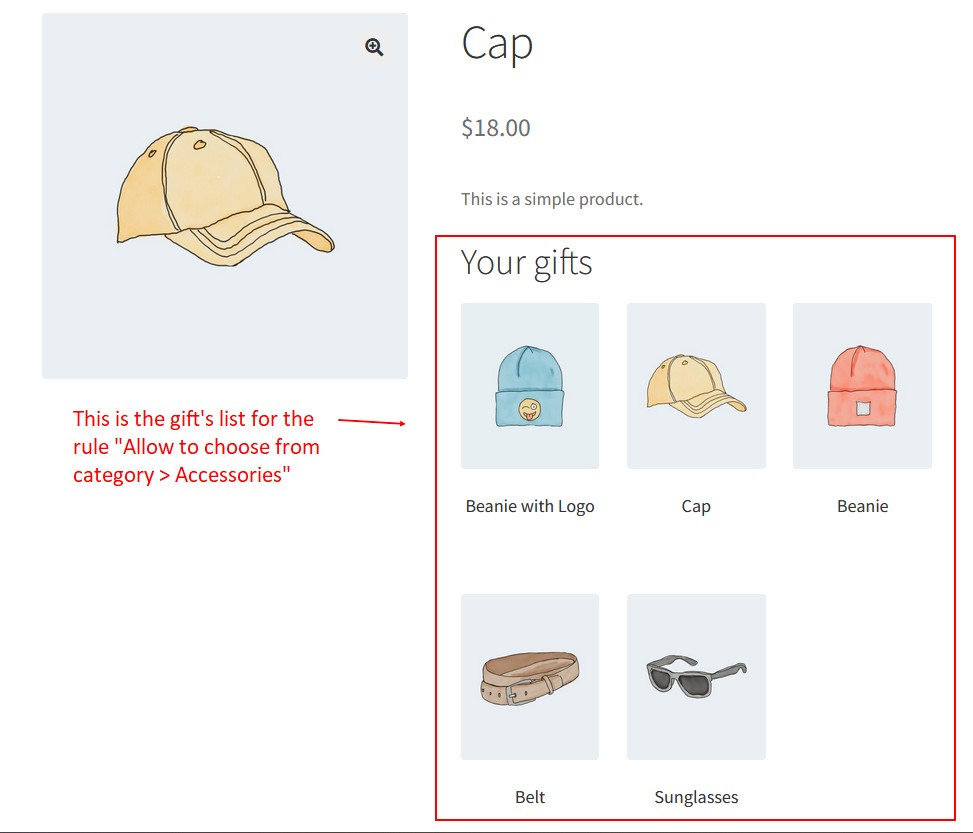
This setting displays the gift selection interface directly on the product page, allowing customers to see what gifts are available and add them to their cart without leaving the product they are viewing.
When enabled, the gift selection block appears on single product pages. Customers can browse available gifts, make their selection, and add the gift to their cart – all while remaining on the product page.
Best for increasing gift uptake. When customers see the available gifts while they are already engaged with a product, they are more likely to add the gift to their cart. This is especially effective for promotions where the gift is related to the product being viewed (e.g., “Buy this camera, get a free carrying case”).
You can customise this block by clicking the “Customize” link near the setting option. In the Customizer, you can:
Don’t Show Restore Link (PRO)
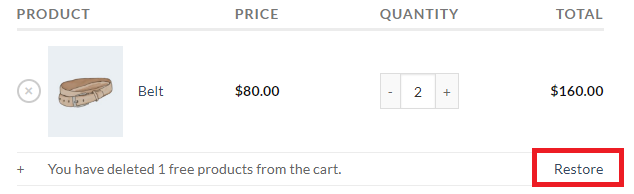
When a customer removes a gift product from the cart, WooCommerce typically displays a “Restore” link, allowing them to undo the removal. This setting removes that link.
The plugin suppresses the “Restore” link that appears after a gift item is removed from the cart.
Show Notice If Gift Is Out of Stock (PRO)
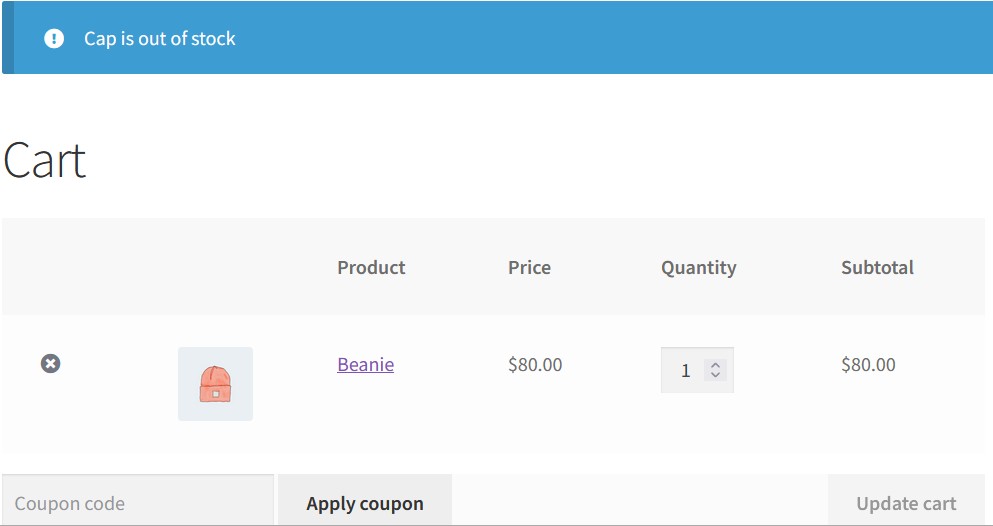
When a customer attempts to add a gift product that is out of stock, this setting enables a customisable notice informing them of the situation.
The plugin checks the stock status of gift products before allowing them to be added to the cart. If a selected gift is out of stock, the customer sees your custom notice instead of the gift being added.
You can create your own template for the out‑of‑stock notice, matching your store’s branding and tone.
Allow to choose hidden products (PRO)
When this setting is enabled, hidden products (products set to “Hidden” in WooCommerce) become visible as gift options in your gift selection lists.
By default, WooCommerce does not display hidden products anywhere on your store. This setting overrides that behaviour specifically for gift selection lists (e.g., when using “Allow to choose from products” or similar modes).
Best for creating exclusive gift offers that are not available for regular purchase. For example, you might create a special “VIP Gift Bundle” that is hidden from your catalog but available as a gift option for qualifying customers.
Note: Hidden products will still not appear in your shop archives, search results, or other standard WooCommerce loops. They appear only as gift options when this setting is enabled.
Complete list of the Free Products Settings tab
|
Option’s name |
PRO? |
Short description |
|---|---|---|
|
Read‑Only Quantity for Free Products |
Prevents customers from changing the quantity of gift products in the cart |
|
|
Convert Free Product Discounts to Coupon with Fixed Amount and “Convert Free Product Discounts” Coupon Name |
Converts free product discounts into a virtual coupon with a custom name and specifies the name of the coupon |
|
|
Show message after adding free product |
Custom confirmation message when a free product is added to the cart |
|
|
Show message after adding auto added product |
Custom confirmation message specifically for auto‑added gifts |
|
|
Text shows number of available gifts |
Customise the message that displays how many gifts the customer can add |
|
|
Text of warning if customer doesn’t select all require items |
Custom warning message when a required gift has not been selected |
|
|
Choose Gift Directly from the Cart |
Displays gift selection interface on the cart page; customisable grid layout |
|
|
Show Free Products (Gifts) on the Product Page |
Displays gift selection interface on product pages; customisable position and layout |
|
|
Don’t Show Restore Link |
Removes the “Restore” link that appears after a gift is removed |
|
|
Show Notice If Gift Is Out of Stock |
Displays a custom notice when a selected gift is out of stock |
|
|
Allow to choose hidden products |
Makes hidden products visible as gift options |