Category Page
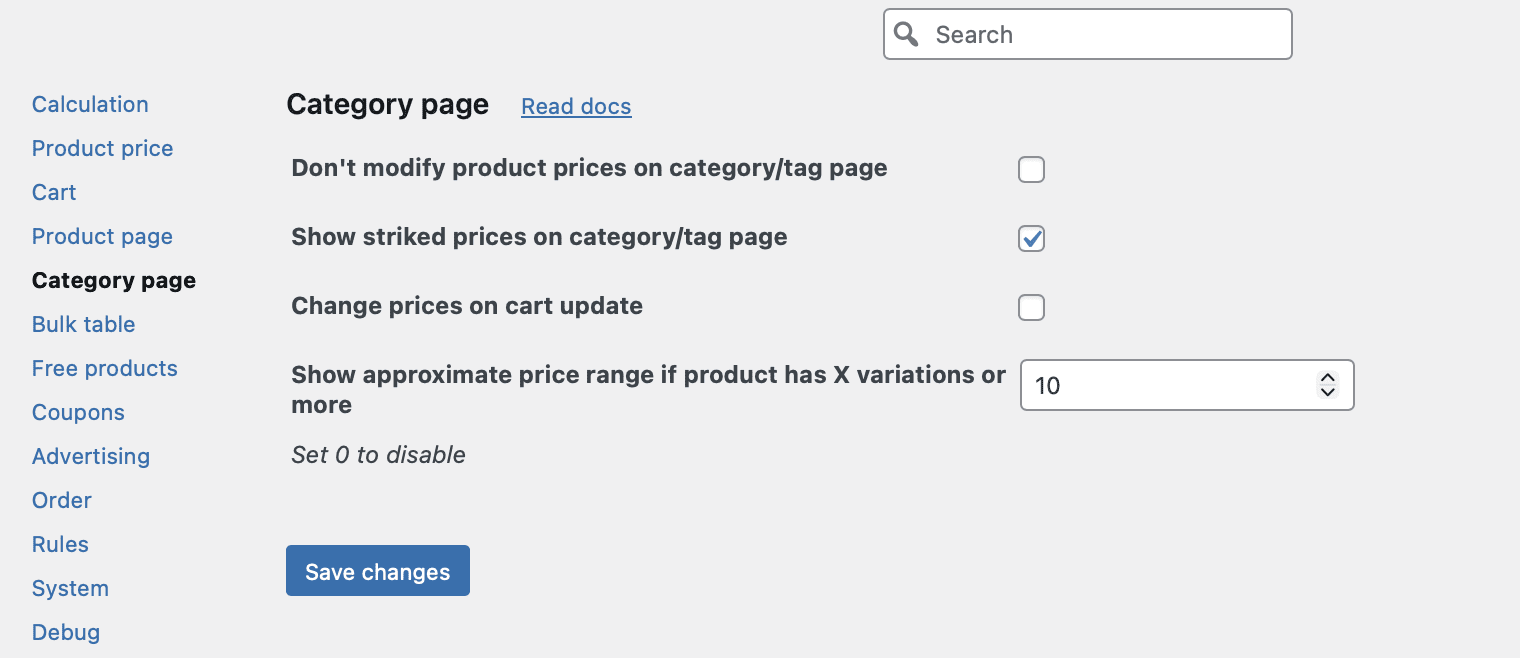
By default, our plugin automatically modifies product prices on all pages of your store, including category archives, tag archives, shop pages, and search results. While this is usually what you want, there are scenarios where you may prefer to show the original price on collection pages for better consistency, performance, or marketing strategy.
The Category Page tab is available only in PRO version of our plugin. It has the settings related to the displaying and modifying price on the category page. The free version of our plugin does not include these controls.
Don’t modify product price on category/tag page (PRO)
Checkbox, default value: disabled.
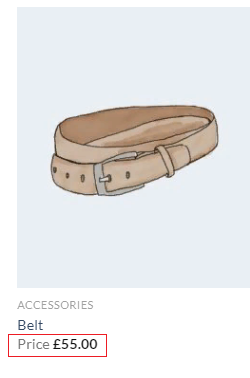
This is the most important setting in the Category Page tab. When enabled, the plugin completely disables price modification on all category and tag archive pages. The original WooCommerce price is displayed as if no pricing rules existed. However, the discount will still be applied when the product is added to the cart and on the product’s single page (unless separately disabled). Some stores prefer to show original prices on collection pages to avoid “sale” overwhelm, while still applying discounts in the cart.

Show striked prices on category/tag page (PRO)
Checkbox, default value: enabled.
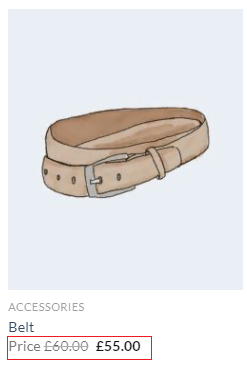
When enabled, this setting displays the original price crossed out alongside the discounted price on category and tag archive pages. This is a common e‑commerce pattern that visually communicates the customer’s savings without requiring them to click through to the product page.
Change Prices on Cart Update (PRO)
Checkbox, default value: disabled.
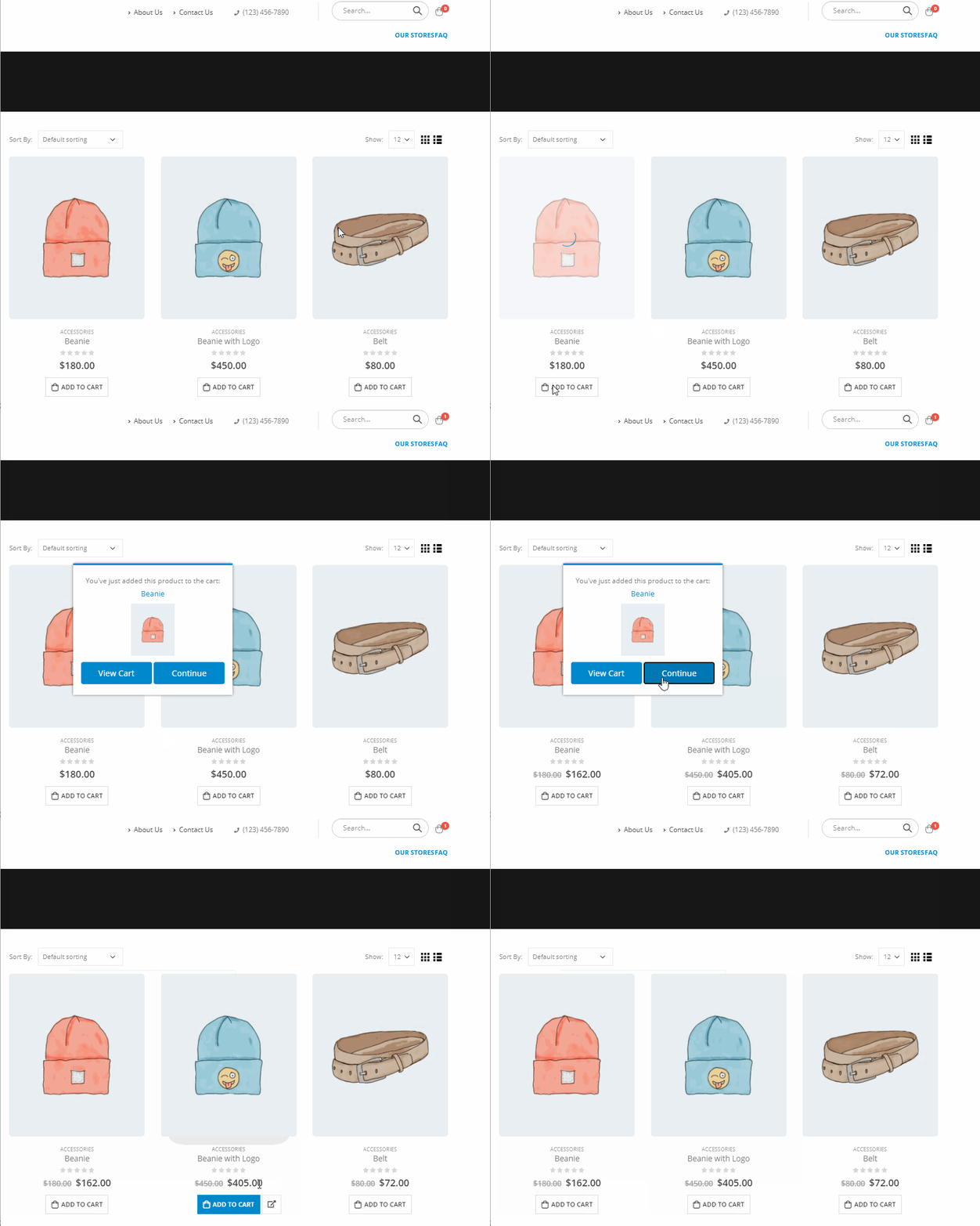
This setting enables real‑time price updates on category/tag pages as the customer’s cart changes. For example, if you have a rule that applies a discount based on the contents of the cart (e.g., “buy any 2 items, get 10% off on all products”), enabling this setting ensures that all product prices on category pages update automatically when the customer adds or removes items from the cart.
A tip: For best results, combine this setting with the “Update price when user changes qty”setting on the Product Page tab to create a fully interactive pricing experience across your entire store.
Show approximate price range if product has X variations or more
Numeric up/down, default value: 10.
Variable products with many variations (e.g., a T‑shirt available in 20 colors, 5 sizes, and 2 fabrics) can cause significant performance issues. Previously, loading a single category page containing several such products could trigger thousands of individual price calculations – each one a tiny database query that collectively brought page loads to a standstill.
This setting solves that problem by introducing configurable approximate price range thresholds. You can define a number (e.g., 10 variations). When a product has more variations than that threshold, the plugin stops calculating the exact discounted price for every single variation. Instead, it displays a smartly estimated price range based on a representative sample of the variations.
Best for stores with large variable product catalogs: For example, a clothing store with products that have many size, color, and fabric combinations (50+ variations).
Note: Set 0 (zero) value to disable this option.
Complete list of the Category Page Settings tab
|
Option’s name |
PRO? |
Short description |
|---|---|---|
|
Don’t modify product prices on category/tag page |
Disables price modification on category and tag archive pages |
|
|
Show striked prices on category/tag page |
Displays original price crossed out next to discounted price on archive pages |
|
|
Change prices on cart update |
Updates product prices on archive pages in real time as the cart changes |
|
|
Show approximate price range if product has X variations or more |
Configure approximate price range thresholds |