Bulk Table
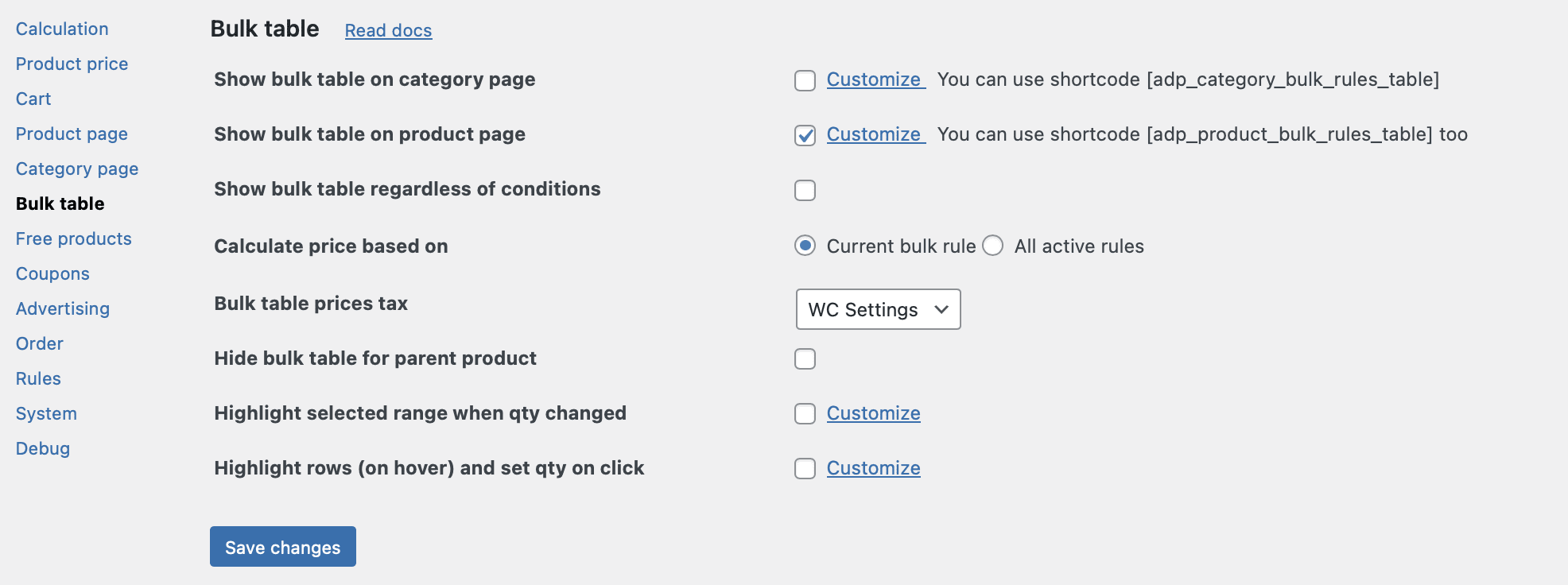
Bulk table tab is where you control how your quantity‑based (tiered) discount rules are visually communicated to customers on your store’s front end. Whether you want to display a dynamic pricing table on product pages, category archives, or both, this manual covers every setting in detail. Several of the advanced features described in this manual are available only in the PRO version of our plugin. These features are clearly marked as (PRO) throughout the document.
Show bulk table on category page
Checkbox, default value: disabled.
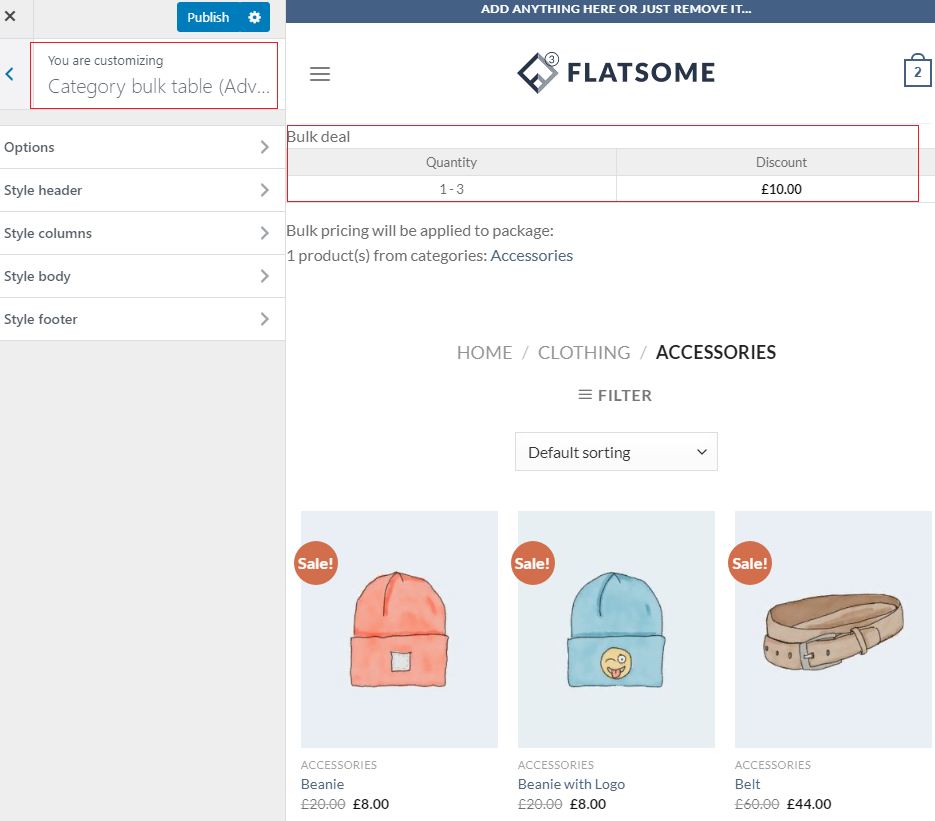
This setting enables the bulk table for all products that have quantity‑based pricing rules on category and tag archive pages. When enabled, customers see the pricing table directly in the product loop, without needing to click through to the individual product page.
How to customize the bulk table for the category page:
Manual Placement via Shortcode
If you need more precise control over where the bulk table appears, you can place the shortcode [adp_category_bulk_rules_table] directly in the category description or in a custom template file.
Use it when you want to display the bulk table only on specific categories, or when you want to position it above or below the product loop.
How to add it: Edit the desired category, paste the shortcode into the “Description” field, and ensure your theme’s category template processes shortcodes in descriptions (most modern themes do). You can also add it programmatically via do_shortcode().
Performance note: If you have many products on the category page and each has complex bulk rules, enabling the bulk table can increase page generation time. For large catalogs, consider using the “Replace price with the lowest bulk price” setting (Product Price tab) instead of displaying the full table, or use the “Show approximate price range” threshold for variable products.
Show bulk table on product page
Checkbox, default value: enabled.
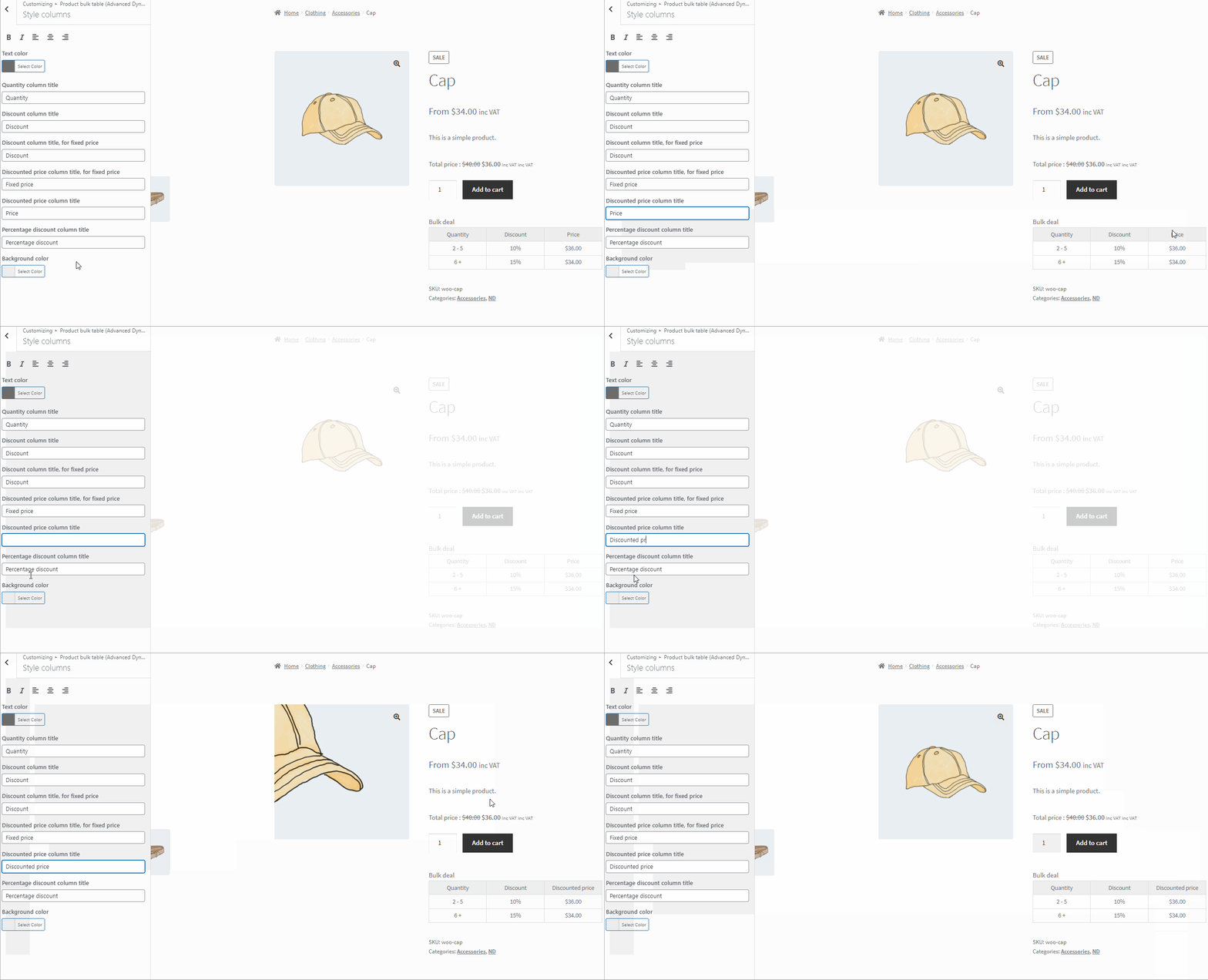
This is the most common use case. When enabled, the bulk table appears on the single product page, typically below the “Add to Cart” button or in the product summary section.
How to customize:
Manual Placement via Shortcode
If you prefer to place the bulk table manually (e.g., inside a specific tab or after the product description), use the shortcode [adp_product_bulk_rules_table].
Important behaviour: If the “Show bulk table on product page” setting is disabled, the shortcode will still work, but the table will use a very basic, non‑customisable layout containing only the quantity column. Full customisation (columns, styling, labels) is only available when the checkbox is enabled
Show bulk table regardless to conditions
Checkbox, default value: disabled.
By default, a bulk table is displayed only when the customer has already met the rule’s conditions (e.g., the table appears only after the customer has added the minimum quantity to the cart). This setting changes that behaviour: when enabled, the bulk table is shown even if the conditions are not yet met.
The plugin displays the bulk table with the full tiered structure, regardless of the current cart contents.
It increases transparency and motivation. Showing the table before conditions are met acts as a powerful nudge – customers see what they could save by purchasing larger quantities, encouraging them to increase their order size.
Bulk Table Prices Tax (PRO)
Drop-down, default value: WC Settings.
This PRO‑version setting determines whether the prices displayed in the bulk table include or exclude taxes.
Options:
Best for stores that need to show different tax presentations in different contexts (e.g., B2B customers may want to see prices excluding VAT, while retail customers see including VAT). However, because this is a global setting, it applies to all bulk tables across the entire store.
Note: This setting affects only the display of prices in the bulk table. It does not change how taxes are calculated at checkout. The actual tax calculation always follows your WooCommerce tax settings.
Calculate price based on
Radiobutton, default value: Current bulk rule.
This setting determines which bulk rules are considered when calculating the prices shown in the bulk table.
Note: If you use “All the rules”, ensure that your rule priorities are correctly configured. The plugin automatically resolves conflicts by selecting the best price for each quantity range, but inconsistent priorities can lead to unexpected tier combinations.
Hide bulk table for parent product (PRO)
Checkbox, default value: disabled.
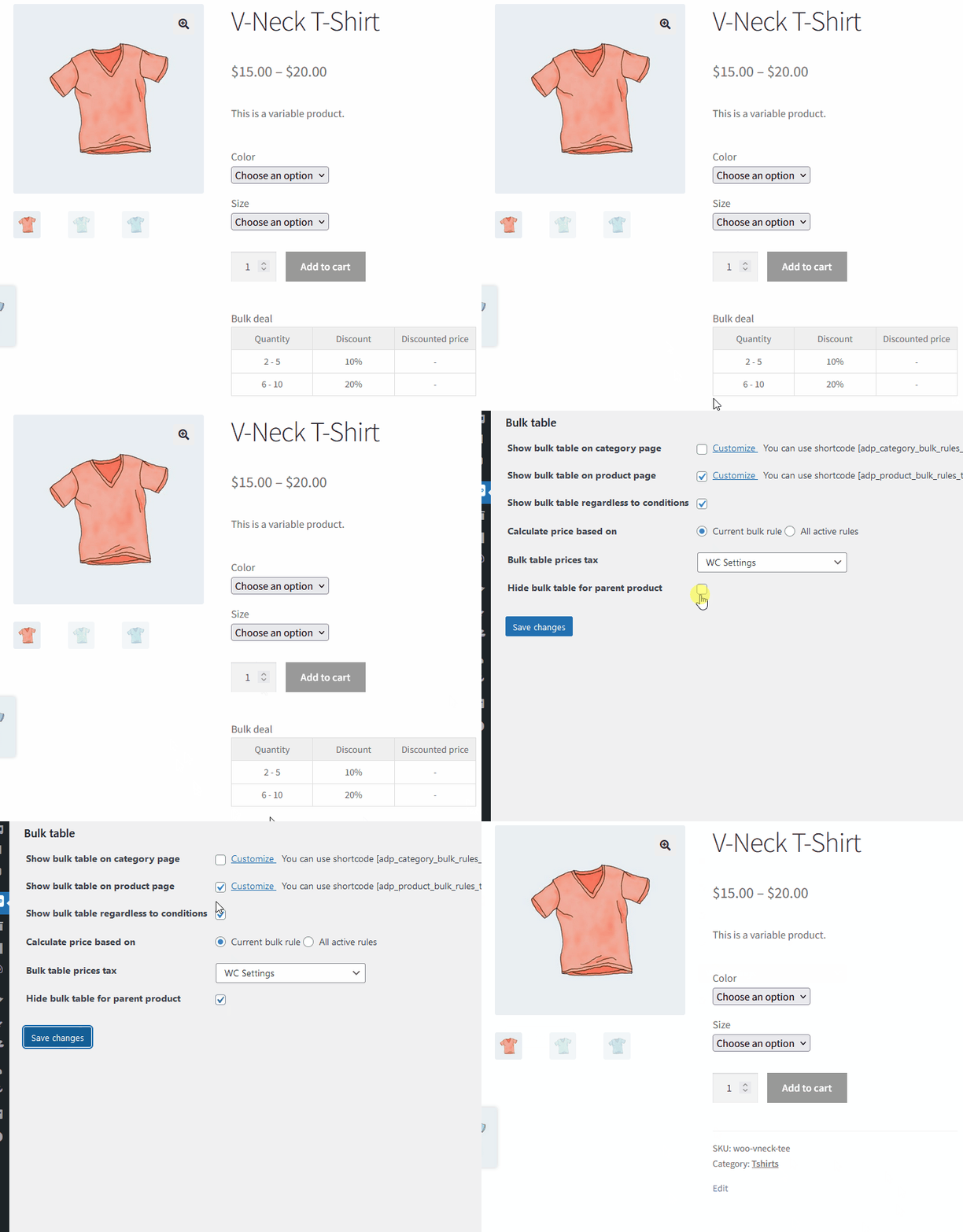
When enabled, the bulk table is hidden on the parent variable product page, while still being displayed on the individual variation pages (if they have bulk rules).
Variable product pages can become extremely crowded. If each variation has its own bulk pricing table, displaying all of them on the parent page can overwhelm customers and harm usability. This setting allows you to show the table only when a specific variation is selected, keeping the parent page clean.
Highlight Selected Range When Qty Changed (PRO)
Checkbox, default value: disabled.
This feature creates a simple but powerful visual connection between the quantity a customer inputs and the discount they unlock. As they type, they receive instant positive feedback from the bulk table, building confidence in their purchase.
As the customer adjusts the quantity (by typing a number or using the +/- buttons), the plugin instantly checks which tier of your bulk discount rule that quantity falls into (e.g., “4-6 items”). The row in the bulk table corresponding to that range is then highlighted visually. If the quantity does not meet any tier (e.g., below the minimum in a “Bulk” rule), no highlighting occurs.
Highlight Rows (on hover) and Set Qty on Click (PRO)
Checkbox, default value: disabled.
This feature transforms the bulk pricing table into a highly usable alternative to the standard quantity input field, simplifying the user experience for customers who understand they need to buy in larger volumes. The feature effectively turns a pricing table into a one-click solution for choosing quantity, removing extra effort from the customer journey.
How It Works:
Complete list of the Bulk Table Settings tab
|
Option’s name |
PRO? |
Short description |
|---|---|---|
|
Show bulk table on category page |
Enables the bulk table on category and tag archive pages. Can be customised via Customizer. |
|
|
Show bulk table on product page |
Enables the bulk table on single product pages. Strongly recommended for most stores. |
|
|
Show bulk table regardless of conditions |
Displays the bulk table even before the customer has met the rule’s conditions (e.g., before adding items to the cart). |
|
|
Bulk table prices tax |
Forces tax display in the bulk table to “with taxes”, “without taxes”, or follows WooCommerce defaults. |
|
|
Calculate price based on |
“Current bulk rule” (only the matching rule) or “All the rules” (considers all bulk rules that apply). |
|
|
Hide bulk table for parent product |
Hides the bulk table on variable product parent pages while keeping it on individual variation pages. |
|
|
Highlight Selected Range When Qty Changed |
Checks which tier of your bulk discount rule that quantity falls into qty adjustment |
|
|
Highlight Rows (on hover) and Set Qty on Click |
When the customer clicks on a highlighted row, the quantity field for that product on the front‑end automatically updates to the minimum quantity of that range. |