Product Price
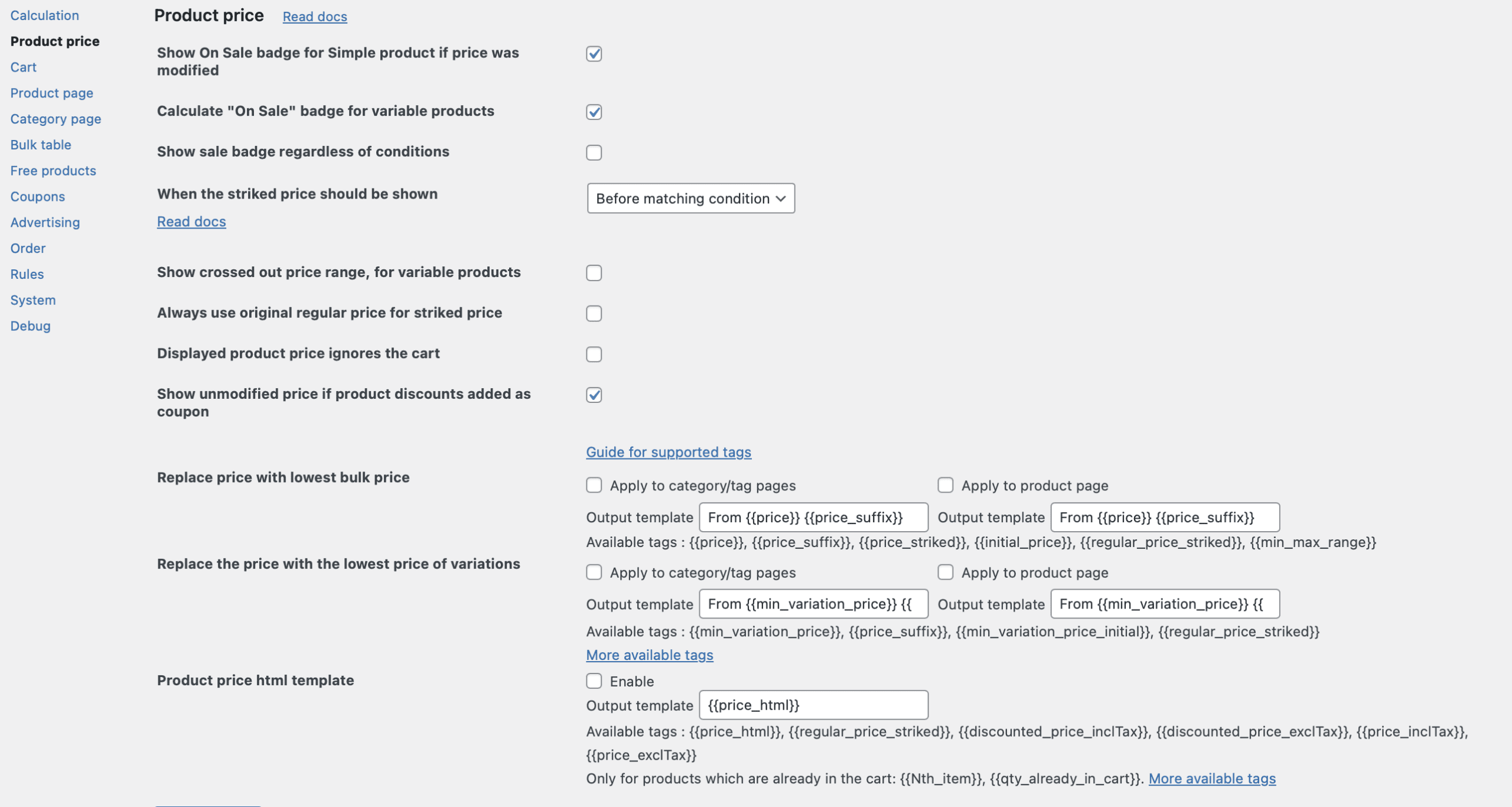
The options from the Product Price tab controls how the discounted prices are displayed to your customers. From sale badges and price ranges to HTML templates and low‑price replacements, these settings shape the visual presentation of your pricing strategy. There are a lot of setting in the PRO version of our plugin, we marked them as (PRO).
Let’s review the options of this tab:
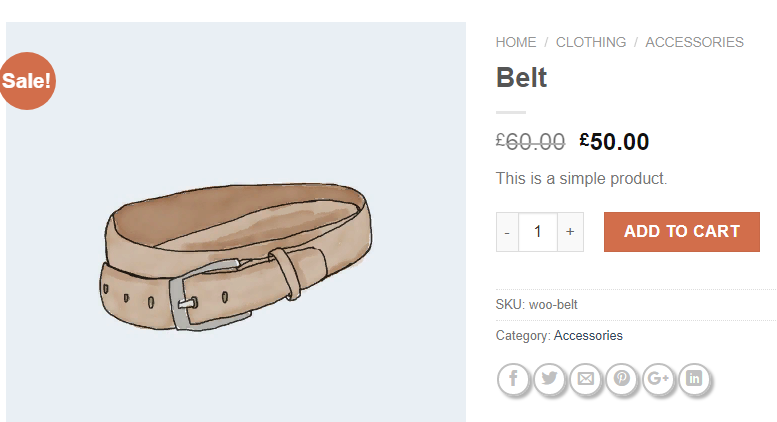
Show On Sale badge for Simple product if price was modified
Checkbox, default value: enabled.
Sale badges are a critical visual cue that help customers quickly identify discounted products. When this checkbox is enabled, the plugin automatically displays the WooCommerce “On Sale” badge on any simple product whose price has been modified by one of your pricing rules.
Note: This parameter doesn’t work in with the enabled “Don’t modify product price on product page” option.
This setting applies only to simple products. For variable products, please, enable the option “Calculate “On Sale” badge for variable products” (PRO).
Calculate “On sale” badge for variable products (PRO)
Checkbox, default value: enabled.
Variable products (products with multiple variations, such as a T‑shirt in different sizes or colors) are more complex to handle. This setting enables the plugin to calculate and display an “On Sale” badge for variable products when at least one variation has been discounted.
The plugin evaluates all variations of a variable product. If any variation has a discounted price (compared to its regular price), an “On Sale” badge is displayed for the parent product.
Note: works only for themes which support calculating of the badges
Show sale badge regardless of conditions (PRO)
Checkbox, default value: disabled.
Sometimes, you need to show the sale badge for the products that has been filtered for the discounted rule, but the Cart Condition has not been met. For example, you want to prepare your customers to the Friday discount, but today is only a Thursday. Check this option to show the sale badges even if the conditions have not been met.
When the striked price should be shown
Drop-down, default value: Before matching condition.
Choose when to show the striked price: before or after rule’s condition matched. Read about this option more detailed in this article.
This sub‑setting gives you granular control over the timing of the crossed‑out price display. You can choose between two options:
Show crossed out price range, for variable products (PRO)
Checkbox, default value: disabled.
Variable products typically display a price range (e.g., “$25 – $45”) on category and product pages. When this setting is enabled, the plugin crosses out the entire original price range and displays the discounted price range next to it.
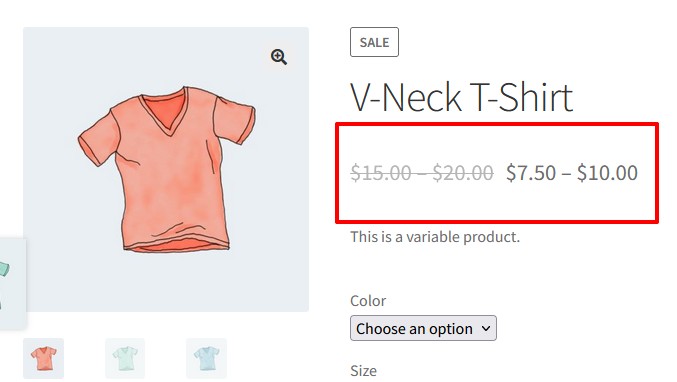
Note: Keep this option disabled, if your theme handles price displays in a non‑standard way, or if you prefer a different visual presentation.
Always use original regular price for striked price (PRO)
Checkbox, default value: disabled.
In case, if the product has already have a sale price and there’s making an additional discount through the discounted rule, check the option if you want to show the original price striked instead of the sale price.
Displayed product price ignores the cart (PRO)
Checkbox, default value: disabled.
This setting decouples the price displayed on product and category pages from the price calculated in the cart. When enabled, the plugin does not apply discounts to product prices outside the cart, even if the same product has been discounted in the cart.
Some promotions are designed to apply only to items already in the cart (e.g., “buy 3, get 10% off”). If the discounted price also appeared on the product page, it could confuse customers or conflict with other pricing logic. This setting ensures that the product page always shows the original price, regardless of cart‑based rules.
Show unmodified price if product discounts added as coupon (PRO)
Checkbox, default value: enabled.
When you use the “Add free products to cart at normal cost, and add a coupon that will reduce the cost” feature in a rule, this setting determines how prices are displayed in your shop.
When enabled, the plugin shows the unmodified (original) price on product and category pages, even though a coupon will eventually reduce the price to zero in the cart. This is more transparent for customers, as they see the true value of the gift.
Replace price with lowest bulk price
Group of the options, default value: disabled.
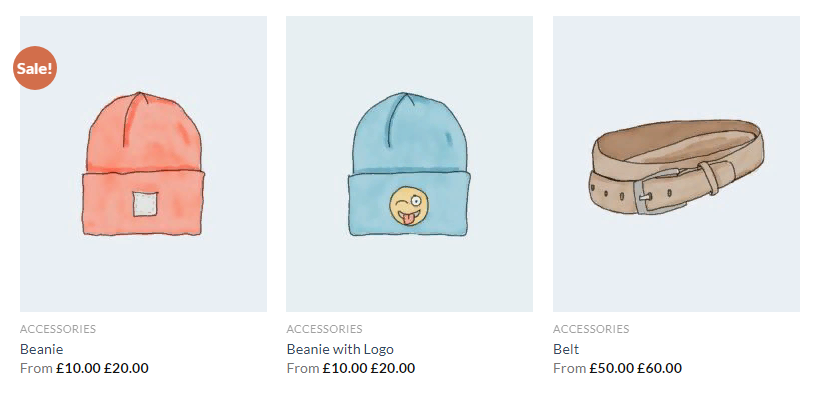
For stores that use quantity‑based bulk discounts, displaying the lowest possible price can be a powerful incentive. This setting replaces the price of simple products with the lowest price that can be achieved under your bulk discount rules on category and product pages.
The plugin evaluates your bulk rules for the product, finds the lowest possible price (typically at the highest tier), and displays that price instead of the regular price.
Before using this setting, you must create a template in the “Output template” field. This template defines how the replaced price is displayed.
Available template tags:
Replace the price with the lowest price of variations (PRO)
Group of the options, default value: disabled.
This is the variable product equivalent of the setting above. It replaces the displayed price range of a variable product with the lowest possible price among all its variations after applying your bulk discount rules.
The plugin evaluates all variations of a variable product under your bulk rules, finds the lowest discounted price across all variations, and displays that price on category and product pages.
Available tags :
The whole list of the available tags and its detailed description and possible use cases you can find in this article.
Product price html template
Group of the options, default value: disabled.
This is the most advanced setting in the Product Price tab. It allows you to define a custom HTML template for displaying price changes on the product page.
Read the detailed explanation and use cases of this option in this article.
Complete list of the Product Price Settings tab
|
Option name |
PRO? |
Short description |
|---|---|---|
|
Show On Sale badge for Simple product if price was modified |
Displays WooCommerce “On Sale” badge on discounted simple products |
|
|
Calculate “On Sale” badge for variable products |
Enables sale badge calculation for variable products |
|
|
Show sale badge regardless of conditions |
Shows the sale badge for the discounted product despite of the cart condition in the rule |
|
|
When the striked price should be shown |
Choose before or after rule conditions are met |
|
|
Show crossed out price range, for variable products |
Strikethrough on the original price range for variable products |
|
|
Always use original regular price for striked price |
Strike the regular price even if the product has the sale price |
|
|
Displayed product price ignores the cart |
Shows original price on product/category pages regardless of cart discounts |
|
|
Show unmodified price if product discounts added as coupon |
Shows original price for gift products discounted via coupon |
|
|
Replace price with lowest bulk price |
(PRO version for product pages’ template) |
Replaces simple product price with lowest bulk tier price (template required) |
|
Replace the price with the lowest price of variations |
Replaces variable product price range with lowest discounted variation price (template required) |
|
|
Product price html template |
Custom HTML template for price display of products |