Common Questions about Advanced Dynamic Pricing for WooCommerce
This guide answers the most frequent questions about the Advanced Dynamic Pricing for WooCommerce plugin. You will find solutions for theme and plugin compatibility, debug tools, recommended plugins, price display tags, and product feed issues. Use this page as a quick reference to resolve common challenges and optimise your dynamic pricing setup.
1. Compatibility with My Theme or Plugin
How do I check if the plugin works with my theme or another plugin?
The free and Pro versions use the same core code. You can test compatibility by installing the free version from the WordPress plugin repository. If you encounter issues, follow these steps:
Alternative – Submit a ticket through our support desk. We are always happy to help.
For themes – Some themes do not support WooCommerce hooks properly. In that case, manually add the shortcodes [adp_category_bulk_rules_table] and [adp_product_bulk_rules_table] to the necessary page templates or directly into the product description.
For paid plugins or themes – If you use a commercial product, please upload its .zip file to your support ticket. This allows our team to reproduce the issue and provide an accurate fix.
2. Debug Bar
What is the debug bar, and how can I use it?
The debug bar is a built‑in tool that shows you exactly which pricing rules apply to each product and their calculated prices. It is invaluable for troubleshooting discount issues.
- Activation – Enable the debug bar in Pricing Rules → Settings → Debug by checking “Show debug panel at bottom of the page”.
- Usage – Once activated, a panel appears on your product pages and cart. It displays:
- Which rules affect the product.
- The original and calculated prices.
- Any errors or warnings.
- Documentation – For a complete description of the debug bar features, please refer to the Debug Bar documentation.
3. Recommended Feed Plugin
Which product feed plugin works best with Advanced Dynamic Pricing?
The plugin is compatible with most feed plugins. However, we provide explicit compatibility settings for the CTX Feed plugin in the Pro version. CTX Feed is widely used for generating Google Shopping feeds.
Compatibility settings – Navigate to Pricing Rules → Compatibility to configure feed‑specific options.
Most often used feed plugins with Advanced Dynamic Pricing:
1) CTX Feed – WooCommerce Product Feed Manager Plugin by WebAppick;
2) Product Feed PRO for WooCommerce by AdTribes.io;
4. Recommended Multicurrency Plugin
Which multicurrency plugin works best with Advanced Dynamic Pricing?
The plugin is compatible with most multicurrency solutions. We have tested it with the most popular ones to ensure seamless price conversion.
Most often used multicurrency plugins with Advanced Dynamic Pricing:
1) WooCommerce Multilingual & Multicurrency by OnTheGoSystems;
2) WOOCS – WooCommerce Currency Switcher Professional by realmag777;
3) Currency Switcher for WooCommerce by Aelia;
4) Currency Switcher for WooCommerce by WP Wham.
5) YayCurrency – WooCommerce Multi-Currency Switcher by YayCommerce.
5. Supported Product Add‑Ons Plugins (Pro Version Only)
Does Advanced Dynamic Pricing work with product add‑ons?
Yes, the Pro version fully supports the following product add‑ons plugins. Discount rules apply correctly to the additional options and their prices.
- WooCommerce Extra Product Options – by ThemeComplete.
- Extra Product Options (Product Addons) for WooCommerce – by ThemeHigh.
- Woocommerce Custom Product Addons – by AcoWebs.
- Product Add-Ons – by WooCommerce.
Note: This feature is available only in the Pro version.
6. Tags Supported in the “Product Price” Tab
What placeholders (tags) can I use to display dynamic pricing information?
You can use various tags in the Product Price tab to show custom price information on the frontend. The tags fall into three categories: for BULK rules, for VARIABLE products, and for NEXT products.
BULK Rules tags
| Tag | Description |
|---|---|
{{price}} | The minimal price for the product, based on the bulk table. |
{{price_suffix}} | A text suffix defined in WooCommerce → Settings → Tax, field “Price display suffix”. |
{{initial_price}} | The product price before applying any of your dynamic rules. |
{{price_striked}} | The same value as {{initial_price}}, but displayed with a strikethrough. |
{{regular_price_striked}} | The standard regular price of the product, displayed with a strikethrough. |
VARIABLE Products tags
| Tag | Description |
|---|---|
{{min_variation_price}} | The minimal price among all variations. The plugin processes every variation to obtain this value. |
{{price_suffix}} | Same as above (tax suffix). |
{{min_variation_price_initial}} | The price of the cheapest variation before applying your dynamic rules. It appears with a strikethrough. |
{{regular_price_striked}} | The standard regular price of the product, displayed with a strikethrough. |
NEXT Product (Active Only When the Product Is Already in the Cart) tags
These tags become active only when the product is already in the customer’s cart. They help create dynamic “next item” promotions.
| Tag | Description |
|---|---|
{{qty_already_in_cart}} | Shows how many items of this product are already in the cart. |
{{price_html}} | The calculated price for the product, which applies when the customer adds one more unit (i.e., {{qty_already_in_cart}} + 1). |
{{Nth_item}} | The ordinal number of the product shown in the cart ({{qty_already_in_cart}} + 1). |
{{regular_price_striked}} | The standard regular price of the product, displayed with a strikethrough. |
Example: If a customer already has 2 books in the cart, and you use the template “Buy {{Nth_item}} book for {{price_html}}”, the output becomes “Buy 3rd book for $9.99”.
7. Problem with the Sale Price in the Product Feed
Why does my Google Shopping feed not show the discounted sale price?
If you cannot see the sale price in Google Shopping (or other merchant feeds), follow these steps:
- Test your feed – Use the Rich Results Test tool to see how Google interprets your product data.
- Perform a conflict test – Disable all other plugins except WooCommerce and Advanced Dynamic Pricing. Also switch your theme to Storefront. Then regenerate the feed and check again.
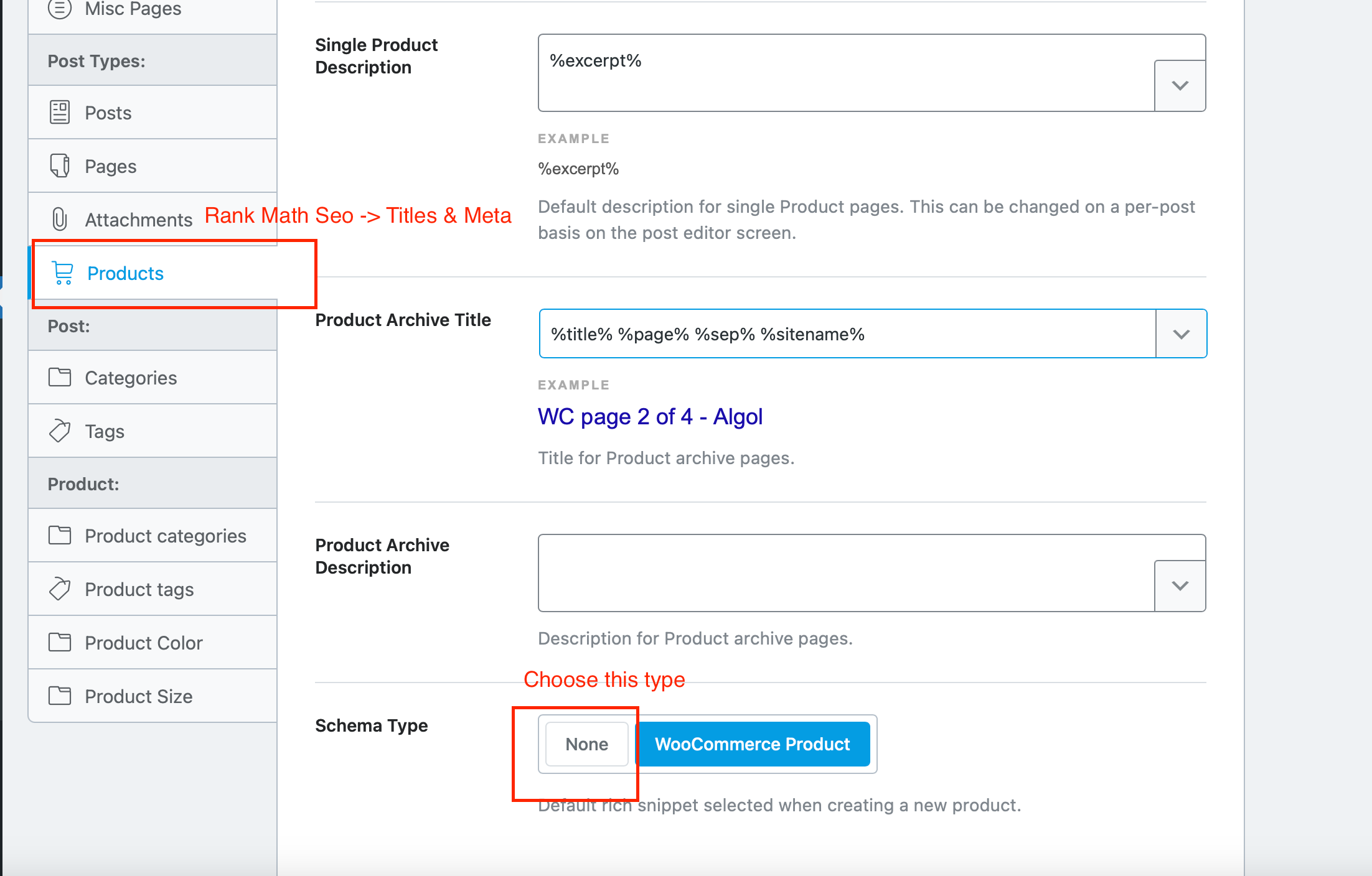
- Check Rank Math SEO settings – If you use the Rank Math SEO plugin, go to its settings and change the schema type for products from “WooCommerce” to “None”. This prevents schema conflicts that could hide the sale price.
If these steps do not resolve the issue, please contact our support team through the ticket system. Provide the feed URL and a description of the problem.
8. Still Have Questions?
If your question is not answered here, or you need personalised assistance:
- Submit a support request – Use our support form.
- Include relevant information – Describe the issue in detail, attach screenshots, and if possible, upload your
.zipfile for paid themes or plugins. - We are always happy to help – Our team will respond promptly and help you fine‑tune your dynamic pricing setup.