Cart
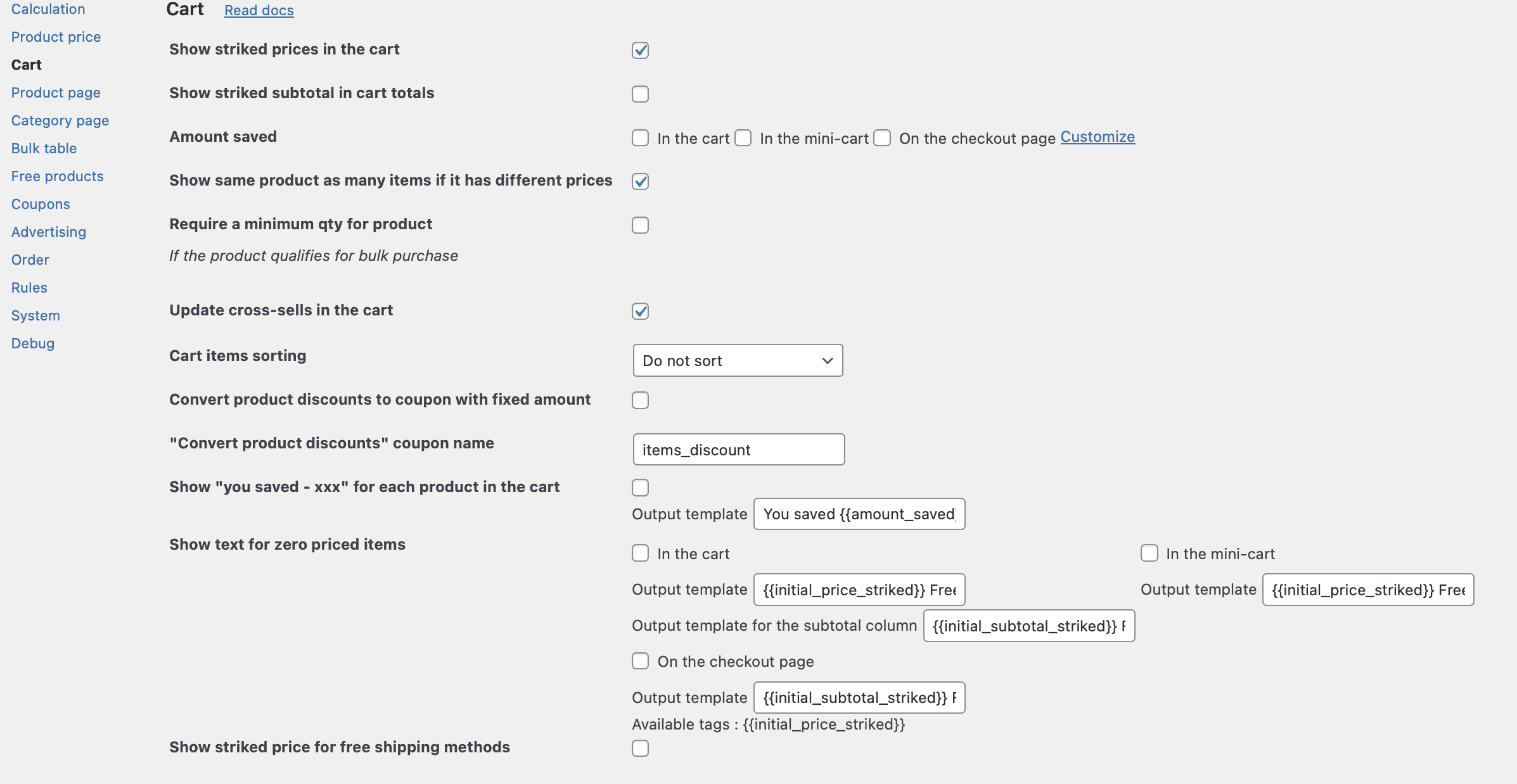
The Cart tab controls how the discounted prices are presented inside the cart, how savings are communicated to customers, and how the plugin behaves when multiple rules apply to cart items. There are a lot of features available only in PRO version of our plugin, we marked it as (PRO).
Let’s review the options of this tab.
Show striked prices in the cart
Checkbox, default value: enabled.
When enabled, the plugin displays the original price crossed out alongside the discounted price for each product in the cart. This is a standard e‑commerce practice that visually communicates the savings to the customer.

Show striked subtotal in cart totals
Checkbox, default value: disabled.
This setting extends the strikethrough logic to the cart subtotal displayed in the totals section of the cart page. When enabled, the plugin shows the original subtotal (before any discounts) crossed out, alongside the discounted subtotal.
This setting is independent of the “Show striked prices in the cart” setting. You can show strikethroughs on individual items, on the subtotal, both, or neither.

Amount saved
Group of the options, default value: disabled.
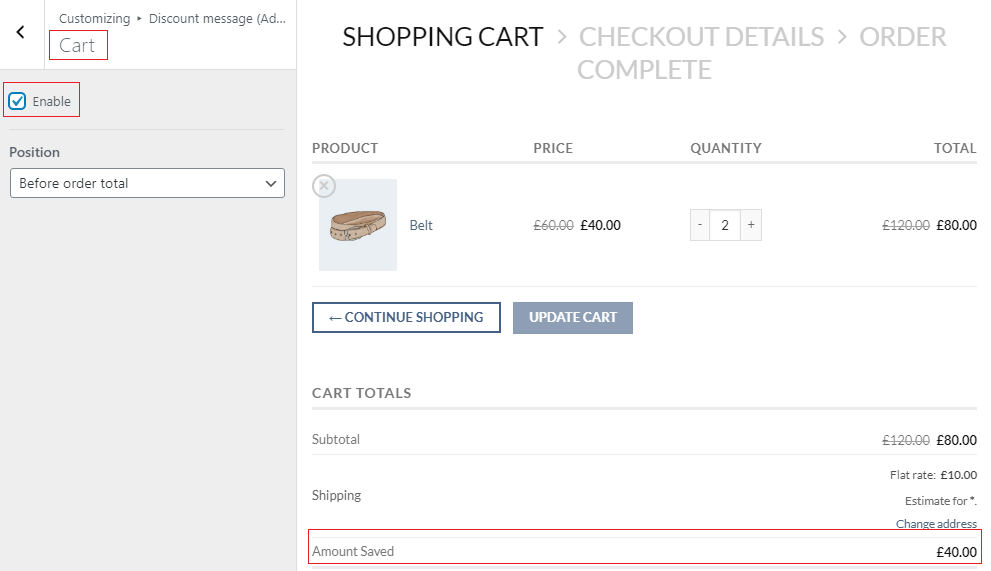
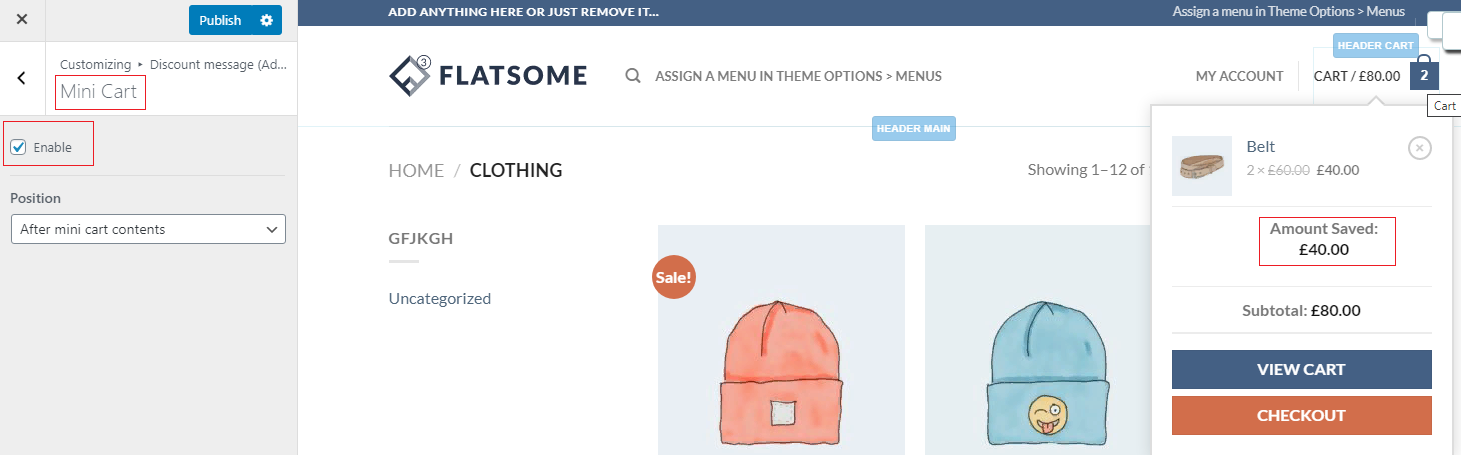
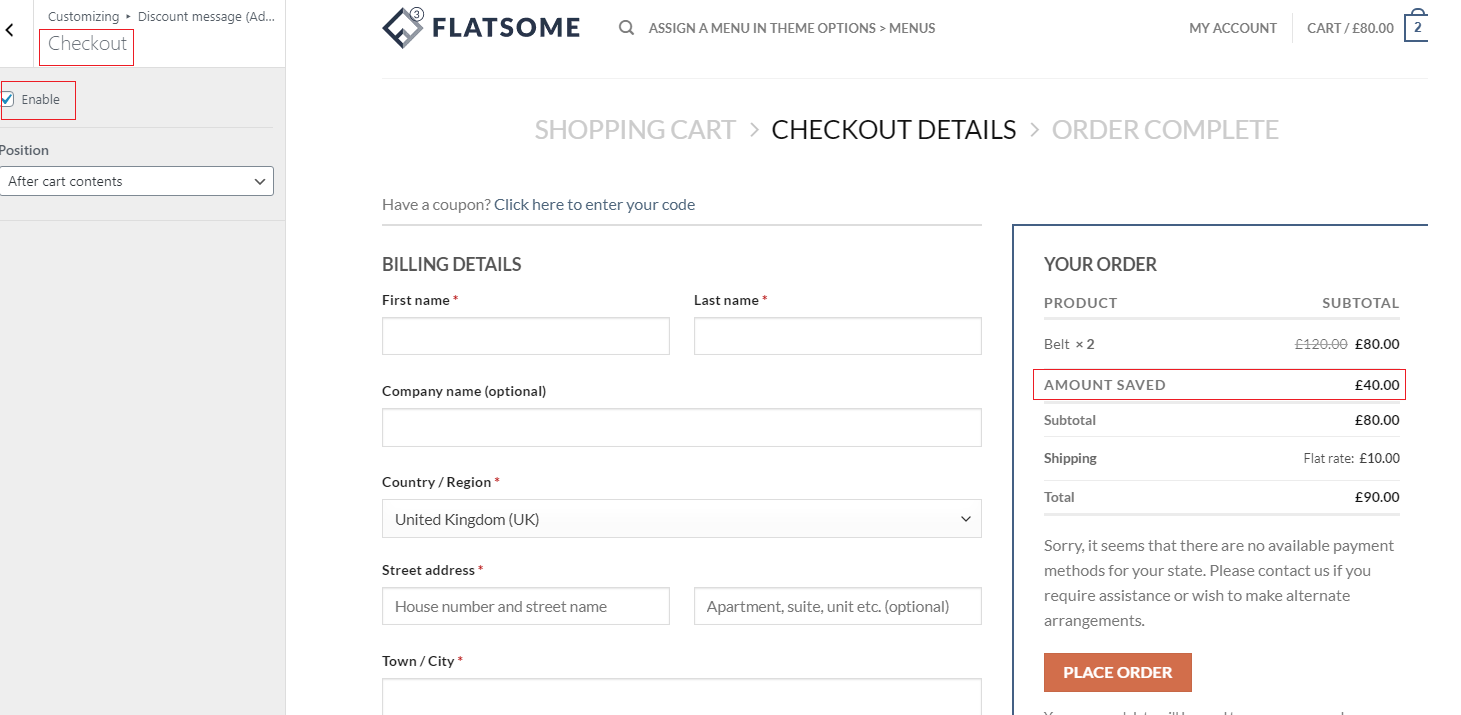
The “Amount saved” feature allows you to display the total amount of money the customer is saving in one or more locations: the shopping cart, the mini‑cart, and the checkout page.
To enable amount saved display in any location:
Show same product as many items if it has different prices (PRO)
Checkbox, default value: enabled.
When this setting is enabled, the plugin splits line items for the same product if they have been modified by different rules resulting in different prices. Normally, WooCommerce groups identical products together, but if your pricing rules create multiple prices for the same product (e.g., different discounts applied to different quantities or through different rules), this setting ensures each distinct price appears on its own line.
The plugin analyzes each cart item individually. If two items are technically the same product but have different calculated prices, they are displayed as separate line items in the cart, each with its own price.
Require a minimum qty for product (If the product qualifies for bulk purchase) (PRO)
Checkbox, default value: disabled.
Some pricing strategies build on the bulk discount, and it is not profitable to sell the product piece by piece. Then enable this option and when the user adds qty less than the minimum bulk range qty, the missing qty will be add to the cart and the user see the message “Min {qty} required to make a bulk purchase”. The example of the rule and of the message is below:
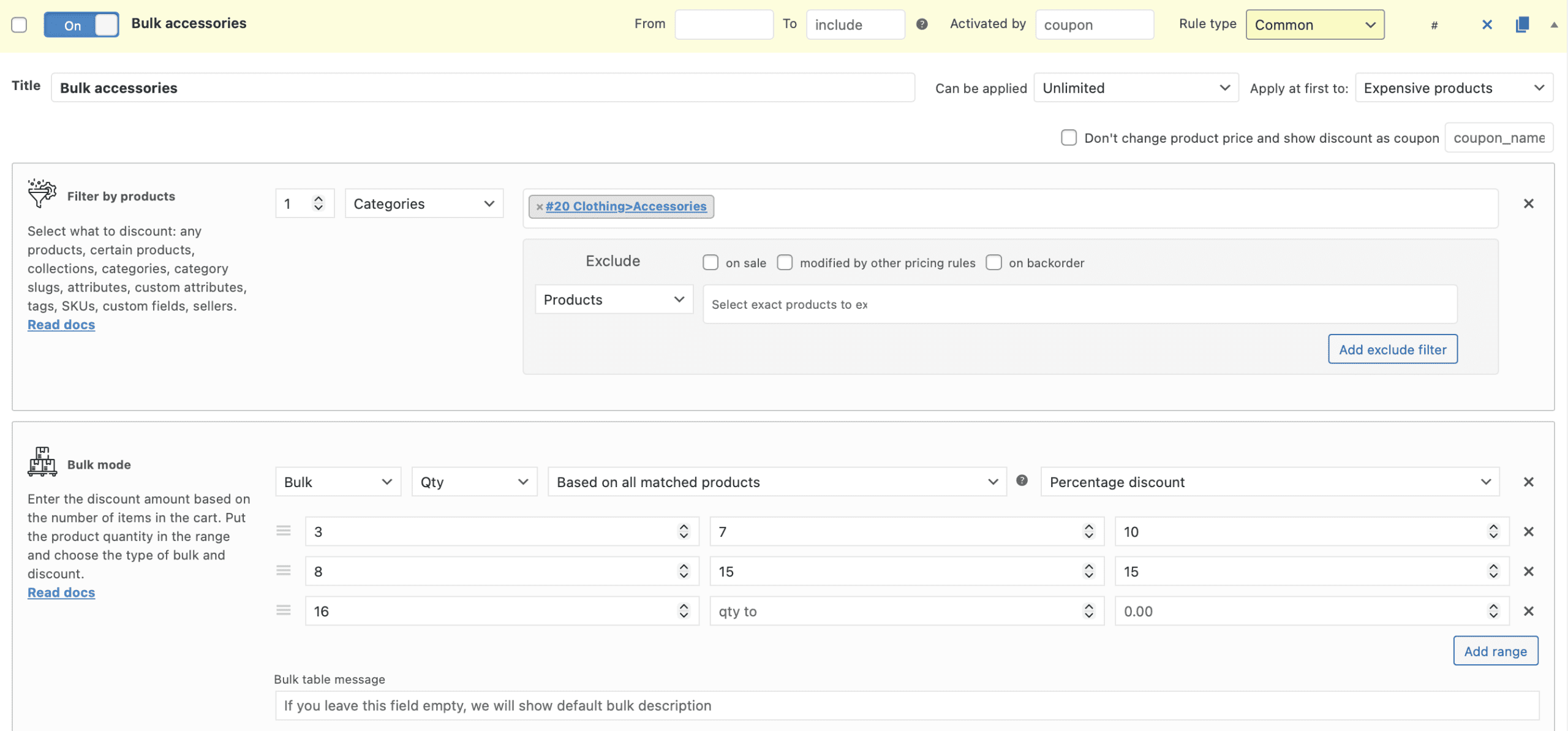
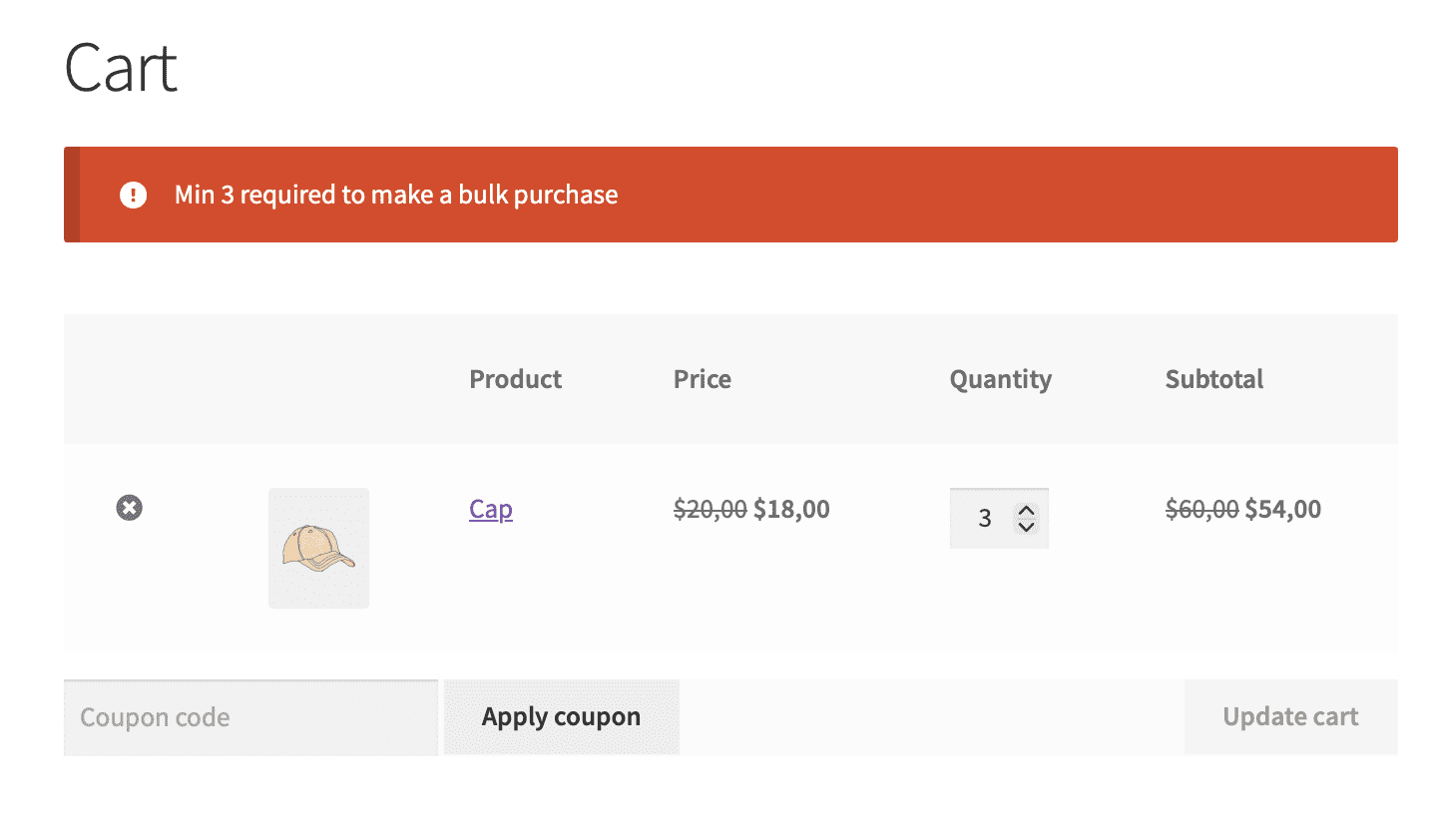
Note: it’s better to use this option together with the option Pricing rules > Settings > Product page > Use first range as minimum quantity if bulk rule is active
Update cross-sells in the cart (PRO)
Checkbox, default value: enabled.
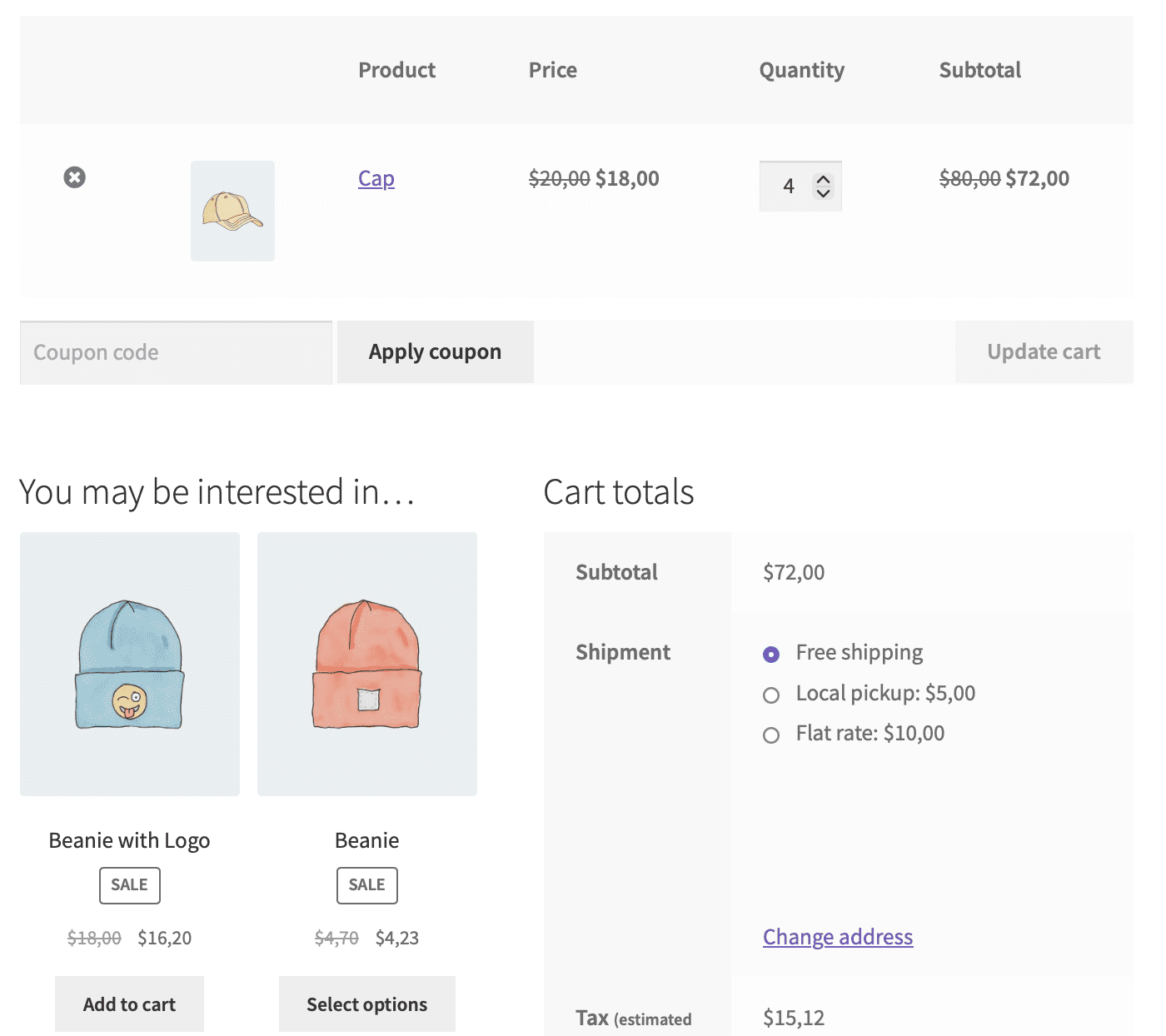
When this setting is enabled, the plugin dynamically updates the prices of cross‑sell products in the cart based on the quantity of products already added. This is a powerful feature for promotions where the discount on a cross‑sell product depends on the purchase of another product.
When a customer adds a product to the cart, the plugin recalculates prices for any cross‑sell products associated with that product. The cross‑sell product’s price is updated in real time, just as if it were the parent product.
Example for the updating of the cross-sell product prices:
Cart items sorting (PRO)
Drop-down, default value: “Do not sort”.
This setting allows you to choose how products are sorted in the cart display. By default, WooCommerce sorts cart items by the order they were added. This setting gives you control over the sort order.
Available sorting options:
Convert product discounts to coupon with fixed amountand “Convert product discounts” coupon name (PRO)
Checkbox, default value: disabled. Textbox, default value: “items_discount”.
This setting transforms all product discounts from your rules into a single, fixed‑amount coupon in the cart. Instead of seeing multiple discount line items, the customer sees one coupon applied to their cart.
The plugin calculates the total discount amount from all applicable product‑level rules, creates a virtual coupon with that total amount, and applies it to the cart. Enter a custom name for the coupon that appears in the cart (e.g., “Bulk Savings” or “Your Discount”).
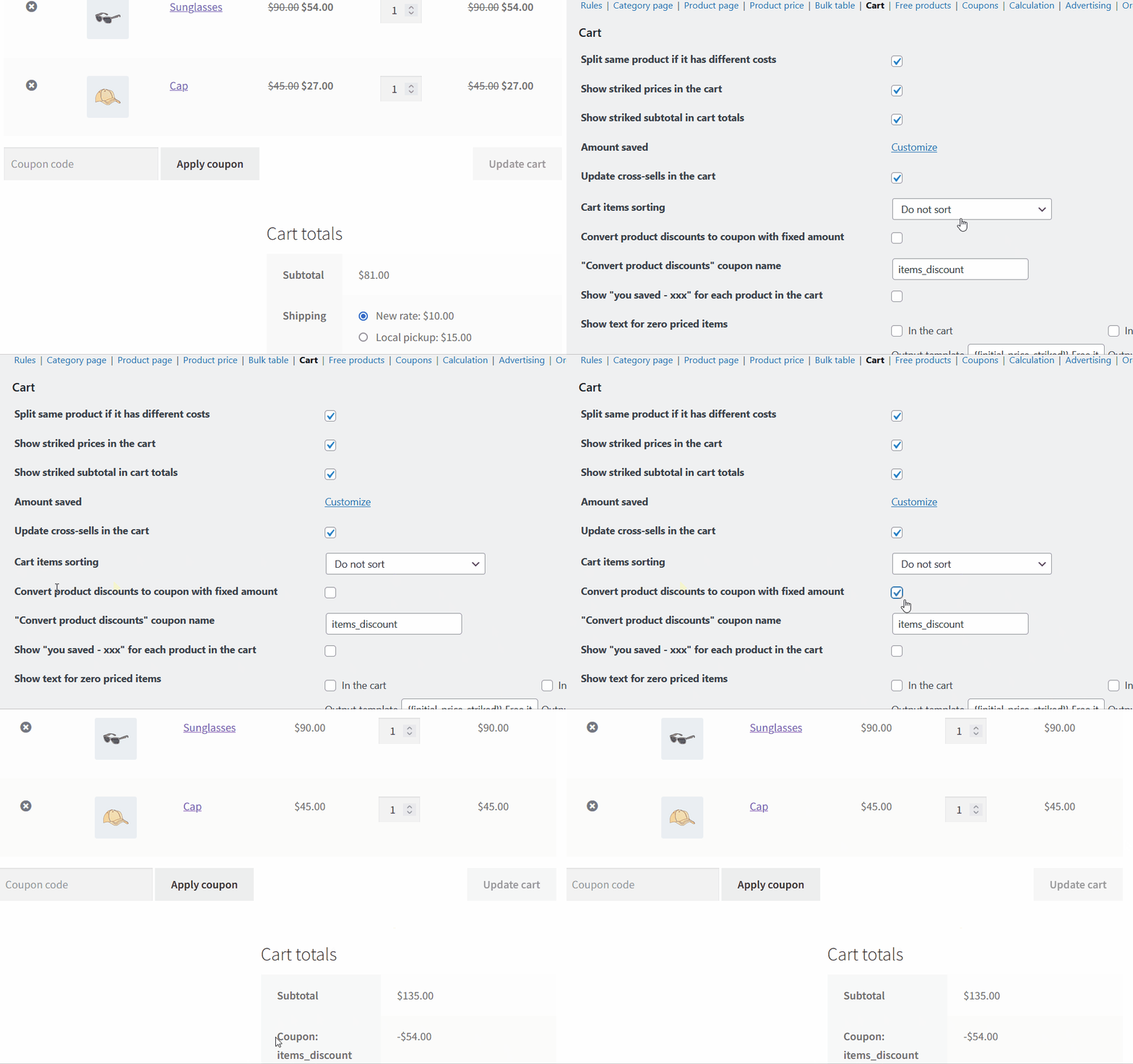
This is particularly useful if you have many rules applying to the same cart and want to avoid cluttering the discount lines. It is similar to the “Combine multiple fixed discounts” setting in the Calculation tab, but applies to all product discounts globally and presents them as a coupon rather than a discount line.
Note: This setting applies only to product discounts from your rules, not to cart‑level adjustments or fees.
Show “you saved – xxx” for each product in the cart (PRO)
Group of the options, default value: disabled.
This setting adds a per‑item savings message below each product in the cart, showing exactly how much the customer saved on that specific product. For each cart item, the plugin calculates the difference between the original price and the discounted price and displays a message, typically in parentheses or on a new line.

Note: The “Amount saved” setting displays the total savings across the entire cart. This setting displays per‑product savings. For best results, you can enable both.
Show text for zero priced items (PRO)
Group of the options, default value: disabled.
When a product’s price is reduced to zero (e.g., through a “buy one get one free” promotion or a 100% discount), this setting allows you to replace the displayed “0” price with custom text.
You enter custom text in the setting field. Whenever a product in the cart (or mini‑cart) would normally show a price of 0, the plugin displays your custom text instead.
Best for gift promotions, BOGO offers, or any scenario where items have zero price. The custom text is more customer‑friendly and helps avoid confusion.

A tip: Consider using encouraging language like “Your Gift” or “Free Bonus” rather than just “FREE” to enhance the perceived value.
Show striked price for free shipping methods (PRO)
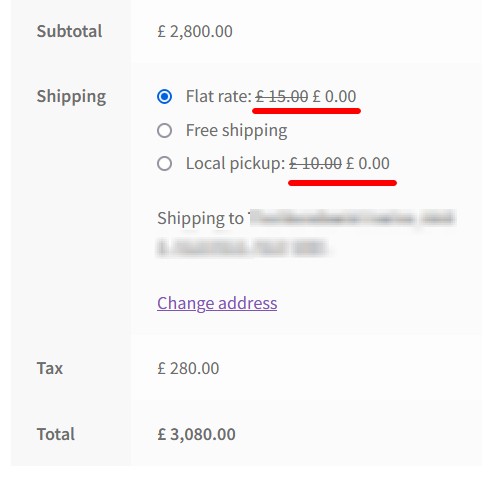
When a rule sets the cost of a shipping method to zero, this setting allows you to show the original shipping price crossed out alongside the zero cost. It helps for clearly communicating the value of free shipping offers. The visual strikethrough emphasizes how much the customer is saving on shipping.
For example, there’s a rule with the Cart Adjustment “Set zero cost for all shipping methods”. If this option is enabled, the price of the non-free shipping method would be striked.
Complete list of the Cart Settings tab
|
Option name |
PRO? |
Short description |
|---|---|---|
|
Show striked prices in the cart |
Shows original price crossed out next to discounted price for each cart item |
|
|
Show striked subtotal in cart totals |
Shows original cart subtotal crossed out next to discounted subtotal |
|
|
Amount Saved |
Displays total savings in cart, mini‑cart, and/or checkout |
|
|
Show same product as many items if it has different prices |
Displays same product on multiple lines if they have different discounted prices |
|
|
Require a minimum qty for product |
Restrict to make an order if there are no minimum bulk qty in the cart |
|
|
Update cross-sells in the cart |
Dynamically updates cross‑sell product prices based on cart contents |
|
|
Cart items sorting |
Allows sort order for products in the cart |
|
|
Convert product discounts to coupon with fixed amount and “Convert product discounts” coupon name |
Converts all product discounts into a single fixed‑amount coupon |
|
|
Show “you saved – xxx” for each product in the cart |
Displays per‑item savings messages in the cart |
|
|
Show text for zero priced items |
Replaces “$0.00” with custom text (e.g., “FREE”) |
|
|
Show striked price for free shipping methods |
Shows original shipping cost crossed out when set to zero |