Edit Orders
This guide details how to locate, edit, and duplicate existing orders directly from the Phone Orders for WooCommerce interface. This feature is available only in the Pro version of the plugin.
Find an existing order
The “Find Existing Order” section allows you to locate any previous order by searching for specific details.
Follow these steps to locate an order:
Step 1: Navigate to WooCommerce → Phone Orders in your WordPress admin dashboard.
Step 2: Click on the Add order tab.
Step 3: Locate the “Find Existing Order” search bar. It is typically positioned below the main sections of the page.
Step 4: Start typing the search criteria into the bar. The search works with:
Step 5: As you type, a dropdown list will appear, showing all matching orders.
Step 6: Select the correct order from the list.
Step 7: After selection, a set of action buttons will appear. You can then choose to either edit the order or copy it to a new one
Edit the existing order
Once you have found and selected the target order, you can load it into the Phone Orders interface for immediate adjustments. This is particularly useful for correcting mistakes (such as the wrong quantity or a missing product), updating a shipping address after a call, or modifying line items without navigating away.
Follow these steps to edit an order:
Step 1: Locate the desired order using the instructions in Step 2.
Step 2: In the action panel that appears, click the Edit button.
Step 3: The Phone Orders interface will now load with all the existing order details pre‑filled, including:
- The customer’s details.
- The full cart with all products, quantities, and prices.
- Any applied coupons, fees, or shipping costs.
Step 4: Make the necessary corrections or additions directly in the interface.
Step 5: Once all changes are complete, click the Create order button to save the changes. This will update the original order.
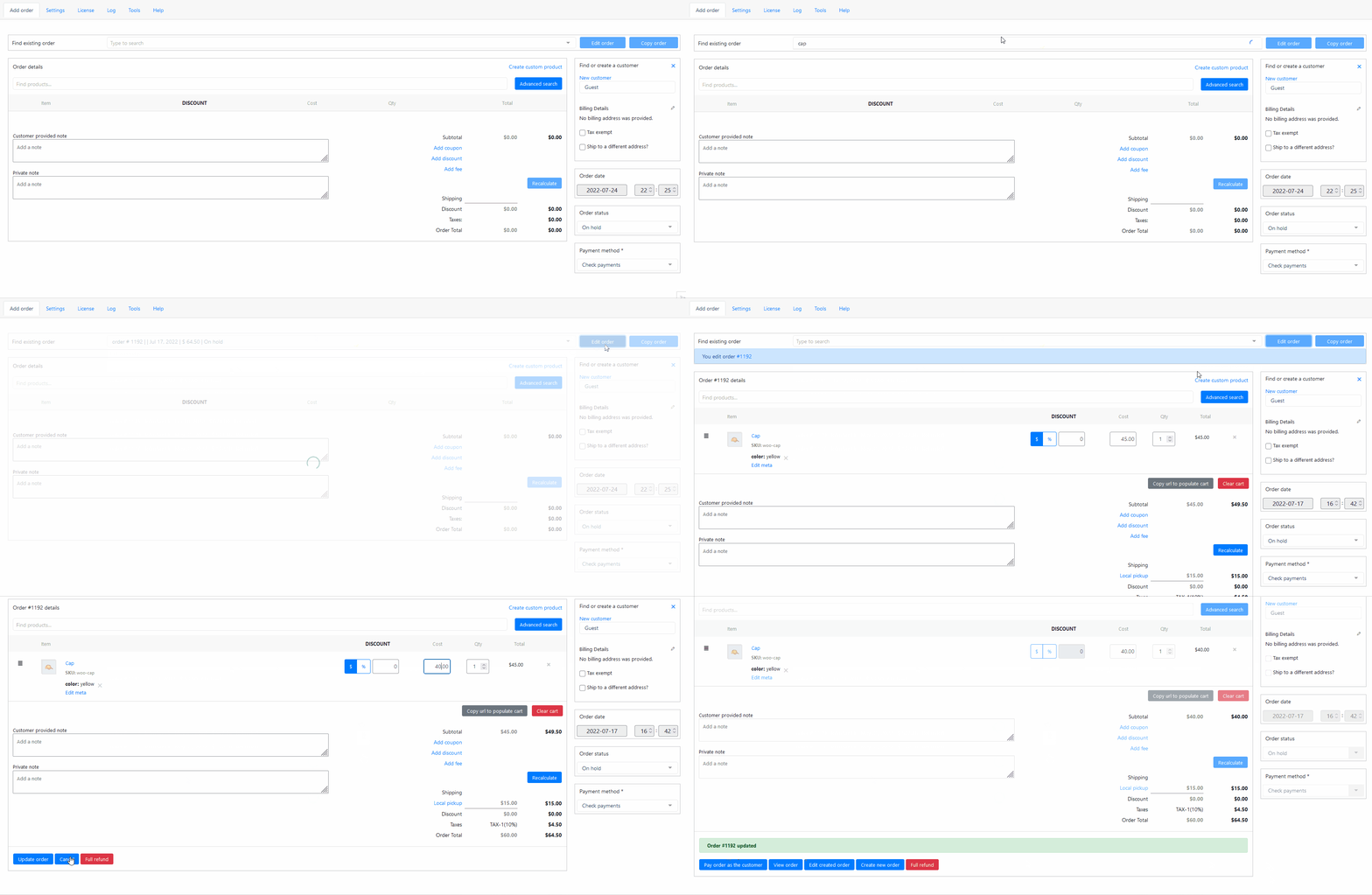
Look at the GIF of the editing of the existing order, finding it by the product:
Edit the created order from the WooCommerce Order info
You can access the Phone Orders editor directly from a standard WooCommerce order page. This is the fastest way to open an order without using the search bar.
Follow these steps to edit from the order page:
Step 1: Go to WooCommerce → Orders.
Step 2: Find and click the order number you wish to edit.
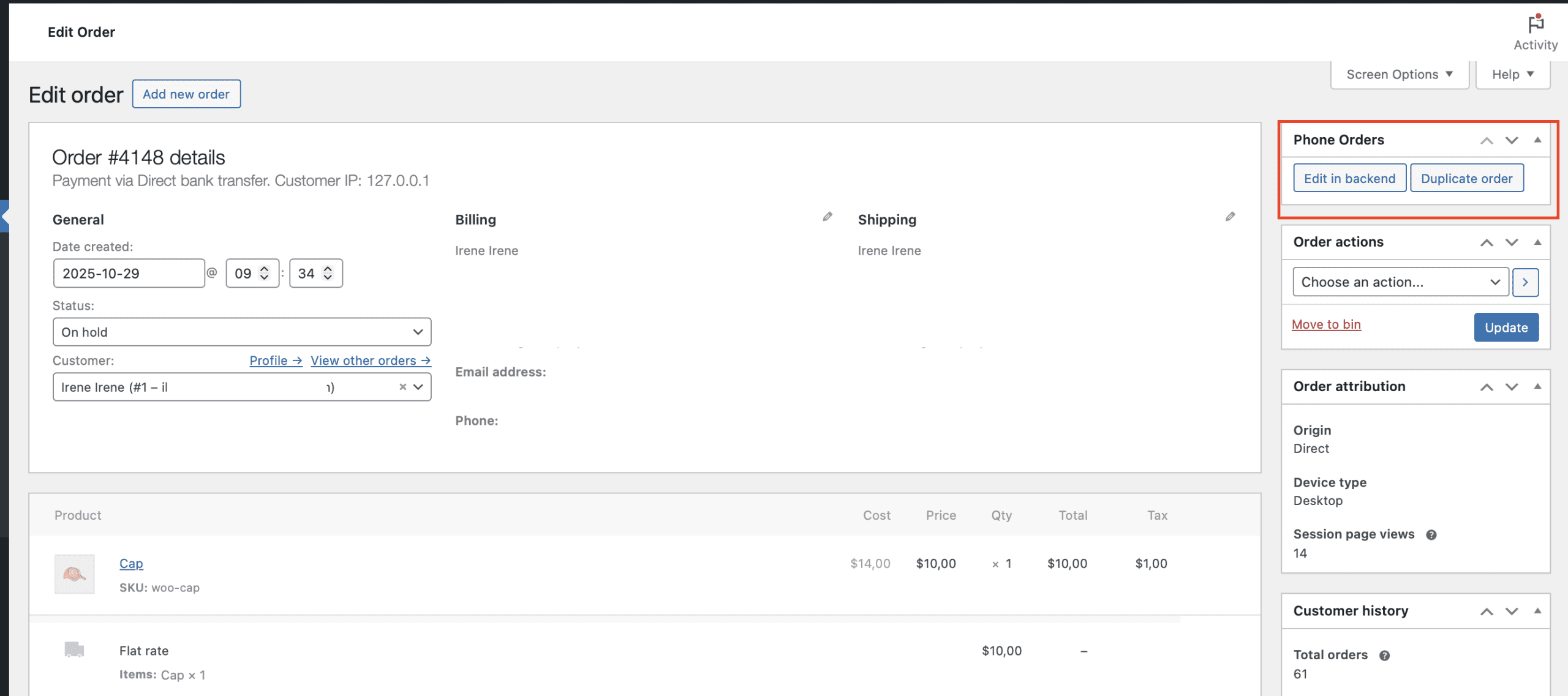
Step 3: On the order details page, scroll down to the right column. Look for a meta box titled Phone Orders.
Step 4: Inside this box, click the Edit button.
Step 5: The order will open in the Phone Orders interface, ready for editing.
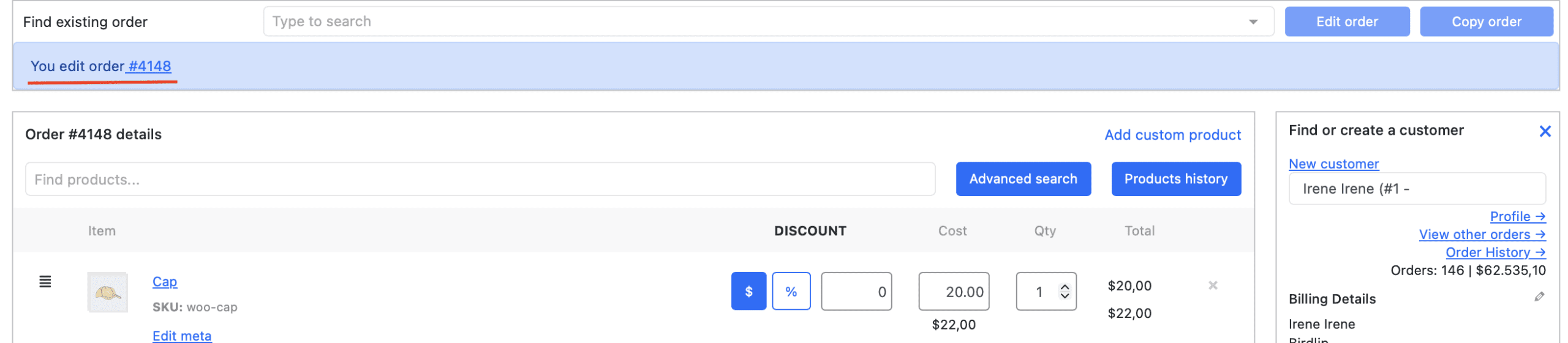
Then continue to edit the order inside the Phone Orders page.
The “Duplicate” feature creates a new order that is an exact replica of an existing one. This saves significant time when a regular customer calls to reorder from a previous purchase or when a complex order needs to be repeated with minor modifications