Additional Layout Blocks
The Phone Orders for WooCommerce plugin streamlines manual order creation by providing a dedicated workspace where agents can build, review, and finalise orders during a live call. This guide explains every component of the Additional Layout Blocks.
Enabling Additional Layout Blocks (Order Date, Status, Payment Method)
The free version of the plugin includes essential cart management features. The Pro version adds optional layout blocks that appear directly inside the Order Details section. These blocks give the agent full control over key order attributes without leaving the page.
Step‑by‑step to enable layout blocks:
- Navigate to WooCommerce → Phone Order → Settings.
- Click the Layout tab.
- In the Layout Blocks section, tick the checkboxes for the blocks you wish to display:
- Order date/time
- Order status
- Order payment method
- Click Save settings.
After saving, the selected blocks appear inside the Order Details section, integrated seamlessly with the existing cart interface.
Order Date/Time Block
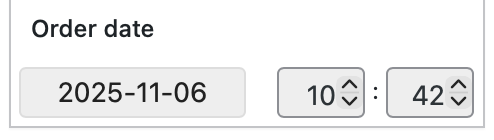
This block allows the agent to adjust the order’s creation date and time. By default, the plugin uses the current date and time when the order is created. To change it, click the field and select the desired date and time from the picker. This is useful when backdating an order to match a customer’s request or when entering orders that were placed outside normal business hours.
Order Status Block
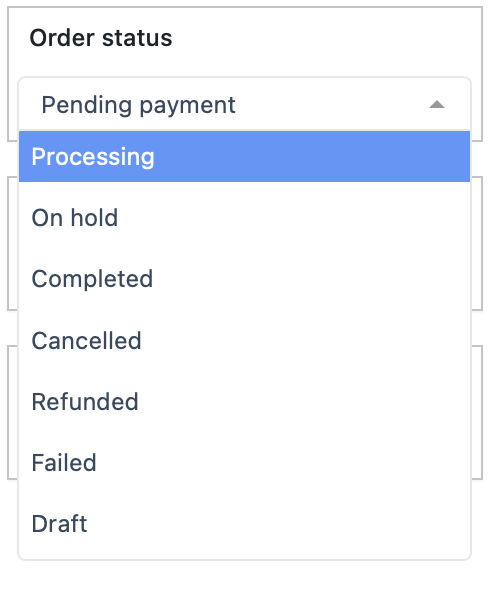
The agent can select the initial order status before the order is created. All standard WooCommerce statuses are available, plus any custom statuses added by other plugins. Common choices include:
- Pending payment – default for orders awaiting payment confirmation.
- Processing – when payment has been confirmed over the phone.
- Completed – for orders that are both paid and fulfilled immediately.
- On hold – for orders requiring further verification.
Selecting the correct status at creation time eliminates the need to update it later on the order edit screen.
Order Payment Method Block
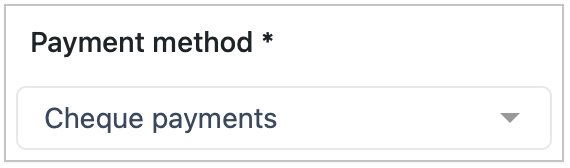
The agent can select the payment method the customer intends to use. All active WooCommerce payment gateways appear in the dropdown. The chosen method is saved with the order and appears on the order edit screen, invoice, and customer email. This is particularly useful when a customer pays by bank transfer, cash on delivery, or a custom gateway that is not automatically captured.