Products [pro]
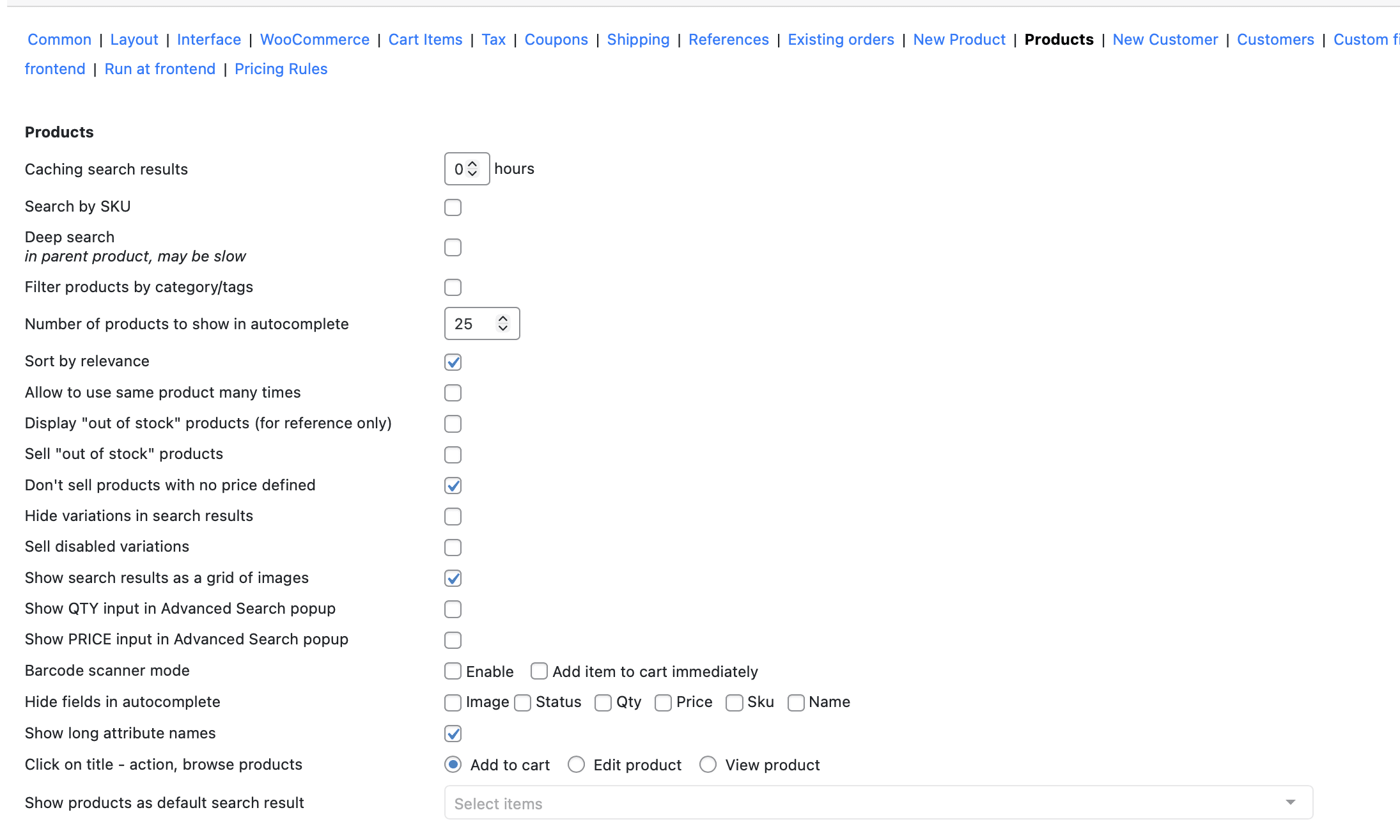
The Phone Orders for WooCommerce plugin includes powerful product search options. A quick review of the options of the “Products” settings tab.
Search Performance
Caching search results. Input amount in the hours if you want to cache a search result for faster searching by the products.
Search by SKU. Tick this option to activate searching of the products by the SKU.
Deep search. By default, the product search is performed by the product title, description and short description. When this parameter is enabled, the product search is also performed in the additional product fields: the variation title and the parent’s fields; the “SKU” variation’s field and the parent’s fields
Filtering Options
Filter products by category/tags. Display the filter block by product category/tags in the product search section.

Number of products to show in autocomplete. Input the amount of the autocomplete results you want to see.
Sort by relevance. Turn off this option for the alphabetic sorting.
Adding Products to Orders
Allow to use same product many times. Tick this option to allow adding the same product to the order as many times as you need.
Display “out of stock” product. If you want to see the products thats are already out of stock in the search results, enable this option.
Sell “out of stock” product. Tick this option to allow selling the products that currently is out of stock.
Don’t sell products with no price defined. All products that do not have a specified price are not displayed when searching/adding products to the order.
Variable Products (Size, Color, etc.)
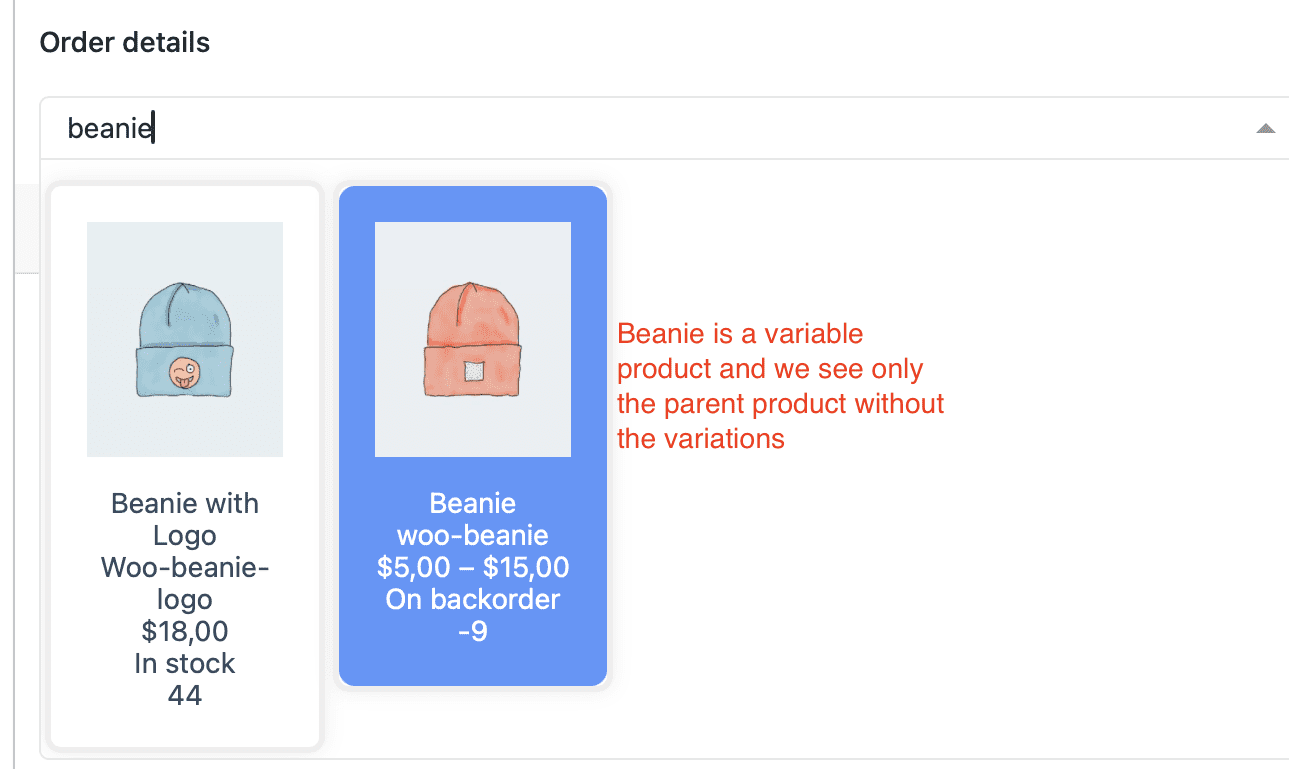
Hide variations in search results. Enable this option if you want to see only parent variable product without the variations in the search result.
Sell disabled variation. Tick this option to allow selling the disabled variations.
Display Settings
Show search results as a grid of image. Turn off this option if you want to show results of the searching as a list.
Show QTY input in Advanced Search popup and Show PRICE input in Advanced Search popup. Tick these options to input quantity and the price of the adding product.
Advanced Features
Barcode scanner mode. Activate the barcode scanner mode if you have an opportunity to find a product by the barcode. Note: “Find products” working only after click Enter key.
Hide fields in autocomplete. Choose which field you want to hide in the autocomplete and tick it: image, status, qty, price, sku, name.
Show long attribute names. Display long attribute names (more than 60 characters).
Click on title – action, browse product. Choose the action after clicking a product in search result: add to cart, edit product, view product.
Show products as default search result. Select the products that would be shown after clicking to the search bar: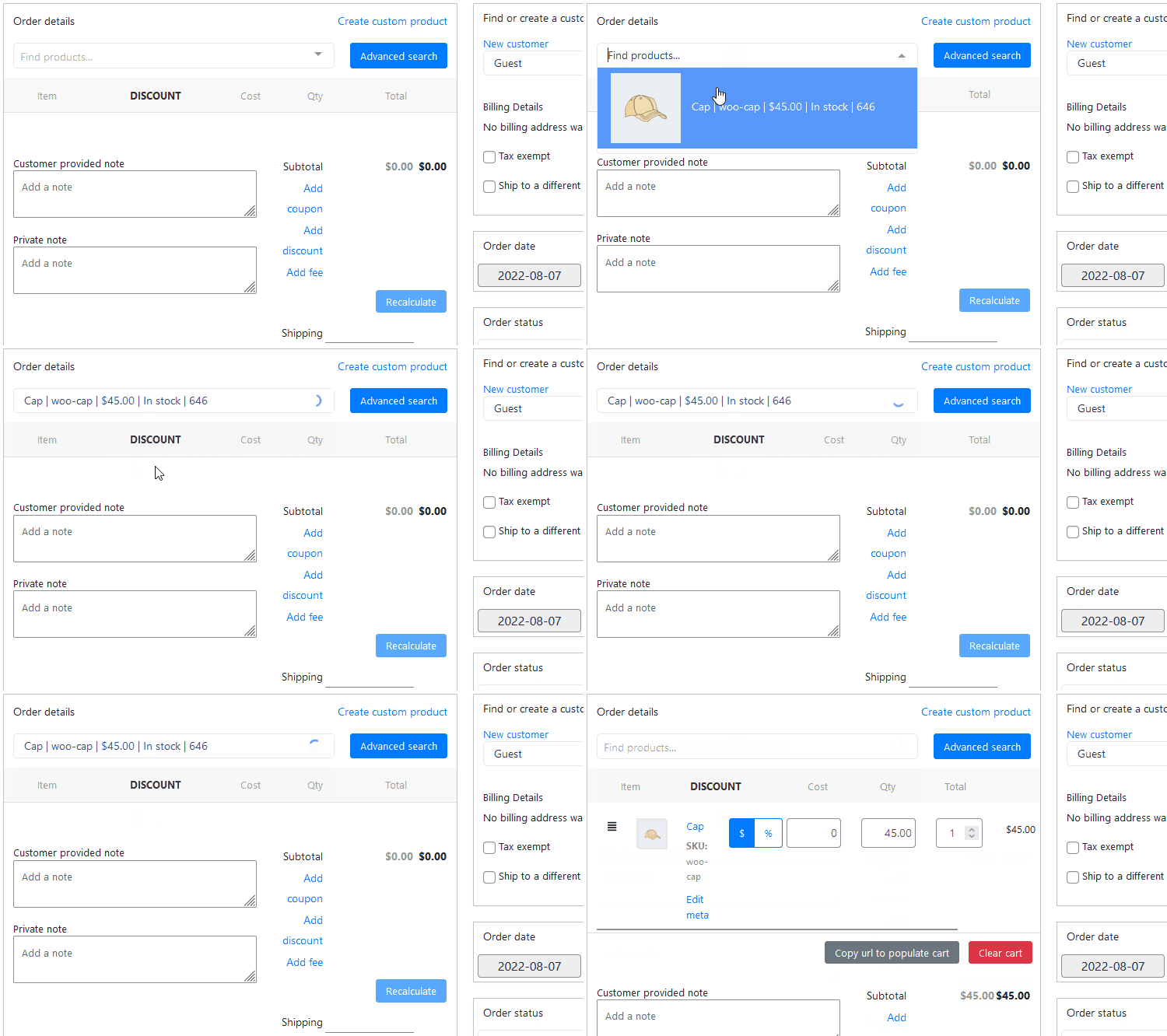
Pro Tip
Start with these settings for phone orders:
- Enable Search by SKU
- Enable Allow to use same product many times
- Set Number of products to show to 10
- Click on title – action: Add to cart
Test with your team. Adjust based on their feedback.
Common Mistake
Enabling Deep search on large catalogs (5000+ products). It slows down significantly. Use only when needed.
Real Talk
Phone Orders for WooCommerce transforms your admin order creation. Staff finds products in seconds. No more scrolling through dropdowns.