WooCommerce
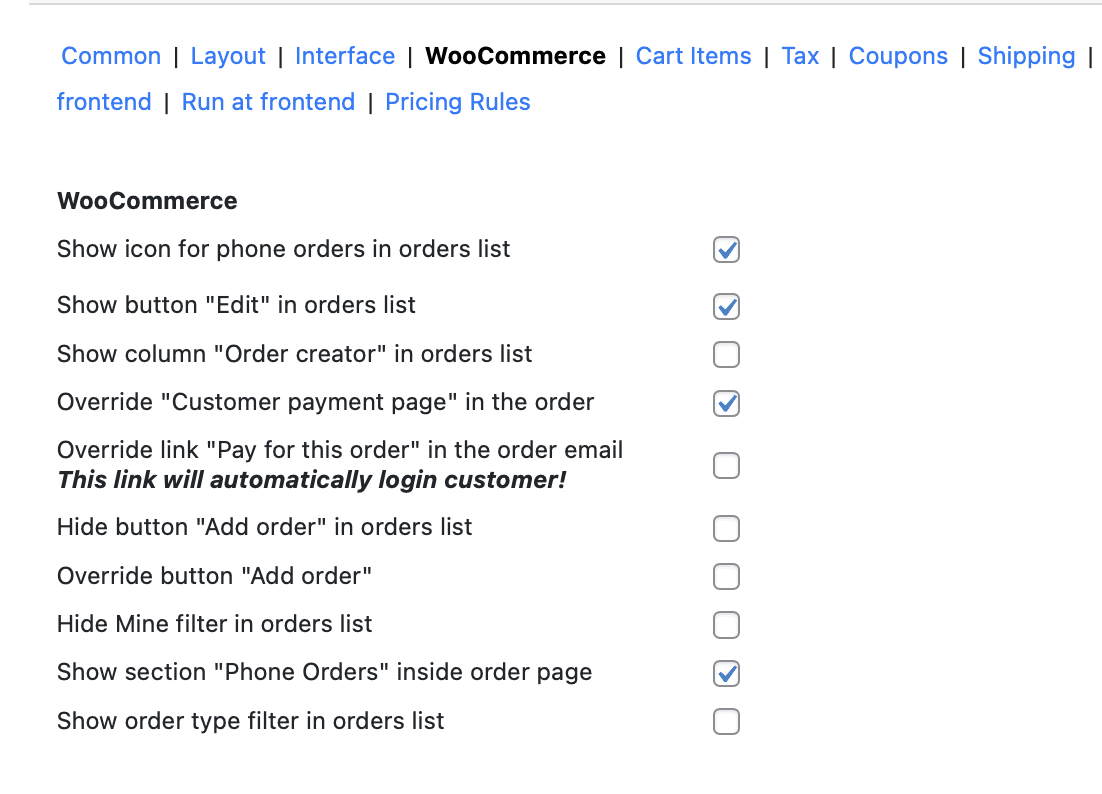
The WooCommerce tab in the Phone Orders for WooCommerce (Pro) plugin settings controls how the plugin integrates with the core WooCommerce order management interface. While other settings tabs focus on the phone order creation workflow itself, the WooCommerce tab determines which additional columns, filters, buttons, and icons appear in the standard WooCommerce → Orders list. These options help you identify phone orders at a glance, edit them directly from the orders list, and filter your order view by order source.
The WooCommerce tab contains nine distinct options that add visual indicators, filtering capabilities, and quick‑access buttons to your standard WooCommerce orders list. Each option is explained below, including what it does, why it matters, and when you should enable it.
Show Icon for Phone Orders in Orders List
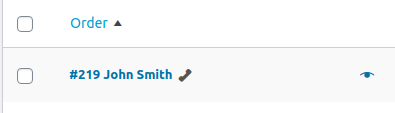
What it does: Adds a distinct visual icon next to each order in the WooCommerce → Orders list that was created through the Phone Orders interface (rather than placed by a customer on the frontend).
Why it matters: Without this icon, all orders look identical regardless of their source. The icon allows you to instantly differentiate between phone orders and regular website orders at a glance.
When to enable it:
- Enable this checkbox if your store processes orders through multiple channels and you need to distinguish phone orders quickly.
- Disable it (leave unchecked) if you do not need this visual distinction.
Troubleshooting: If you do not see the icon after enabling the parameter, go to the list of orders (WooCommerce → Orders), click Screen Options at the top of the page, mark the Actionscheckbox, and click Apply.
Show Button “Edit” in Orders List
What it does: Adds an Edit button to the orders list, allowing you to open and edit a phone order directly from the standard orders list without navigating to the Phone Orders interface first.
Why it matters: When you need to make a quick correction to a phone order, clicking the Editbutton takes you directly to the Phone Orders editor, where all products, quantities, addresses, and notes are pre‑filled. This is faster than searching for the order again using the Find Existing Order feature.

When to enable it:
- Enable this checkbox if you frequently edit phone orders after they have been created.
- Disable it (leave unchecked) if you prefer to edit orders only through the standard WooCommerce order edit screen.
Show Column “Order Creator” in Order List
What it does: Adds a new column to the WooCommerce → Orders list that displays the name or username of the administrator or shop manager who created the phone order.
Why it matters: In stores with multiple phone agents, knowing who created each order is essential for accountability, commission tracking, and troubleshooting. The Order creatorcolumn provides this information without requiring you to open each order individually.

When to enable it:
- Enable this checkbox if you have multiple agents creating phone orders and you need to track which agent is responsible for each order.
- Disable it (leave unchecked) if a single person creates all phone orders or you do not need creator accountability.
Override “Customer Payment Page” in the Order
What it does: Overrides the default WooCommerce Customer payment page link so that it works for logged‑in administrators and phone agents, even when the order is assigned to a customer.
Why it matters: By default, WooCommerce may block the Customer payment page link when clicked by an administrator because the admin’s session does not match the customer’s identity. This setting overrides that behaviour, allowing phone agents to access the payment page on behalf of the customer – essential for taking payments over the phone.
When to enable it:
- Enable this checkbox if your phone agents process payments over the phone and need to access the customer payment page from the admin order screen.
- Disable it (leave unchecked) if customers always pay through their own checkout link or if you use the Goto Checkout button instead.
How to use it: After enabling this option, go to WooCommerce → Orders, open any order with a Pending payment status, and click the Customer payment page link. The overridden link will work for your admin session.
Override Link “Pay for This Order” in the Order Email
What it does: Overrides the Pay for this order link that is sent to customers in order confirmation emails, automatically logging the customer in when they click the link.
Why it matters: When a customer receives an invoice and clicks the payment link, they would normally need to log into their account before paying. This override streamlines the process, allowing the customer to proceed directly to payment without an extra login step. This is particularly useful for customers who do not have or do not remember their account password.
Important note: This link will automatically log the customer in. Use this feature only when you have verified the customer’s identity over the phone.
When to enable it:
- Enable this checkbox if you want to provide a friction‑free payment experience for phone order customers.
- Disable it (leave unchecked) if you prefer to require customers to log in before accessing the payment page.
Hide Button “Add Order” in Orders List
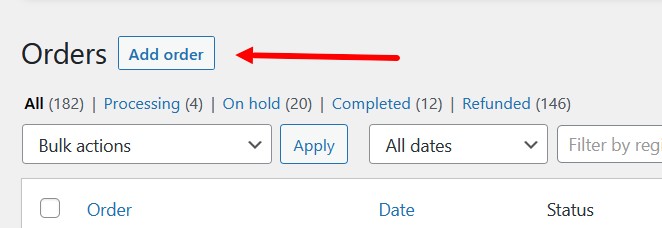
What it does: Removes the Add order button from the WooCommerce → Orders list.
Why it matters: By default, WooCommerce displays an Add order button that opens the standard, less‑efficient manual order creation interface. If your store exclusively uses the Phone Orders interface for manual order entry, hiding this button prevents confusion and ensures that agents always use the optimised phone order interface.
When to enable it:
- Enable this checkbox if you want all manual orders to be created exclusively through the Phone Orders interface.
- Disable it (leave unchecked) if you still use the standard WooCommerce manual order form for some orders.
Hide “Mine” Filter in Orders List
What it does: Hides the Mine filter from the WooCommerce → Orders list. The Mine filter shows only orders created by the currently logged‑in user.
Why it matters: In some workflows, the Mine filter is unnecessary and only adds clutter to the filter bar. Hiding it simplifies the interface for agents who do not need to filter orders by creator.
When to enable it:
- Enable this checkbox if you want to remove the Mine filter for a cleaner order list interface.
- Disable it (leave unchecked) if your agents regularly use the Mine filter to view only their own orders.
Show Section “Phone Orders” Inside the Order Page
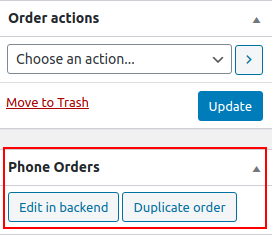
What it does: Adds a dedicated Phone Orders meta box to the individual order edit page (opened when you click an order number in the WooCommerce → Orders list). This meta box contains buttons for editing or copying the order using the Phone Orders interface.
Why it matters: Without this section, you would need to return to the Phone Orders interface and use the Find Existing Order search to edit an order. The Phone Orders meta box gives you one‑click access to edit or duplicate the current order directly from the order details page.
When to enable it:
- Enable this checkbox if you frequently need to edit or duplicate orders after they have been created.
- Disable it (leave unchecked) if you prefer to use the Find Existing Order feature or the standard WooCommerce order editor.
Show Order Type Filter in Orders List
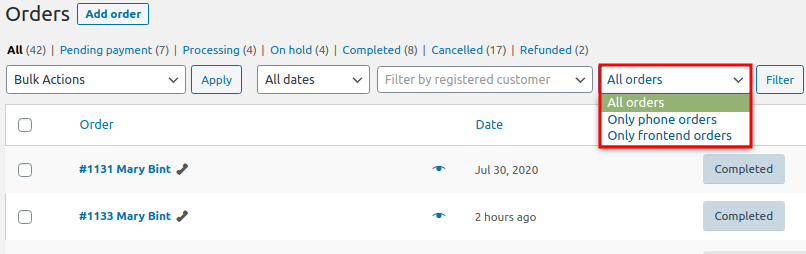
What it does: Adds a dropdown filter to the WooCommerce → Orders list that allows you to filter orders by their source:
- All orders – Shows every order regardless of source.
- Only phone orders – Shows only orders created through the Phone Orders interface.
- Only frontend orders – Shows only orders placed by customers on the website frontend.
Why it matters: This filter provides a quick way to isolate phone orders for reporting, auditing, or follow‑up. For example, you can view only phone orders to review agent performance or to contact customers who placed phone orders about a specific promotion.
When to enable it:
- Enable this checkbox if you need to separate phone orders from frontend orders for reporting or management purposes.
- Disable it (leave unchecked) if you do not need this level of order source filtering.
Best Practices for WooCommerce Integration
- Enable the phone order icon for all multi‑channel stores. If your store receives orders from both the website and phone calls, the icon provides an instant visual cue that helps agents and managers prioritise follow‑up tasks.
- Use the Edit button for quick corrections. Instead of searching for an order again, enable the Show button “Edit” in orders list setting and click the Edit button directly from the orders list.
- Add the Order creator column for team accountability. In stores with multiple phone agents, this column helps track who created each order, which is useful for commission calculations, training, and dispute resolution.
- Override the customer payment page for phone‑based payments. If your agents process credit card payments over the phone, enable the Override “Customer payment page” setting to give them access to the payment page from the admin order screen.
- Hide the standard Add order button if you exclusively use the Phone Orders interface. This prevents agents from accidentally using the slower, less efficient WooCommerce manual order form.
- Use the order type filter for reporting and auditing. The Show order type filter setting allows you to quickly isolate phone orders for performance reviews, revenue analysis, or customer follow‑up campaigns.
- Test each setting individually. Enable one setting at a time and verify that it behaves as expected before enabling the next. This makes troubleshooting easier if an issue arises.
Summary of WooCommerce Settings
| Setting | Purpose | Recommended State |
|---|---|---|
| Show icon for phone orders in orders list | Adds a visual icon next to each phone order in the orders list. | ✅ Enable for multi‑channel stores. |
| Show button “Edit” in orders list | Adds an Edit button to open phone orders directly in the Phone Orders editor. | ✅ Enable if you frequently edit orders after creation. |
| Show column “Order creator” in order list | Displays the name of the agent who created each phone order. | ✅ Enable for team accountability. |
| Override “Customer payment page” in the order | Allows administrators to access the customer payment page. | ✅ Enable if agents process payments over the phone. |
| Override link “Pay for this order” in the order email | Auto‑logs the customer in when they click the payment link in their email. | ✅ Enable for friction‑free payment experience. |
| Hide button “Add order” in orders list | Removes the standard WooCommerce Add order button. | ✅ Enable if you exclusively use the Phone Orders interface. |
| Hide “Mine” filter in orders list | Removes the Mine filter from the orders list. | ⚠️ Enable only if the Mine filter is unnecessary. |
| Show section “Phone Orders” inside the order page | Adds a Phone Orders meta box to the order edit page for quick editing/copying. | ✅ Enable for faster order management. |
| Show order type filter in orders list | Adds a dropdown to filter orders by source (phone, frontend, or all). | ✅ Enable for reporting and auditing. |