Coupons
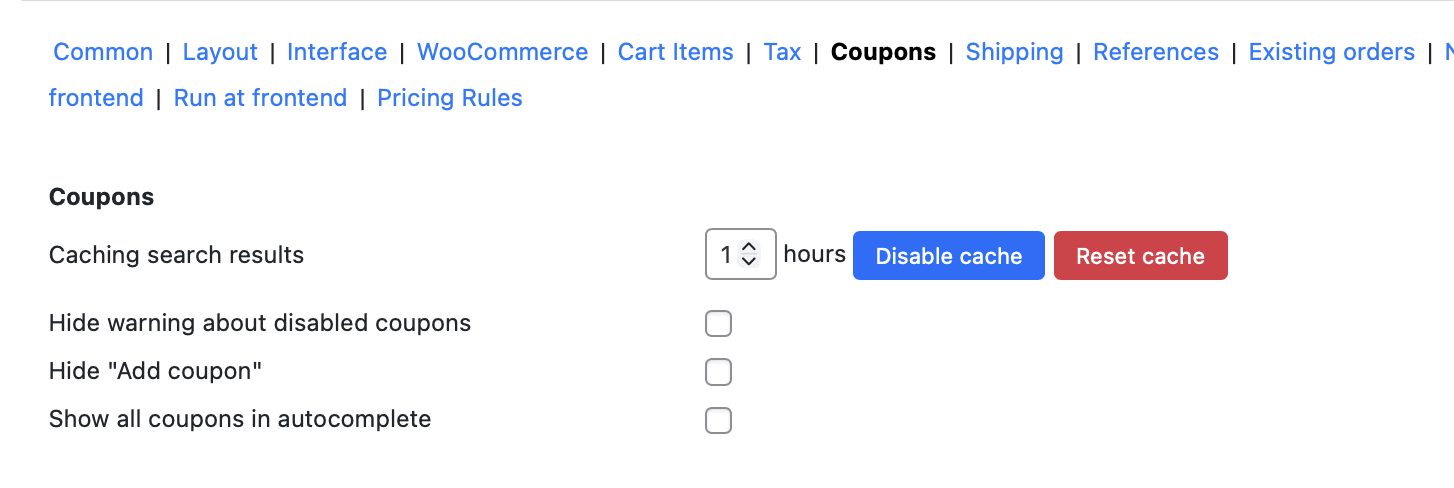
The Phone Orders for WooCommerce plugin transforms manual order entry into a fast, efficient process. A key part of this efficiency is the ability to handle discounts and coupons directly from the phone order screen. The Coupons settings tab, available exclusively in the Pro version, gives you precise control over how coupons and discounts appear and behave when your agents place orders for customers.
This guide covers every setting found on the Coupons tab, explaining what each option does and how to configure it for the smoothest possible phone ordering experience.
Caching Search Results
This performance-related setting optimises how the plugin retrieves coupon data when agents search for codes.
- What it does: Allows you to set a cache duration (in hours) for coupon search results. When an agent searches for a coupon, the plugin stores the result in a temporary cache. Subsequent searches for the same coupon within the cache period are served from the cache rather than querying the database again.
- Why it matters: For stores with many coupons, repeated database queries can slow down the phone order interface. Caching reduces database load and speeds up coupon lookups, especially during busy call periods.
- How to configure it:
- Cache duration (hours) – Enter a numeric value representing how many hours the search results should be stored. For example, entering
24caches results for one day. Enter0to effectively disable caching. - Disable cache button – Click this button to turn off caching completely. The plugin will bypass the cache and always query the database directly.
- Reset cache button – Click this button to clear all stored coupon search results from the cache immediately. This is useful after you add, edit, or delete coupons, ensuring that agents see the latest data without waiting for the cache to expire naturally.
- Cache duration (hours) – Enter a numeric value representing how many hours the search results should be stored. For example, entering
- When to adjust this setting:
- Increase the cache duration (e.g., 24–48 hours) if your store has a stable coupon catalogue that changes infrequently and you want maximum performance.
- Decrease the cache duration (e.g., 1–6 hours) if you update coupons regularly (new codes, changed restrictions) and want fresh data to appear sooner.
- Disable caching entirely if you encounter issues where new coupons do not appear in search results or if you are troubleshooting cache‑related problems.
- Use the Reset cache button immediately after making bulk changes to your coupon catalogue (e.g., importing many new codes, deleting expired ones) to ensure agents see the updated list.
Best practice: For most stores, a cache duration of 12–24 hours balances performance with data freshness. After any manual coupon update, click Reset cache to avoid confusion.
Hide Warning about Disabled Coupons
When the global coupon setting (described above) is disabled, WooCommerce normally displays a warning message in the admin area reminding you that coupons are turned off.
- What it does: This checkbox suppresses that warning message entirely when coupons are globally disabled.
- Why it matters: If your store does not use coupons at all, seeing a persistent reminder can be unnecessary clutter. This option removes that distraction from the phone order interface.
- When to use it: Enable this option only if you have intentionally disabled coupons in your store and do not plan to use them. If coupons are enabled globally, this setting has no effect.
Hide “Add coupon” Option
The Add coupon button appears in the Order Details block by default, allowing phone agents to apply discount codes to manual orders.
- What it does: Hides the Add coupon button completely from the phone order cart interface.
- Why it matters: Some stores manage all discounts through automated pricing rules or manual price overrides and do not want agents applying coupon codes at all. Hiding the button prevents confusion and keeps the interface clean.
- When to use it: Enable this option if your business does not offer coupon codes or if you want to restrict all discounting to other methods (e.g., manual price overrides, automated role‑based pricing).
Show All Coupons in Autocomplete
When an agent starts typing a coupon code into the Add coupon field, the plugin normally displays a dropdown list of matching coupons.
- What it does: Changes the autocomplete behaviour to display the entire list of all available coupons when the agent clicks into the field, before any typing occurs.
- Why it matters: If your store has a small number of coupons, showing them all immediately can be faster than typing partial codes. For stores with dozens or hundreds of coupons, this option may create a very long dropdown list.
- When to use it: Enable this option if your store uses a limited set of coupons (e.g., fewer than 20). Leave it disabled if you have a large coupon catalogue to keep the interface responsive.
Summary of Coupons Settings
| Setting | Purpose | When to Enable / Adjust |
|---|---|---|
| Caching search results (duration hours) | Stores coupon search results for the specified number of hours to speed up repeated lookups. | Set 12–24 hours for most stores. Use Reset cache after coupon updates. Click Disable cache to turn off. |
| Hide warning about disabled coupons | Suppresses the reminder message when coupons are globally turned off. | Enable only if you have intentionally disabled coupons and want to remove the admin warning. |
| Hide “Add coupon” option | Removes the Add coupon button from the phone order cart entirely. | Enable if your store does not use coupons or if you want to restrict discounts to other methods. |
| Show all coupons in autocomplete | Displays the full list of all coupons immediately when the agent clicks the coupon field. | Enable for stores with a small number of coupons (fewer than 20). |