Custom fields [pro]
Need to collect customer birth dates? Gender preferences? Pickup times? The Phone Orders for WooCommerce plugin lets you add custom fields. Here’s how to set them up.
What Custom Fields Do
Add extra input fields to your phone order screen. Capture data that WooCommerce doesn’t store by default.
Show custom fields in order confirmation email
Check this box. Customers see their custom field answers in the order confirmation email. No more “did they get my notes?” questions.
Order fields
One field per line. Format: Label Text|custom_fieldname
These fields appear in the main order section. Perfect for delivery instructions or special requests.
Number of columns, per line
Controls layout. Enter one number per line. Single number applies to all lines. Example: “2” makes two columns.
Section title for customer fields (at top)
Enter a heading. “Custom Fields” or “Additional Information.” Appears above the top customer fields.
Customer fields (at top)
One field per line. Same format: Label Text|custom_fieldname
These appear above billing details. Good for customer preferences or membership info.
Section title for customer fields (at bottom)
Heading for bottom section. “Order Notes” or “Delivery Details.”
Customer fields (at bottom)
One field per line. Appear below billing details. Great for post-purchase instructions.
Show custom fields in section “Billing Details”
Check to display custom fields inside the Billing Details block. Otherwise they appear separately.
Replace order fields with customer fields
When checked, order fields get replaced by customer fields loaded from profile. Existing values auto-fill.
For example, I specified the custom field “Gender”.
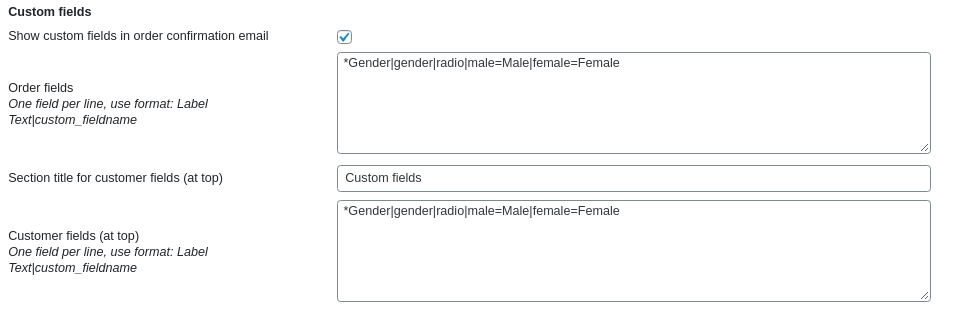
When creating an order, I selected the client and specified the value of the “Gender” – Female field and clicked the “Create order” button.
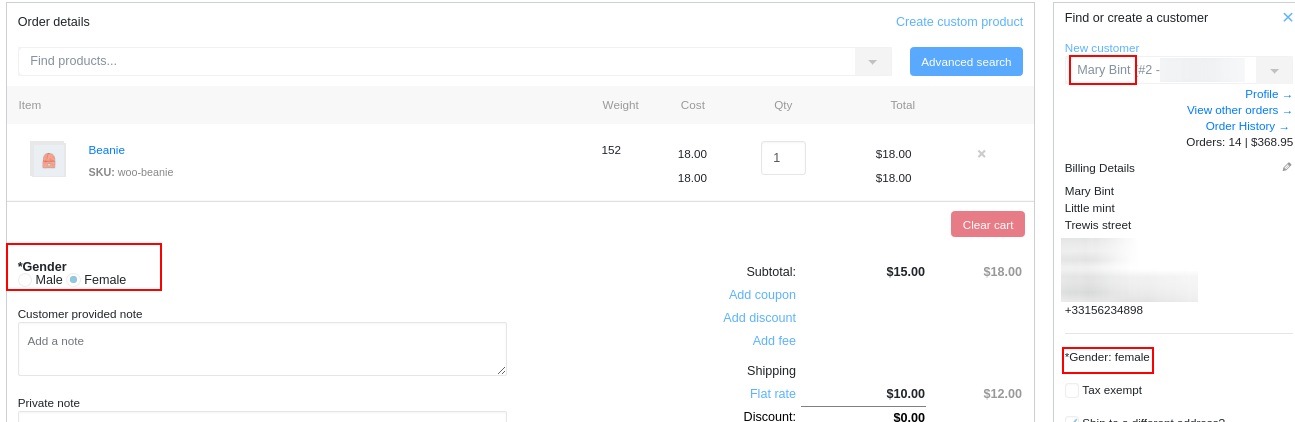
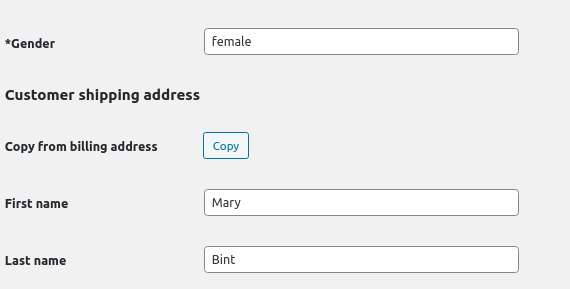
Now, go to the user profile. The value of custom field was saved.
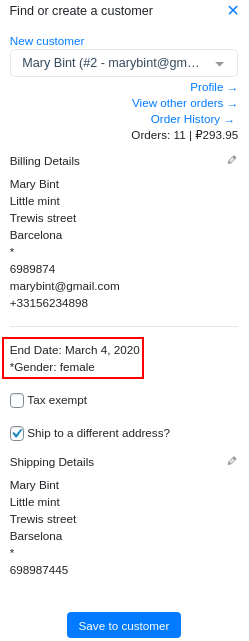
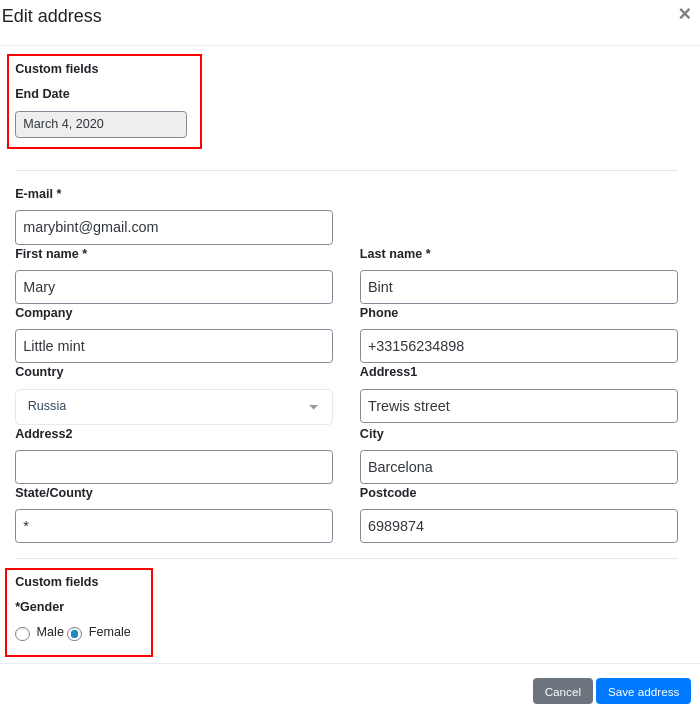
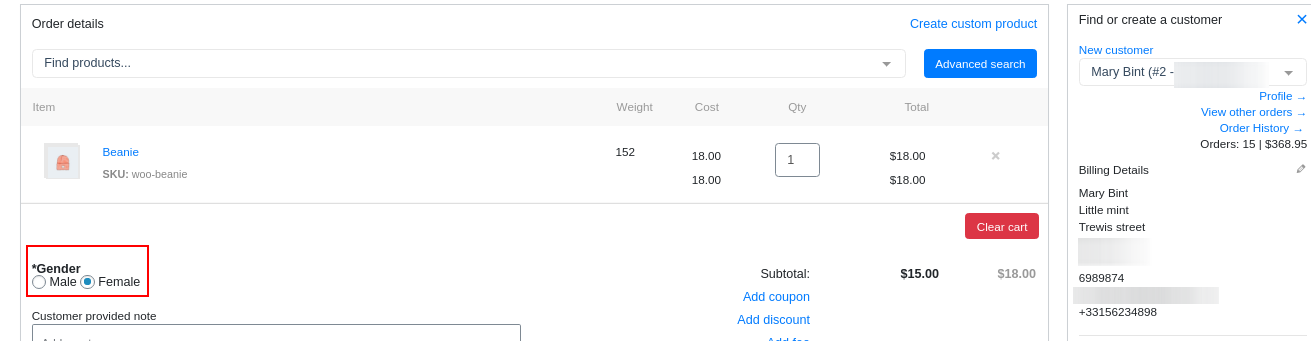
Now I will create a new order and specify the user “Mary Bint”. The value of the custom field was loaded from the user profile to the new order.
Available fields for product
One field per line. Define product-level custom fields here.
Default fields for product
One field and value per line. Format: meta_key|meta_value
Pre-fills product custom fields. Example: engraving_text|Happy Birthday
How to Define Custom Fields
- Define custom order/customer fields at tab “Settings”
- Format is Label|field_name|type|value1|value2|value3
- Supported types : text, select, checkbox, radio, hidden, date, time
- Fill them while you adding order
- Entered information will be saved as custom fields
Sample
End Date|end_date|date
Pickup at|pickup_time|time
Gold member|gold_member|hidden|YES
*Gender|gender|radio|male=Male|female=Female
Preference|communication|checkbox|Phone|Email
Preference phone number|phone|text|8-800-
Extra raincoat|rain|select|Yes|No|*Unknown
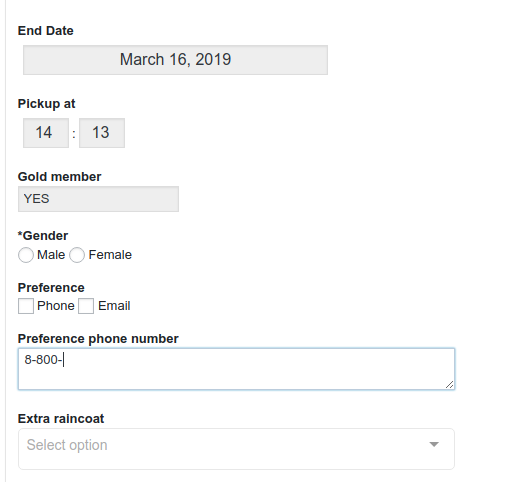
These lines will generate following form (Gender is required, Extra raincoat has default value “Unknown“)
Common Mistake
Field names must be unique. Two fields with same field_name conflict. The second overwrites the first.
Use lowercase with underscores: end_date, pickup_time, gold_member.
Real Talk
Phone Orders for WooCommerce custom fields capture exactly what you need. No coding required. Just define labels and types.
Your staff enters the data. The system saves it. Reports include it. Customers see it on emails. Complete solution.