Product Search
The Phone Orders for WooCommerce plugin is designed to help store staff add products to a manual order as quickly as possible. When a customer calls to place an order, the agent does not need to browse through dozens of product pages or perform complex catalog navigation. Instead, everything begins with a simple product search in Phone Orders that shows matching items instantly.
The plugin’s product search interface is built for speed and flexibility, supporting:
- Partial name and SKU search
- Instant display of stock status, price, and product image
- Advanced bulk selection for products with similar names
- Creation of custom products on the fly
- A Product History list that shows items previously ordered by the same customer
How the Product Search Works
The product search field is the main entry point for adding items to a phone order. It is located at the top of the Phone Orders interface, just below the customer information section.

What the search does:
- As soon as the agent starts typing, the plugin returns a live list of matching products.
- The search looks at both the product name and the SKU.
- Only the first few letters are needed – the agent does not have to type the full name.
- The search works with simple, variable, and subscription products (when the WooCommerce Subscriptions plugin is active).
What each search result shows:
| Information displayed | Purpose |
|---|---|
| Product image | Helps the agent confirm the correct item by sight. |
| Product name | The full product title as it appears in the store. |
| SKU (Stock Keeping Unit) | Useful for stores where staff identify products by their internal code. |
| Stock status | Shows whether the item is in stock, on backorder, or out of stock. |
| Regular price | The standard selling price before any discounts. |
| Sale price | If a sale is active, the discounted price is shown alongside the regular price. |
How to select a product:
- Click on any product in the search results list.
- The item is immediately added to the order cart at the bottom of the page.
- The default quantity is always
1. The quantity can be changed after the item is added.

Searching by SKU
Many stores manage inventory using SKU codes. The Phone Orders for WooCommerce plugin recognises SKU entries in the search field and treats them the same way as product names.
If an agent knows a product’s SKU, they can type it directly into the search box. The plugin returns the exact product (if the SKU matches) and adds it to the order in a single step.
For stores that use barcode scanners, this feature is particularly useful. An agent can scan a product’s barcode (if the barcode corresponds to the SKU) and immediately add the item to the order without any typing.
Example: If a product has SKU WB-1002-BLUE, typing WB-1002 or 1002 will show the product in the search results. No additional setup is required.
Note: The plugin does not require any special configuration to enable SKU search. It works out of the box with all standard WooCommerce products.
Using the Advanced Search Button
When a customer orders several products with similar names – for example, three different t‑shirts from the same product line – the agent may want to add them all at once instead of searching for each one separately.
The Advanced search button solves this problem by opening a dedicated pop‑up window.
How to use advanced search:
- Click the Advanced search button located next to the main search field.
- In the pop‑up window, start typing a product name or partial name.
- The window shows a list of all matching products.
- Select the checkboxes next to all the items the customer wants to order.
- Click Add to cart.
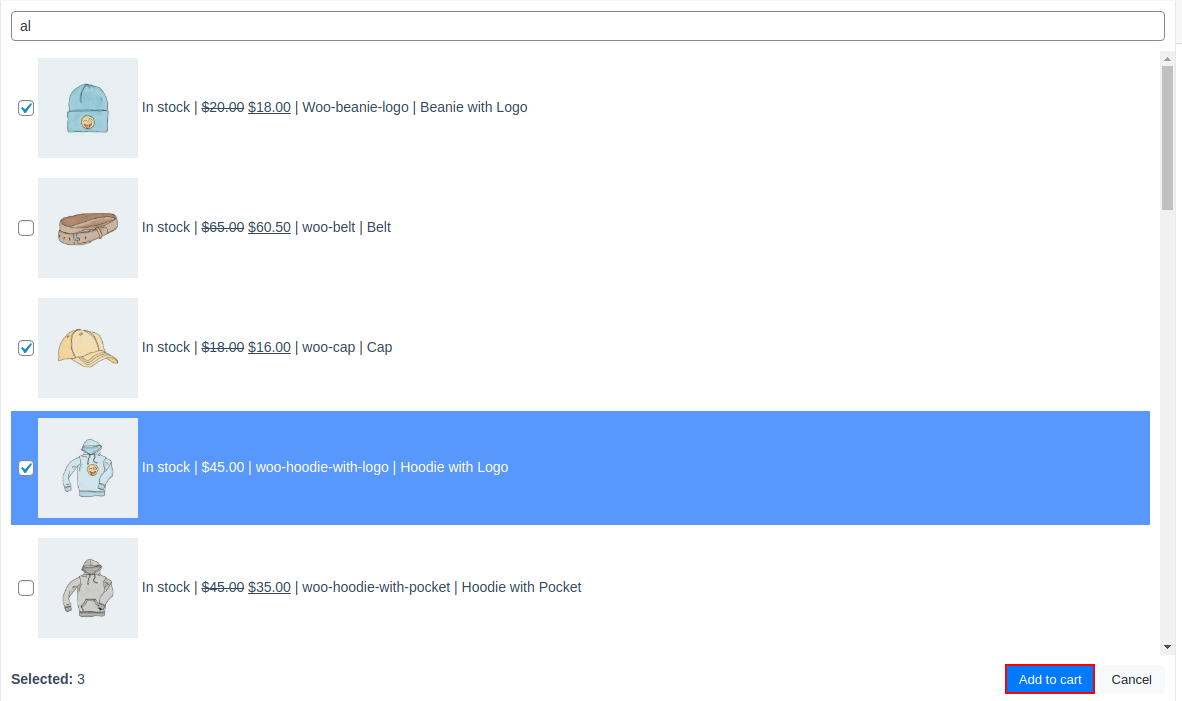
All selected products are added to the order cart in a single action, each with a default quantity of 1. The agent can then adjust quantities and prices for individual items as needed.
The advanced search window is especially helpful when a store’s product catalogue contains dozens of items with similar names (e.g., “T‑Shirt – Red”, “T‑Shirt – Blue”, “T‑Shirt – Green”).
Creating a Custom Product on the Fly
Sometimes a customer orders an item that is not yet in the WooCommerce catalogue – for example, a one‑off service, a custom‑made product, or a discounted clearance item that has no permanent SKU.

The Create custom product feature allows the agent to add such an item without leaving the Phone Orders interface and without creating a permanent product in the WooCommerce catalogue.
How to create a custom product:
- Click the Create custom product button (usually located near the product search area).
- In the pop‑up form, fill in the following fields:
- Line item name – A short description of the item (e.g., “Engraved Mug – Custom Text”).
- Price per item – The agreed price for one unit.
- Quantity – How many units the customer wants.
- Click Save.
The custom item is added directly to the order cart and behaves like any other line item. It can be edited or removed before the order is finalised.
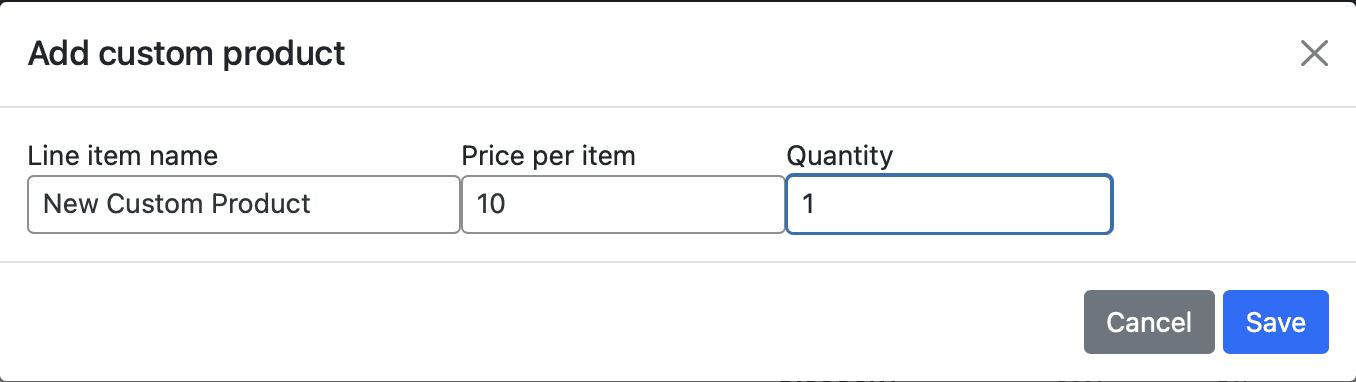

Important: Custom products created this way are not saved to the main WooCommerce product catalogue. They exist only within the current order. This makes the feature ideal for one‑off or personalised items that will never be ordered again.
Product History: Reordering Items from Past Purchases
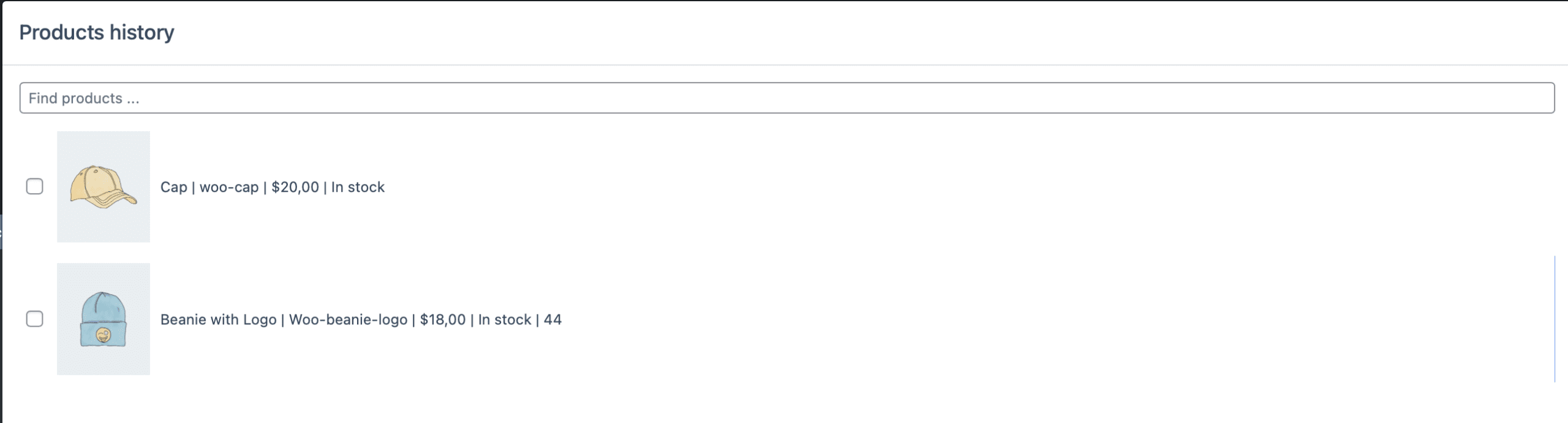
When a repeat customer calls to place a new order, the agent does not have to search for products from scratch. The Product History button shows a list of all products the customer has previously ordered.

How to use product history:
- The customer is selected in the customer section of the Phone Orders interface.
- Click the Product History button.
- A pop‑up window opens, showing every product that this customer has ever purchased.
- The agent can review the list and select any items that the customer wants again.
- Click Add to cart.
The selected products are added to the order with the same quantities and prices as the original orders (though both can be adjusted afterwards).
When product history is most useful:
- A regular customer calls to reorder the same three items every month.
- A customer wants to add an extra item to a new order – an item that was included in a previous order.
- The agent needs a quick reminder of what the customer bought previously while on the phone.
Product history works for both simple products and variable products (e.g., a t‑shirt in size Medium, colour Blue).
Adding Subscription Products
The Phone Orders for WooCommerce plugin works seamlessly with the official WooCommerce Subscriptions plugin. If your store sells subscription products (e.g., monthly boxes, memberships, recurring service plans), agents can add them to a phone order just like any other item.
However, subscriptions have additional fields that the agent needs to review and, if necessary, adjust.
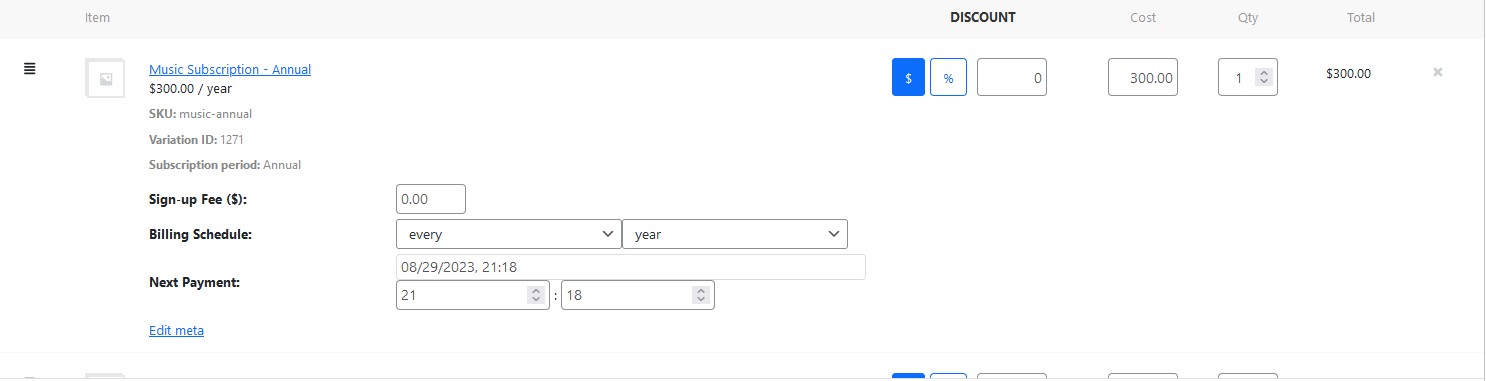
What the plugin shows when a subscription product is added:
| Field | What it controls |
|---|---|
| Sign‑up fee | A one‑time fee charged when the subscription starts. This can be overridden if the agent offers a discount. |
| Billing schedule | The interval between payments (e.g., monthly, yearly). |
| Next payment date | The date when the first recurring payment is due. The agent can push this forward or bring it back as agreed with the customer. |
The agent can edit these fields directly in the order cart. The changes affect only this particular order – they do not modify the original subscription product settings in the catalogue.
Note: Full subscription management in phone orders (including editing billing schedules and payment dates) is available in the Pro version of the plugin. The free version supports adding subscription products but may have limited editing capabilities for the subscription‑specific fields.
Editing Product Details After Adding to Cart
Once a product is in the order cart, the agent is not locked into the default settings. Every line item can be changed.
What can be edited per product:
- Quantity – Increase or decrease the number of units.
- Price – Override the default price. This is useful when offering a customer‑specific discount or matching a price quoted over the phone.
- Tax status – Mark the item as taxable or non‑taxable.
- Product name / SKU – In some views, the product name can be edited directly (useful for custom notes).
How to apply changes:
- Modify the quantity or price fields directly in the cart.
- Click the Recalculate button (usually located below the cart).
- The plugin updates the line total, tax amounts, and order total immediately.
The Recalculate button is important because it ensures that taxes are correctly reapplied after manual price changes.
Troubleshooting Product Search Issues
The following checklist covers the most common problems that store agents may encounter when searching for products.
| Symptom | Possible cause | Solution |
|---|---|---|
| Product does not appear in search results. | The product is out of stock and hidden from the catalogue. | Check the product’s Catalog visibility setting. For phone orders, the plugin can still show out‑of‑stock items if the appropriate option is enabled in the plugin settings. |
| Search returns no results even though the product name is correct. | The product is a variable product with no default variation selected. | Try searching by the parent product name. The search should return the parent product; the agent can then select the desired variation (size, colour, etc.) from the dropdown in the cart. |
| SKU search does not work for some products. | The product does not have a SKU assigned. | SKU search only works for products that have a SKU value. Assign a SKU to the product in the WooCommerce product editor. |
| The product appears in search but cannot be added. | The product is a downloadable file or virtual product that requires special handling. | Virtual and downloadable products are supported. If the “Add” action does nothing, check the browser console for JavaScript errors (F12 → Console). |
| Product history list is empty for a repeat customer. | The customer was previously entered as a guest (no registered account). | Product history works only for customers who are registered WordPress users. Guest orders are not linked to a customer profile. |
| Advanced search window closes immediately after opening. | A JavaScript conflict with another plugin or the active theme. | Temporarily switch to a default WordPress theme (e.g., Twenty Twenty‑Four) and test again. If the problem disappears, contact theme support. |
Best Practices for Product Search in Phone Orders
Keep product names clear and consistent. The search field works best when product titles are descriptive but not overly long. Include key identifying words at the beginning of the title (e.g., “Leather Belt – Brown” rather than “Brown Leather Belt for Men”).
Assign SKUs to every product. Even if your store does not use SKUs for inventory, assigning a simple SKU (e.g., SKU001, SKU002) gives agents an alternative way to search, especially in noisy call centre environments.
Train agents on partial search. Emphasise that agents do not need to type full product names. The first three or four letters are usually enough to find the correct item.
Use product history for repeat customers. Encourage agents to check the Product History button before running a new search. For regular customers, the needed items are often already in the history list.
Test search with different product types. Before going live, test the product search with simple products, variable products, and (if applicable) subscription products. Confirm that stock status, prices, and variations display correctly.