Cart Items
Taking phone orders? You need flexibility. Different products need different handling. The Phone Orders for WooCommerce plugin gives you full control over cart items. Here’s what each setting does.
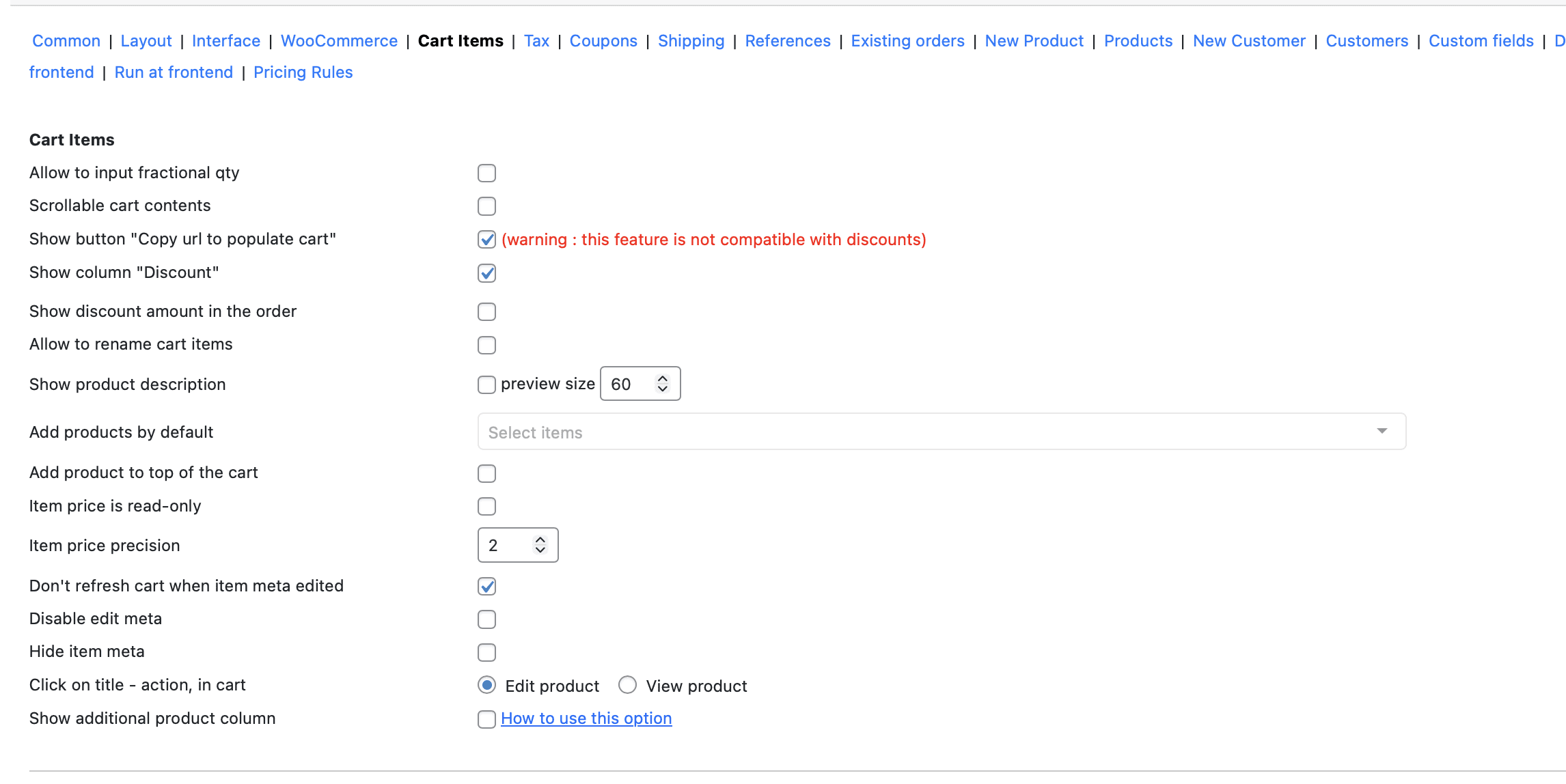
Quantity & Scrolling
Allow to input fractional qty. Turn on this option to allow input a fractional qty, e.g., for input 1,5 meters of the cloth.
Scrollable cart contents. This parameter allows you to enable scrolling of the card content in the order
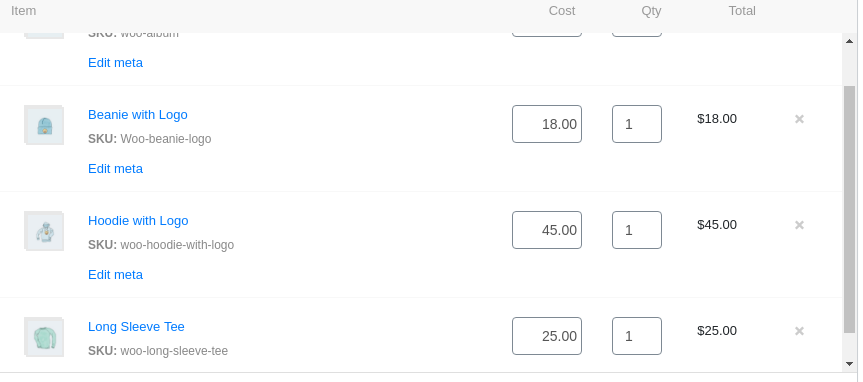
Buttons & Columns
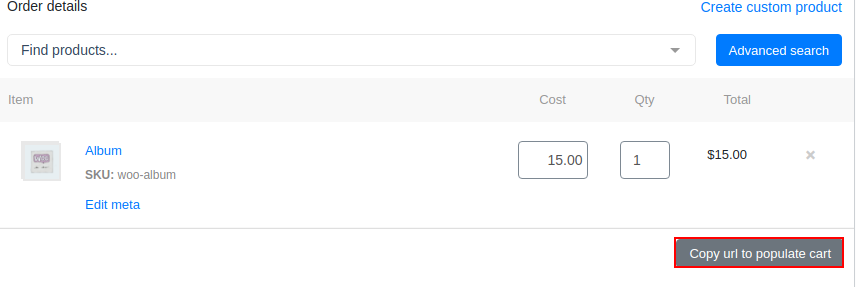
Show button “Copy url to populate cart”. This parameter allows you to create a link to a shopping cart with products added to it on the frontend. When this setting is enabled, the “Copy url to populate cart” button appears on the “Add order” tab in the “Order details” section
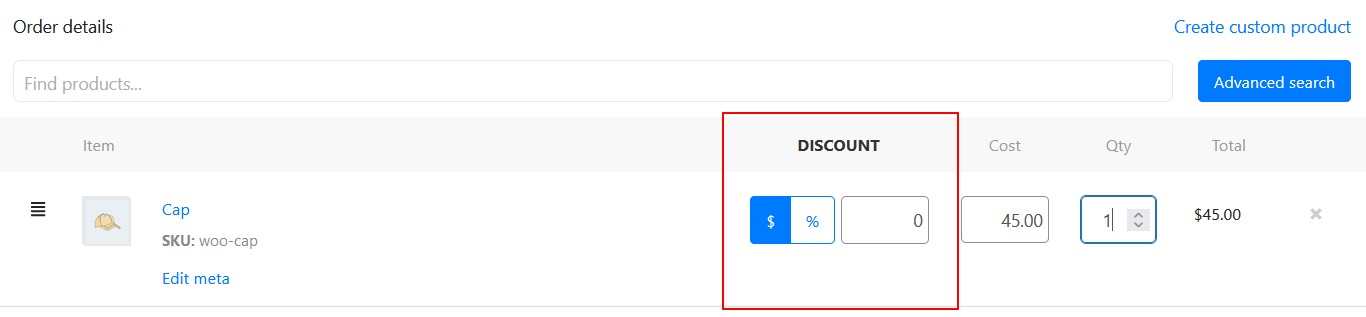
Show column “Discount”. Enable this option for showing the Discount column.
Show discount amount in the order. Tick this option if you need to show the discount amount in the order.
Product Customization
Allow to rename cart items. Tick this option to have an opportunity to rename products in the order. There will be appeared an edit sigh near the product’s name, click it to rename: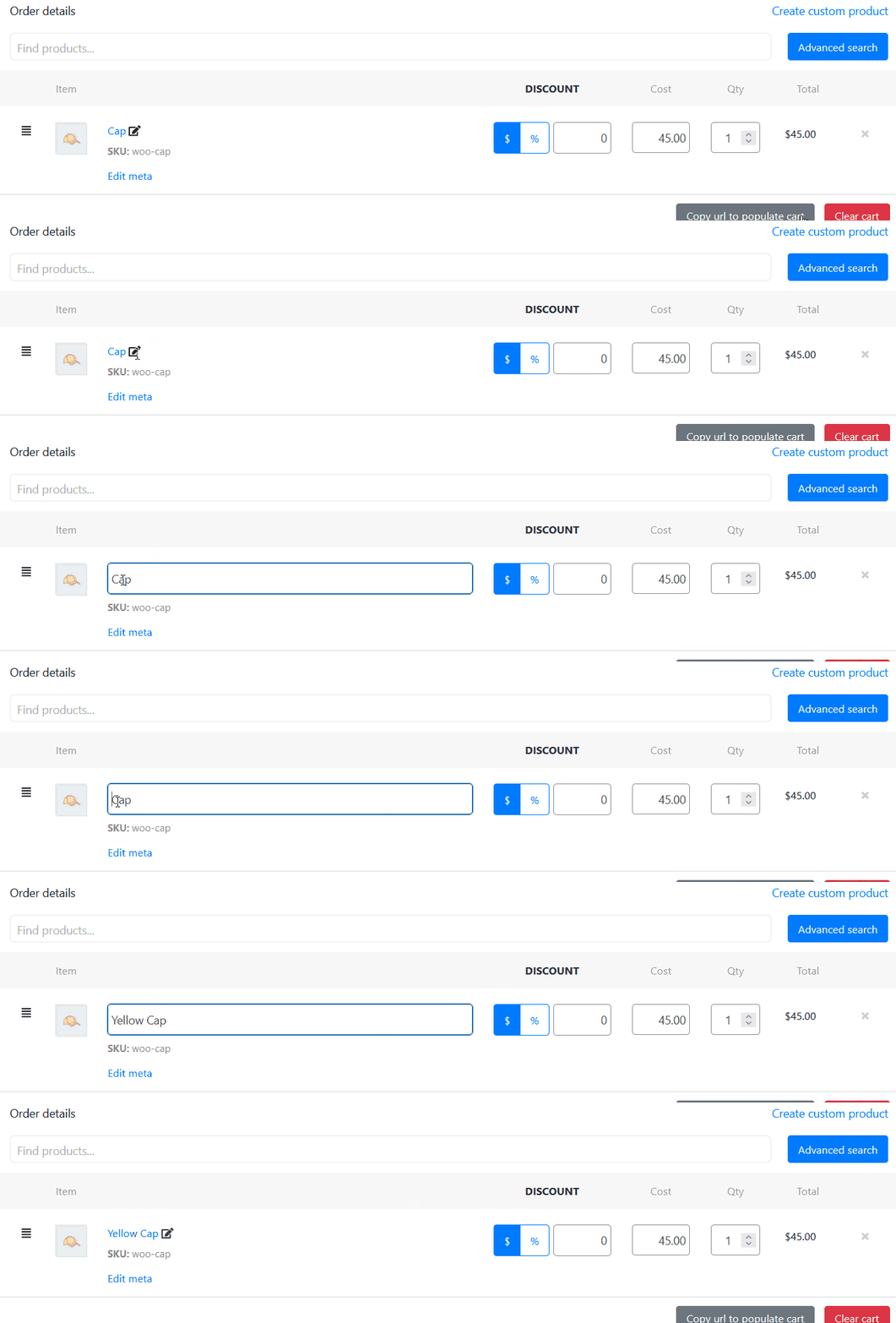
Show product description. Tick this option to show a product description limited by the inputted sign quantity.
Default Products
Add products by default. Choose the products that would be added to the phone order by default. It would be so helpful for the cases, when with every phone orders you have to add a product, e.g., napkins for every business lunch. Just start to enter product name in the field and select the existing one.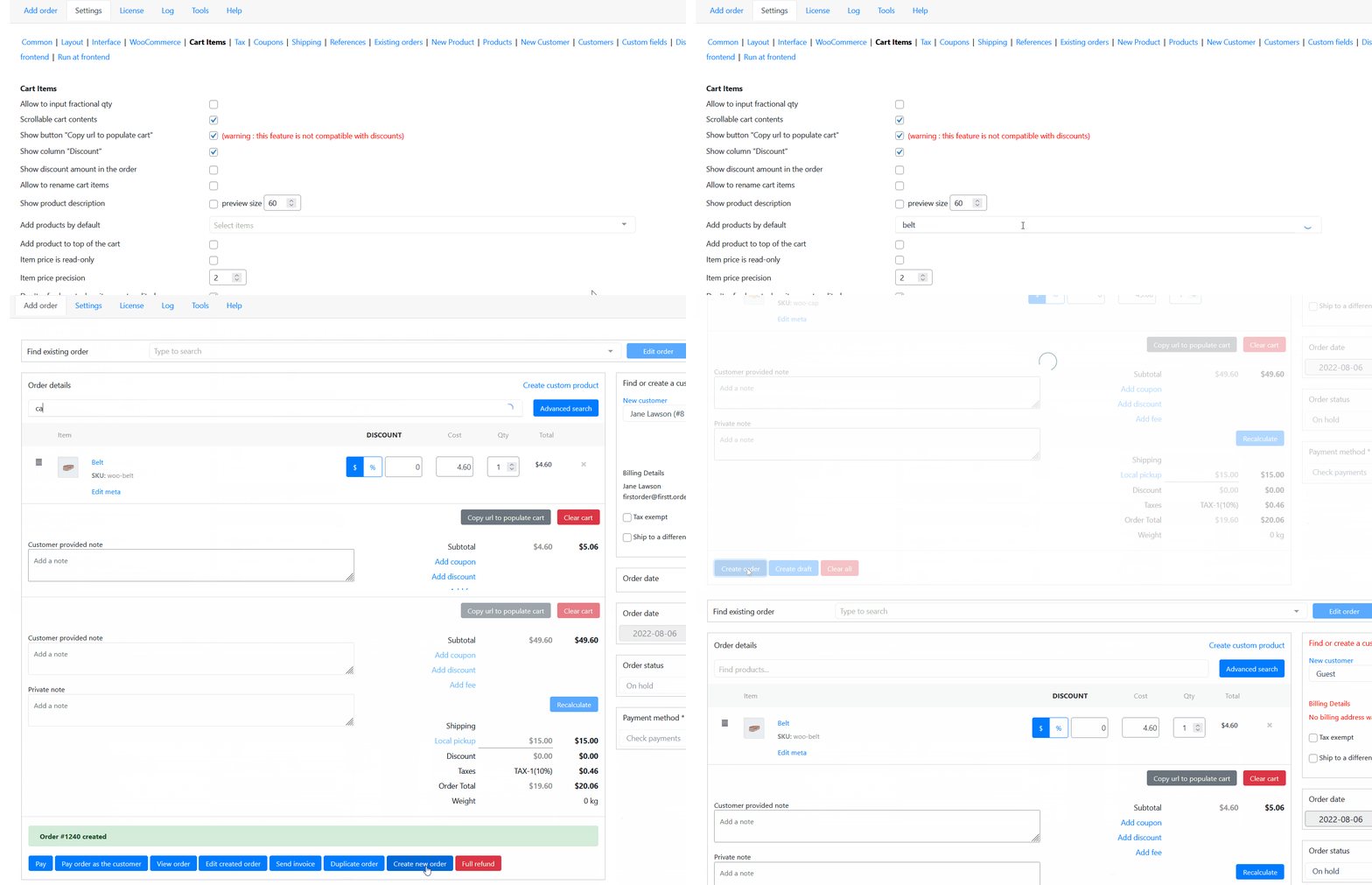
Cart Behavior
Add product to top of the cart. Tick this option if you need to add every new product at the top of the cart instead of its adding to the bottom of the cart.
Item price is read-only. Tick this option to restrict the product’s price changing.
Item price precision. Input the amount of the decimals you want to limit the price.
Meta & Refresh Settings
Don’t refresh cart when item meta edited. Turn off this option to prevent the page refreshing after every edition of the products’ meta.
Disable edit meta. Tick this option to hide the “Edit meta” link and restrict to edit it.
Hide item meta. Tick this option to hide item meta information below the product name.
Click Action
Click on title – action, in cart. Choose what to do after clicking on the product’s name: go to edit product page or view a product.
Additional Column
Show additional product column. Add custom product columns. Read more how to use this option.
Phone Orders for WooCommerce cart settings adapt to your business. Test each setting. See what works for your team. Adjust over time. The perfect setup evolves with your needs.