How to operate with the products and add an additional discount
Once you’ve added products to an order in Phone Orders for WooCommerce, the order screen gives you full control over pricing, quantities, discounts, shipping, and fees — all before the order saves. This article walks through every action available in the Products area and the Calculation area, so you know exactly where to find each tool and how to use it.
Products Area
The Products area is the main cart table where every added product appears as a line item. Each row gives the agent direct control over that specific product without affecting the rest of the order.
Adding a per-item discount
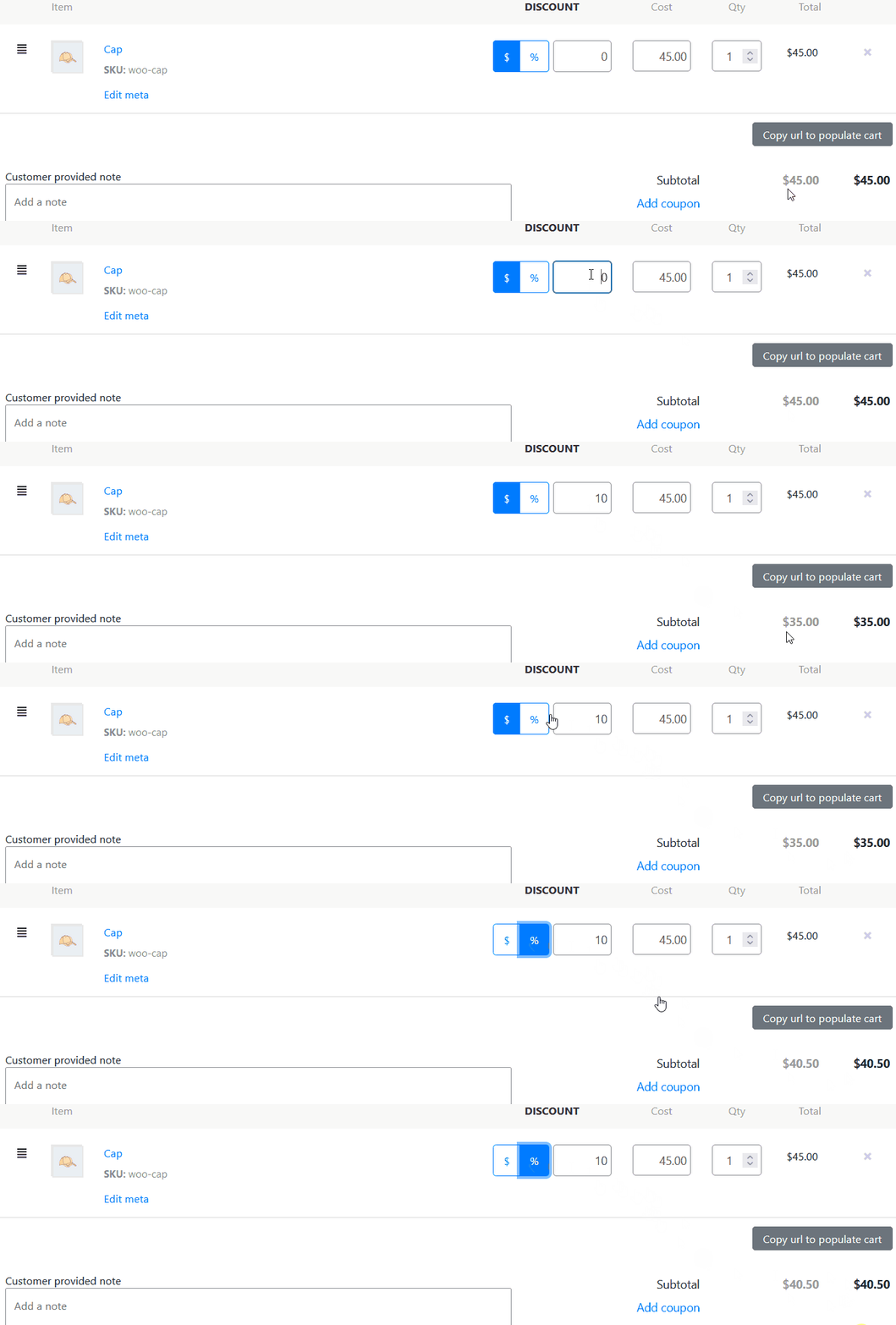
Every line item has its own discount control. Click the discount field on the product row, choose between a fixed amount or a percentage, enter the value, and Phone Orders applies the reduction to that item’s price immediately. Per-item discounts stack on top of any pricing rules from Advanced Dynamic Pricing or other pricing plugins that already applied when the product was added.

Deleting a product
Click the remove icon on any line item to delete it from the order. The totals recalculate instantly. You don’t need to recalculate manually after a deletion.

Editing meta
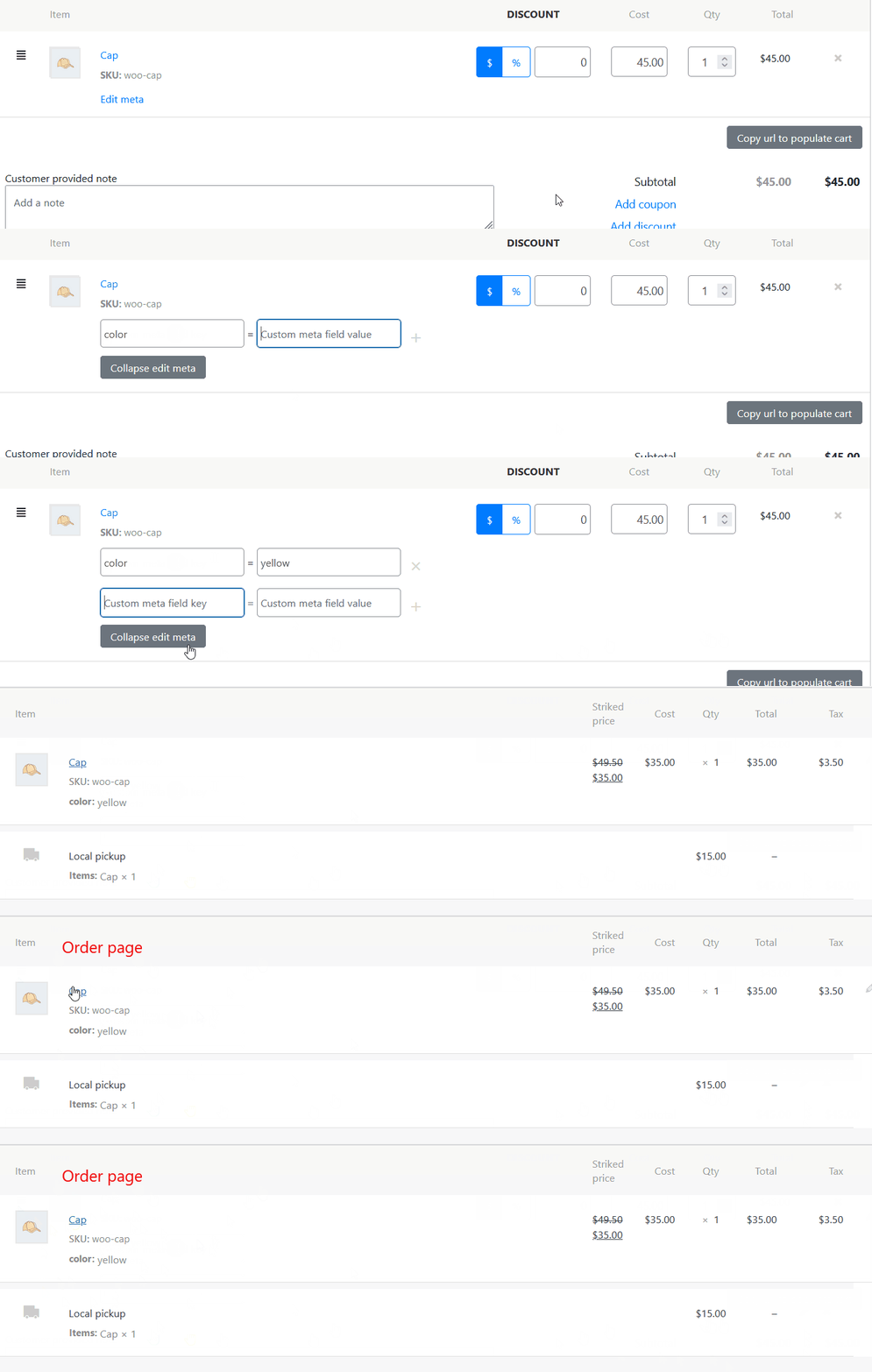
Click the meta edit control on a line item to open the product’s meta fields — for example custom product options, variation attributes, or data from product addon plugins. Edit the values directly and save. This is useful when an agent needs to correct a custom field value after the product was added, without removing and re-adding the item.
Copy URL to populate cart
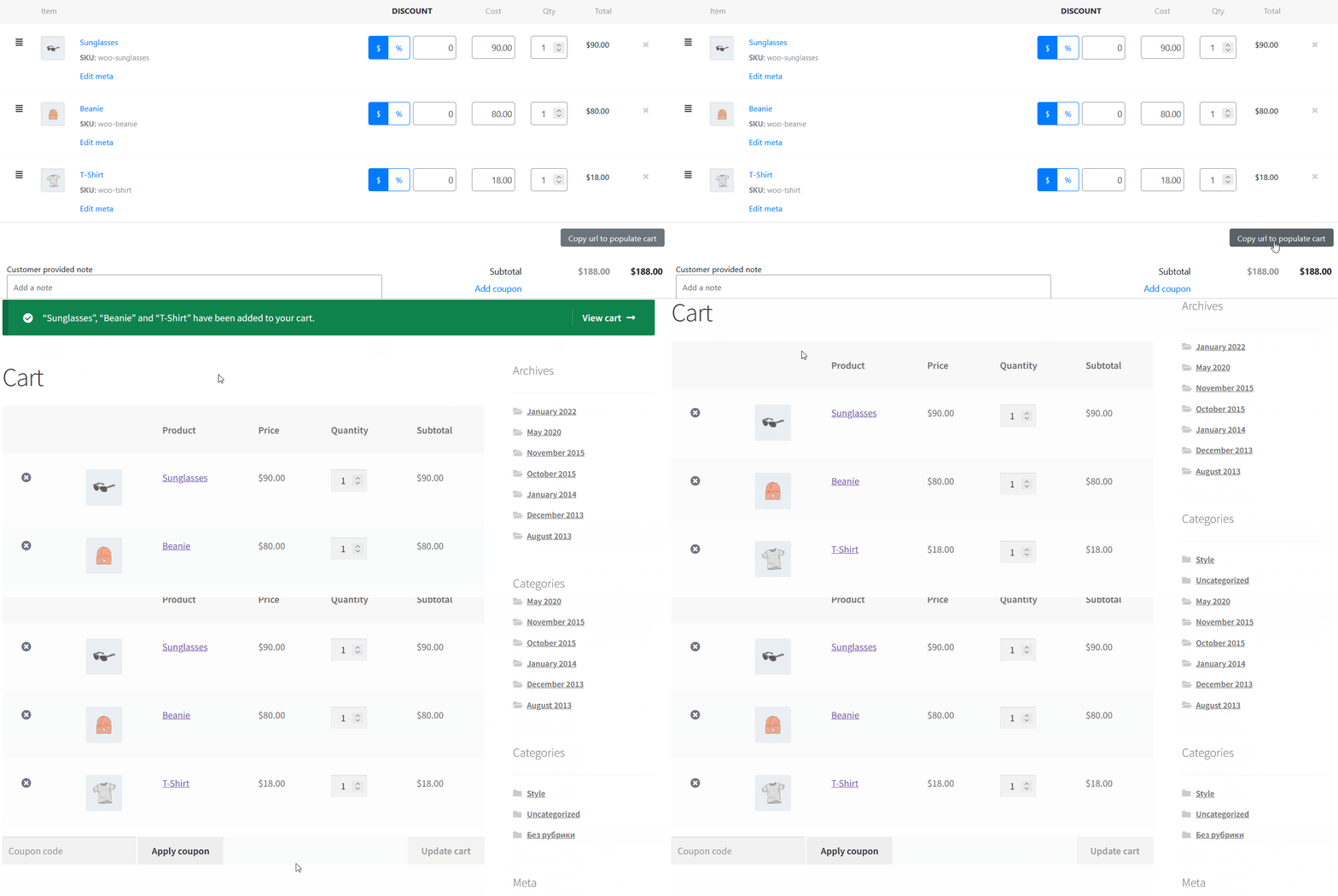
Each line item exposes a URL that, when visited by the customer in a browser, populates their WooCommerce cart with that product at the current quantity. Agents can copy this URL and share it with customers over chat, email, or SMS — useful when running a hybrid phone-plus-digital order flow where the customer needs to complete payment themselves through the storefront.

Calculation Area
The Calculation area sits below the product list and handles order-level adjustments — coupons, discounts, shipping, fees, and notes.
Adding a coupon
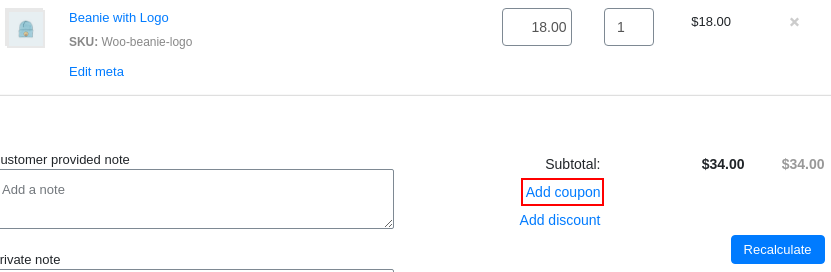
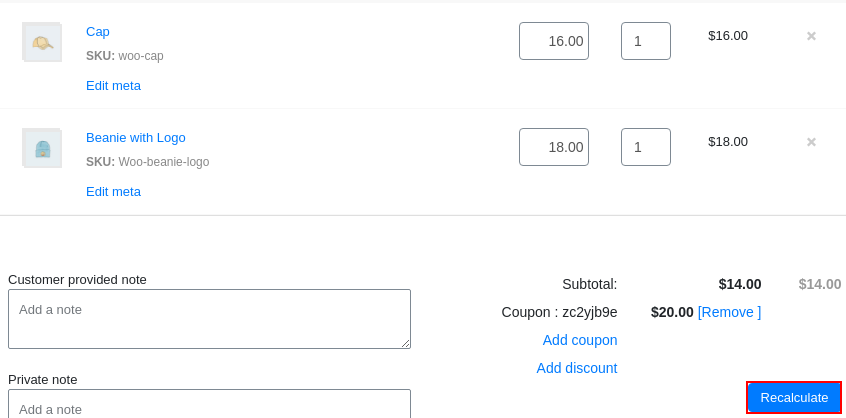
Click Add coupon to open the coupon search popup. Type the coupon code into the search field and click Apply to attach it to the order. After adding a coupon, click Recalculate to update the order totals. Phone Orders supports all standard WooCommerce coupon types — percentage, fixed cart, and fixed product.

Adding an order-level discount
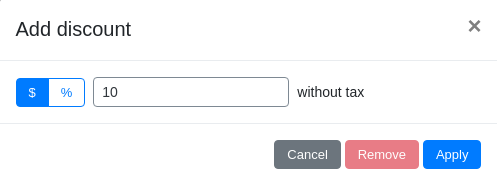
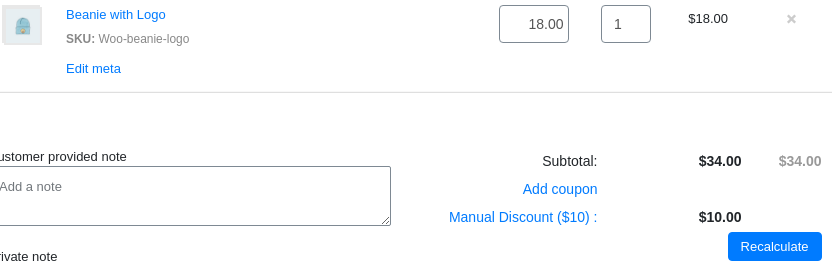
Click Add discount to open the discount popup. Choose the discount type — percentage or fixed monetary amount — enter the value, and click Apply. This applies a discount to the entire order total rather than a single line item. Click Recalculate after applying to update all totals.
Tip: Use per-item discounts (in the Products area) when you want to reduce the price of specific products. Use the order-level discount (here) when you want to reduce the total regardless of which products are in the cart — for example a loyalty discount or a bulk order incentive.

Changing the shipping method
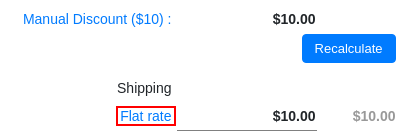
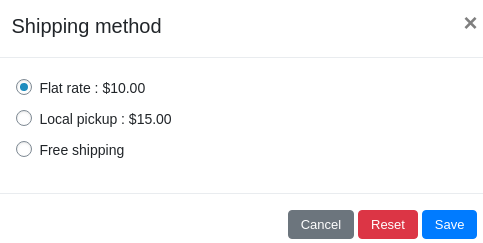
Click on the currently selected shipping method in the Calculation area to open the shipping popup. Select a different method from the list and click Save. Phone Orders recalculates the shipping cost and updates the order total automatically.
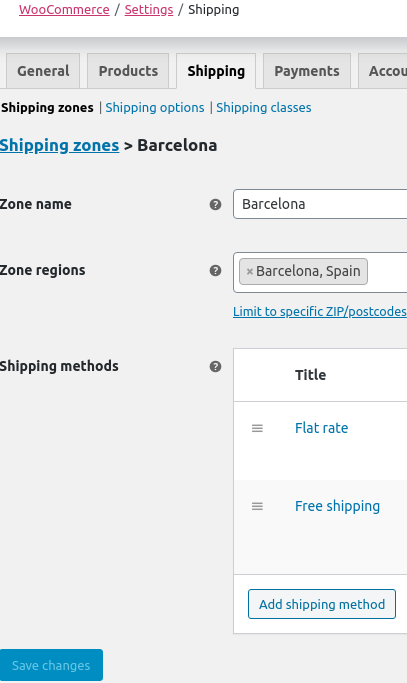
To add new shipping methods or shipping zones, go to WooCommerce → Settings → Shipping in your WordPress admin. New methods appear in the Phone Orders shipping selector immediately after saving.
You can also edit the shipping cost directly in the order. → Learn how to change delivery cost directly in the order
Adding a fee
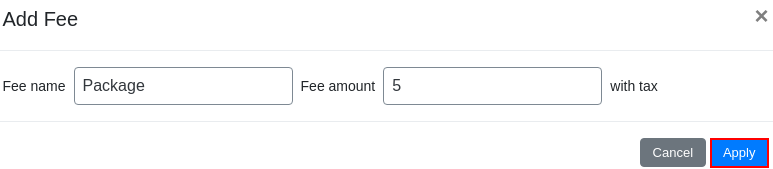
Click Add fee to open the fee popup. Enter a name for the fee (e.g. “Handling charge”, “Rush processing”) and the fee amount, then click Apply. The fee appears as a separate line item in the Calculation area and adds to the order total. This suits one-off charges that don’t belong to a specific product and aren’t configured as WooCommerce shipping methods.


Adding order notes
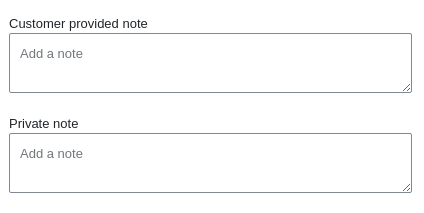
Two note fields sit in the Calculation area:
Customer provided note — visible to the customer in their order confirmation email and order history. Use this for delivery instructions, special requests, or anything the customer communicated during the call that they need to see on their order.
Private note — visible only to your store staff in the WooCommerce admin order screen. Use this for internal context — why a discount was applied, which agent took the call, or any follow-up actions needed.
Clearing the cart
The Clear cart button at the bottom of the Order Details block removes all products from the current order in a single click. Use it when you need to start the product list fresh without losing the selected customer, shipping address, or other order details already filled in.
Recalculate
After applying a coupon or an order-level discount, always click the Recalculate button to update all totals. Phone Orders doesn’t recalculate automatically after these two actions — this gives agents a moment to review what they’ve entered before committing the updated totals to the order display. Price and quantity edits, fee additions, and shipping method changes recalculate immediately without needing to press Recalculate.