The Phone Orders for WooCommerce plugin streamlines the process of taking manual orders over the phone. But the workflow doesn’t end when you click Create order. After an order is finalised, a powerful toolbar appears, offering quick access to essential actions: viewing the order, sending invoices, duplicating orders, processing refunds, and much more. This guide provides a complete reference to every toolbar button, explains the difference between free and Pro version features, and shows how to customise the toolbar layout to match your store’s workflow.
Accessing the Toolbar After Order Creation
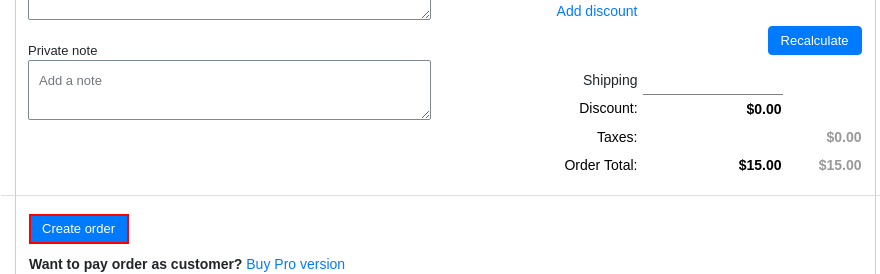
After filling in all required order details and clicking the Create order button, the plugin displays a set of action buttons above or below the order summary. This is the order toolbar.
A common Phone Orders View Orders task is locating this toolbar. It appears immediately after order creation, before the page is refreshed or the order is edited. If the page is reloaded, the toolbar is no longer shown; to access these actions again, navigate to the standard WooCommerce → Orders list.
Toolbar Buttons in the Free Version
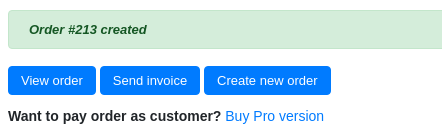
The free version of Phone Orders for WooCommerce includes a focused set of essential post‑order actions. The original documentation gives an overview of the toolbar: “After you have entered all the order details, you need to click the ‘Create order’ button. Now you can view the order (click ‘View order’ button), send an invoice to the customer’s email address (click ‘Send invoice’ button), or create a new order (click ‘Create new order’ button)”. These core actions are available to all users.
Here is a detailed breakdown of each button:
Button
Description
Free
Pro
View order
Opens the standard WooCommerce order admin page for the newly created order, allowing full review and management.
✓
✓
Send invoice
Emails a PDF invoice to the customer using WooCommerce’s native email system.
✓
✓
Create new order
Clears the current order form and starts a fresh order, resetting the cart, customer details, and all fields.
✓
✓
Create draft
Saves the current order as a draft (pending payment/failed status) without finalising it. Agents can return later to complete the draft.
✓
✓
Clear all
Resets the entire order form (cart, customer fields, notes) to a blank state for a completely new order.
✓
✓
Checkout link
Generates a secure checkout URL for the customer, allowing them to complete payment on their own device.
✗
✓
Edit created order
Re‑opens the order in the phone order interface for immediate corrections (quantities, prices, addresses, etc.).
✗
✓
Pay order as the customer
Opens a secure payment page where the agent can process the payment on behalf of the customer.
✗
✓
View invoice
Immediately displays the order invoice in the browser for printing or download.
✗
✓
Duplicate order
Creates a copy of the order (with the same products, quantities, addresses) for repeat customers. Must be enabled in Settings → Layout.
✗
✓
Full refund
Issues a complete refund of the order amount through the original payment gateway. Requires Pro version.
✗
✓
Free Version Note: The free version provides the essential actions needed for most phone order workflows. It allows agents to review the order, send invoices, start a new order, and save drafts, which is sufficient for many small businesses.
Enabling and Disabling Toolbar Buttons (Pro Feature)
The Pro version gives store administrators full control over which toolbar buttons are displayed. This is especially useful for:
Simplifying the interface for junior agents – hiding advanced buttons like “Full refund” or “Pay order as customer” reduces confusion.
Tailoring the workflow for different departments – a sales team might need “Duplicate order” while the accounts team needs “Pay order as the customer”.
Reducing visual clutter – only the buttons that are actually used are visible.
How to enable or disable toolbar buttons:
Navigate to WooCommerce → Phone Order → Settings.
Click on the Layout tab.
Scroll to the Toolbar Buttons section.
Tick the checkboxes next to the buttons you want to display.
Click Save settings.
The documentation confirms: “You can enable or disable the output of toolbar buttons on the ‘Settings’ tab”. By default, all buttons enabled in your version may be shown; you can toggle them on or off as needed.
Detailed Guide to Each Toolbar Button
View Order
Function: Opens the standard WooCommerce order admin page for the newly created order.
When to use it:
To review the full order details after creation.
To change the order status manually.
To add tracking information or internal notes.
To print the order or packing slip.
Limitations: None. This is a standard WooCommerce feature.
Send Invoice
Function: Emails a professionally formatted PDF invoice to the customer’s email address using WooCommerce’s native email system. The invoice reflects the order total, items, shipping, and taxes exactly as entered.
When to use it:
After a phone order is taken and payment is pending.
When a customer requests an invoice for their records.
For business‑to‑business (B2B) orders where invoicing is standard.
Note: The invoice is generated from the order data. If the order has not yet been paid, the invoice will show the outstanding balance.
Create New Order
Function: Clears the entire current order form – cart, customer details, notes, fees, and all other fields – and starts a fresh order.
When to use it:
Immediately after finishing a call when the next call is waiting.
When a customer cancels an order mid‑call and a new order must be created.
To reset the interface after a test order.
Effect: All unsaved data is lost. Ensure the current order has been saved or finalised before clicking this button.
Create Draft
Function: Saves the current order as a draft without finalising it. The order receives a status of pending payment, failed, or another configurable draft status.
When to use it:
The customer needs to confirm payment or shipping details later.
The agent is interrupted mid‑call and must resume later.
The order requires manager approval before fulfilment.
Where to find drafts: Draft orders appear in WooCommerce → Orders with the status Pending payment (or the custom draft status). Agents can later edit and complete them from the Phone Orders interface using the Find Existing Order feature (Pro).
Checkout Link (Pro)
Function: Generates a unique, secure URL that allows the customer to complete the checkout process on their own device. The link includes all cart items, customer details, and applied discounts.
When to use it:
The customer prefers to enter payment information themselves.
The customer wants to review the full cart before paying.
The store uses dynamic pricing or coupon codes that require frontend interaction.
How it works: The agent copies the generated link and sends it to the customer via email, SMS, or instant message. The customer opens the link, sees the pre‑filled cart, and completes the checkout.
Security note: Each link is unique and expires after a configurable period. Do not share the link publicly.
Clear All
Function: Resets the entire order form to a blank slate, similar to Create new order but without creating any order record.
When to use it:
The agent made an error and wants to start over without saving anything.
The customer cancelled the order completely.
The interface shows stale data from a previous order.
Warning: This action cannot be undone.
Edit Created Order (Pro)
Function: Re‑opens the order in the Phone Orders interface for immediate correction. The agent can change quantities, prices, addresses, add or remove products, and adjust notes.
When to use it:
The customer realises a mistake immediately after the order is placed.
The agent notices an error before the customer hangs up.
A small correction (e.g., quantity change) is needed without navigating away.
How it differs from editing in WooCommerce: The phone order interface is designed for speed and efficiency, making it faster to edit phone orders than the standard order edit screen.
Pay Order as the Customer (Pro)
Function: Opens a secure payment page where the agent can process the customer’s payment on their behalf. The agent enters the customer’s payment details (credit card, bank transfer, etc.) into the store’s secure payment gateway.
When to use it:
The customer is unable or unwilling to pay online themselves.
The store has a policy of collecting payment over the phone.
The customer’s payment method requires manual entry (e.g., cheque, cash).
Security best practices:
Always follow PCI compliance guidelines when handling payment information over the phone.
Use a secure, encrypted connection for the payment page.
Never write down or store customer payment details.
View Invoice (Pro)
Function: Immediately displays the order invoice in the browser, ready for printing, saving as PDF, or downloading.
When to use it:
The customer requests a copy of the invoice before paying.
The agent needs to verify the invoice details before sending.
The invoice is required for internal records.
Difference from Send Invoice:Send invoice emails the invoice. View invoice displays it instantly in the browser.
Duplicate Order (Pro)
Function: Creates a copy of the order with the same products, quantities, prices, discounts, shipping, fees, and customer address. The duplicated order opens in the Phone Orders interface as a new order, ready for modifications.
When to use it:
A regular customer calls to place the same order again.
The order is a standard weekly or monthly subscription.
The agent needs to create a similar order for a different customer.
How to enable: Go to Settings → Layout and tick Show “Duplicate Order” button after creation. After activation, the button appears in the toolbar after every order creation.
Pro tip: After duplication, change the quantity, add or remove products, or adjust the shipping address as needed for the new customer.
Full Refund (Pro)
Function: Issues a full refund of the order amount through the original payment gateway. Works with all major WooCommerce payment gateways (Stripe, PayPal, Braintree, etc.).
When to use it:
The customer cancels the order after payment was taken.
The order was placed in error.
A full return is processed.
Refund workflow: The plugin communicates with the payment gateway to reverse the transaction. The refunded amount is returned to the customer’s original payment method.
Important note: Some gateways may charge a fee for refunds. Check with your payment processor.
Enabling and Disabling Toolbar Buttons (Pro Feature)
The Pro version allows you to customise which toolbar buttons appear after order creation. This is managed in Settings:
Go to WooCommerce → Phone Order → Settings.
Click on the Layout tab.
Scroll down to the Toolbar Buttons section.
Tick the checkboxes for the buttons you want to display.
Click Save settings.
The documentation states: “You can enable or disable the output of toolbar buttons on the ‘Settings’ tab”. This is a Pro‑exclusive feature; the free version shows a fixed set of buttons.
Free vs Pro Toolbar Features
Button / Feature
Free Version
Pro Version
Create order
✓
✓
View order
✓
✓
Send invoice
✓
✓
Create new order
✓
✓
Create draft
✓
✓
Clear all
✓
✓
Checkout link
✗
✓
Edit created order
✗
✓
Pay order as the customer
✗
✓
View invoice
✗
✓
Duplicate order
✗
✓ (must be enabled in Settings → Layout)
Full refund
✗
✓
Customise toolbar layout (show/hide buttons)
✗
✓
Pro Tip: The Pro version’s advanced toolbar buttons significantly speed up workflows for businesses handling many repeat orders or requiring immediate payment processing.
Managing Draft Orders (Pro Feature)
The Create draft button (available in both free and Pro versions) saves an incomplete order for later completion. In the Pro version, draft orders gain additional management capabilities:
Resume a draft: Use the Find Existing Order feature (the search bar at the top of the Phone Orders interface) to locate a draft order by customer name, email, or order ID. The order loads with all cart items, customer details, and notes intact.
Edit a draft: After loading a draft order, any field can be changed: add or remove products, update quantities, override prices, change shipping address, or modify notes.
Complete a draft: Click Create order to finalise the draft, sending the order to WooCommerce with a status of Pending payment, Processing, or Completed (depending on configuration).
When draft management is useful:
Calls that require manager approval before fulfillment.
Orders with complex customisation that need to be reviewed before finalisation.
Situations where the customer promises to call back with payment information.
Have questions?
Please submit a support request. We're always happy to help!