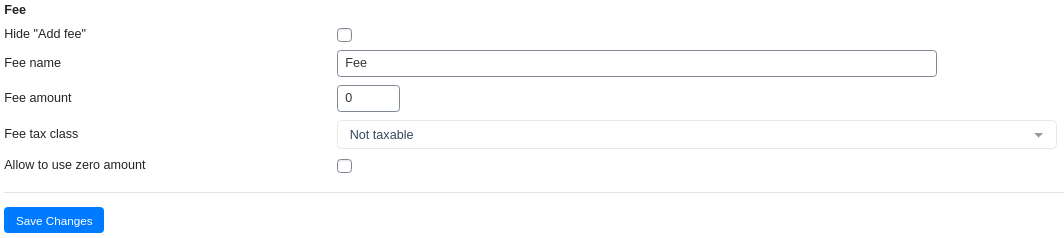
The Fee settings tab in the Phone Orders for WooCommerce (Pro) plugin gives you precise control over how extra charges are added to manual orders. It goes far beyond a simple “Add Fee” button in the cart, allowing you to pre-configure default values for fee names, amounts, and tax classes, and even to hide the fee option entirely if your business model doesn’t require it.
This guide provides a complete walkthrough of every setting found on the Fee tab, explains what each option does, and shows you how to integrate extra fees into your phone order workflow effectively.
Hide “Add fee” Option
What it does: Removes the Add fee button completely from the phone order cart interface.
Why it matters: Some stores do not need to add extra fees to manual orders. Hiding the button prevents confusion, keeps the interface clean, and ensures that agents do not accidentally add charges.
When to use it:
Enable this checkbox if your business never charges additional fees (handling, gift wrap, etc.) for phone orders.
Disable it (leave unchecked) if agents regularly add fees and the button should be visible.
Best practice: If you are unsure whether you will need fees, leave the button visible. You can always hide it later if it proves unnecessary.
Fee Name
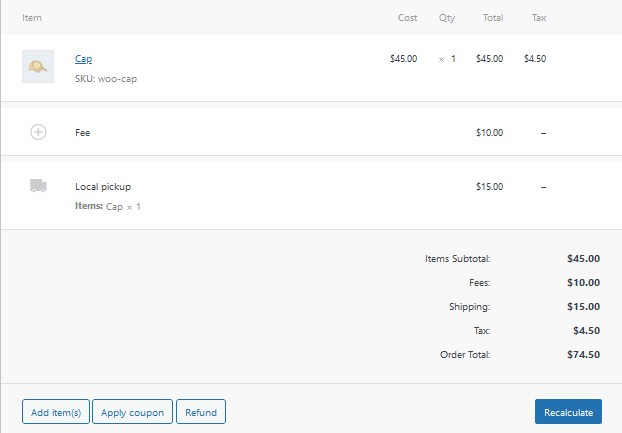
What it does: Sets a default name that appears in the order when an agent adds a fee. This name is stored as a line item in the order and appears on invoices and in order reports.
Why it matters: Without a default name, the agent would have to type a descriptive name every time they add a fee, slowing down order entry. Providing a default speeds up the process while still allowing the agent to customise the name when needed (by editing the fee line item directly).
How to use it:
Enter any descriptive text you prefer into the field.
Default value: If you leave this field empty, the fee line item may appear without a name or with a generic label.
Best practice: Choose a name that clearly communicates the purpose of the fee to both your agents and your customers, as it will appear on invoices.
Fee Amount
What it does: Sets a default numeric value that is automatically pre‑filled when an agent clicks the Add fee button.
Why it matters: If your store charges a standard fee amount (e.g., a flat $5 handling fee on every order), pre‑setting the amount eliminates the need for the agent to type it each time.
How to use it:
Enter a numeric value into the field. Use a decimal point for cents (e.g., 5.00 for five dollars).
The value can be overridden by the agent in the Add fee pop‑up window.
When to set a default amount:
Set a default amount if you consistently charge the same fee (e.g., a flat handling fee).
Leave the field empty (or set to 0) if fees vary significantly from order to order and agents will always need to enter a custom amount.
Note: The default amount applies only when the agent uses the Add fee button. It does not automatically add a fee to every order. The agent must still click the button and confirm the fee.
Fee Tax Class
What it does: Defines how taxes are applied to the fee. You can select one of the tax classes that exist in your WooCommerce store.
Why it matters: Depending on your jurisdiction, certain fees may be taxable or tax‑exempt. For example, a handling fee may be subject to sales tax, while a gift wrapping charge might not be. Selecting the correct tax class ensures that taxes are calculated accurately on the fee and that your store remains compliant with tax regulations.
What tax classes are available:
Not taxable: The fee will not have any tax applied, regardless of the customer’s tax status.
Standard rate: The fee will be taxed at the standard tax rate configured for the customer’s location.
Reduced rate: The fee will be taxed at a reduced rate (e.g., for essential goods or services in some jurisdictions).
Zero rate: The fee will be taxed at 0% (often used for exports or certain exempt categories).
Custom classes: If you have created additional custom tax classes in WooCommerce (e.g., “Luxury goods”, “Essential items”), they will also appear in the dropdown.
How to configure it:
From the dropdown menu, select the tax class that applies to your most common fee.
If you do not want the fee to be taxable at all, select Not taxable.
If you are unsure about the taxability of a fee, consult your local tax authority or a tax professional.
Important: This setting applies globally as the default tax class for fees. When an agent adds a fee, the tax class will be set according to this selection, but the agent can change it manually if needed (depending on your WooCommerce configuration).
Allow to Use Zero Amount
What it does: Enables the ability to add a fee with an amount of 0 (zero). When disabled, the plugin may prevent adding a fee with a zero value.
Why it matters: There are legitimate scenarios where a zero‑amount fee is useful. For example:
Charity or promotional fees: A store may add a “Donation” fee line item with a zero amount to track intent without charging the customer.
Internal notes: Adding a zero‑amount fee line can serve as a placeholder for internal tracking or future adjustments.
Conditional fee logic: Some advanced workflows may involve adding a fee that is later modified by other plugins.
When to enable it:
Enable this checkbox if your business has a legitimate use case for zero‑amount fees.
Leave it disabled (unchecked) if you want to ensure that every fee added to an order has a positive amount.
Best practice: For most stores, this setting should remain disabled. Enable it only if you have a specific reason to add zero‑amount fee line items.
Summary of Fee Settings
Setting
Purpose
When to Enable / Adjust
Hide “Add fee” option
Removes the Add fee button from the phone order cart entirely.
Enable if your store never charges extra fees. Disable if agents regularly add fees.
Fee name
Sets the default name that appears in the order when a fee is added.
Always set a meaningful default (e.g., “Handling Fee”). This saves agents time.
Fee amount
Sets the default numeric value that is pre‑filled when the Add fee pop‑up opens.
Set a default amount if you consistently charge the same fee. Leave empty or 0 if fees vary.
Fee tax class
Defines how taxes are applied to the fee (Not taxable, Standard rate, Reduced rate, Zero rate, or custom classes).
Select the appropriate tax class based on your local tax regulations. Use Not taxable if unsure.
Allow to use zero amount
Enables adding a fee with a zero amount.
Enable only if you have a legitimate use case for zero‑amount fees (e.g., charity donations).
Have questions?
Please submit a support request. We're always happy to help!