Tools, Log and License
The Phone Orders for WooCommerce plugin includes three essential utility tabs that are often overlooked but are critical for troubleshooting, auditing, and licence management. The Tools, Logand License tabs give you the means to generate support reports, track all actions performed by your phone agents, and manage your Pro licence activation. This guide explains each of these three areas in detail, showing you how to use them effectively to keep your phone order system running smoothly.
Tools
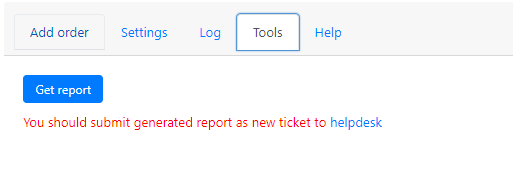
The Tools tab is designed specifically for support and troubleshooting. When you encounter unexpected behaviour with the Phone Orders for WooCommerce plugin, the first step in getting help is to create a report on the Tools tab. This report contains technical information about your site, plugin versions, and recent activities that helps the support team diagnose the issue quickly.
What the Tools tab provides:
The Tools tab generates a structured report that includes:
- Your WordPress version and active theme.
- Installed plugin versions, including Phone Orders for WooCommerce.
- Server environment details (PHP version, memory limits).
- Recent plugin errors or warnings.
How to use the Tools tab for support:
- Navigate to WooCommerce → Phone Orders → Settings → Tools.
- Click the button labelled Create report or similar (the exact label may vary depending on your plugin version).
- Wait a few moments while the plugin gathers the necessary data.
- Copy the generated report text or save it as a file.
- Open a new support ticket via the helpdesk and paste the report into your message.
When to use the Tools tab:
- Before contacting support – Always generate a report and attach it to your ticket. This gives the support team immediate insight into your configuration.
- After updating the plugin – If an update causes unexpected behaviour, create a report to compare the new environment with the previous one.
- When migrating your site – Generate a report before and after migration to verify that the plugin settings and environment are correctly transferred.
Best practice: When submitting a support request, always include the generated report. This is the single most helpful piece of information you can provide and will significantly speed up the resolution of your issue
Log
The Log tab contains a complete record of all user actions performed within the Phone Orders for WooCommerce interface. This log is invaluable for auditing, training, and troubleshooting.
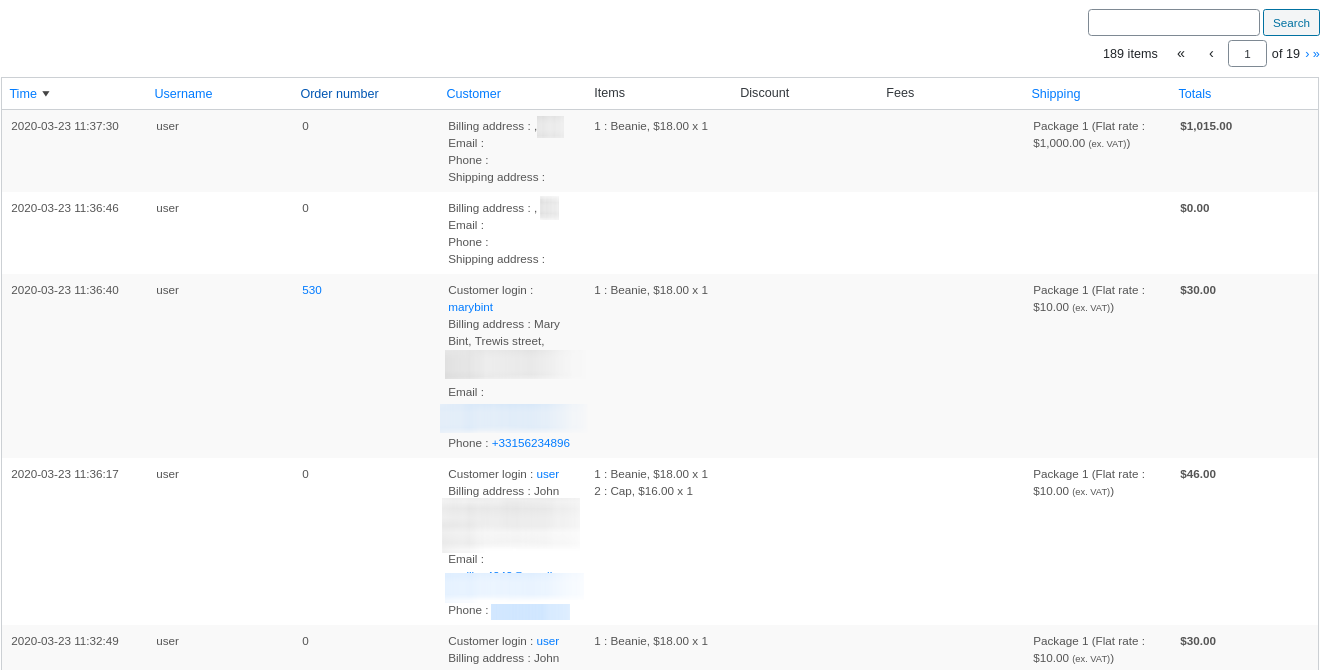
What the Log tab records:
The log captures each significant action taken by a phone agent, including:
- Customer searches (successful and unsuccessful).
- Products added to or removed from an order.
- Coupons applied or removed.
- Shipping methods selected or modified.
- Fees added or removed.
- Order creation, editing, or deletion.
- Price overrides and manual adjustments.
How to access and use the log:
- Navigate to WooCommerce → Phone Orders → Settings → Log.
- The log is displayed as a table or list, with each entry showing:
- Timestamp – When the action occurred.
- User – Which administrator or agent performed the action.
- Action type – What was done (e.g., “Added product”, “Applied coupon”).
- Details – Additional context, such as the product name or coupon code.
- Use the built‑in search functionality to filter the log by user, action type, or keyword.
- Adjust the number of days displayed using the Show records for last X days setting on the Interface tab (see below).
Configuring log output:
The amount of log data retained is controlled by a setting on the Interface tab:
- Navigate to WooCommerce → Phone Orders → Settings → Interface.
- Locate the Show records for last X days in log field.
- Enter the number of days you want the plugin to keep (e.g.,
30for one month of history). - Click Save settings.
A reasonable value, such as 30 days, typically provides enough historical data for troubleshooting without excessive database storage.
How to use the log effectively:
- Agent training – Review the log to identify common errors or bottlenecks in your phone order workflow.
- Dispute resolution – If a customer claims they were quoted a different price, check the log to see what was entered by the agent.
- Troubleshooting – When an order does not behave as expected, examine the log for clues about what happened.
- Security auditing – Monitor for unauthorised access or unusual patterns of activity.
License
The License tab is where you activate, deactivate, and manage your Phone Orders for WooCommerce Pro licence. Without an active licence, the Pro features of the plugin are not available, and you will not receive automatic updates.
What the License tab provides:
- A field to enter your Pro licence key.
- An Activate button to unlock Pro features.
- Status indicators showing whether the licence is active, expired, or invalid.
- Links to purchase a new licence or renew an existing one.
How to activate your Pro licence:
- After installing the Pro version of Phone Orders for WooCommerce, navigate to WooCommerce → Phone Orders → Settings → License.
- Locate the licence key in the purchase confirmation email you received after buying the plugin.
- Enter the key into the License key field.
- Click the Activate button.
- A success message appears, and the licence status changes to Active.
Important notes about licence management:
Renewals – To renew your licence, log into your account on the Algol Plus website, locate the View Licenses page, and click the Renew License link for the relevant product
One licence per site – The Pro version is licensed per site. One licence key activates one live (production) site.
Staging sites – The licence can be used on a staging site for testing. If you need to move the licence to a new domain, deactivate it on the old site first, then activate it on the new site.
Expired licence – An expired licence stops receiving automatic updates but does not disable Pro features already installed. The plugin continues to function as it did before expiration.
If you have problems installing the Pro version, you can find a solution here.

Troubleshooting licence issues:
| Symptom | Likely Cause | Solution |
|---|---|---|
| Activation fails with “Invalid licence key” | The key was entered incorrectly, or the domain does not match the one used during purchase. | Double‑check the key exactly as it appears in your purchase email, including all hyphens. Ensure the domain is correct. |
| The plugin shows “free” features only | The Pro licence is not activated, or the activation has been lost. | Go to the License tab and reactivate your key. If the problem persists, deactivate and reactivate the plugin. |
| “License activation failed” with a connection error | Your server cannot communicate with the Algol Plus licence server. | Check that your server allows outgoing HTTPS connections. Temporary network issues may also cause this; wait a few minutes and try again. |
| The licence was active but now shows as “invalid” | The licence may have expired, or your site URL has changed. | Check your licence expiry date. If you changed your domain, deactivate the licence on the old site and reactivate it on the new one. |