Shipping
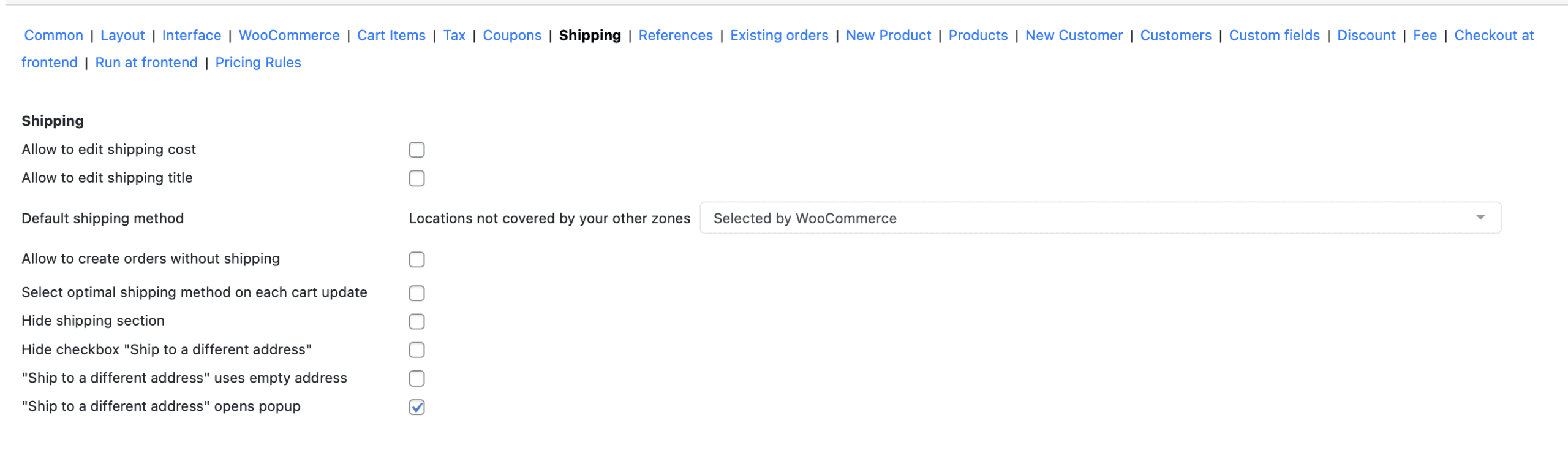
The Shipping settings tab in the Phone Orders for WooCommerce (Pro) plugin gives you full control over how shipping costs, methods, and addresses are handled during manual order creation. For phone agents, the ability to adjust shipping details quickly – without navigating away from the order screen – is essential for providing accurate quotes and completing orders efficiently.
This guide covers every option found on the Shipping tab, explains what each setting does, and provides practical recommendations for configuring the perfect shipping workflow for your phone order team.
Note: The Shipping settings tab and all features described in this guide are available only in the Pro version of Phone Orders for WooCommerce.
Before diving into the individual settings, it is helpful to understand how shipping works within the Phone Orders interface.
When an agent creates a manual order, the customer’s shipping address determines which shipping methods are available. The plugin then presents these methods to the agent, who can select the appropriate one or enter a custom cost. The Shipping settings tab controls how this process behaves – which methods appear, whether the agent can edit costs and titles, and whether shipping is required at all.
Important: The shipping methods displayed in the phone order interface are pulled directly from your WooCommerce shipping zones. If a shipping method does not appear, you must first add it under WooCommerce → Settings → Shipping. A common solution is to add the free shipping method to your shipping zones and then mark the “Show ‘Go to Cart’/‘Go to Checkout’ buttons” option.
Let’s review the options.
Allow to Edit Shipping Cost
What it does: Enables phone agents to manually change the shipping cost for an order directly in the cart.
Why it matters: Standard WooCommerce shipping costs are calculated automatically based on the customer’s address, cart weight, and other factors. However, phone agents often need to override these costs – for example, to offer a discounted shipping rate, to match a customer’s request for express delivery at a different price, or to waive shipping fees entirely as a courtesy. This setting gives agents the flexibility to adjust the cost without leaving the order screen.
When to enable it:
- Enable this checkbox if your business model includes negotiated shipping rates, promotional free shipping, or any scenario where the automatically calculated cost may not be the final charge.
- Disable it (leave unchecked) if shipping costs are strictly determined by WooCommerce rules and agents should never override them.
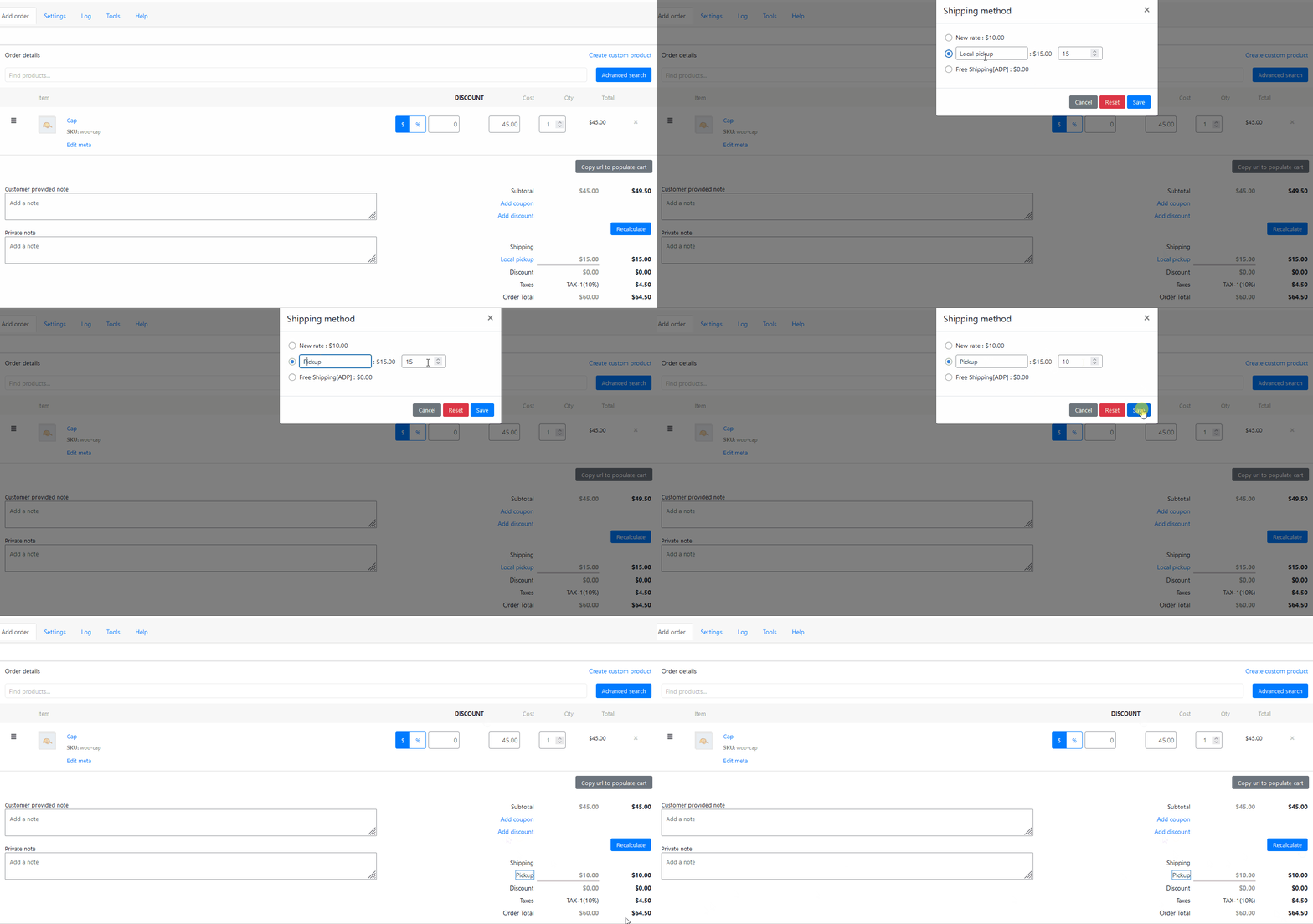
Allow to Edit Shipping Title
What it does: Allows phone agents to modify the name of the shipping method as it appears in the order (e.g., changing “Flat Rate” to “Express Delivery – Customer Request”).
Why it matters: Clear, descriptive shipping titles help customers understand exactly what they are paying for. In some cases, the default method name may be too generic or may not match the specific arrangement made over the phone. Allowing agents to edit the title gives them the ability to provide better transparency and reduce post‑order inquiries.
When to enable it:
- Enable this checkbox if you want agents to customise the shipping method name on a per‑order basis (e.g., “Customer requested overnight shipping”).
- Disable it if you prefer to use the standard WooCommerce method names without modification.
Default Shipping Method
What it does: Allows you to pre‑select a specific shipping method from your existing WooCommerce shipping zones and methods. When an agent creates a new order, this method is selected automatically, saving the agent from having to choose it manually.
Why it matters: If your store uses one primary shipping method for most orders (e.g., “Flat Rate – Standard”), setting it as the default eliminates a repetitive step for agents. Instead of clicking the shipping pop‑up and selecting the method for every order, the agent can simply accept the default and move on.
How to configure it:
- From the dropdown menu, select the desired shipping method. The list includes all methods configured in your WooCommerce → Settings → Shipping zones.
- If you do not see a method, go to WooCommerce → Settings → Shipping, edit the relevant zone, and add the method.
- Click Save settings.
When to use it:
- Set a default method if your store consistently uses one shipping option for the majority of orders.
- Leave it empty or set to a neutral option if shipping methods vary significantly based on customer location or order contents.
Allow to Create Orders Without Shipping
What it does: Controls whether an order can be finalised without any shipping method selected. When this checkbox is enabled (ticked), agents can create orders even if no shipping method has been chosen. When disabled (unticked), the plugin requires a shipping method to be selected before the order can be saved.
Why it matters: Some orders do not require shipping – for example, downloadable products, virtual services, or local pickup orders. In such cases, forcing the agent to select a shipping method adds unnecessary friction. However, for stores that always ship physical goods, requiring a shipping method ensures that no order is accidentally created without a proper shipping charge.
When to use it:
- Enable this checkbox if your store sells virtual or downloadable products, offers local pickup, or has any scenario where shipping is not required.
- Disable it (untick) if every order in your store requires shipping and you want to enforce this rule to prevent errors.
Select Optimal Shipping Method on Each Cart Update
What it does: Automatically chooses the most optimal shipping method for the order after every cart update (e.g., when the agent adds a product, changes a quantity, or updates the shipping address).
Why it matters: When an order contains products with different shipping classes or when the customer’s address changes, certain shipping methods may become invalid or more expensive. Manually re‑evaluating the shipping options would be time‑consuming for the agent. When enabled, this setting automates the process, always ensuring that the best available method is selected based on your WooCommerce shipping configuration.
When to use it:
- Enable this checkbox if your shipping rules are complex (e.g., multiple zones, different rates for different products) and you want to guarantee that the order always reflects the correct shipping cost without agent intervention.
- Disable it (untick) if you prefer to keep the shipping method selection manual and under the agent’s direct control.
Hide Shipping Section
What it does: Completely removes the shipping section from the phone order interface.
Why it matters: Some stores do not ship physical products at all – they sell only services, digital goods, or items that are picked up locally. In these cases, the shipping section is irrelevant and only adds visual clutter. Hiding it creates a cleaner, more focused interface for your agents.
When to use it:
- Enable this checkbox if your store never requires shipping (e.g., only virtual or downloadable products).
- Disable it (untick) if you need to add shipping costs to orders.
Hide Checkbox “Ship to a Different Address”
What it does: Removes the “Ship to a different address” checkbox from the phone order interface.
Why it matters: By default, the checkbox is visible, allowing agents to enter a separate shipping address if the customer wants the order delivered somewhere other than their billing address. However, some business models always ship to the billing address (e.g., digital goods, services, or stores that only ship to the cardholder’s verified address for fraud prevention). Hiding the checkbox prevents confusion and keeps the interface simple.
When to use it:
- Enable this checkbox if you want to restrict orders to the billing address only and never allow a separate shipping address.
- Disable it (untick) if your store regularly ships to different addresses (e.g., gifts, business deliveries) and agents need to use this feature.
“Ship to a Different Address” Uses Empty Address
What it does: When the agent ticks the “Ship to a different address” checkbox, the shipping address fields start empty (blank), rather than being pre‑filled with a copy of the billing address.
Why it matters: By default, WooCommerce copies the billing address into the shipping address fields when the checkbox is selected, assuming that the customer wants to make only minor changes. However, if the customer is shipping to a completely different location (e.g., a gift for a friend), the agent would have to delete the pre‑filled address fields before entering the correct one. Starting with empty fields eliminates this extra step.
When to use it:
- Enable this checkbox if your agents frequently enter shipping addresses that are completely different from the billing address (e.g., gift orders, corporate deliveries).
- Disable it (untick) if most shipping addresses are similar to the billing address and pre‑filling saves time.
“Ship to a Different Address” Opens Popup
What it does: Controls whether clicking the “Ship to a different address” checkbox opens a pop‑up window for entering the shipping address, or whether the shipping address fields appear inline on the same page.
Why it matters: A pop‑up window can focus the agent’s attention on the address entry task, reducing distractions. However, some agents prefer to see all fields on the same page without additional clicks. This setting allows you to choose the behaviour that best suits your team.
When to use it:
- Enable this checkbox to open a dedicated pop‑up window when the agent selects “Ship to a different address”.
- Disable it (untick) to have the shipping address fields appear directly on the main order page.
Summary of Shipping Settings
| Setting | Purpose | Recommended State |
|---|---|---|
| Allow to edit shipping cost | Enables manual cost overrides by agents. | Enable for flexible pricing. |
| Allow to edit shipping title | Enables custom method names per order. | Enable if descriptive titles matter. |
| Default shipping method | Pre‑selects a method for new orders. | Set a primary method if one is used most often. |
| Allow to create orders without shipping | Permits order finalisation without a shipping method. | Enable for virtual/downloadable products; disable for physical goods. |
| Select optimal shipping method on each cart update | Automatically re‑evaluates and selects the best method. | Enable for complex shipping rules. |
| Hide shipping section | Removes the entire shipping block from the interface. | Enable only for stores that never ship physical goods. |
| Hide checkbox “Ship to a different address” | Removes the separate address option. | Enable if you always ship to the billing address. |
| “Ship to a different address” uses empty address | Starts shipping address fields blank instead of copying billing address. | Enable for gift orders or completely different addresses. |
| “Ship to a different address” opens popup | Controls whether address entry occurs in a pop‑up or inline. | Choose based on agent preference. |