Interface
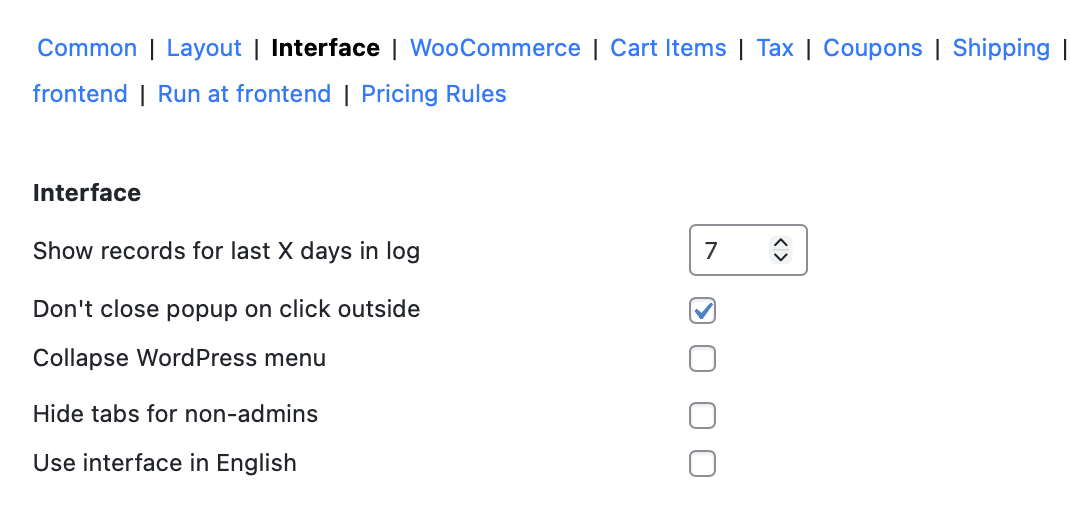
The Interface settings tab in the Phone Orders for WooCommerce (Pro) plugin gives you complete control over how the plugin looks and behaves. While the other settings tabs focus on specific features like coupons, fees, and discounts, the Interface tab manages the overall user experience. You can decide which pop‑up windows should stay open, which administrative menus are visible, and how much log data the plugin retains. This guide walks you through each available option and explains how to adjust them for the most efficient phone order workflow.
Show Records for Last X Days in Log
The Show records for last X days in log setting defines how many days of log entries the plugin should keep. Logs record events that occur within the plugin, such as order creations, errors, and other activities. Storing logs is essential for troubleshooting, but retaining too many days of data can clutter your database and slow down performance. A reasonable value (such as 30 days) usually provides enough historical data for debugging without excessive storage consumption. You can adjust this number up or down depending on your store’s volume and how far back you typically need to look when investigating issues.
Don’t Close Popup on Click Outside
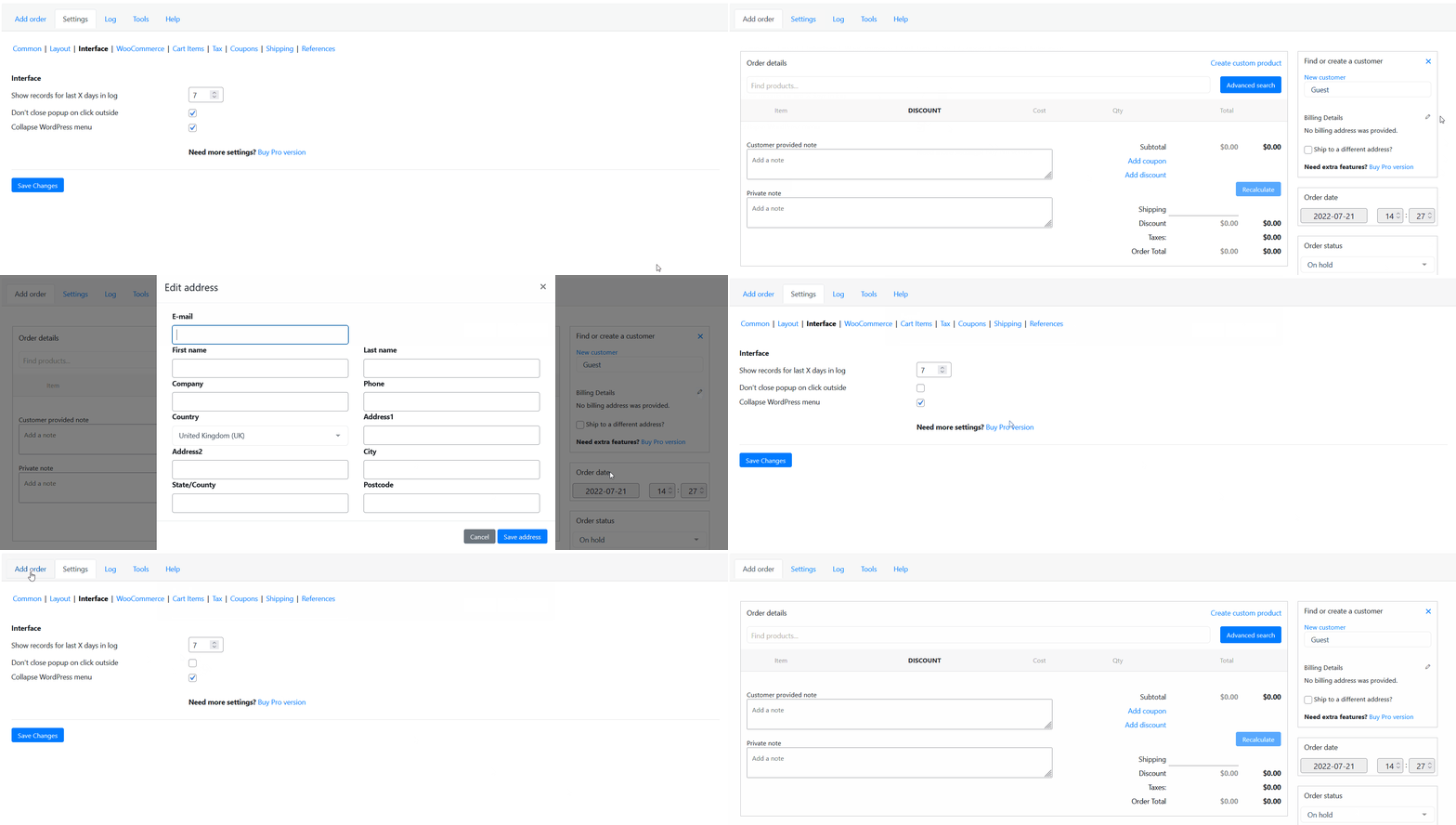
The Don’t close popup on click outside setting changes how pop‑up windows behave. By default, most pop‑up windows in the phone order interface close when you click outside of them. When you enable this option, those pop‑ups stay open even if you accidentally click elsewhere on the screen. This is particularly helpful for agents who are moving quickly or who need to refer to other parts of the interface while keeping a pop‑up visible. It prevents the frustration of having to reopen a window because of an unintended click.
Collapse WordPress Menu
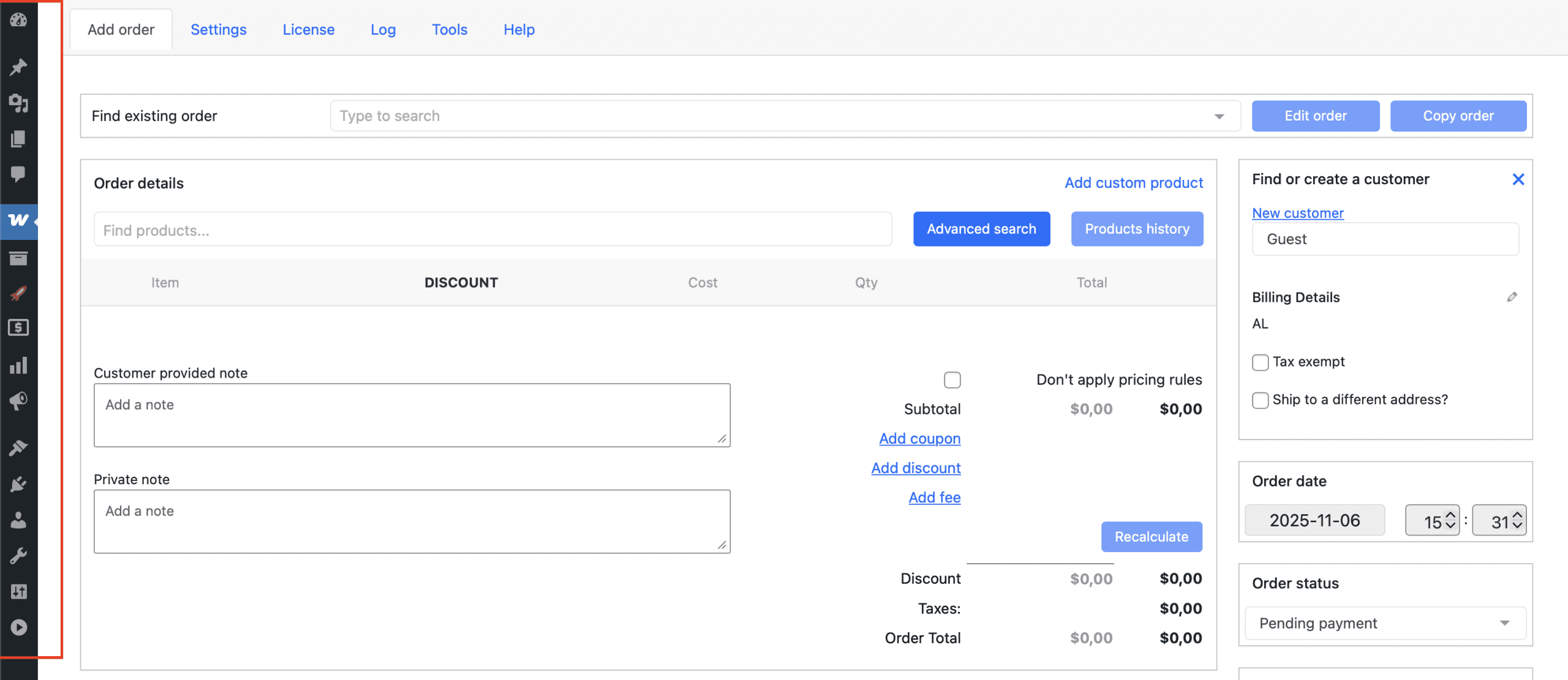
The Collapse WordPress menu option allows you to hide the default WordPress left‑hand admin menu. When enabled, the menu is collapsed, giving the phone order interface more screen real estate. This is especially beneficial for stores that use phone orders exclusively on a dedicated screen or for agents working on smaller displays where every pixel counts. The menu can be expanded again when needed by clicking the collapse/expand icon, so this setting simply starts the session with the menu collapsed by default.
Hide Tabs for Non‑Admins
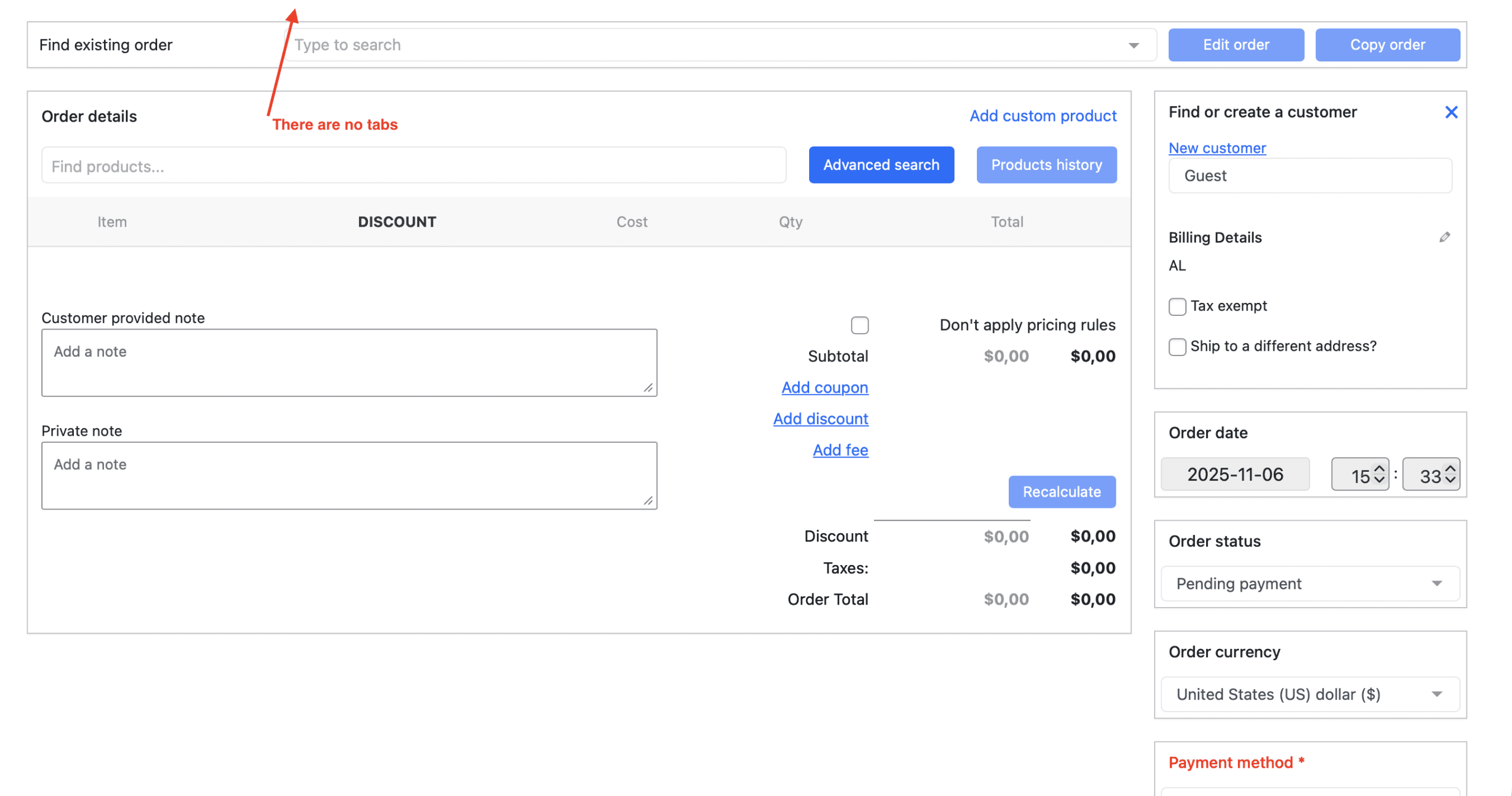
The Hide tabs for non‑admins setting is a security and access‑control feature. When enabled, all settings tabs (General, Layout, Coupons, Discount, Fee, etc.) become invisible to users who are not administrators. Shop managers, editors, and other roles will see only the main phone order creation screen, with no access to configuration options. This prevents accidental changes to critical settings by team members who only need to create orders, while still allowing administrators to manage the plugin’s behaviour.
Use Interface in English
The Use interface in English setting forces the phone order interface to be displayed in English, regardless of your WordPress site’s language settings. This is useful for international stores where the admin team prefers a consistent English interface even if the frontend of the store is translated into another language. Enabling this option ensures that all button labels, field names, and system messages appear in English, reducing confusion for multilingual teams.
Practical Tips for Configuring the Interface Tab
A few practical tips can help you configure the Interface tab effectively.
- Adjust the log retention period based on your support workflow. For most stores, keeping logs for the last 30 days strikes a good balance between available debugging data and database performance. If your store processes a very high volume of orders, consider reducing the log retention to 14 or 7 days.
- Enable the “Don’t close popup on click outside” feature if you have agents who frequently refer to other parts of the interface while a pop‑up is open. This small change can reduce call times and frustration.
- Collapse the WordPress menu if your phone order interface is used on a dedicated screen or on devices with limited screen width. Every extra pixel of space makes the product search and cart easier to use.
- Hide tabs for non‑admins as soon as you finish configuring the plugin. This prevents accidental changes by shop managers who may only need to create orders, not modify the plugin’s behaviour.
- Use the English interface if your admin team works in English but your WordPress site is set to another language for frontend customers. This ensures that all labels and messages are consistent and clearly understood by your phone staff.