Change the Quantity column text of the bulk table
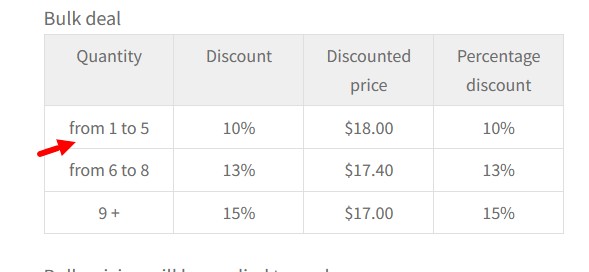
The Advanced Dynamic Pricing for WooCommerce plugin generates a bulk pricing table that displays discount tiers based on quantity. By default, the column headings in this table are set to generic labels such as “Quantity”. However, you may want to customise this text to better suit your store’s language, branding, or customer communication style. For example, you might change “Quantity” to “Units”, “Qty”, “Pieces”, or a translated term. This guide provides a simple PHP code snippet to change the quantity column heading in the bulk pricing table.
The Complete Code Snippet
Copy and paste the following PHP code into your site to modify the quantity column heading:
|
1 2 3 4 5 6 7 8 9 10 11 12 |
add_filter('adp_verbose_discount_product_table_cell_qty', function($value, $range, $product,$priceProcessor){ if ($range->getFrom() == $range->getTo()) { $value = $range->getFrom(); } else { if (is_infinite($range->getTo())) { $value = $range->getFrom() . ' +'; } else { $value = 'from ' . $range->getFrom() . ' to ' . $range->getTo(); } } return $value; },10,4); |
Replace 'Your Custom Text' with the text you want to display, for example 'Units', 'Qty', or 'Pieces'. The __() function ensures the text is translation-ready if you manage translations via WordPress’s internationalisation features.
What the code does:
| Line / Element | Explanation |
|---|---|
add_filter( 'adp_verbose_discount_product_table_cell_qty', ... ) | Attaches a custom function to the plugin’s filter that controls the quantity column heading in the bulk table. |
function( $value, $range, $product, $priceProcessor ) | The callback receives the default heading, the quantity range object, the product object, and the price processor utility. |
$value = __( 'Your Custom Text', 'your-text-domain' ); | Overwrites the default heading with your custom text. The __() function makes the text translatable. |
return $value; | Returns the modified heading, which the plugin then displays in the bulk table. |
Step‑by‑Step Implementation
Follow these steps to add the custom code to your WordPress site.
Step 1: Choose where to add the code
You have two safe options:
- Option A (Recommended): Use the free Code Snippets plugin. This is the safest method. Install it from Plugins → Add New by searching for “Code Snippets”. It allows you to add, activate, and deactivate code snippets without ever editing your theme files.
- Option B: Add to your child theme’s
functions.phpfile. If you are comfortable editing theme files, add the code to your active child theme’sfunctions.phpfile. Never add custom code directly to a parent theme, because it will be lost when the theme is updated.
Step 2: Insert the snippet
- If using Code Snippets:
- If editing
functions.php:
Step 3: Test the functionality
- Go to the front end of your site and view a product that has an active bulk pricing rule (e.g., a discount based on quantity).
- Locate the bulk pricing table displayed on the product page.
- Check the first column heading. It should now display your custom text instead of the default “Quantity”.
If the heading has changed, the implementation is successful.
Customisation Options
The code snippet can be easily adapted for various display requirements.
Change the Heading for Specific Products Only
If you want to change the quantity heading only for certain products, use the $product parameter. For example:
|
1 2 3 4 5 6 7 |
add_filter( 'adp_verbose_discount_product_table_cell_qty', function( $value, $range, $product, $priceProcessor ) { // Only change heading for products with ID 123 or 456 if ( in_array( $product->get_id(), array( 123, 456 ) ) ) { $value = __( 'Units', 'your-text-domain' ); } return $value; }, 10, 4 ); |
Change the Heading Based on Quantity Range
You might want to display different headings for different discount tiers. Use the $range parameter to access the minimum and maximum quantity of the tier:
|
1 2 3 4 5 6 7 8 9 10 |
add_filter( 'adp_verbose_discount_product_table_cell_qty', function( $value, $range, $product, $priceProcessor ) { $from = $range->getFrom(); $to = $range->getTo(); if ( $from >= 100 ) { $value = __( 'Bulk Quantity', 'your-text-domain' ); } else { $value = __( 'Quantity', 'your-text-domain' ); } return $value; }, 10, 4 ); |
Translate the Heading into Another Language
The code already uses the __() function, which marks the string as translatable. To manage translations:
- Use a translation plugin like Loco Translate or WPML.
- Scan the theme or plugin for translatable strings.
- Add a translation for your custom text.
If you do not need translation support, you can simply set $value = 'Your Custom Text'; without the __() wrapper.
Add an Icon or HTML to the Heading
You can include HTML tags in the heading text, for example:
|
1 |
$value = __( '📦 Units', 'your-text-domain' ); |
The HTML will be rendered as part of the table header.