Tax
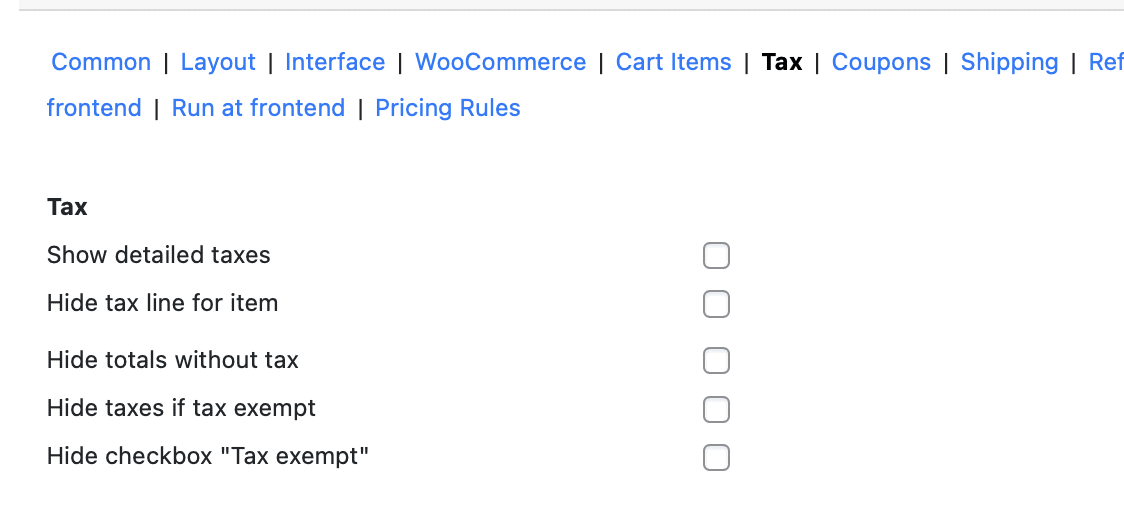
Accurate tax calculation is a critical part of any WooCommerce store, and the Phone Orders for WooCommerce plugin ensures that your phone agents can handle tax‑related tasks just as precisely as the frontend checkout. The Tax settings tab, available exclusively in the Pro version, gives you complete control over how taxes are displayed and managed during manual order creation. This guide explains every option in the Tax settings tab, how each setting works with WooCommerce’s native tax system, and how to configure them for the most efficient phone order workflow.
Note: The Tax settings tab and all features described in this guide are exclusive to the Pro version of Phone Orders for WooCommerce.
The Tax settings tab contains five distinct options. Each one is explained below, including what it does, why it matters, and when you should enable it.
Show Detailed Taxes
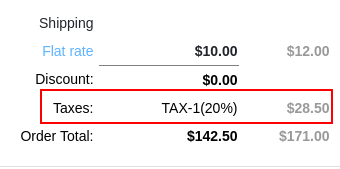
What it does: Displays a complete, itemised breakdown of taxes in the order totals section. Instead of showing a single “Tax” line with a total amount, this option shows each tax rate applied to the order, along with the corresponding tax amount.
Why it matters: In many jurisdictions, customers require a detailed tax breakdown for accounting or reimbursement purposes (e.g., VAT invoices). Providing this information directly on the order screen helps agents answer customer questions without switching to a separate invoice view.
How it appears: When enabled, the Totals section in the Order Details block changes from a single line.
When to enable it:
- Enable this checkbox if your store operates in a jurisdiction that requires detailed tax information on invoices or if your customers frequently ask for a tax breakdown.
- Disable it (leave unchecked) if you prefer a simpler, consolidated tax display to keep the interface clean.
Hide the Tax Line for the Item
What it does: Removes the individual tax line that appears next to each product in the cart table.
Why it matters: By default, WooCommerce can display tax information on a per‑product basis. For phone agents, this level of detail may be unnecessary and can clutter the cart view, making it harder to scan the order quickly.
When to enable it:
- Enable this checkbox if you want to hide per‑product tax information and show only the total tax at the order level. This creates a cleaner, more streamlined cart view.
- Disable it (leave unchecked) if agents need to see how much tax applies to each product individually.
Important note: Hiding the per‑product tax line does not remove the total tax calculation from the order. Taxes are still calculated and added to the final total.
Hide Totals Without Tax
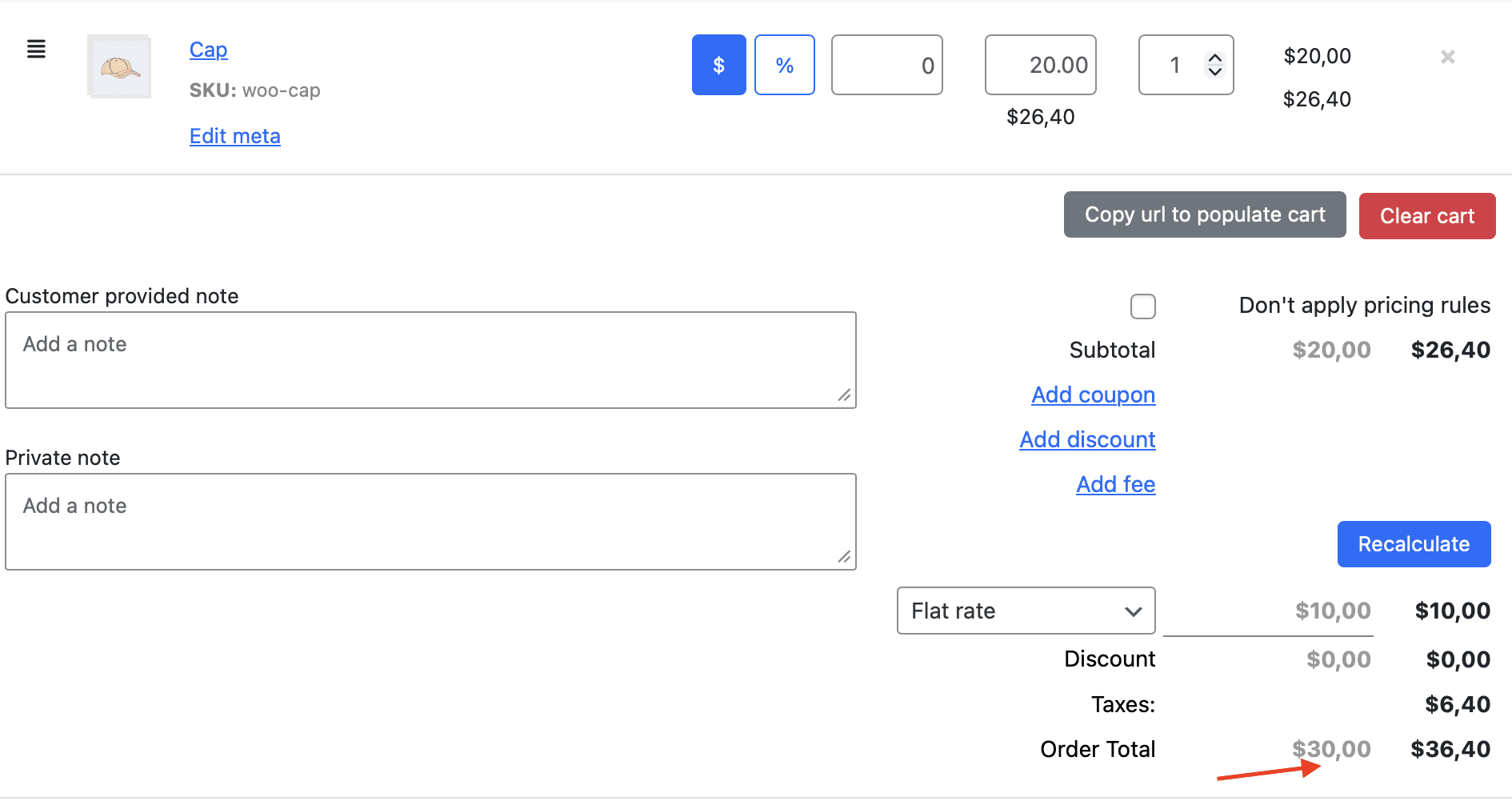
What it does: Removes the subtotal (the total before tax) from the Totals section, showing only the final total that includes taxes.
Why it matters: For some business workflows, agents only need to communicate the final amount the customer must pay. Showing the pre‑tax subtotal can be confusing or irrelevant, especially when the customer does not need a detailed breakdown. Hiding the pre‑tax total simplifies the information displayed to the agent.
When to enable it:
- Enable this checkbox if you want the order totals to display only the final tax‑inclusive amount. This is common in retail environments where customers are quoted a single all‑inclusive price.
- Disable it (leave unchecked) if agents need to see the pre‑tax subtotal for discount calculations, price negotiations, or reporting purposes.
Hide Taxes if Tax Exempt
What it does: When the agent ticks the Tax exempt checkbox for a customer (in the Find or create a customer block), this setting completely removes the entire tax line from the Totals section. The taxes are still calculated internally but are not displayed to the agent.
Why it matters: When an order is tax exempt, showing a tax line with a value of $0.00 is technically correct but can be confusing or distracting for the agent. Hiding the tax line entirely reinforces that no tax is being charged and creates a cleaner interface for exempt orders.
When to enable it:
- Enable this checkbox if you use the Tax exempt feature and want the order totals to be completely clean (no tax line at all) for exempt customers.
- Disable it (leave unchecked) if you prefer to see a tax line with a value of
$0.00for exempt orders.
How it works: This setting works in tandem with the Tax exempt checkbox in the customer block. If the checkbox is ticked and this setting is enabled, the tax line disappears entirely. If the checkbox is ticked but this setting is disabled, the tax line remains visible with a value of $0.00.
Hide Checkbox “Tax exempt”
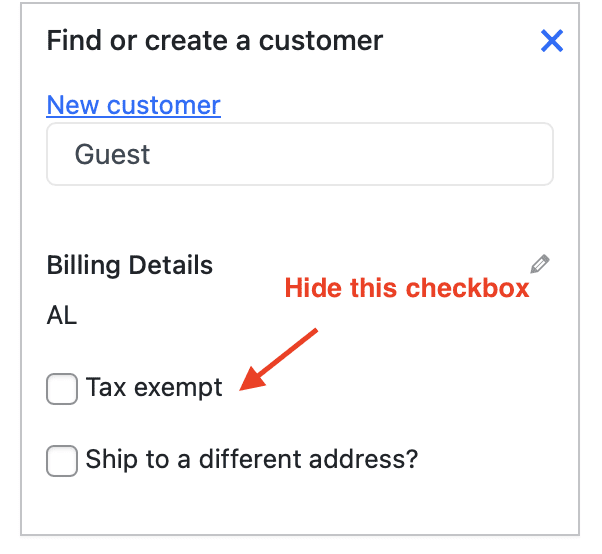
What it does: Removes the Tax exempt checkbox from the Find or create a customer block entirely.
Why it matters: Some stores do not offer tax‑exempt orders under any circumstances. In such cases, showing the checkbox only adds visual clutter and may confuse agents who wonder when they should use it. Hiding it keeps the interface clean and focused.
When to enable it:
- Enable this checkbox if your store never processes tax‑exempt orders (e.g., you never sell to wholesale customers, tax‑exempt organisations, or customers in zero‑tax jurisdictions).
- Disable it (leave unchecked) if you regularly use the Tax exempt feature and want the checkbox to remain visible.
Important note: Hiding the checkbox does not disable the underlying tax exemption functionality. If you later decide to offer tax‑exempt orders, you must re‑enable the checkbox in the settings.
Best Practices for Tax Configuration
- Verify your WooCommerce tax settings first. Before adjusting the Phone Orders tax settings, ensure that your base tax rates, tax classes, and calculation rules are correctly configured under WooCommerce → Settings → Tax. The phone order interface relies entirely on WooCommerce’s native tax engine.
- Enable “Show detailed taxes” for jurisdictions that require it. If your store operates in a region that mandates detailed tax information on invoices (e.g., VAT in the European Union), enable this option so agents can confirm the breakdown with customers.
- Hide the per‑product tax line for most retail workflows. For standard retail orders, the per‑product tax information is rarely needed and only adds clutter. Keep the cart clean by enabling Hide the tax line for the item.
- Hide the “Tax exempt” checkbox if you never use it. If your business model does not include tax‑exempt orders, hide the checkbox to simplify the customer block and prevent accidental ticks.
- Test tax exemption with a sample order. Create a test customer, tick the Tax exempt checkbox, and build a sample order. Verify that no taxes are applied and that the totals are correct. This ensures that your WooCommerce tax settings and the Phone Orders settings are working together correctly.
- Keep the Recalculate button in mind. After any change that affects the cart – such as editing the customer’s address, adding or removing products, or changing quantities – click the Recalculatebutton to refresh the tax calculations. Without this step, the displayed totals may be incorrect.
Summary of Tax Settings
| Setting | Purpose | Recommended State |
|---|---|---|
| Show detailed taxes | Displays an itemised breakdown of taxes by rate. | Enable if detailed tax breakdown is required for compliance or customer communication. |
| Hide the tax line for the item | Removes per‑product tax information from the cart table. | ✅ Enable for a cleaner, more scannable cart view. |
| Hide totals without tax | Removes the pre‑tax subtotal, showing only the tax‑inclusive total. | Enable if agents only need to communicate the final amount. |
| Hide taxes if tax exempt | Removes the entire tax line from the totals when the Tax exemptcheckbox is ticked. | ✅ Enable to keep the interface clean for exempt orders. |
| Hide checkbox “Tax exempt” | Removes the Tax exempt checkbox from the customer block. | Enable if your store never processes tax‑exempt orders. |